

Key takeaways
• Two paths on iOS 26 and earlier, one on iOS 27. Up to iOS 26, screen sharing goes through ReplayKit: RPScreenRecorder.startCapture for in-app capture (simple, foreground-only) and a Broadcast Upload Extension (BUE) for system-wide capture that survives backgrounding. On iOS 27 (released September 14, 2026), Apple’s ScreenCaptureKit captures the whole screen in-process, with no extension.
• The 50 MB wall is non-negotiable. A BUE runs in a separate process with a hard 50 MB memory cap; one byte over and the OS kills it. Downsample to 720p, use the H.264 hardware encoder, throttle to 15–30 fps, and never ship VP8.
• Extension ⇒ WebRTC is an IPC problem. The BUE cannot reach your main app’s RTCPeerConnection directly. Ship frames via App Group + Darwin notifications + CFMessagePort/IOSurface, or run a mini WebRTC client inside the extension that streams straight to the SFU.
• Ship two code paths in 2026. RPSystemBroadcastPickerView (iOS 12+) is still the trigger for a BUE on iOS 26 and earlier. Apple’s docs mark it and the rest of ReplayKit’s broadcast API deprecated in iOS 27 in favour of SCContentSharingPicker, so new builds use ScreenCaptureKit on iOS 27 and keep the BUE as the fallback.
• Fora Soft ships this in production. We have integrated BUE-based screen sharing on ProVideoMeeting, TransLinguist, and Nucleus. See § Mini case.
Updated October 2026: iOS 27 ScreenCaptureKit path that replaces the Broadcast Upload Extension, ReplayKit broadcast APIs deprecated in iOS 27, a full RPSystemBroadcastPickerView guide and 2026 SDK prices.
Why Fora Soft wrote this playbook
We have built iOS WebRTC clients since 2013 — video conferencing, telehealth, live translation, interactive classrooms, on-premise comms. Screen sharing is the feature that product managers keep pushing up the roadmap: every user wants it, every platform implements it differently, and on iOS it collides with the most restrictive extension sandbox in the industry.
The original version of this article covered the basics of RPScreenRecorder and WebRTC wiring. It did not cover what really breaks in production — the 50 MB memory ceiling in a Broadcast Upload Extension, the IPC dance between the extension and the main app, the H.264 vs VP8 trap, or the iOS UX changes that forced us to retire RPBroadcastActivityViewController. This rewrite captures every lesson we’ve paid for on real projects, with Swift code and the pitfall fixes. Screen share is one slice of the WebRTC app development our team does for video-calling, telehealth and interpretation products.
Need iOS screen sharing in your video product without the extension headaches?
Fora Soft has shipped Broadcast Upload Extensions for video-calling and telehealth products since 2019. Share your app requirements and we will return a scoped plan within a single 30-minute call.
Two paths to iOS screen sharing — which one fits your product
Short answer: on iOS 12–26 you implement screen sharing with ReplayKit, Apple’s screen recording and broadcast framework: RPScreenRecorder captures your own app, and a Broadcast Upload Extension started from RPSystemBroadcastPickerView captures the whole device. On iOS 27 and later, ScreenCaptureKit does both from inside your app.
Path A — In-app capture. RPScreenRecorder.shared().startCapture streams your own app’s screen. Capture stops the moment the app backgrounds. Perfect for a whiteboard or document viewer that you want the caller to see while you narrate, and it takes 1–2 developer days to build.
Path B — Broadcast Upload Extension. A separate extension target whose RPBroadcastSampleHandler receives system-wide frames. Triggered by RPSystemBroadcastPickerView, works across apps, home screen, Safari, system settings. Required for any “Share my entire screen” experience you have seen in Zoom, Teams, Google Meet, or Discord.
Reach for in-app capture when: the demo only covers your app’s own surface (whiteboard, shared doc, in-app slides) and a 1–2-day integration is more important than full-screen coverage.
Reach for a Broadcast Upload Extension when: users need to share anything outside your app — design mockups in Figma, code in Xcode, bank statements, health records. Budget 1–2 sprints for a production-grade implementation.
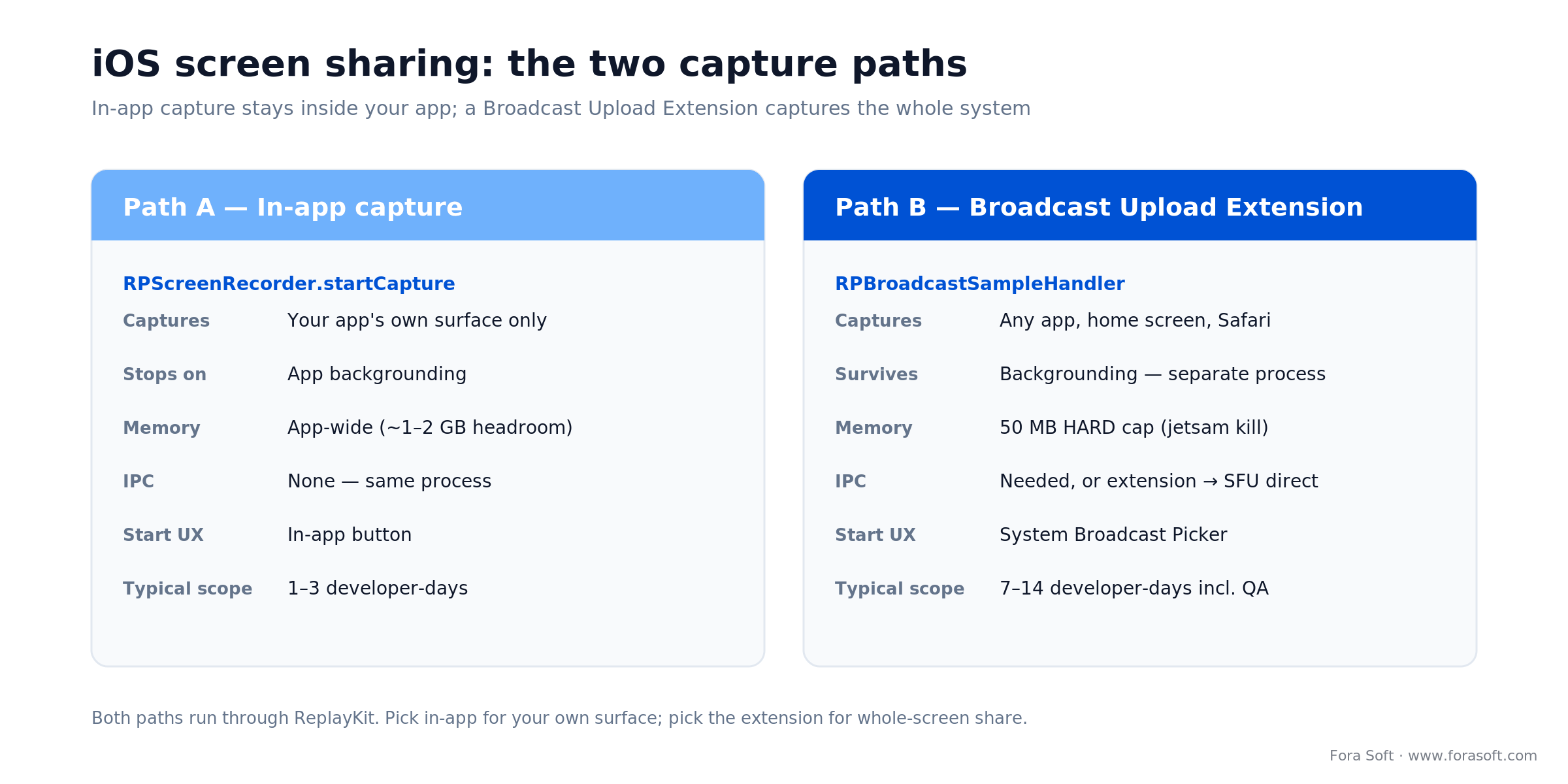
Figure 1. The two iOS capture paths side by side — in-app capture for your own surface, a Broadcast Upload Extension for the whole screen.
What changes in iOS 27: ScreenCaptureKit replaces the Broadcast Upload Extension
Short answer: on iOS 27, released on September 14, 2026, ScreenCaptureKit is available on iPhone and iPad for the first time, and Apple’s documentation says it “replaces ReplayKit for screen streaming and mirroring” and that a broadcast extension is no longer needed. Your app presents the system SCContentSharingPicker, gets frames from an SCStream in its own process, and keeps capturing in the background with the screen-capture background mode (Apple ScreenCaptureKit docs, checked October 2026).
What this removes for a video-call product: the second process, the App Group hand-off, the IPC channel and the 50 MB extension memory cap. The screen track lives next to your RTCPeerConnection, so Pattern 1 vs Pattern 2 stops being a decision. What it does not remove: users move to a new iOS over months, not days, so a production app still ships the Broadcast Upload Extension as the fallback for iOS 26 and earlier.
import ScreenCaptureKit

final class ScreenShare: NSObject, SCContentSharingPickerObserver, SCStreamOutput {
    private var stream: SCStream?

    func start() {
        let picker = SCContentSharingPicker.shared
        picker.add(self)
        picker.isActive = true
        picker.present()                      // system picker; presentForCurrentApplication() limits it to this app
    }

    func contentSharingPicker(_ picker: SCContentSharingPicker,
                              didUpdateWith filter: SCContentFilter, for stream: SCStream?) {
        if let running = self.stream {        // user changed the selection mid-share
            Task { try? await running.updateContentFilter(filter) }
            return
        }
        let config = SCStreamConfiguration()  // set width/height and minimumFrameInterval for your SFU
        let s = SCStream(filter: filter, configuration: config, delegate: nil)
        try? s.addStreamOutput(self, type: .screen, sampleHandlerQueue: .main)
        Task { try? await s.startCapture() }
        self.stream = s
    }

    func contentSharingPicker(_ picker: SCContentSharingPicker, didCancelFor stream: SCStream?) {
        picker.isActive = false               // user dismissed the picker: no track to publish
    }

    func contentSharingPickerStartDidFailWithError(_ error: Error) {
        // surface the error in the call UI; do not publish an empty track
    }

    func stream(_ stream: SCStream, didOutputSampleBuffer sb: CMSampleBuffer, of type: SCStreamOutputType) {
        // same hand-off as Path A: CMSampleBuffer -> RTCVideoFrame -> screen track
    }
}
| Dimension | Broadcast Upload Extension (iOS 12–26) | ScreenCaptureKit (iOS 27+) |
|---|---|---|
| Process | Separate extension process | Your app’s process |
| Memory ceiling | 50 MB per extension | App memory budget |
| System picker | RPSystemBroadcastPickerView |
SCContentSharingPicker |
| Background capture | Built in (extension keeps running) | UIBackgroundModes → screen-capture |
| IPC / App Group | Required, or extension publishes to the SFU itself | Not needed |
| Status in Apple docs | Deprecated in iOS 27, still works | Recommended path |
SDK support is still landing. As of October 2026, LiveKit’s Swift SDK has an open pull request (#1135) that adds a ScreenCaptureKit mode for iOS 27 and falls back to the broadcast extension on older iOS. Check your vendor’s release notes before you plan the migration.
In-app capture vs Broadcast Upload Extension — comparison
| Dimension | In-app RPScreenRecorder |
Broadcast Upload Extension |
|---|---|---|
| Captures other apps / system | No | Yes |
| Survives backgrounding | No | Yes |
| Memory ceiling | App-wide (~1–2 GB) | 50 MB hard cap |
| IPC needed to main app | No | Yes (App Group + CFMessagePort / socket / SFU direct) |
| Start UX | In-app button | System Broadcast Picker |
| Cold-start latency | Instant | ~1–2 s to launch extension process |
| Typical scope | 1–2 developer days | 7–14 developer days incl. QA |
Path A — in-app screen capture with ReplayKit
The API is small — see the ReplayKit reference. Start a capture, receive CMSampleBuffers, stop when you’re done. Hook each buffer into your WebRTC video source.
import ReplayKit

final class ScreenCaptureController {
    private let recorder = RPScreenRecorder.shared()

    func start(onSample: @escaping (CMSampleBuffer, RPSampleBufferType) -> Void) {
        guard recorder.isAvailable else { return }
        recorder.isMicrophoneEnabled = true
        recorder.startCapture { buffer, type, error in
            if let error { print("[capture]", error); return }
            onSample(buffer, type)
        } completionHandler: { error in
            if let error { print("[start]", error) }
        }
    }

    func stop() {
        recorder.stopCapture { error in
            if let error { print("[stop]", error) }
        }
    }
}
To forward the frames to a WebRTC track, convert each video CMSampleBuffer into an RTCVideoFrame and push it onto the RTCVideoCapturer delegate. The article on our WebRTC on iOS basics covers the peer-connection plumbing; this integration is the last mile.
func handleVideo(_ buffer: CMSampleBuffer) {
    guard let pixelBuffer = CMSampleBufferGetImageBuffer(buffer) else { return }
    let timestampNs = Int64(CMTimeGetSeconds(CMSampleBufferGetPresentationTimeStamp(buffer))
        * Double(NSEC_PER_SEC))
    let rtcBuffer = RTCCVPixelBuffer(pixelBuffer: pixelBuffer)
    let frame = RTCVideoFrame(buffer: rtcBuffer, rotation: ._0, timeStampNs: timestampNs)
    videoSource.capturer(screenVideoCapturer, didCapture: frame)
}
This path is clean for an in-app whiteboard, a PDF reader, a Figma-style in-app canvas. It is not enough for “share your whole phone” — for that we need Path B. On iOS 27, Apple marks RPScreenRecorder deprecated (“Use ScreenCaptureKit instead”); the same in-app capture there is SCContentSharingPicker.shared.presentForCurrentApplication() plus an SCStream.
Path B — Broadcast Upload Extension architecture
A BUE is built around RPBroadcastSampleHandler, a separate target with extension point com.apple.broadcast-services-upload. The OS launches it when the user selects your app in the Broadcast Picker. iOS allocates the extension a dedicated process with:
- Hard memory limit of 50 MB. Exceed it by a single byte and
jetsamkills the extension. - No UI surface. The extension renders nothing; it only receives frames and forwards them.
- No direct handle to the main app. The main app’s
RTCPeerConnectionlives in a different process and container. - System-managed lifecycle. The user stops the broadcast via Control Center; your extension must clean up fast.
Two architectures dominate real products:
Pattern 1 — Extension forwards frames to the main app over IPC. Main app owns the WebRTC peer connection; the extension is a dumb camera. Easiest if the main app is already foreground. Breaks down when the user is actually using another app — the main app is suspended and can’t send media.
Pattern 2 — Extension runs its own SFU client. The extension opens a direct WebSocket / QUIC / WHIP connection to your SFU (LiveKit, Janus, mediasoup, Agora) and publishes the screen track on its own. The main app keeps the signalling session and is notified when the track appears. This is how Zoom, LiveKit, and the larger video platforms ship it.
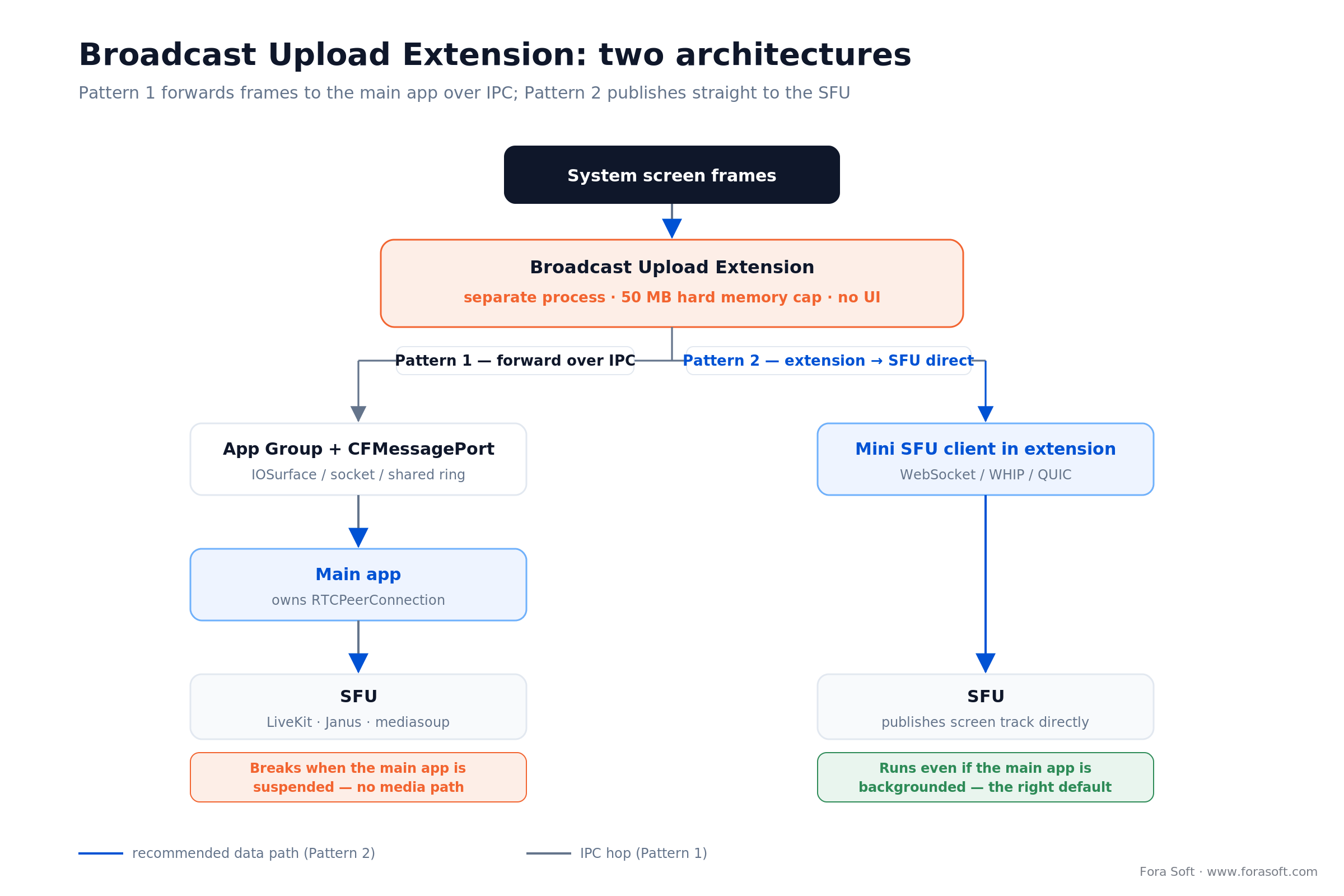
Figure 2. Pattern 1 hops through the main app over IPC; Pattern 2 runs a mini SFU client inside the extension and survives backgrounding.
Project setup — App Group, extension target, Info.plist
Three pieces have to be in place before a single line of extension code runs.
1. Add a Broadcast Upload Extension target (File → New → Target → Broadcast Upload Extension). Xcode generates a SampleHandler.swift with an RPBroadcastSampleHandler subclass.
2. Register an App Group for both targets: group.com.yourco.yourapp.screenshare. This is the shared container the app and extension exchange small payloads through.
3. Extension Info.plist keys:
<key>NSExtension</key>
<dict>
  <key>NSExtensionPointIdentifier</key>
  <string>com.apple.broadcast-services-upload</string>
  <key>NSExtensionPrincipalClass</key>
  <string>$(PRODUCT_MODULE_NAME).SampleHandler</string>
  <key>NSExtensionAttributes</key>
  <dict>
    <key>RPBroadcastProcessMode</key>
    <string>RPBroadcastProcessModeSampleBuffer</string>
  </dict>
</dict>
RPBroadcastProcessModeSampleBuffer is the value that tells ReplayKit to hand raw CMSampleBuffer video and audio to your RPBroadcastSampleHandler subclass (the other mode delivers MP4 clips through RPBroadcastMP4ClipHandler). For real-time screen sharing over WebRTC you always want the sample-buffer mode.
Main-app Info.plist must include NSMicrophoneUsageDescription and NSCameraUsageDescription (for the underlying call). Both targets need the App Group capability enabled in Signing & Capabilities.
The SampleHandler skeleton
import ReplayKit

final class SampleHandler: RPBroadcastSampleHandler {

    private let frameForwarder = FrameForwarder()

    override func broadcastStarted(withSetupInfo setupInfo: [String : NSObject]?) {
        frameForwarder.start()
    }

    override func processSampleBuffer(_ sampleBuffer: CMSampleBuffer,
                                      with sampleBufferType: RPSampleBufferType) {
        switch sampleBufferType {
        case .video:     frameForwarder.enqueueVideo(sampleBuffer)
        case .audioApp:  frameForwarder.enqueueAppAudio(sampleBuffer)
        case .audioMic:  frameForwarder.enqueueMicAudio(sampleBuffer)
        @unknown default: break
        }
    }

    override func broadcastPaused()    { frameForwarder.pause() }
    override func broadcastResumed()   { frameForwarder.resume() }
    override func broadcastFinished()  { frameForwarder.stop() }
}
Keep FrameForwarder lean: no UI, no large caches, no unneeded Foundation frameworks. Every MB counts.
How to stay under 50 MB — the memory budget
1. Downsample aggressively. On an iPad Pro, a raw 2732×2048 BGRA frame is ~22 MB on its own — one frame eats almost half your budget. Target 1280×720 NV12 (~1.4 MB per frame). Use VTPixelTransferSession or vImageScale_* for hardware-assisted resizes.
2. H.264 hardware encoder only. Ship VTCompressionSession with kCMVideoCodecType_H264 and kVTProfileLevel_H264_Baseline_AutoLevel. VP8 is software-only on iOS; it will blow the memory cap within seconds. HEVC/H.265 works but is rarely worth the effort for real-time. If codecs are new territory, our digital-video foundations guide explains how frames become an H.264 stream.
3. Throttle the frame rate. iOS ReplayKit can deliver 60 fps on newer devices. Drop to 20–30 fps for general content, 15 fps for slides. Sacrificing smoothness of a one-off mouse cursor keeps your extension alive.
4. Release buffers promptly. Hold onto a CMSampleBuffer for more than a frame interval and the system piles up in-flight frames. ReplayKit owns those buffers: don’t retain them past the encode call, and let ARC release them.
5. Avoid autoreleased allocations. Wrap tight loops in autoreleasepool { } so temporaries die immediately. A few stray NSData copies per frame are enough to tip the extension over the limit.
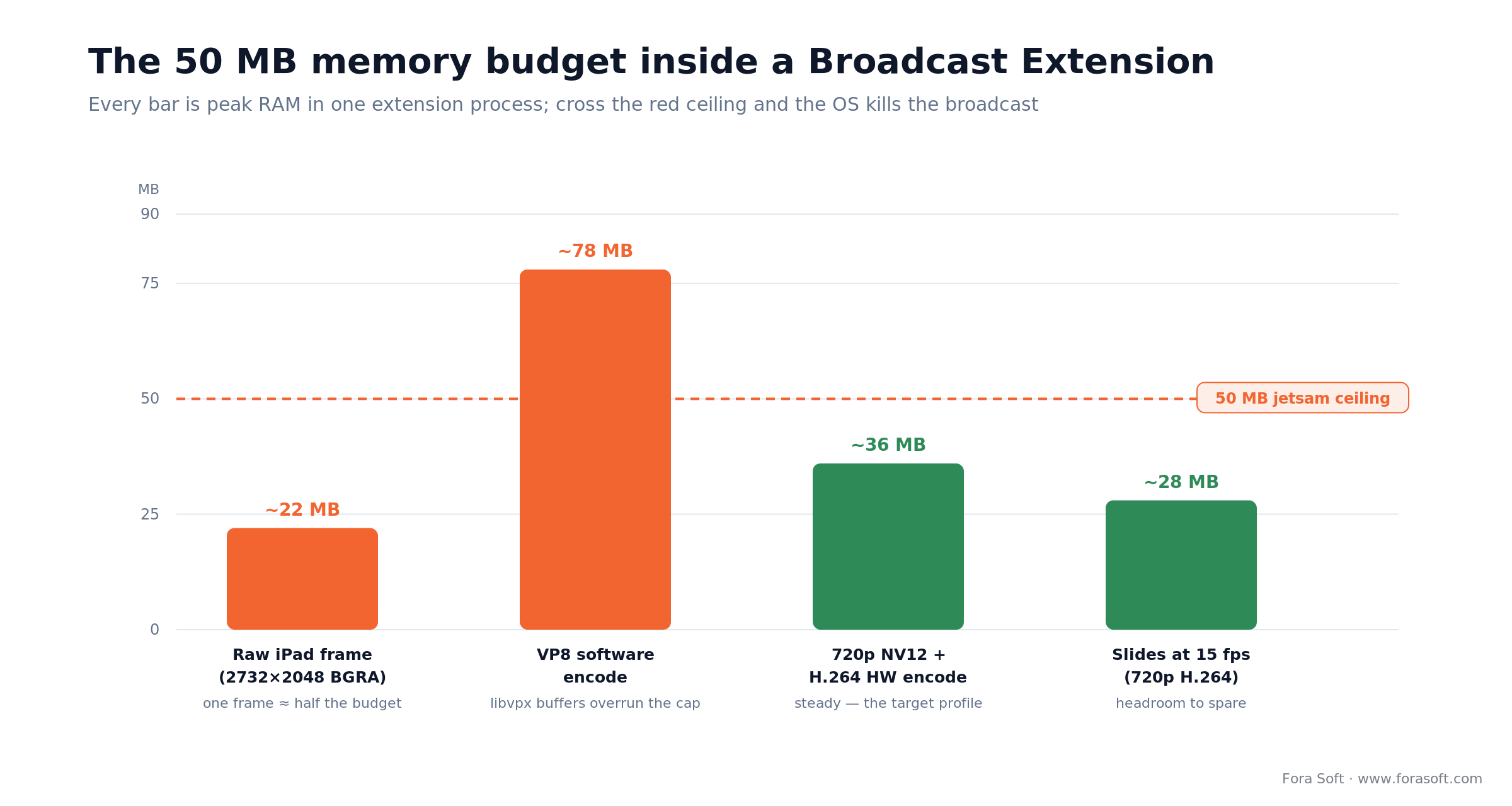
Figure 3. Peak RAM per approach against the 50 MB jetsam ceiling. Raw frames and VP8 overrun it; 720p NV12 on the H.264 hardware encoder does not.
Hitting 50 MB kills on your Broadcast Extension?
We have taken iOS broadcast extensions from jetsam kills at the 50 MB cap to a steady 35–36 MB. Share your Instruments trace and we will return a reproducible fix.
Crossing the process boundary — IPC options
If you take Pattern 1 (extension forwards frames to the main app), you need a lossless, low-latency channel across two separate iOS processes. The four options in decreasing order of performance:
1. Shared-memory ring buffer via IOSurface. Write encoded H.264 NALUs or downsampled NV12 planes into a memory-mapped file in the App Group container, or directly to an IOSurface. Notify the main app via a Darwin notification. Lowest latency, zero-copy on Apple Silicon.
2. CFMessagePort. Register a named port in the main app, send CFData messages from the extension. Works across processes with moderate throughput. Fine for control messages and up to ~30 fps of 720p frames on newer devices.
3. Unix-domain socket in the App Group. socket(AF_UNIX, SOCK_STREAM, 0) with a socket file inside the shared container. Fast, but the code is low-level and easy to get wrong.
4. Files + polling. Write frames as JPEG/NV12 files into the App Group, main app polls. Simplest, slowest — acceptable only for 5–10 fps slide-style screen shares.
Our recommendation for a video-call product: skip IPC entirely. Adopt Pattern 2 and let the extension speak to the SFU directly.
Reach for Pattern 2 (extension → SFU) when: your stack already has a media server and users share outside your app — skip IPC entirely and let the extension publish its own track.
Pattern 2 in practice — extension publishes straight to the SFU
The extension needs two things from the main app: an SFU URL and a signed access token. Pass them via the App Group UserDefaults when the user taps the system picker. Inside the extension, open a fresh WebSocket/SFU session, add the screen track, and publish. When the main app sees the new track subscribed, it renders it in the call UI just like any other remote track.
// Main app — right before showing the broadcast picker
let defaults = UserDefaults(suiteName: "group.com.yourco.yourapp.screenshare")!
defaults.set(sfuURL, forKey: "sfu.url")
defaults.set(publishToken, forKey: "sfu.token")
defaults.set(roomId, forKey: "sfu.room")
defaults.set(localIdentity, forKey: "sfu.identity")
// Extension broadcastStarted
let defaults = UserDefaults(suiteName: "group.com.yourco.yourapp.screenshare")!
let client = SFUClient(
    url: defaults.string(forKey: "sfu.url")!,
    token: defaults.string(forKey: "sfu.token")!,
    identity: (defaults.string(forKey: "sfu.identity") ?? "iOS") + "-screen"
)
client.connect(room: defaults.string(forKey: "sfu.room")!)
capturer.delegate = client.screenTrack
LiveKit, Twilio Video, 100ms, Agora, and Daily all ship helpers that wrap this pattern (LKSampleHandler, Twilio’s ReplayKit sample with its ReplayKitVideoSource, etc.). If you are rolling your own SFU, budget two extra sprints to build the mini-client inside the extension with tight memory discipline.
What is RPSystemBroadcastPickerView and how do you use it?
Short answer: RPSystemBroadcastPickerView is a ReplayKit UIView (iOS 12+) that shows the system broadcast button; when the user taps it, iOS opens the Screen Broadcast sheet and starts your Broadcast Upload Extension. You set two properties: preferredExtension (the extension’s bundle ID, so only your app is listed) and showsMicrophoneButton. Apple marks the class deprecated in iOS 27 with the note “Use ScreenCaptureKit SCContentSharingPicker instead”, but it still works and remains the trigger for iOS 26 and earlier.
On iOS 12–26 the recommended way to start a Broadcast Upload Extension from your app is a user tap on a RPSystemBroadcastPickerView. Instantiate it, pre-select your extension bundle, and style the button however you like — the actual system picker view sits inside the view and intercepts taps.
lazy var broadcastPicker: RPSystemBroadcastPickerView = {
    let picker = RPSystemBroadcastPickerView(frame: CGRect(x: 0, y: 0, width: 50, height: 50))
    picker.preferredExtension = "com.yourco.yourapp.ScreenShareExtension"
    picker.showsMicrophoneButton = false
    return picker
}()
Two UX quirks to remember. The system shows a short countdown before broadcasting starts; don’t pre-open the WebRTC session until broadcastStarted fires. And skip RPBroadcastActivityViewController: it lists every installed broadcast service, must be presented as a popover on iPad, and Apple marks it “No longer supported” as of iOS 27. Use RPSystemBroadcastPickerView on iOS 26 and earlier and SCContentSharingPicker on iOS 27.
In SwiftUI, wrap it in a UIViewRepresentable and put your own label on top; the system button inside the view still receives the tap:
struct BroadcastPickerButton: UIViewRepresentable {
    let extensionID = "com.yourco.yourapp.ScreenShareExtension"
    func makeUIView(context: Context) -> RPSystemBroadcastPickerView {
        let picker = RPSystemBroadcastPickerView(frame: .init(x: 0, y: 0, width: 44, height: 44))
        picker.preferredExtension = extensionID
        picker.showsMicrophoneButton = false
        return picker
    }
    func updateUIView(_ uiView: RPSystemBroadcastPickerView, context: Context) {}
}
Three problems we see most with the picker. The sheet lists every broadcast app, not yours: preferredExtension does not match the extension’s bundle ID exactly, or the extension is not embedded in the build. The button does nothing on a Mac: Apple documents that the broadcast button has no effect in Mac Catalyst apps. The broadcast ends right after the countdown: the extension crashed on start, usually from the 50 MB memory cap or a missing App Group.
Orientation changes mid-broadcast — handling rotations cleanly
Users rotate their iPads constantly. ReplayKit attaches orientation metadata to each frame via CMGetAttachment(buffer, RPVideoSampleOrientationKey, nil); the value is a CGImagePropertyOrientation. Propagate that into RTCVideoFrame.rotation (._0, ._90, ._180, ._270) rather than rotating pixels yourself. The remote renderer handles the draw.
Rotating pixels inside the extension doubles your memory pressure and is the most common cause of the jetsam kills we find in BUE audits. Let the peer-side renderer do the transform.
Mini case — Broadcast Extension for a video-interpretation platform
On TransLinguist, interpreters join live calls from iPad and occasionally need to share a document or contract screen. The first iteration used Pattern 1 (extension → main app IPC over CFMessagePort). On iPad Pro the extension crashed within 8 seconds of starting — classic 50 MB jetsam.
Our three-week fix: moved to Pattern 2, embedded a lean LiveKit client inside the extension, downsampled to 1280×720 NV12 with VTPixelTransferSession, capped at 24 fps, and let H.264 hardware encoder ship frames directly to our SFU. Memory settled at a steady 36 MB peak; the broadcast ran for 90-minute interpretation sessions without a kill. Agent Engineering-accelerated scope: roughly 110 hours including QA across iPhone 12/14/15 and iPad Pro M2. Want a similar audit of your BUE? Book a 30-min review.
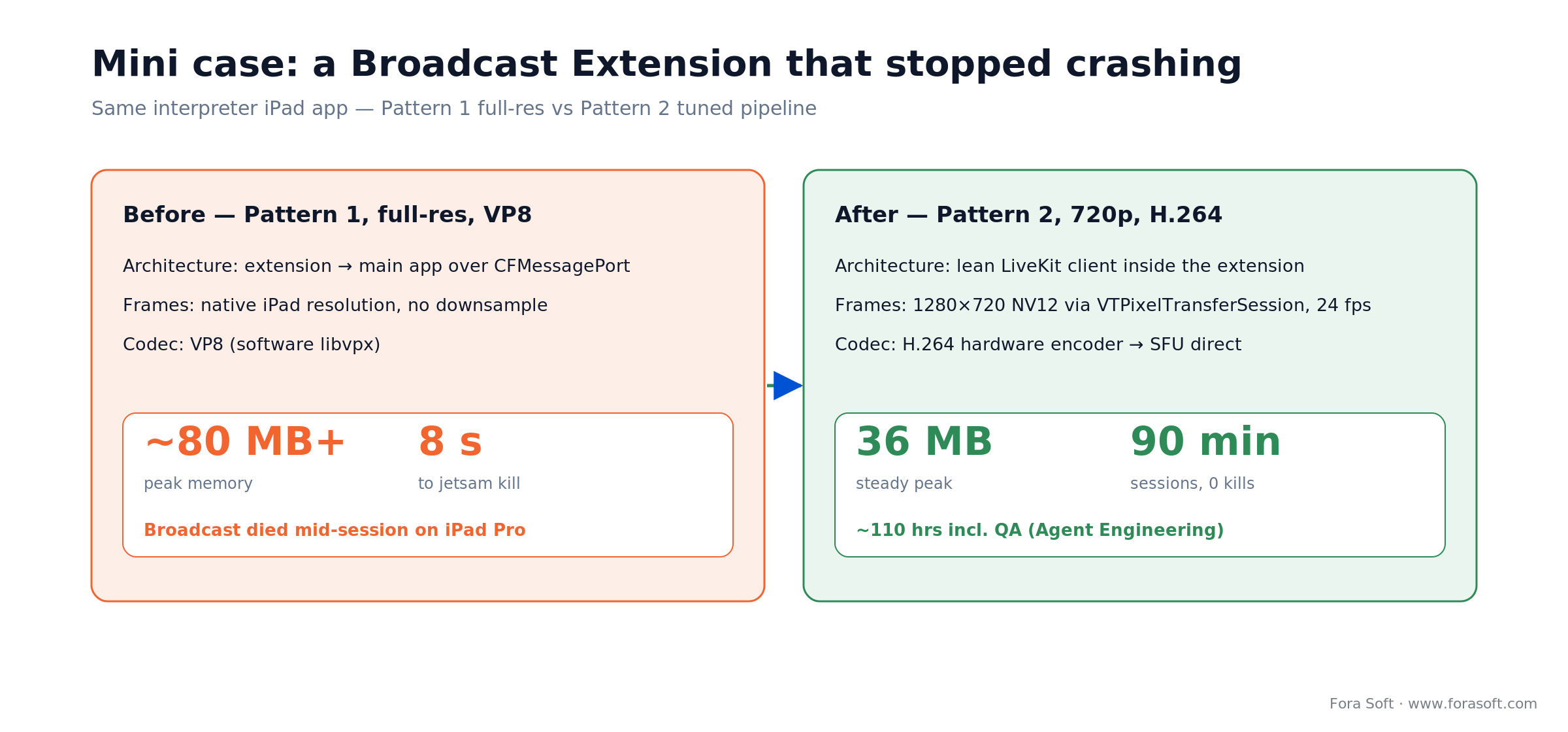
Figure 4. The TransLinguist iPad broadcast, before and after the Pattern 2 rewrite: from an 8-second jetsam kill to steady 36 MB.
Audio capture — app audio vs microphone
ReplayKit surfaces audio in two streams: RPSampleBufferType.audioApp (the sound the device is playing, when the user allowed it) and RPSampleBufferType.audioMic (the microphone, always available when the user enables it in the picker).
Two patterns work:
- Mute the main app mic during broadcast and forward
audioMicfrom the extension instead. Simplest, but the extension must carry the primary call audio path, too. - Keep the main-app mic alive for the call and forward only
audioApp(e.g., to share a YouTube video clip). Mix at the SFU or on the peer side.
Audio Units are forbidden inside a BUE; stick with CMSampleBuffer processing and pipe the PCM payload into your SFU client directly.
Third-party SDKs for iOS broadcast screen share
If you are not married to a custom SFU, these SDKs offer production-grade Broadcast Extension helpers that save 1–2 sprints of work. Prices below are list prices checked in October 2026; all five still ship the ReplayKit path, and ScreenCaptureKit support for iOS 27 is arriving SDK by SDK. If you settle on LiveKit and want the extension, the SFU and the iOS 27 migration handled together, our LiveKit development team builds and runs that stack.
Reach for a managed SDK when: you would rather not run a WebRTC cluster and can absorb per-minute pricing — LiveKit Cloud, Agora, or Daily ship a ReplayKit helper that saves 1–2 sprints.
| SDK | Approach | Pricing shape | Best for |
|---|---|---|---|
| LiveKit (open source SFU) | LKSampleHandler, direct SFU publish |
Self-host free; Cloud Build plan free (5,000 min/mo), Ship from $50/mo (2026) | Teams comfortable running a WebRTC cluster |
| Agora | AgoraReplayKitExtension ReplayKit plugin |
$3.99 per 1,000 HD video min, 10,000 free min/mo (2026) | Consumer-scale live video |
| 100ms | Sample BUE in their iOS SDK repo | $0.004 per participant-min after 10,000 free (2026) | Webinars and large rooms |
| Twilio Video | Documented ReplayKit example | $0.004 per participant-min, Group Rooms (2026) | Teams already on Twilio (the 2024 shutdown plan was reversed) |
| Daily.co | Swift ReplayKit helper | $0.004 per participant-min after 10,000 free (2026) | Embed-first products |
A decision framework — pick the right approach in five questions
1. Does the user need to share outside your app? No → in-app RPScreenRecorder. Yes → Broadcast Upload Extension.
2. Is there an SFU in the stack already? Yes → let the extension publish directly (Pattern 2). No → consider moving to LiveKit / Agora / mediasoup before attempting BUE.
3. What frame rate and resolution does your content need? Slide decks → 10–15 fps; text stays readable at 720p, so go to 1080p only after profiling on iPad Pro. Live apps → 24–30 fps, 720p. Anything higher — budget the extra memory headroom and test on iPad Pro.
4. What iOS versions do you target? iOS 27 only → ScreenCaptureKit with SCContentSharingPicker, no extension. iOS 26 or earlier in the support matrix (that is most apps in 2026) → ScreenCaptureKit on iOS 27 plus a Broadcast Upload Extension triggered by RPSystemBroadcastPickerView for older versions.
5. Do you need audio? Yes → wire audioApp and audioMic explicitly. No → drop those cases and save memory.
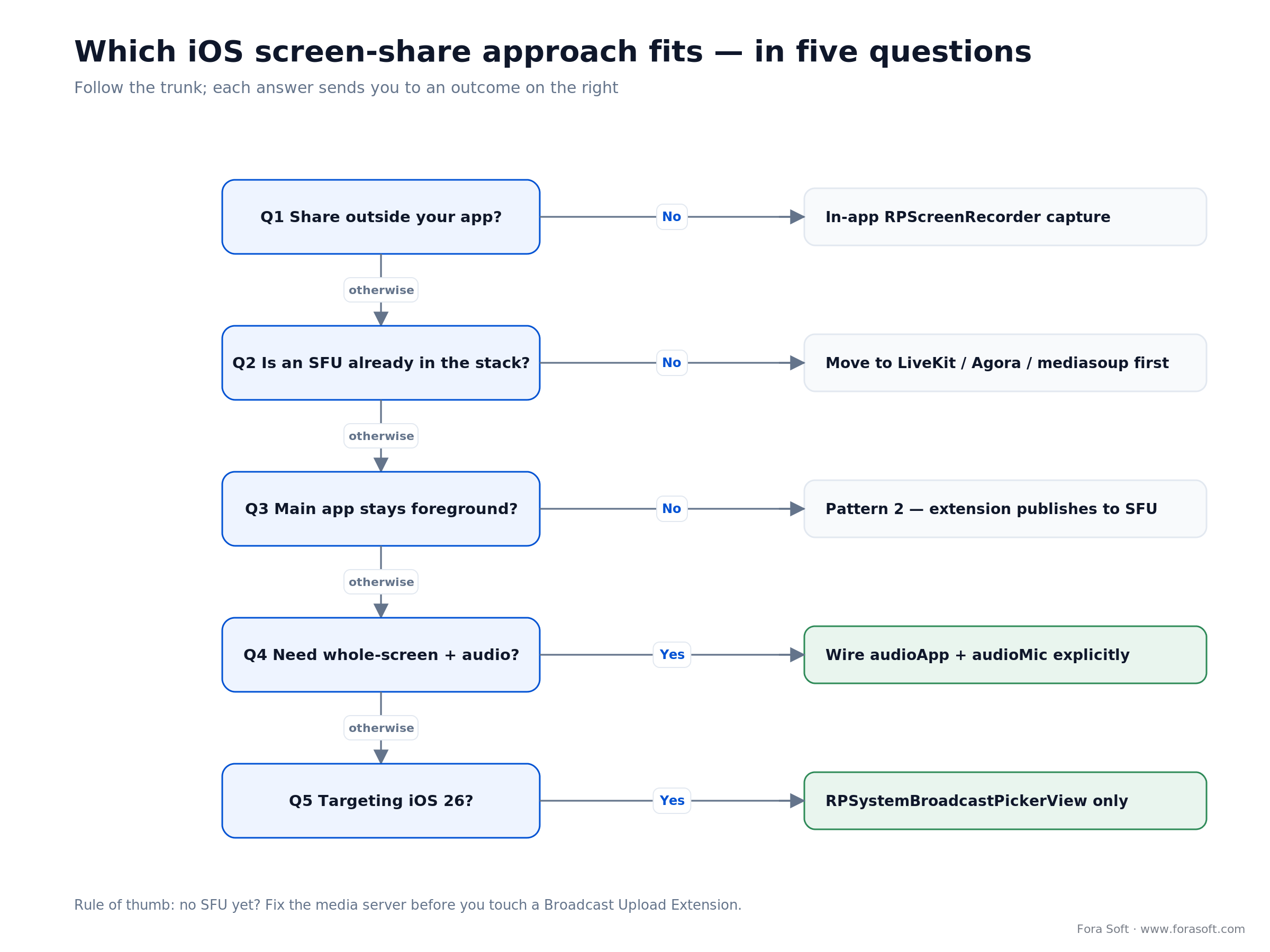
Figure 5. Walk the five questions top to bottom; each answer routes you to the approach that fits.
Five pitfalls we keep finding in audits
1. Forgetting the 50 MB ceiling. Teams ship VP8 or full-resolution frames and wonder why iPad Pro crashes. Profile under Xcode Instruments → Allocations on the extension target and keep peak RSS < 45 MB.
2. Rotating pixels in the extension. Never. Propagate orientation metadata and let the remote renderer transform.
3. Polling files for IPC. Works for 5 fps demo videos and falls apart on real screens. Use shared memory or let the extension talk to the SFU directly.
4. Pre-warming the WebRTC session before broadcastStarted. Users cancel the picker countdown; your half-open connection hangs. Defer everything until broadcastStarted is called.
5. Ignoring broadcastFinished. Always tear down the SFU client, release pixel buffers, and flush the encoder within ~500 ms. Extensions that don’t exit cleanly get flagged by iOS and future broadcasts may fail to start.
KPIs — what to measure after shipping
Quality KPIs. Median broadcast start latency from picker-tap to first remote frame (target < 2.5 s), peak extension memory (target < 45 MB on iPad Pro), and p99 frame-drop ratio (target < 3%).
Business KPIs. Screen-share adoption rate per call (baseline vs launch), session length delta on calls with screen share, and paid-plan conversion lift on products where screen share is gated behind a tier.
Reliability KPIs. Jetsam kills per 1,000 broadcasts (target 0), extension cold-start error rate (target < 0.5%), and successful teardown ratio (target > 99%).
When not to ship a Broadcast Upload Extension
1. Users only ever share documents or images you control. Render them in your app and use in-app capture. No extension, no memory dance.
2. You don’t yet have an SFU. Rolling a BUE on top of a peer-to-peer WebRTC stack is painful and rarely worth it. Move to a proper media server first, then add screen share; this is the order our video conferencing app development projects follow when a client asks for screen sharing on a P2P product.
3. Your product is primarily web-first. A responsive web view with getDisplayMedia on desktop and in-app iOS capture covers 90% of real usage without a separate extension.
Want an iOS screen-share that just works on iPhone and iPad?
We have shipped broadcast extensions for telemedicine, live translation, and secure comms apps. Send us your target iOS versions and media stack and we will scope a fixed delivery.
FAQ
Why do my Broadcast Extensions crash on iPad but not iPhone?
iPads have far more pixels (up to 2752×2064 at 2× retina on the 13-inch iPad Pro), so raw frames from ReplayKit are much heavier than on iPhone. With the same pipeline you can be comfortably under 50 MB on iPhone and blow the limit on an iPad Pro. The fix is downsampling to 1280×720 NV12 inside the extension (VTPixelTransferSession or vImage), using H.264 hardware encoder, and wrapping tight loops in autoreleasepool.
Can I pass CMSampleBuffer directly from the extension to the main app’s RTCPeerConnection?
No. The extension runs in a separate iOS process and cannot share object references with the main app. Either ship encoded frames across the boundary (shared-memory ring buffer, CFMessagePort, or an App Group socket), or run a standalone SFU client inside the extension and publish the screen track directly.
What is the fastest way to start a Broadcast Upload Extension from my UI?
Present an RPSystemBroadcastPickerView with preferredExtension set to your extension’s bundle ID. Programmatic trigger via UIControl.sendActions(for:.touchUpInside) on the hidden internal button is a common trick, but treat it as unsupported — Apple may change the internal layout at any iOS update. Avoid RPBroadcastActivityViewController: Apple marks it “No longer supported” as of iOS 27. On iOS 27, present SCContentSharingPicker instead.
Why does VP8 fail inside a Broadcast Upload Extension?
iOS has no hardware VP8 encoder; the WebRTC stack falls back to a software libvpx path that allocates large working buffers. Inside the 50 MB extension limit that path blows up within seconds. Use H.264 via VTCompressionSession, which runs on the hardware encoder and keeps allocations tight.
How do I capture system audio (app audio) during a broadcast?
You get RPSampleBufferType.audioApp frames in the extension when the user has granted permission to share app audio via the system picker. Forward these CMSampleBuffers to your SFU alongside video. Audio Units are forbidden inside the extension, so stick with raw sample-buffer processing.
How long does it take to ship a production-grade iOS screen share?
In-app capture on top of an existing WebRTC client takes 1–2 developer days. A Broadcast Upload Extension with Pattern 2 (extension → SFU direct) typically takes 7–14 developer days (1–2 sprints), including memory tuning, picker handling, and QA across iPhone and iPad Pro. On greenfield builds with Agent Engineering we usually land at the low end of that range; the TransLinguist rewrite in the mini case above took about three weeks because it replaced a failing Pattern 1 implementation.
Does the extension work if my main app is killed or suspended?
Yes. The Broadcast Upload Extension is an independent process — it keeps running even if the main app is backgrounded or suspended by the OS. This is precisely why Pattern 2 (extension publishing directly to the SFU) is the right architecture for a real screen-share feature; Pattern 1 breaks the instant the main app goes away.
How do I stop the broadcast from within my app?
There is no supported direct API from the main app to stop a system broadcast. The recommended pattern is to post a Darwin notification from the main app; the extension subscribes, cleans up, and calls finishBroadcastWithError on itself. Users can also tap the red status bar or stop via Control Center, which fires broadcastFinished.
What is RPSystemBroadcastPickerView?
RPSystemBroadcastPickerView is a ReplayKit view (iOS 12+) that displays the system broadcast button. Tapping it opens the iOS Screen Broadcast sheet; with preferredExtension set to your extension’s bundle ID, the sheet starts your Broadcast Upload Extension. Apple deprecates it in iOS 27 in favour of SCContentSharingPicker.
Is ReplayKit deprecated in iOS 27?
Its screen-capture and broadcast classes are. Apple’s documentation lists RPScreenRecorder, RPBroadcastSampleHandler, RPSystemBroadcastPickerView and RPBroadcastActivityViewController as deprecated in iOS 27: RPScreenRecorder and RPSystemBroadcastPickerView point to ScreenCaptureKit, and the other two are marked “No longer supported”. Deprecated APIs still run, so existing Broadcast Upload Extensions keep working on iOS 27.
Do I still need a Broadcast Upload Extension on iOS 27?
Not for iOS 27 devices: ScreenCaptureKit captures the full screen from your app process, with the screen-capture background mode keeping it alive. You still need the extension for every user who has not updated to iOS 27 yet.
What does RPBroadcastProcessModeSampleBuffer mean?
It is the value of the RPBroadcastProcessMode key under NSExtension → NSExtensionAttributes in the extension’s Info.plist. It makes ReplayKit deliver raw video and audio CMSampleBuffers to your RPBroadcastSampleHandler, which is what real-time screen sharing over WebRTC needs.
Why does the broadcast picker show other apps instead of mine?
The preferredExtension string does not exactly match the bundle ID of the Broadcast Upload Extension, or the extension is missing from the installed build. Fix the bundle ID, make sure the extension is embedded in the app, and reinstall.
What to read next
iOS WEBRTC
WebRTC in iOS Fundamentals
Peer connections, signalling, and the stack your screen share plugs into.
MEDIA ARCHITECTURE
P2P vs MCU vs SFU — Which One Fits?
The media-server choice that dictates your BUE architecture.
ANDROID
Implement Screen Sharing on Android
MediaProjection pattern to ship the same feature cross-platform.
HIRING
How to Hire LiveKit Developers
Building the team that can own extension-based screen share end-to-end.
Ready to ship iOS screen sharing that survives backgrounding and the iPad Pro?
iOS screen sharing in 2026 comes down to three decisions: ScreenCaptureKit on iOS 27, in-app or extension on older iOS, and if extension, direct-to-SFU or IPC. On the extension path, get the memory budget right, use H.264 on hardware, propagate orientation metadata instead of rotating pixels, and trigger it through RPSystemBroadcastPickerView. With those choices locked in, the rest of the build is disciplined Swift work.
If you would rather hand the Broadcast Upload Extension to a team that has repeatedly shipped it in video-call, telehealth, and on-premise comms products, Fora Soft has the playbook and the code templates ready — screen share is a small, well-scoped slice of our video chat app development work.
The book · Volume 3 of 7
Video Streaming: A Complete Guide to Video Delivery: From ABR and CDNs to Players, WebRTC, DRM, and the Economics of Streaming
Once the Broadcast Upload Extension hands frames to your SFU, the hard questions move to the receiving side: how the share holds up on weak networks and how viewers see it. Volume 3 covers WebRTC and real-time delivery, adaptive bitrate ladders, player recovery after stalls and QoE monitoring, so the screen share your iOS users start stays readable for everyone watching. Written by Nikolay Sapunov, CEO at Fora Soft.
Read it on Amazon →Kindle & paperback · Fora Soft Video Engineering Handbook
Book a 30-minute architecture review of your iOS screen-share plan?
We will critique your extension design, memory budget, and IPC choice, then tell you whether to ship ScreenCaptureKit, a Broadcast Upload Extension, or both.
.png)
