


Key takeaways
• There are two PiP paths on iOS — pick one up front. VOD/streaming apps use AVPlayerLayer; real-time video calls (WebRTC, FaceTime-style) use AVSampleBufferDisplayLayer. They have different APIs, entitlements, and App Review risk.
• iOS 18 removed the biggest friction point. Video call apps no longer need the com.apple.developer.avfoundation.multitasking-camera-access entitlement — declaring voip in UIBackgroundModes and setting isMultitaskingCameraAccessEnabled is enough on iOS 18+.
• Most black-screen and frozen-PiP bugs are audio-session bugs. Misconfigured AVAudioSession category/mode is the single biggest source of PiP failures we see in code reviews.
• SwiftUI has no native PiP. Production apps wrap AVPlayerViewController via UIViewControllerRepresentable. Vendors who skip this step ship broken PiP.
• Typical ship timeline at Fora Soft is 2–5 weeks. A VOD PiP flow can land in a single sprint; a multi-participant WebRTC PiP usually takes 3–5 weeks with our agent-assisted iOS team.
Why Fora Soft wrote this playbook
Picture-in-Picture on iOS looks deceptively simple in Apple’s sample code. In production it is one of the top three causes of App Store rejections we see on video apps: undeclared background modes, frozen PiP frames during a WebRTC call, black windows after returning from the Home screen, or a rejection letter because the audio session category is wrong for multitasking.
Fora Soft has been shipping video-first iOS apps since 2005, including Vodeo (native iOS streaming with floating-window playback), Alve Live (WebRTC streaming with moderator overlays), and Ariuum (low-latency multi-participant debates on iOS and Android). This guide is the short version of what we hand new engineers before their first iOS PiP ticket.
The article assumes you already know you want PiP. If you are still evaluating use cases, skip to “When not to use iOS PiP” first; it will save you a sprint. Shipping the same feature on web, Android or for WebRTC calls too? Our cross-platform Picture-in-Picture guide covers all four surfaces.
Need iOS PiP shipped without another App Review round?
Tell us whether you’re building VOD, WebRTC calls, or something custom — we’ll send a 30-minute architecture review with a ship-in-weeks estimate.
What Picture-in-Picture on iOS actually is
Picture-in-Picture is a system-managed floating video window that keeps playing when the user switches apps, opens Safari, or answers a Message. The user can drag it into any of the four screen corners, hide it off-screen, resize it, and tap it to return to full-screen playback. Unlike Android PiP, the iOS window cannot be freely positioned mid-screen; it always docks to an edge.
Apple supports PiP on iPhone since iOS 14, on iPad since iOS 9, and on Apple TV since tvOS 14 — and it is still current on iOS 26.6, the shipping release as of August 2026, with iOS 27 in developer beta. It is available in two officially supported modes: video playback (a movie, live stream, or lesson) and video calls (a one-to-one or few-to-few real-time conversation). Everything outside those two buckets — game streams, AR overlays, camera previews unrelated to a call — is either not supported or will likely be rejected in review.
Why it matters commercially
PiP directly affects three metrics that streaming and communication products live by: session length, ad impression count, and retention. In our Vodeo work we consistently see 1.3–1.8x longer average session length on iOS builds once PiP ships, because users stop having to choose between the video and whatever else they wanted to do. For a telemedicine or e-learning product, PiP is effectively table stakes — patients take notes, students switch to PDF readers, and losing the video mid-session tanks NPS. When PiP is one piece of a larger video calling and conferencing build, scope it alongside the call stack rather than bolting it on after launch.
The two implementation paths — pick one first
Everything downstream (entitlements, frame pipeline, audio session, App Review path) is determined by which of these two paths you are on. Decide before you open Xcode.
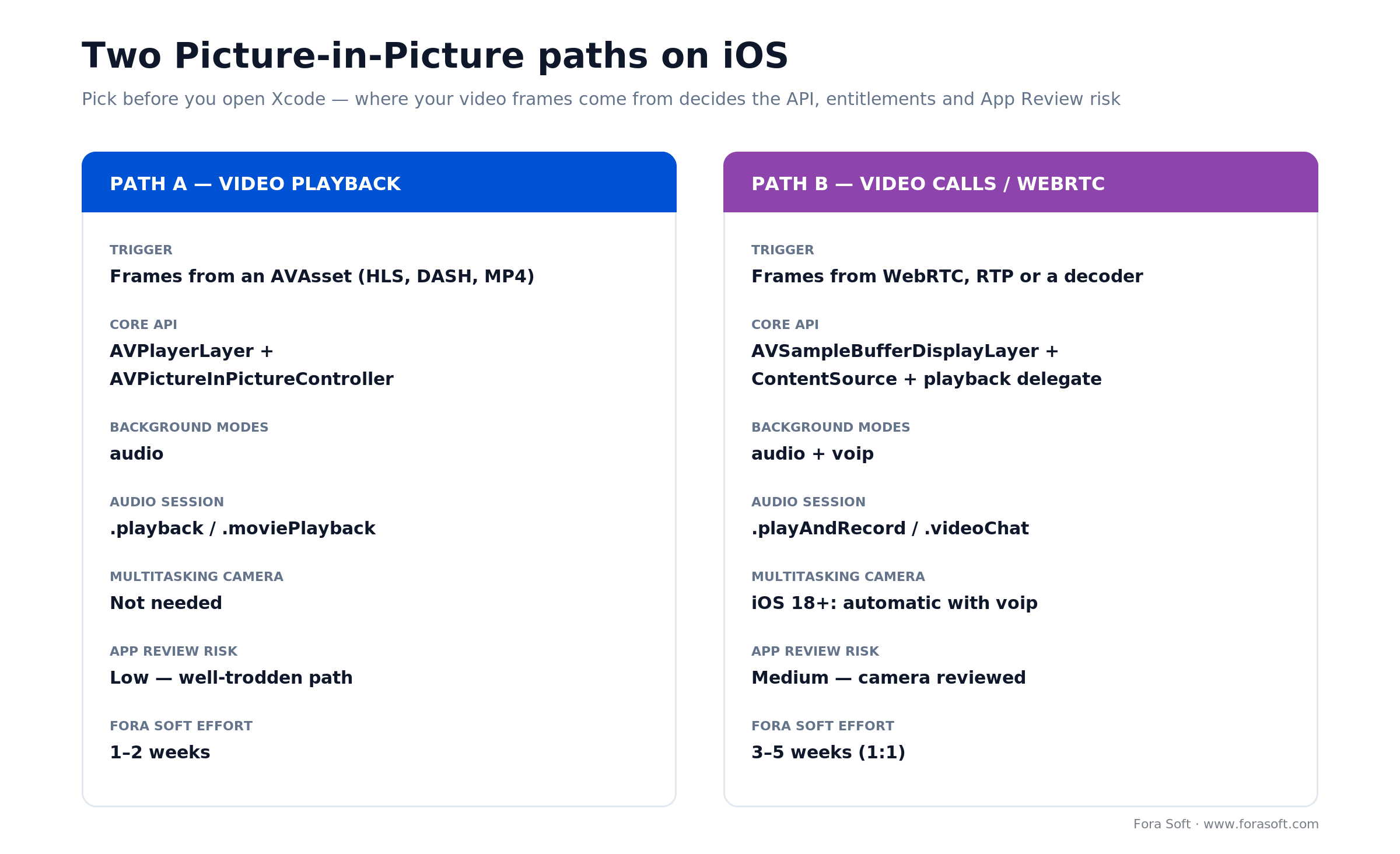
Figure 1. The two supported iOS PiP paths. Your video source — an AVAsset or live WebRTC frames — decides the API, background modes, and App Review risk.
| Decision factor | Path A — video playback | Path B — video calls / WebRTC |
|---|---|---|
| Typical use case | VOD, HLS/DASH streams, recorded lessons, sports replays | 1:1 calls, group calls, telehealth, live interviews |
| Core API | AVPlayerLayer + AVPictureInPictureController |
AVSampleBufferDisplayLayer + custom ContentSource |
| Background modes | audio |
audio + voip |
| Multitasking camera | Not needed | iOS 18+: automatic with voip; iOS 16–17: entitlement + Apple approval |
| Audio session mode | .playback / .moviePlayback |
.playAndRecord / .videoChat |
| App Review risk | Low — well-trodden path | Medium — camera-in-background reviewed closely |
| Typical effort (Fora Soft) | 1–2 weeks | 3–5 weeks for 1:1; +1–2 weeks for multi-party |
Reach for Path A (AVPlayerLayer) when: you’re showing HLS/DASH, MP4, or AVAsset-backed playback — Netflix-, YouTube-, or OTT-style. This is the shortest path to a shipping PiP feature.
Reach for Path B (AVSampleBufferDisplayLayer) when: frames originate from WebRTC, RTP, a custom decoder, or a remote MCU/SFU — anywhere AVPlayer can’t reach.
Path A — PiP for video playback (VOD, streaming)
The shortest production-ready implementation is five steps: enable the background mode, configure the audio session, create a strongly-retained AVPictureInPictureController, wire the delegate, and opt into automatic PiP entry.
Step 1. Enable Background Modes in Xcode
In the target’s Signing & Capabilities tab, add the Background Modes capability and tick Audio, AirPlay, and Picture in Picture. Xcode adds the audio entry to UIBackgroundModes in your Info.plist. If this step is missed, PiP will silently fail to start: no runtime error, just nothing happens.
Step 2. Configure the audio session
let session = AVAudioSession.sharedInstance()
try? session.setCategory(.playback, mode: .moviePlayback)
try? session.setActive(true)
Set this once, early, usually in application(_:didFinishLaunchingWithOptions:) or when the player screen appears. Wrong category is the #1 cause of the “PiP opens but audio dies” bug report.
Step 3. Create the controller with a strong reference
private var pipController: AVPictureInPictureController?

func configurePiP(with playerLayer: AVPlayerLayer) {
    guard AVPictureInPictureController.isPictureInPictureSupported() else { return }
    let controller = AVPictureInPictureController(playerLayer: playerLayer)
    controller?.delegate = self
    controller?.canStartPictureInPictureAutomaticallyFromInline = true
    self.pipController = controller
}
Two traps here. First, AVPictureInPictureController must be held by a property, not a local variable; if it goes out of scope, PiP stops without warning. Second, the initialiser is nullable; always guard on isPictureInPictureSupported() before using it. Apple’s AVPictureInPictureController reference lists every delegate callback if you need the full surface.
Step 4. Implement the delegate to restore state
extension PlayerViewController: AVPictureInPictureControllerDelegate {
    func pictureInPictureController(
        _ controller: AVPictureInPictureController,
        restoreUserInterfaceForPictureInPictureStopWithCompletionHandler completionHandler: @escaping (Bool) -> Void
    ) {
        // Rebuild the player screen and present it before calling back.
        navigationController?.popToRootViewController(animated: false)
        completionHandler(true)
    }
}
The restoreUserInterface callback fires when the user taps the “return to app” affordance on the PiP window. Re-present your player controller, then call the completion handler with true. Skipping this callback is the #2 cause of broken PiP: the floating window closes, the player is gone, and the user sees your home screen.
Step 5. Opt into automatic PiP entry
Setting canStartPictureInPictureAutomaticallyFromInline = true is what makes the feature feel like FaceTime: the user presses the Home button, and the video glides into the corner automatically. Without it, users have to tap a dedicated PiP button, which is fine but measurably lowers adoption.
Path B — PiP for WebRTC video calls
Video calls bypass AVPlayer: frames arrive from a remote peer through WebRTC, an SFU, or an MCU, so you have to push frames into PiP yourself. That is what AVSampleBufferDisplayLayer and the AVPictureInPictureController.ContentSource pattern are for.
The frame pipeline at a glance
For every incoming video frame, the app has to walk through four stages: receive, normalise, wrap, and enqueue. If the pixel-format and timing vocabulary here is unfamiliar, our video encoding fundamentals explain how frames, pixel buffers, and presentation timestamps actually work.
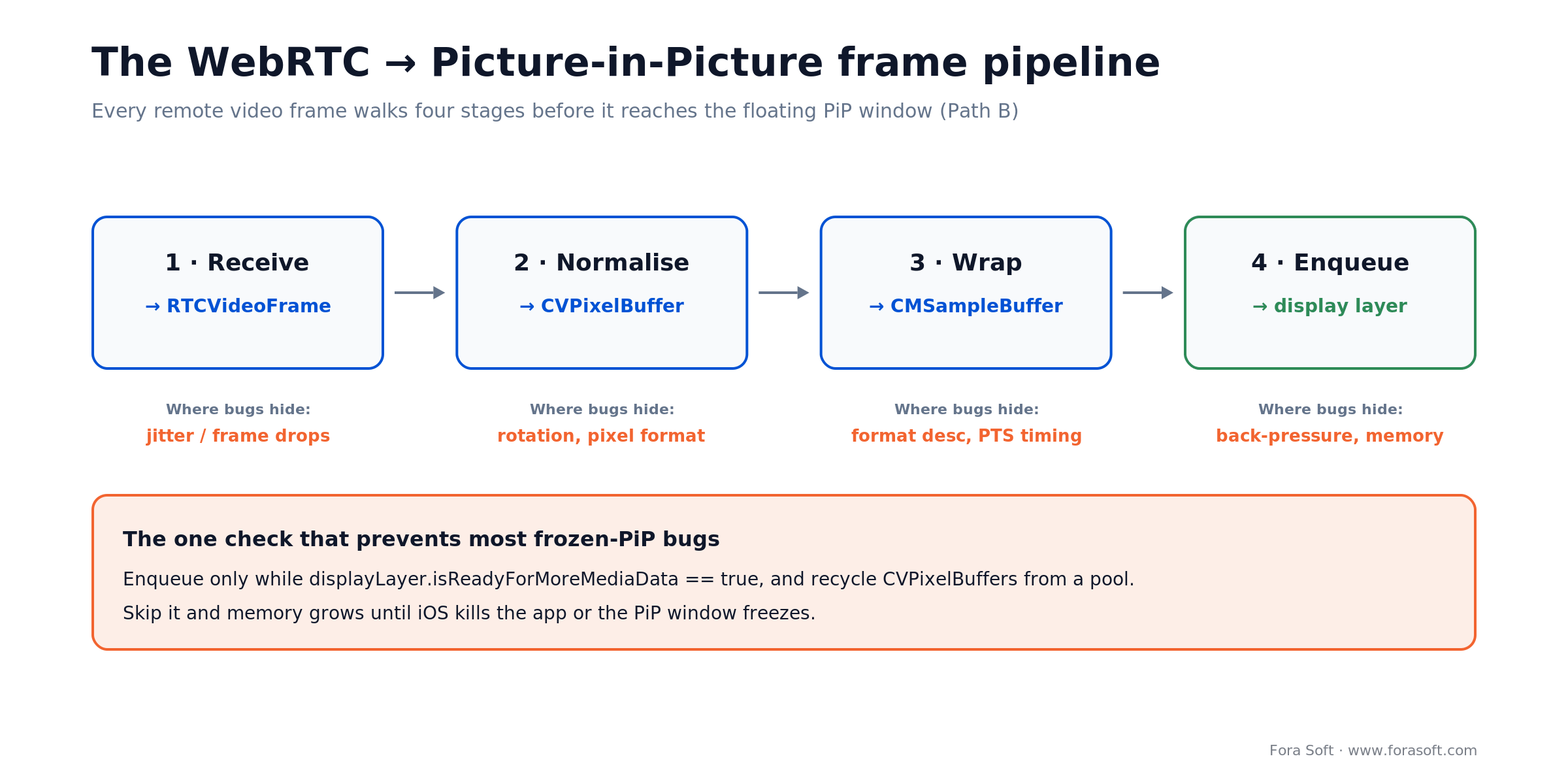
Figure 2. The Path B frame pipeline. Each remote WebRTC frame is received, normalised, wrapped, and enqueued — with a back-pressure check that prevents most frozen-PiP bugs.
| Stage | Input | Output | Where bugs hide |
|---|---|---|---|
| 1. Receive | RTP packet | RTCVideoFrame |
Frame drops under jitter |
| 2. Normalise | RTCVideoFrame |
CVPixelBuffer |
Rotation, mirroring, pixel format |
| 3. Wrap | CVPixelBuffer + PTS |
CMSampleBuffer |
Format description, timing info |
| 4. Enqueue | CMSampleBuffer |
Pixels on PiP | Back-pressure, memory growth |
Minimal setup
let displayLayer = AVSampleBufferDisplayLayer()
displayLayer.videoGravity = .resizeAspect
remoteVideoView.layer.addSublayer(displayLayer)

let source = AVPictureInPictureController.ContentSource(
    sampleBufferDisplayLayer: displayLayer,
    playbackDelegate: self   // AVPictureInPictureSampleBufferPlaybackDelegate
)
pipController = AVPictureInPictureController(contentSource: source)
pipController?.delegate = self
pipController?.canStartPictureInPictureAutomaticallyFromInline = true
Pushing a WebRTC frame
func renderFrame(_ frame: RTCVideoFrame) {
    guard let pixelBuffer = (frame.buffer as? RTCCVPixelBuffer)?.pixelBuffer else { return }
    var formatDescription: CMVideoFormatDescription?
    CMVideoFormatDescriptionCreateForImageBuffer(
        allocator: kCFAllocatorDefault,
        imageBuffer: pixelBuffer,
        formatDescriptionOut: &formatDescription
    )
    var timing = CMSampleTimingInfo(
        duration: .invalid,
        presentationTimeStamp: CMTime(value: frame.timeStampNs, timescale: 1_000_000_000),
        decodeTimeStamp: .invalid
    )
    var sampleBuffer: CMSampleBuffer?
    CMSampleBufferCreateReadyWithImageBuffer(
        allocator: kCFAllocatorDefault,
        imageBuffer: pixelBuffer,
        formatDescription: formatDescription!,
        sampleTiming: &timing,
        sampleBufferOut: &sampleBuffer
    )
    if let sb = sampleBuffer {
        displayLayer.enqueue(sb)
    }
}
Real production code adds a pixel-buffer pool, a frame-rate limiter for battery reasons, and a back-pressure check on displayLayer.isReadyForMoreMediaData. That last check is critical. Without it, memory grows until iOS kills your app or the PiP window freezes.
The playback delegate — don’t forget it
Implement AVPictureInPictureSampleBufferPlaybackDelegate. At minimum, setPlaying, playbackTimeRange (return .invalid for live), and isPlaybackPaused. Miss these and the PiP controls behave unpredictably: the pause button may show stale state, or the window may refuse to appear.
iOS 18 and the multitasking-camera-access entitlement
From iOS 16 through iOS 17 the single biggest obstacle to shipping PiP video calls was requesting the com.apple.developer.avfoundation.multitasking-camera-access entitlement from Apple. Teams waited weeks — sometimes months — for approval, and some never got it. That forced a workaround we used on our own Tunnel Video Calls app and several client products: treat the call like “video playback” and only show the remote participant in PiP, so the local camera doesn’t need to keep running.
iOS 18 fixed this, and Apple documents the new rule in Adopting Picture in Picture for video calls. If your app declares voip in UIBackgroundModes, the entitlement is no longer required. You flip one property on the capture session:
let captureSession = AVCaptureSession()
if #available(iOS 16.0, *) {
    captureSession.isMultitaskingCameraAccessEnabled = true
}
// iOS 18+ honours this without the entitlement as long as UIBackgroundModes includes "voip".
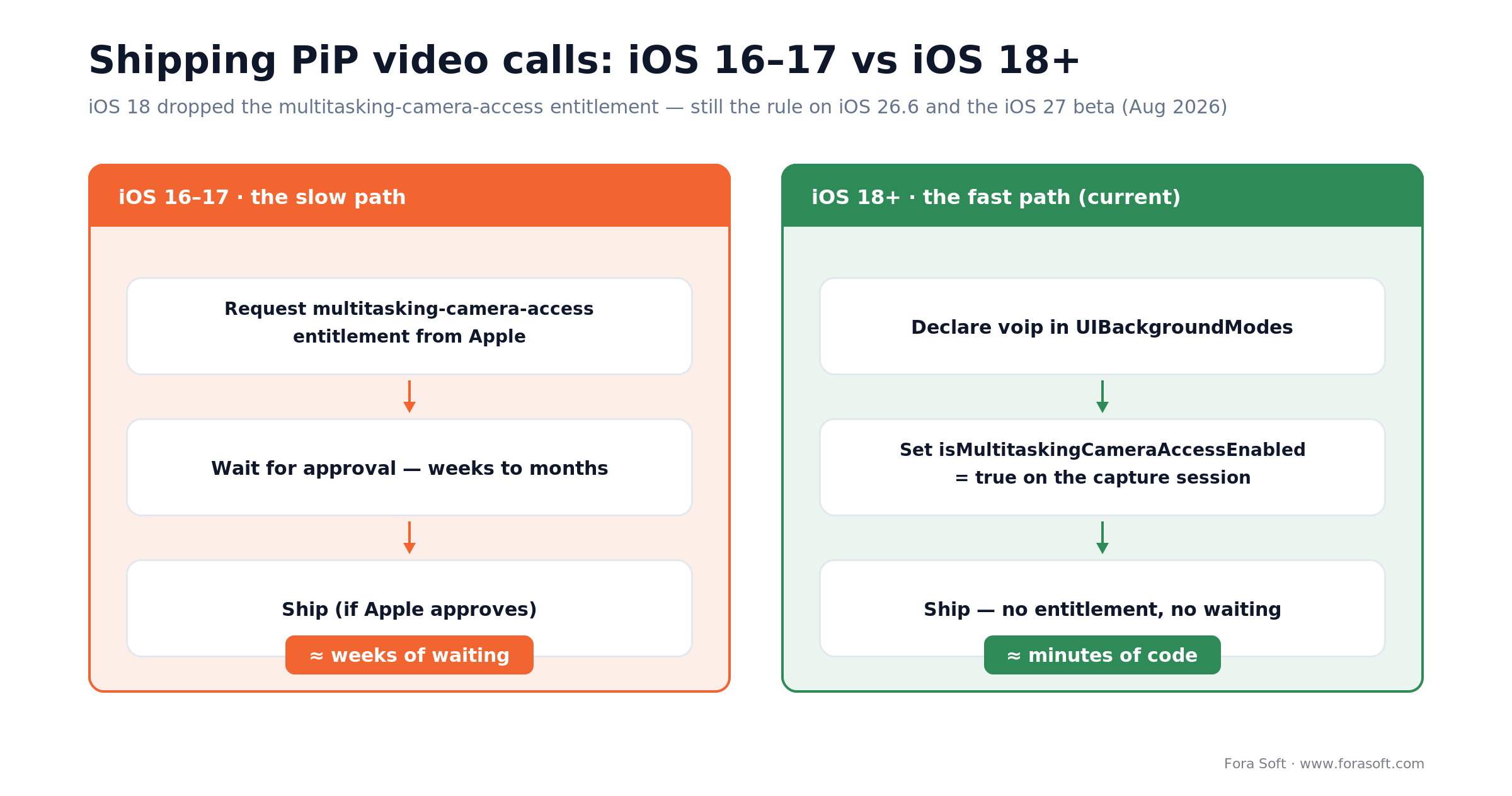
Figure 3. Why iOS 18 changed PiP video calls. The old entitlement wait disappears; the voip + isMultitaskingCameraAccessEnabled path is still current on iOS 26.6.
If you still need to support iOS 16 / 17 in the same binary, keep the entitlement request open in App Store Connect and gate the capture behaviour by OS version. Most of our clients accept an iOS 17+ minimum for new video products for exactly this reason — it collapses the PiP code path from two branches to one. As of August 2026 the shipping OS is iOS 26.6, with iOS 27 in developer beta, and both keep the iOS 18 behaviour unchanged — so a modern minimum-iOS target means you write the multitasking-camera path once and never touch the old entitlement flow again.
Stuck waiting on Apple for the multitasking camera entitlement?
We’ve shipped both the pre-iOS 18 workaround and the iOS 18 fast path on live apps. Tell us your minimum OS and we’ll sketch the cheapest route.
PiP in a SwiftUI app
SwiftUI’s built-in VideoPlayer does not support Picture-in-Picture, a fact that surprises almost every team we’ve onboarded. Production apps wrap UIKit’s AVPlayerViewController via UIViewControllerRepresentable.
struct PiPPlayer: UIViewControllerRepresentable {
    let player: AVPlayer

    func makeUIViewController(context: Context) -> AVPlayerViewController {
        let vc = AVPlayerViewController()
        vc.player = player
        vc.allowsPictureInPicturePlayback = true
        vc.canStartPictureInPictureAutomaticallyFromInline = true
        return vc
    }

    func updateUIViewController(_ vc: AVPlayerViewController, context: Context) {}
}
This path is zero-API-surface PiP: AVPlayerViewController exposes PiP automatically through its overlay controls. It is the right answer for 80% of VOD apps. For the other 20% — custom overlays, custom controls, WebRTC — you will still need the bare AVPictureInPictureController path above.
Multi-participant calls in a single PiP window
The PiP window can only render one video layer at a time. For group calls there are three working patterns, and the choice drives both UX and render cost.
1. Active speaker only. Show whoever is currently speaking; swap the source feed when the SFU emits a new dominant speaker. Cheapest option: one decoded stream at a time. We use this on 1:N webinars where most participants are listeners.
2. Pinned participant. The user picks whose face they want visible in PiP. Works well in tutoring, telemedicine, and anything with a clear “focus” role. Implementation is the same as option 1 plus a UI control for pinning.
3. Composite grid rendered into the sample buffer. Draw a 2×2 or 3×3 tile layout into a single CVPixelBuffer with Metal or Core Image before enqueueing. Highest render cost and battery draw, only worth it when all participants matter equally. Fora Soft has used this approach for Ariuum’s live debate rooms where two speakers must both stay visible.
Reach for active-speaker switching when: 80% of your calls have one person speaking at a time — webinars, lectures, sales demos, support.
Five pitfalls that kill iOS PiP in production
1. Weakly-held controller. AVPictureInPictureController deallocates silently if it is a local variable or a weak property. Symptom: startPictureInPicture() does nothing, no delegate methods fire. Always use a strong private var.
2. Wrong audio session category. .ambient and .soloAmbient will produce silent PiP. Use .playback for VOD and .playAndRecord with mode .videoChat for calls.
3. Metal/OpenGL custom renderers. MTKView and GLKView are not supported by PiP. If you render video through Metal for AR effects or filters, you must mirror the final buffer into AVSampleBufferDisplayLayer specifically for the PiP window.
4. No restoreUserInterface implementation. Skipping the delegate callback leaves users on the wrong screen when they tap “return to app” in PiP. Symptom that looks harmless in QA, embarrassing in the App Store reviews.
5. Back-pressure in the frame pipeline. Pushing frames without checking displayLayer.isReadyForMoreMediaData or reusing CVPixelBuffers without a pool. Memory grows, the app is killed by the OS, and the user sees their call vanish.
Mini case — PiP on Vodeo
Vodeo is a native iOS streaming platform we built for a US media company. The pre-PiP version had average viewing sessions of 11 minutes and a consistent complaint in the App Store reviews: users couldn’t check email or reply to a message without pausing the show.
We added PiP in a single two-week sprint: Path A implementation, SwiftUI UIViewControllerRepresentable wrapper, automatic entry on background, and an in-app toggle for users who prefer pausing. Session length moved from 11 to 17 minutes (+54%), and PiP-related 1-star reviews dropped to zero for the two release cycles we tracked.
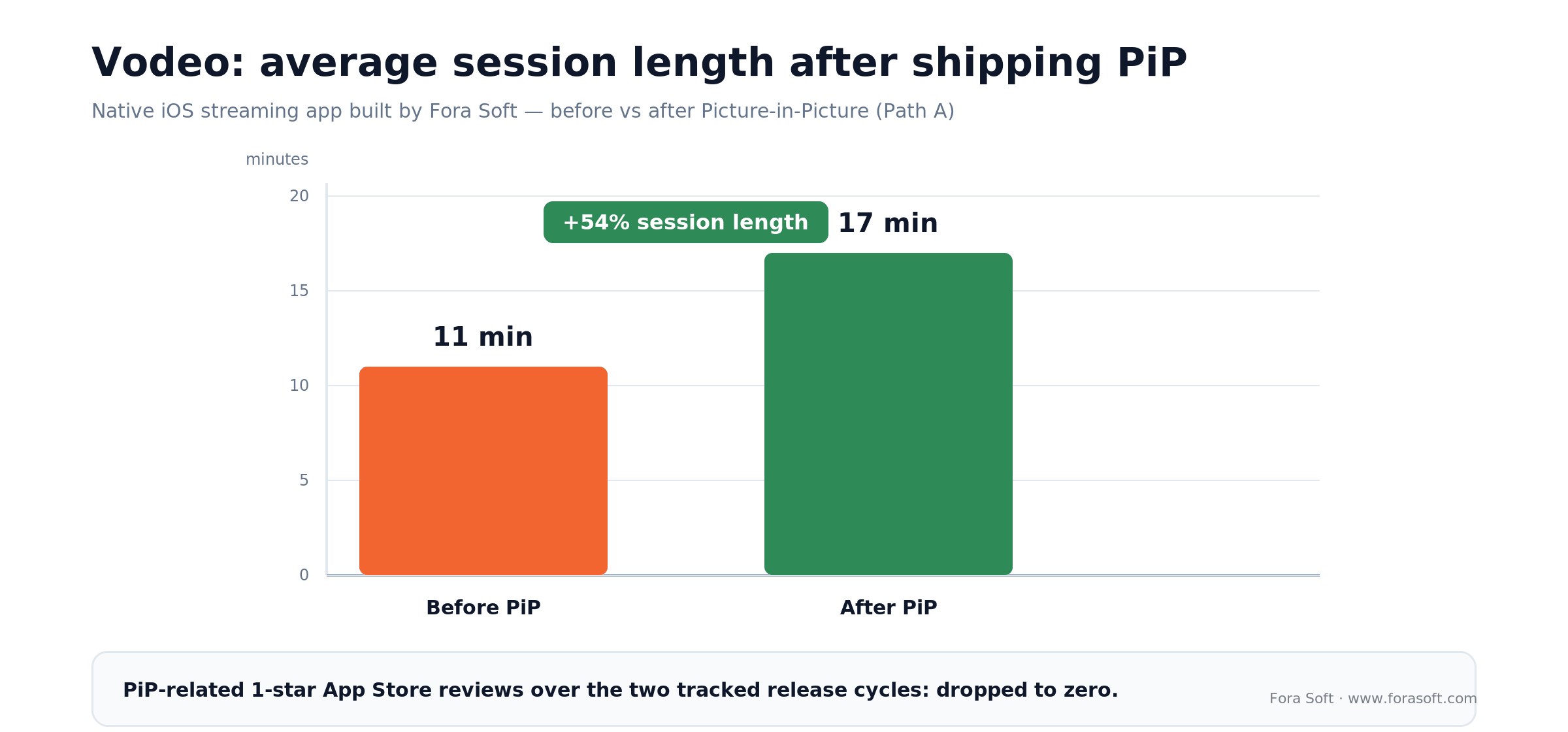
Figure 4. PiP on Vodeo. Average session length rose from 11 to 17 minutes (+54%) and PiP-related 1-star reviews fell to zero.
Want a similar assessment on your app? Book a 30-minute call and we’ll walk through your PiP readiness live.
App Review — what gets your PiP build rejected
Apple Reviewers audit PiP builds more carefully than most features because they gate access to the camera in the background. Five patterns cause the bulk of rejections we see:
1. Background modes without usage. Declaring voip in UIBackgroundModes when the app doesn’t actually place calls is an automatic reject. Only ship what you use.
2. PiP for non-video content. Floating widgets, ticker tapes, note-taking overlays and games shown in PiP are rejected. Apple restricts PiP to moving video and real-time calls.
3. Unused or unexplained camera access. If the reviewer can’t see what the multitasking camera is for — e.g. the demo account never answers a call — they will reject under Guideline 2.5.1. Record a Review Demo video showing the call flow.
4. No way to exit PiP back to the app. The “return to app” button must work. Missing restoreUserInterface implementation gets flagged as Guideline 4.0 (“Design”).
5. Visible bugs in PiP. Black screen, frozen frame, no audio, crash on exit: all are material design issues. Reviewers don’t distinguish “edge case” from “bug”; if it’s visible, it’s a reject.
Tooling — native AVKit vs. third-party SDKs
You are not forced to wire PiP by hand. Several video SDKs wrap the plumbing above. The trade-off is always the same: fewer lines of code vs. less flexibility and a third-party dependency that may lag iOS releases.
| Option | When to pick | Strengths | Watch out for |
|---|---|---|---|
| Native AVKit | VOD apps, custom WebRTC stacks, any case where you already own the pipeline | Zero vendor risk, smallest binary, first-class iOS 18+ support | More code to write and maintain |
| GetStream / LiveKit iOS SDK | Time-to-market is priority; you’re already on their infra | PiP is a single flag; multi-participant handled for you | Per-minute pricing; lock-in on the SFU side |
| Agora iOS SDK | Global reach matters, you’re already integrated | Maturity, 200+ PoP footprint | Minute pricing; we’ve seen 4–8x cost blowups at scale |
| Google WebRTC + custom SFU | High volume, margin-sensitive, or strict data residency | Full control over architecture and cost | You build the PiP pipeline yourself; see Path B above |
| AVPlayerViewController only | VOD, HLS, DASH, podcasts with video | Built-in controls, PiP in 3 lines of code | No custom overlay; no WebRTC |
Reach for native AVKit when: you already own the video pipeline (VOD or a custom WebRTC stack) and want zero vendor risk, the smallest binary, and first-class iOS 18+ behaviour — it is the default we pick unless per-minute SDK pricing is genuinely cheaper than the code we’d write.
Cost and timeline to ship iOS PiP
Because we use agent-assisted iOS engineering (humans + LLM-powered code generation + automated test rigs), our ship times are usually shorter than typical agency estimates. The ranges below reflect recent Fora Soft projects, not industry averages.
| Scope | Typical effort | What’s included |
|---|---|---|
| VOD / HLS PiP retrofit | 1–2 weeks | Background modes, audio session, controller wiring, automatic entry, basic analytics |
| 1:1 WebRTC PiP | 3–5 weeks | ContentSource pipeline, frame pipeline, rotation/mirroring, audio session, App Review-ready demo build |
| Multi-participant PiP (active speaker) | 4–6 weeks | All of 1:1 + active speaker detection, pin/unpin UI, SFU handover |
| Multi-participant PiP (composite grid) | 6–8 weeks | All of above + Metal/Core Image compositor, pixel-buffer pool tuning, battery profiling |
Exact cost depends on your existing iOS codebase, audio-session state, and whether you already have a WebRTC stack. We usually give a fixed-fee quote after a 30-minute architecture review.
A decision framework — pick your iOS PiP path in five questions
Q1. Is the video source an AVAsset (HLS, DASH, MP4, local file)? Yes → Path A. No → Path B.
Q2. Does the call require both participants to stay on camera while PiP is on? Yes → you need the multitasking camera behaviour (iOS 18 automatic, or entitlement request on 16/17). No → you can treat the remote feed as playback.
Q3. Is your minimum supported iOS 18 or lower? 18 → use isMultitaskingCameraAccessEnabled directly. 16–17 → request the entitlement now; delays are weeks, not days.
Q4. Does the UI use SwiftUI’s VideoPlayer? Yes → replace it with an AVPlayerViewController wrapped in UIViewControllerRepresentable before anything else.
Q5. Is there any Metal/OpenGL in the video render path (AR filters, effects, custom compositor)? Yes → you need a second, dedicated AVSampleBufferDisplayLayer pipeline specifically for PiP; full-screen render stays on Metal.
KPIs — what to measure after PiP ships
Engagement KPIs. Average session length (aim for +30% minimum on iOS), PiP activation rate as % of playback sessions (healthy range is 15–40% depending on category), “return to app” rate from PiP (target >70% — below that, users are forgetting the video is still there).
Quality KPIs. PiP crash-free rate (target >99.5%), frozen-frame incidents per 1,000 sessions (<1), audio-drop incidents per 1,000 sessions (<1), average time-to-first-frame in PiP (<500 ms).
Business KPIs. 7-day retention delta vs. pre-PiP build, ad impressions per session for AVOD, NPS movement (streaming apps usually see +3–5 points after PiP ships), App Store rating delta.
When not to ship iOS PiP
PiP is not always worth the sprint. Skip it when:
• Your content is primarily audio with optional video (podcasts, music). Background audio already covers the use case; PiP adds complexity without user benefit.
• Your app is a game. iOS rejects PiP for games; even if it didn’t, the UX is wrong.
• Your core video renderer is deep in Metal with no easy dual-layer fallback. The cost of adding a parallel AVSampleBufferDisplayLayer pipeline may exceed the value.
• You cannot afford the App Review risk right now. If you’re shipping a critical fix, don’t bundle a PiP launch with it; separate releases.
• Minimum OS is iOS 15 or below. Older iOS versions have enough PiP quirks that the engineering effort outweighs the incremental user base. Bump the minimum first.
Want a Fora Soft iOS engineer to review your PiP plan?
Send us your current player setup, target iOS version, and deadline. We’ll come back with a fixed-fee estimate and the cheapest implementation path.
iOS PiP vs. Android PiP — where behaviours diverge
If you’re building cross-platform, do not assume the PiP abstractions are symmetrical. They differ on placement, aspect-ratio flexibility, API surface, and what’s allowed to render.
| Aspect | iOS | Android |
|---|---|---|
| Window placement | Docks to the four corners | Free-drag anywhere on screen |
| Content allowed | Video playback + video calls only | Video + broader activity-level support |
| Entry API | AVPictureInPictureController |
Activity.enterPictureInPictureMode() |
| Automatic entry on background | canStartPictureInPictureAutomaticallyFromInline |
setAutoEnterEnabled(true) (API 31+) |
| Aspect ratio flexibility | System-clamped to native ratio | Set via PictureInPictureParams.Builder |
| Typical ship overhead | 1–2 weeks VOD, 3–5 weeks calls | 3–7 days VOD, 2–3 weeks calls |
If you’re building for both platforms, start with the Android implementation (fewer entitlements, simpler API) and mirror the UX on iOS, not the other way around. Our Android PiP tutorial walks through the mirror path.
Testing iOS PiP without killing your QA budget
The simulator does not support PiP. You need a real device. Automate what you can; manually verify the rest.
Unit tests. Mock AVPictureInPictureController with a protocol wrapper; verify your app calls start/stop in the expected states.
UI tests with XCTest. Drive the app to a playing state, background it via XCUIDevice.shared.press(.home), and assert your PiP activation analytics fire. Return to foreground and verify restoreUserInterface ran.
Manual checklist (on device, not simulator). PiP entry on Home button, PiP entry via in-app button, return-to-app, drag to all four corners, hide off-screen and pull back, audio continuity, crash on app kill while PiP is active, behaviour during incoming phone call. Our QA team runs this in ~20 minutes per release.
Edge cases you’ll forget. Low-power mode (PiP may throttle frame rate), AirPlay active (PiP should not engage), CarPlay active (PiP should not engage), split-screen on iPad, Stage Manager on iPad — each needs one manual verification.
FAQ
Does iOS Picture-in-Picture work on iPhone and iPad or only one of them?
Both. Apple added PiP to iPad in iOS 9 and to iPhone in iOS 14. The same AVPictureInPictureController API covers both devices. Apple TV uses a different tvOS-only flow and is out of scope for a mobile app.
Do I still need the multitasking-camera-access entitlement on iOS 18?
No — as long as the app declares voip in UIBackgroundModes and sets isMultitaskingCameraAccessEnabled on the capture session. If you still support iOS 16 or 17, you must request the entitlement through App Store Connect for those versions.
Why is my PiP window black on iPhone?
Nine times out of ten it’s the audio session. Set the category to .playback (VOD) or .playAndRecord with mode .videoChat (calls) before PiP starts, and activate it with setActive(true). The second most common cause is a weakly-retained AVPictureInPictureController.
Does SwiftUI’s VideoPlayer support Picture-in-Picture?
No. SwiftUI’s VideoPlayer does not expose PiP. Wrap UIKit’s AVPlayerViewController via UIViewControllerRepresentable and set allowsPictureInPicturePlayback = true. See the Swift code block in “PiP in a SwiftUI app” above.
Does iOS PiP work with WebRTC out of the box?
No — WebRTC produces RTCVideoFrames, which must be converted to CMSampleBuffers and enqueued into an AVSampleBufferDisplayLayer with the ContentSource pattern. Some third-party SDKs (GetStream, LiveKit) abstract this for you; with raw Google WebRTC you write it yourself.
Will Apple reject my app if I add PiP to a non-video screen?
Yes. Apple restricts PiP to actual video (moving images) and video calls. Using PiP for static UI, tickers, or game HUDs gets rejected under Design guidelines. If your use case isn’t video, consider ActivityKit Live Activities instead.
How long does it take Fora Soft to ship iOS PiP?
A VOD PiP retrofit typically lands in 1–2 weeks. A 1:1 WebRTC PiP implementation is 3–5 weeks. Multi-participant with active-speaker switching is 4–6 weeks, and a composite-grid renderer is 6–8 weeks. These numbers assume an existing iOS codebase and our agent-assisted engineering workflow.
Can I test PiP on the iOS Simulator?
Not reliably. The simulator sometimes shows a PiP stub but will not reflect real audio-session or background-mode behaviour. Use a physical iPhone or iPad with your developer build installed for all PiP QA.
What to read next
Android
Picture-in-Picture on Android — tutorial
Mirror your iOS PiP feature on Android with working code and the cross-platform UX notes.
WebRTC
P2P, SFU, MCU, Hybrid — 2026 architecture guide
Pick the right WebRTC topology before you wire PiP into it.
SDK choice
Agora vs. custom WebRTC in 2026
When a third-party SDK is worth the per-minute pricing — and when it blows up.
iOS playbook
Must-have native iOS features in 2025
Nine iOS APIs that meaningfully lift retention — PiP is one, this covers the other eight.
Telemedicine
Features that turn a good telemedicine app into a great one
Where PiP sits in the larger patient-experience stack, plus HIPAA-aware UX decisions.
Ready to ship iOS Picture-in-Picture?
iOS PiP is deceptively shallow: five steps for VOD, fifteen for WebRTC, one OS-version branch for camera entitlements, and a short list of audio-session and back-pressure pitfalls that cause most production bugs. The teams who ship it quickly decide on Path A vs. Path B upfront, lock the minimum iOS version, and treat App Review demo videos as a deliverable.
Fora Soft has shipped both paths on live apps across streaming, telemedicine, e-learning, and real-time debate. If you want to skip the two weeks of “why is the screen black” and the third App Review round, bring us your player setup and we’ll map the shortest route.
Want Picture-in-Picture live in weeks, not months?
A 30-minute architecture review will map your PiP path, flag the entitlement risk, and give you a fixed-fee estimate. No slideware.

