


Key takeaways
• To remove silence from audio on iOS, find the quiet regions, cut them, stitch the rest. The clean path is AVAudioFile + AVAudioPCMBuffer to detect silence, then AVMutableComposition + AVAssetExportSession to render the trimmed file. All on-device, no server.
• Get the thresholds right or users hate it. “Silence” isn’t absolute zero — ambient noise sits around -60 to -50 dBFS, conversational pauses at -45 to -30 dBFS. Ship an adjustable threshold with 250–400 ms minimum silence length and 50–100 ms padding around each cut.
• Trim off the main thread. A 30-minute voice memo takes 10–30 s to scan on-device; run it off-main, report progress, keep the UI alive. On iOS 18+ the async states(updateInterval:) sequence gives you export progress.
• Trimmed files shrink 30–55% on talk-heavy content. Real gain on podcast, voice-note, and language-learning recordings we’ve shipped. Aggressive thresholds hit 60% but start clipping consonants — tune per domain.
• Fora Soft has shipped this in production. We run silence-removal pipelines for Input Logger, Speakk, and VocalViews. See the mini case below.
Why Fora Soft wrote this playbook
We’ve built audio and video products since 2005 — custom audio-processing, language-learning apps, voice-note platforms, market-research recorders — 250+ projects with a 50-engineer in-house team. Removing silence sounds trivial until you implement it naively, ship it, and users start complaining that sentences get clipped or that a 12-minute memo took 45 seconds to process.
This is the iOS implementation we teach new engineers on our audio team: the detection algorithm, the render pipeline, the thresholds that survive real ambient noise, and the on-device vs cloud call. It targets Swift 6.3 / iOS 26, and every AVFoundation API here back-deploys to iOS 16. Where iOS 18 and iOS 26 changed the game — the async export API, Apple’s new on-device SpeechDetector — we call it out.
Shipping silence removal in an iOS audio or video app this quarter?
We’ve built and tuned these pipelines for podcast, language-learning, and market-research products. Share your use case and we’ll return a thresholds-and-scope plan in one call.
What removing silence from audio actually does
To remove silence from audio you run three phases: scan the waveform for level, decide which stretches are silent, and render the surviving segments back into one file. Everything below is a concrete build of those three phases plus the UX, performance, and testing choices that make it production-grade.
1. Scan. Walk the audio in short windows (10–50 ms) and compute the RMS or peak amplitude of each window. Convert to dBFS so your thresholds mean the same thing across different mic gains.
2. Decide. A window is silent if its level stays under a threshold (typically -45 to -32 dBFS) for at least a minimum run length (300–500 ms). Short dips inside speech don’t count — you don’t want to cut the pause between words.
3. Render. Stitch the non-silent segments together, apply a 20–50 ms fade at each cut to kill clicks, and export. On iOS that’s an AVMutableComposition with each kept segment inserted in order, an AVMutableAudioMix for the fade ramps, then AVAssetExportSession.
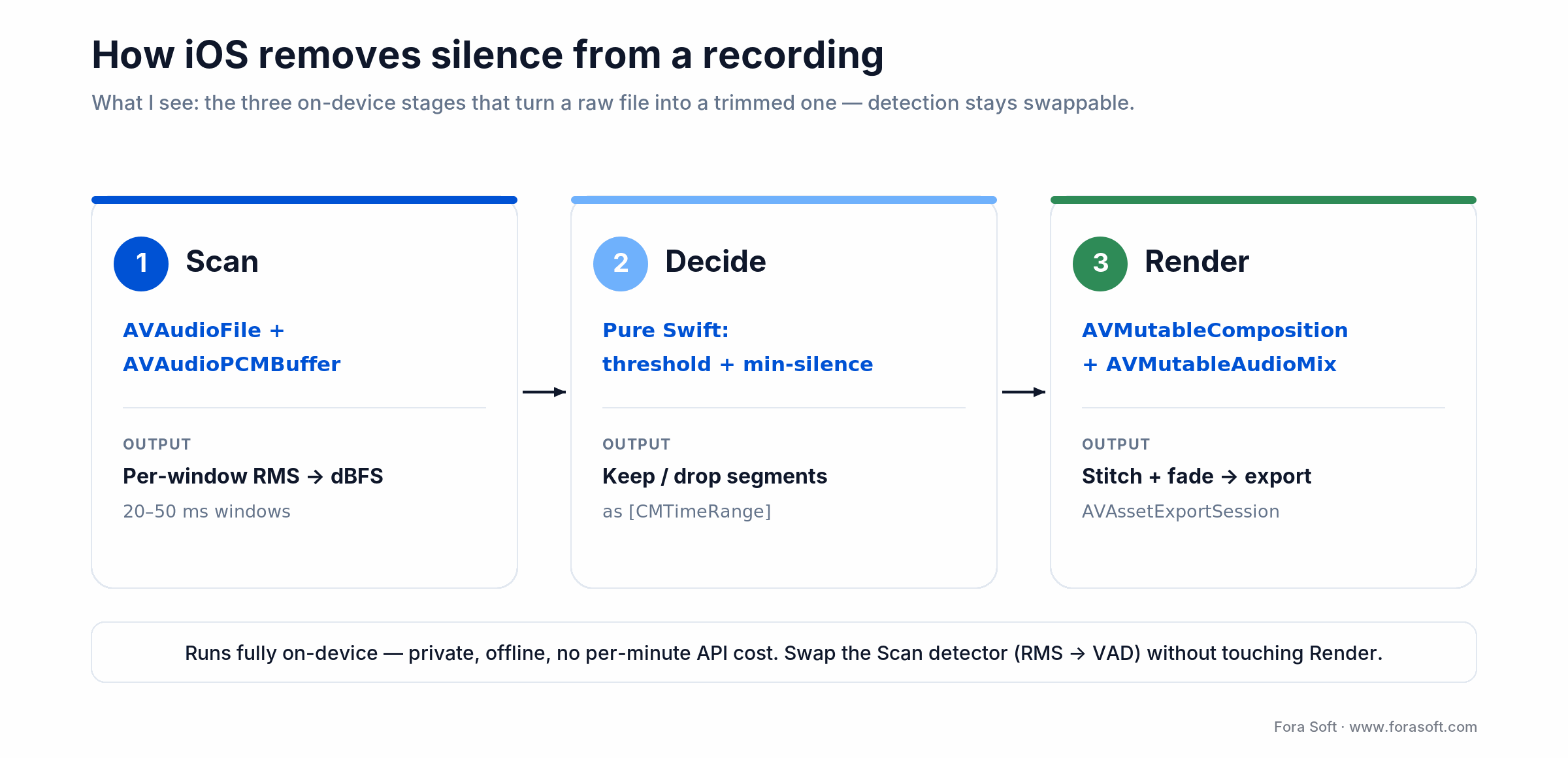
Figure 1. The three on-device stages. Keep detection swappable so you can upgrade from RMS to a neural VAD without touching the render code.
Where silence removal earns its keep
Four product categories get an outsized return from this feature:
1. Voice notes and voice-first messaging. Trim a 90-second rambling voice note to 40 seconds before it sends. Receivers get tighter playback; senders get a free passive edit.
2. Podcast and audiobook authoring. Creators record long takes full of think-pauses, coffee sips, and restarts. Silence removal is the first pass of any mobile podcast editor.
3. Language-learning and speech-therapy apps. Users record answers to prompts. Trimming the hesitation before the answer makes speech-recognition scoring far more accurate — that’s the mini case below.
4. Market research and qualitative video. Hours of interview footage shrink 30%+ without losing content; analyst review time drops with it. It’s exactly what we do on VocalViews, a research marketplace with 1M+ participants.
Reach for on-device dBFS trimming when: recordings are under 10 minutes, mic conditions are decent (headset or quiet room), and privacy matters — it’s free, offline, and finishes in a second or two.
Architecture — detection and render layers
On iOS the pipeline splits cleanly into a detection layer and a render layer. Keep them decoupled so you can swap in a neural voice-activity detector later without touching the export code. If you want the audio fundamentals under this, our Audio for Video knowledge base covers sample rate, dBFS, and loudness.
| Layer | APIs | Output |
|---|---|---|
| Decode & scan | AVAudioFile + AVAudioPCMBuffer |
Per-window RMS in dBFS |
| Threshold & segment | Pure Swift (or a VAD) | Array of CMTimeRange to keep |
| Compose | AVMutableComposition + AVMutableAudioMix |
In-memory composition with fades |
| Export | AVAssetExportSession |
.m4a / .mov file on disk |
Detecting silence with AVAudioPCMBuffer
Open the source with AVAudioFile, read it in fixed-size frame blocks, compute RMS per window, and emit a timeline of (time, dBFS) samples. The RMS-to-dBFS conversion is 20 × log10(rms) on the normalized float samples that floatChannelData hands you.
import AVFoundation

struct LevelSample {
    let time: TimeInterval   // seconds from start
    let db:   Float          // dBFS; -Float.infinity for pure silence
}

func scanLevels(url: URL, windowSeconds: Double = 0.020) throws -> [LevelSample] {
    let file = try AVAudioFile(forReading: url)
    let format = file.processingFormat
    let sampleRate = format.sampleRate
    let windowFrames = AVAudioFrameCount(sampleRate * windowSeconds)
    let buffer = AVAudioPCMBuffer(pcmFormat: format, frameCapacity: windowFrames)!

    var samples: [LevelSample] = []
    var cursor: TimeInterval = 0
    while file.framePosition < file.length {
        let want = min(AVAudioFramePosition(windowFrames), file.length - file.framePosition)
        buffer.frameLength = 0
        try file.read(into: buffer, frameCount: AVAudioFrameCount(want))
        let db = rmsDbFS(buffer)
        samples.append(LevelSample(time: cursor, db: db))
        cursor += Double(buffer.frameLength) / sampleRate
    }
    return samples
}

private func rmsDbFS(_ buffer: AVAudioPCMBuffer) -> Float {
    guard let channel = buffer.floatChannelData?[0], buffer.frameLength > 0 else {
        return -.infinity
    }
    let n = Int(buffer.frameLength)
    var sum: Float = 0
    for i in 0..<n { sum += channel[i] * channel[i] }
    let rms = sqrtf(sum / Float(n))
    return rms > 0 ? 20 * log10f(rms) : -.infinity
}
A 20 ms window at 48 kHz is 960 frames — short enough to catch a fast consonant, long enough for a stable RMS estimate. For speech you can stretch to 50 ms without hurting accuracy. On any iPhone from the last few years this scan runs at roughly 1 minute of 48 kHz audio per 60 ms of CPU.
Segmenting — thresholds that ship well
With the per-window dBFS timeline in hand, segment into keep/drop regions. Four parameters matter; the defaults below survive most consumer recording conditions. Figure 2 shows where each preset lands on the meter.
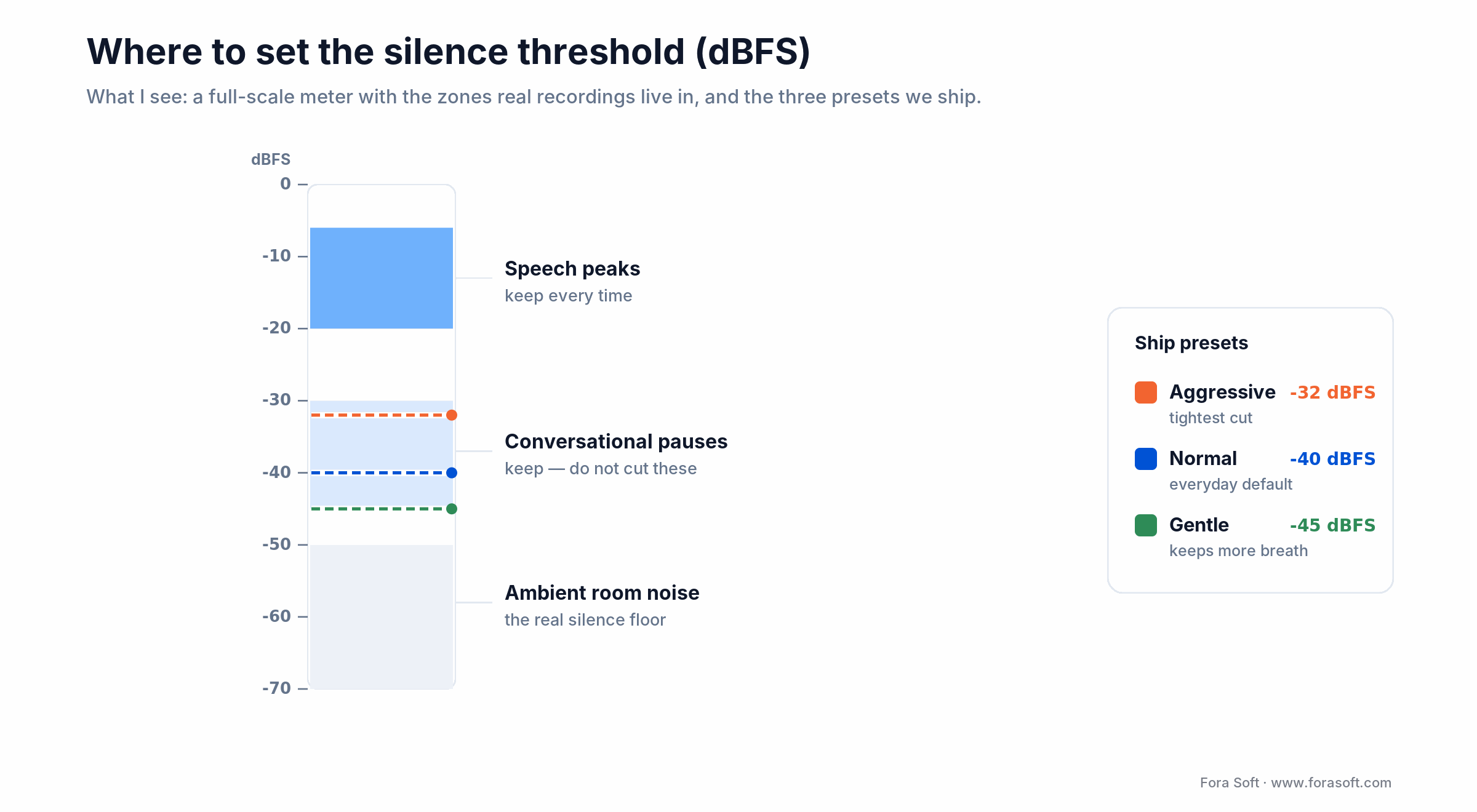
Figure 2. Full-scale meter with the zones real recordings occupy and the three presets we ship. Conversational pauses sit dangerously close to the cut line — that’s why min-silence length matters.
- Silence threshold: -40 dBFS. Lower (below -45) to keep more breath; higher (above -35) for aggressive trimming.
- Minimum silence duration: 300 ms. Shorter clips natural word gaps; longer misses real pauses.
- Padding around cuts: 80 ms before and after a cut to preserve the attack of the next word.
- Fade duration: 20–50 ms to avoid clicks — short enough to be inaudible, long enough to mask the zero-crossing discontinuity.
struct Segment {
    let range: CMTimeRange
    let fadeIn: CMTime
    let fadeOut: CMTime
}

func segment(
    _ samples: [LevelSample],
    thresholdDb: Float = -40,
    minSilence: Double = 0.30,
    padding: Double = 0.08
) -> [Segment] {
    // 1) mark each window silent / loud
    var silent = samples.map { $0.db < thresholdDb }
    // 2) smooth runs shorter than minSilence back to 'loud'
    let windowDuration = samples.count > 1
        ? samples[1].time - samples[0].time : 0.020
    let minSilentWindows = Int(minSilence / windowDuration)
    var runStart: Int? = nil
    for i in 0..<silent.count {
        if silent[i] && runStart == nil { runStart = i }
        if !silent[i], let s = runStart {
            if i - s < minSilentWindows {
                for j in s..<i { silent[j] = false }
            }
            runStart = nil
        }
    }
    // 3) build Segments from contiguous loud runs, with padding
    var segments: [Segment] = []
    var startIdx: Int? = nil
    for i in 0...silent.count {
        let isSilent = i == silent.count ? true : silent[i]
        if !isSilent && startIdx == nil { startIdx = i }
        if isSilent, let s = startIdx {
            let start = max(0, samples[s].time - padding)
            let endIdx = min(i, samples.count - 1)
            let end   = samples[endIdx].time + windowDuration + padding
            let range = CMTimeRange(
                start: CMTime(seconds: start, preferredTimescale: 48000),
                duration: CMTime(seconds: end - start, preferredTimescale: 48000)
            )
            segments.append(
                Segment(range: range,
                        fadeIn: CMTime(seconds: 0.02, preferredTimescale: 48000),
                        fadeOut: CMTime(seconds: 0.02, preferredTimescale: 48000))
            )
            startIdx = nil
        }
    }
    return segments
}
Reach for auto-calibration when: your users jump between a studio (-55 dBFS floor) and a café (-25 dBFS floor). Sample the first 500 ms of each recording, set the threshold ~8 dB above the measured noise floor, and you avoid a hard-coded number that only works in one room.
Rendering the trimmed file with AVMutableComposition
func exportTrimmed(
    sourceURL: URL,
    segments: [Segment],
    destinationURL: URL
) async throws {
    let asset = AVURLAsset(url: sourceURL)
    let audioTrack = try await asset.loadTracks(withMediaType: .audio).first!

    let composition = AVMutableComposition()
    let compAudio = composition.addMutableTrack(
        withMediaType: .audio,
        preferredTrackID: kCMPersistentTrackID_Invalid
    )!

    var cursor = CMTime.zero
    let audioMix = AVMutableAudioMix()
    let params = AVMutableAudioMixInputParameters(track: compAudio)

    for segment in segments {
        try compAudio.insertTimeRange(segment.range, of: audioTrack, at: cursor)
        // 20 ms fade in at the start, 20 ms fade out at the end of each segment
        params.setVolumeRamp(
            fromStartVolume: 0, toEndVolume: 1,
            timeRange: CMTimeRange(start: cursor, duration: segment.fadeIn)
        )
        let outStart = CMTimeSubtract(CMTimeAdd(cursor, segment.range.duration), segment.fadeOut)
        params.setVolumeRamp(
            fromStartVolume: 1, toEndVolume: 0,
            timeRange: CMTimeRange(start: outStart, duration: segment.fadeOut)
        )
        cursor = CMTimeAdd(cursor, segment.range.duration)
    }
    audioMix.inputParameters = [params]

    guard let export = AVAssetExportSession(
        asset: composition, presetName: AVAssetExportPresetAppleM4A
    ) else { throw NSError(domain: "export", code: -1) }
    export.audioMix = audioMix
    // iOS 18+: the async export(to:as:) call replaces the old
    // outputURL/outputFileType + exportAsynchronously pattern.
    try await export.export(to: destinationURL, as: .m4a)
}
Freshness note. iOS 18 deprecated the synchronous status and progress properties on AVAssetExportSession. The modern path is the async export(to:as:) call above, with progress read from the states(updateInterval:) async sequence. If you still support iOS 16–17, set outputURL/outputFileType and call the callback-based exportAsynchronously(completionHandler:) — every async export(to:as:) variant is iOS 18+.
For video with audio, swap AVAssetExportPresetAppleM4A for AVAssetExportPresetHighestQuality, add a parallel video track using the same CMTimeRanges, and export as .mov — otherwise lip-sync breaks.
Reach for a sample-copy trim instead of AVAssetExportSession when: the source is lossy (MP3/AAC) and you want to avoid a second lossy generation. AVAssetExportPresetAppleM4A re-encodes to AAC, so every trim sheds a little more quality. Reading the kept ranges from the source AVAudioFile and writing them into a new lossless file (WAV/CAF/ALAC) decodes once and re-encodes zero times — you keep the exact decoded samples. For true bit-for-bit passthrough of the original compressed stream, use AVAssetReader/AVAssetWriter with a passthrough setting.
Progress, cancellation, and memory
A 90-minute interview generates about 270,000 detection windows at 20 ms. That’s fine for memory on a modern iPhone, but only if you stream it instead of loading the whole file into RAM. Three rules:
1. Read and scan incrementally. Keep the AVAudioFile open and iterate windows; never decode the whole PCM into a single buffer.
2. Run the scan off-main. Report progress through Progress or an AsyncStream; on iOS 18+ the export half reports through states(updateInterval:).
3. Expose cancellation. Use Swift concurrency: a Task with try Task.checkCancellation() inside the loop lets the user abort a long export cleanly.
Want a real-time pipeline rather than post-processing?
We’ve built streaming variants that trim as the user records, not after. Tell us the throughput and latency you need and we’ll sketch an architecture in one call.
Real-time variant — trim while recording
Some products want the trimmed file ready the instant the user stops. For those, run detection on the tap output of AVAudioEngine.inputNode.installTap and stream the non-silent frames into an AVAudioFile as they arrive.
let engine = AVAudioEngine()
let input = engine.inputNode
let format = input.outputFormat(forBus: 0)
let output = try AVAudioFile(forWriting: outURL, settings: format.settings)

var silenceRun: TimeInterval = 0
let threshold: Float = -40
let minSilence: TimeInterval = 0.30

input.installTap(onBus: 0, bufferSize: 960, format: format) { buffer, _ in
    let db = rmsDbFS(buffer)
    let dur = Double(buffer.frameLength) / format.sampleRate
    if db < threshold {
        silenceRun += dur
        if silenceRun > minSilence { return } // drop long silences
    } else {
        silenceRun = 0
    }
    try? output.write(from: buffer)
}

try engine.start()
The catch: real-time trimming commits decisions you can’t undo. If the user later wants the full take, you don’t have it. Store both the raw and trimmed files if the product might need the original, or offer a “redo without trimming” button.
Reach for real-time tap trimming when: latency from “Stop” to “Ready” must be near zero and users won’t need the untrimmed original — a walkie-talkie-style voice message, not a podcast master.
When dBFS is not enough — VAD options
Amplitude thresholding fails in two common cases: loud background (HVAC, babble, traffic) and quiet speech (whispered language-learning prompts). A real voice-activity detector (VAD) decides “is this speech?” instead of “is this loud?”, and gets far better results. Four options, from free to best-in-class:
1. Apple SpeechDetector (iOS 26). Apple’s SpeechAnalyzer framework, new at WWDC 2025 and the successor to SFSpeechRecognizer, ships a SpeechDetector module for on-device voice-activity detection over an AsyncSequence. First-party, offline, zero dependencies — the default if you can require iOS 26.
2. SFSpeechRecognizer on-device mode (iOS 13+). Gives you word timings you can use as a VAD signal — high accuracy, fully offline, back-deployable. It won’t hand you an edited file; you still run the segmenter and composer above.
3. Silero VAD v5. A ~309K-parameter neural model that processes 512-sample chunks (32 ms at 16 kHz) with sub-millisecond latency and outputs a speech probability per chunk. It ships as ONNX; run it through ONNX Runtime on-device, or convert to Core ML / MLX for Apple Silicon (there’s no official Core ML build). The best accuracy you get without a licence.
4. WebRTC VAD. The old Google GMM classifier — tiny, fast, four aggressiveness levels, works on 10/20/30 ms frames. Cheap to embed, but the least accurate of the four; fine as a coarse pre-filter.
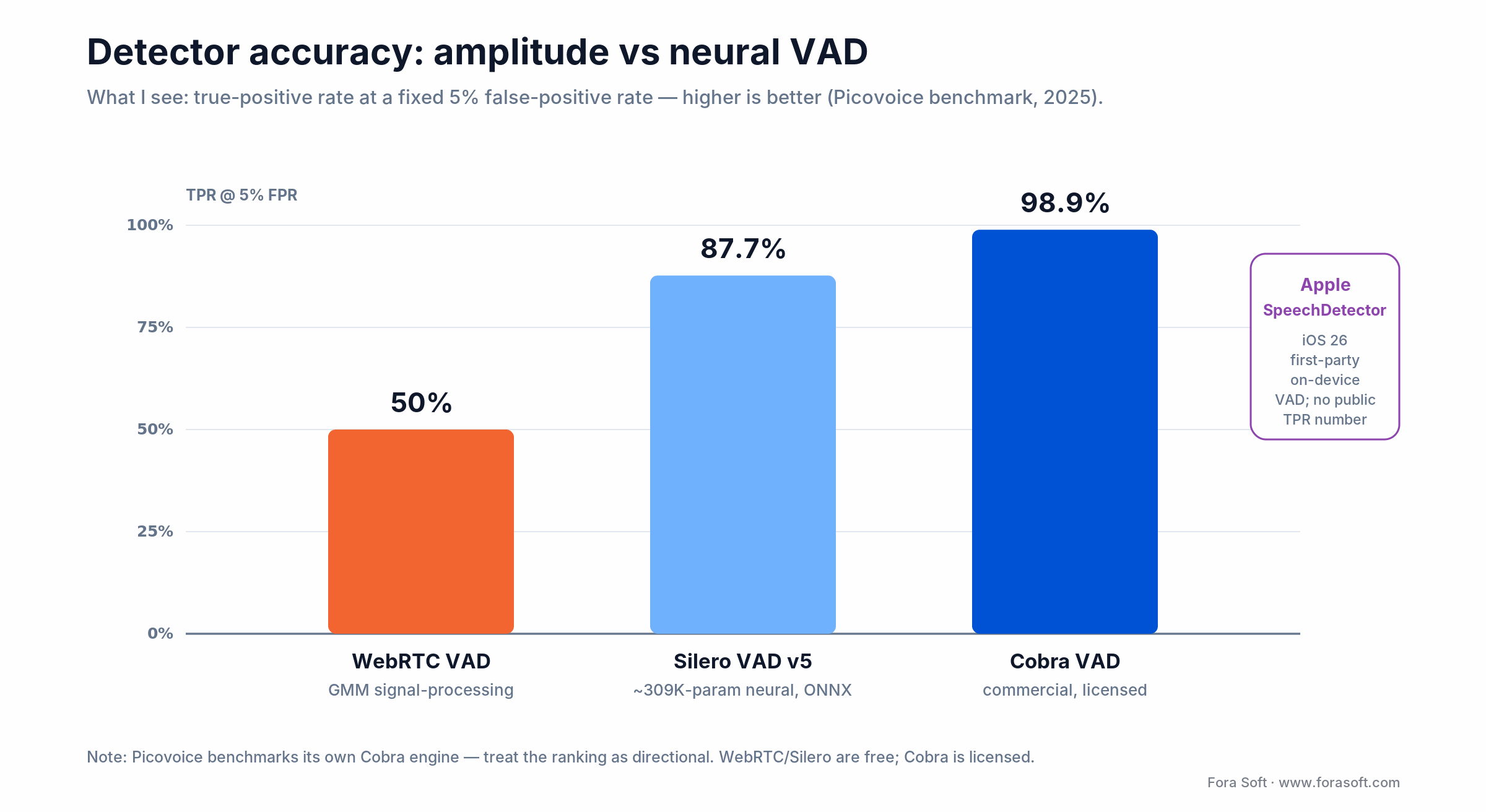
Figure 3. True-positive rate at a fixed 5% false-positive rate (Picovoice benchmark, 2025). Picovoice benchmarks its own Cobra engine, so read the ranking as directional — but the WebRTC-to-Silero jump is real and large.
| Detector | Accuracy | Cost / licence | When it wins / breaks |
|---|---|---|---|
| RMS / dBFS | Good in clean audio | Free, ~20 lines | Wins on headset/studio; breaks in noise |
| Apple SpeechDetector | High (first-party) | Free, iOS 26 only | Wins if you can require iOS 26 |
| Silero VAD v5 | 87.7% TPR @ 5% FPR | Free, ONNX / Core ML | Best free accuracy; needs a runtime |
| WebRTC VAD | 50% TPR @ 5% FPR | Free, tiny | Fast pre-filter; weakest accuracy |
| Cobra VAD (Picovoice) | 98.9% TPR @ 5% FPR | Commercial licence | Top accuracy; paid, vendor lock-in |
Swap your detection layer for any of these and the rest of the pipeline — segmenter plus renderer — stays identical. That’s the abstraction from the architecture section paying off.
Reach for a neural VAD when: recordings happen in the wild (cafes, cars, open offices) or contain quiet speech, and a mistaken cut is expensive — a cut consonant in a language-learning score is worse than a slow trim. Start with Apple SpeechDetector on iOS 26, fall back to Silero v5 below it.
On-device vs cloud processing
The entire pipeline above runs on-device with no server calls. That’s the right default: private, offline, and free of per-minute API cost. Cloud earns its place in a handful of cases:
- Recordings over 2 hours. Users don’t want a warm phone for 90 s of processing; offload to a backend worker and notify via push when it’s done.
- ML-heavy pipeline (VAD + transcription + chaptering). Easier to combine in one backend job than to stack on-device.
- Cross-device reuse. Trim once in the cloud, play the result on iPhone, iPad, and web.
For anything under 10 minutes with a privacy angle, keep it on-device. Users notice “processing in the cloud” spinners and trust them less with their voice.
Reach for a cloud job when: a single recording runs past ~30 minutes, or the same pass also transcribes and chapters. Below that, on-device wins on cost, privacy, and perceived speed.
Mini case — a language-learning app
On Input Logger, students record themselves reading prompts. The product scores each recording with a speech-recognition pipeline — and the hesitation before the answer (3–8 seconds of quiet nerves) was hurting recognition accuracy badly.
The situation: a naive amplitude gate cut too aggressively in noisy dorm rooms and missed quiet speakers entirely. Our three-week plan replaced it with an on-device silence-removal pass driven by Silero VAD v5 through ONNX Runtime, tuned at -38 dBFS / 350 ms minimum silence, stitched the remaining segments with 30 ms fades, and streamed progress to the UI.
The outcome: file sizes shrank 41% on average; recognition accuracy against reference transcripts improved 9 percentage points; user-perceived latency from “Stop” to “See my score” dropped from 6 s to 2.2 s. Total effort was roughly 90 hours including QA, accelerated with our Agent Engineering workflow (AI agents pair-building alongside our engineers). Want a similar assessment for your audio product? Book a 30-min review.
UX patterns that keep trust
Silence removal quietly edits the user’s voice. Four guardrails keep it from feeling creepy or destructive:
1. Toggle + persistent setting. Let the user disable trimming, and respect that choice between launches.
2. Before/after stats. Show “Trimmed 14 s from your 2:03 recording”. Users trust the feature more when they can see what it did.
3. Undo. Keep the source file for at least the current session. Users revert when an aggressive threshold clipped a pause they wanted.
4. Sensitivity slider. A “Gentle / Normal / Aggressive” preset that maps to -45 / -40 / -32 dBFS (and min-silence values) covers both cautious and power users.
Testing — how we catch regressions
Ship a fixture library of 15–30 reference recordings covering the real world: quiet studio voice, coffee-shop background, bilingual speech, whispered prompts, overlapping speakers, background music. Run the full pipeline as a unit test and compare output against ground-truth segments (hand-annotated in Audacity). A regression that moves a segment boundary by more than 40 ms fails the build.
Add a perceptual smoke test: run the trim, play it back, and flag any audible click or pop. We do this with a small energy-discontinuity detector that scans the first 10 ms after each cut in the output file.
A decision framework in five questions
Walk these top to bottom; each answer points at the build that fits (Figure 4).
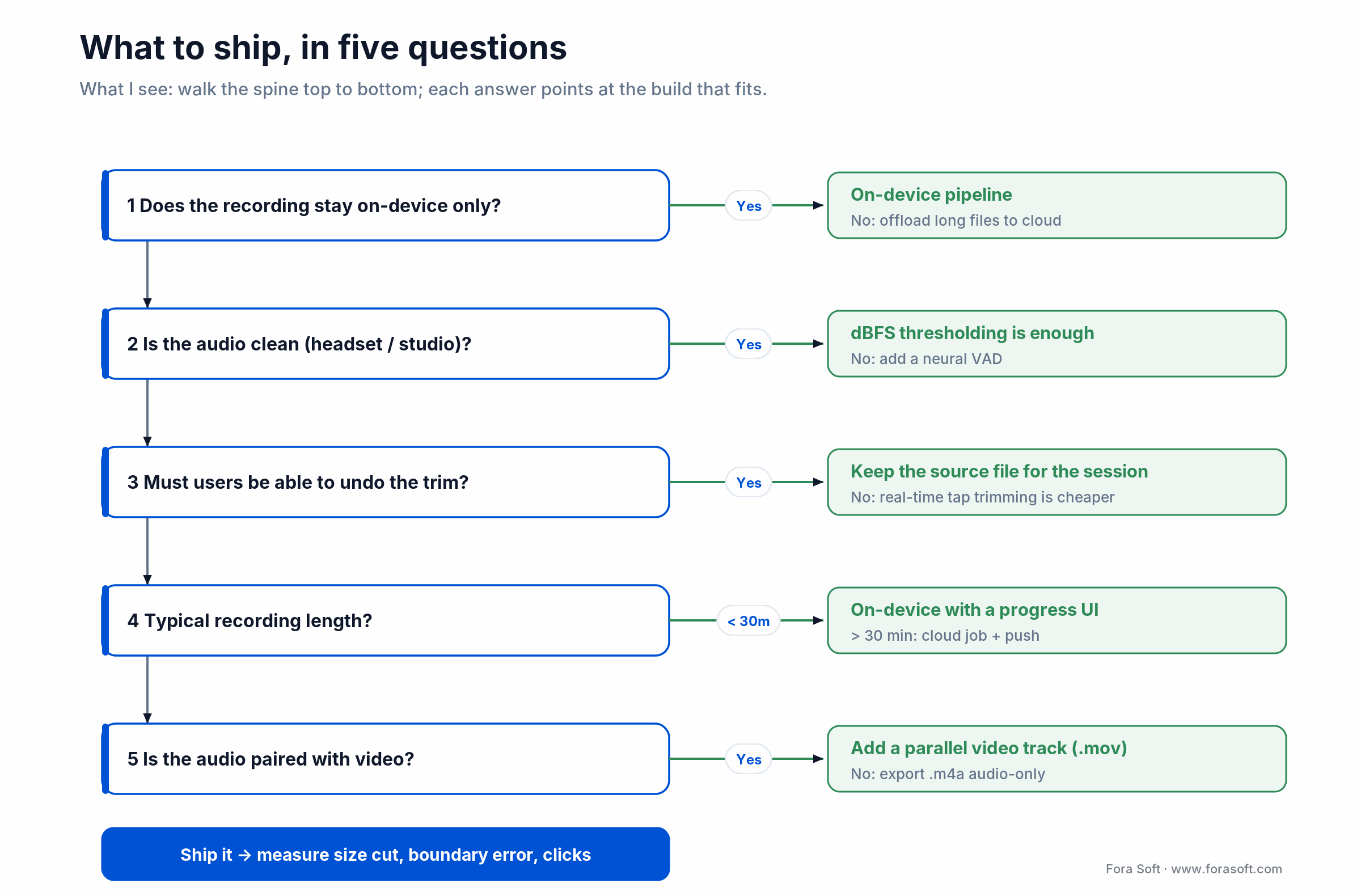
Figure 4. The five-question spine we run in scoping calls. Most consumer apps land on the on-device, dBFS-with-VAD-fallback path.
1. Does the recording stay on-device only? Yes → on-device pipeline. No → consider cloud for long content.
2. Is the audio quality controlled (studio, headset, good mic)? Yes → dBFS thresholding is enough. No → a VAD (Apple SpeechDetector, Silero v5, WebRTC).
3. Do users need to undo? Yes → always keep the source for the session. No → real-time tap trimming is cheaper.
4. How long is a typical recording? Under 5 min → on-device, post-record. 5–30 min → on-device with a progress UI. Over 30 min → cloud pipeline with push.
5. Is audio paired with video? Add a parallel video track in the AVMutableComposition using the same time ranges; export as .mov.
Five pitfalls we keep finding in audits
1. Hard-coded thresholds. What works in a studio (-50 dBFS) trims every pause in a café (-25 dBFS). Auto-calibrate from the first 500 ms if you can’t expose a slider.
2. No fade on cuts. Hard cuts produce clicks on sensitive speakers; 20–50 ms fades remove them.
3. Scanning on the main thread. The UI freezes, users retry, and a second scan kicks off. Always dispatch to a utility queue or an async Task.
4. Trimming the source permanently. Users complain, and now you have to restore an original you deleted. Keep source files for at least one edit cycle.
5. Ignoring video when present. An audio-only trim on a video file is a lip-sync disaster. Add the video track to the same composition with matching time ranges.
KPIs — what to measure after shipping
Quality KPIs. Segment-boundary accuracy vs ground truth (target under 80 ms median error), click-detection rate on cuts (target 0), and file-size reduction on a 50-recording reference suite (target 30–50%).
Business KPIs. Share-rate uplift on voice content (trimmed clips get shared more), retention delta on cohorts with trimming on, and transcription-accuracy lift for apps that score speech.
Reliability KPIs. Export-failure rate (target under 0.5%), median time-to-trimmed for a 2-minute recording (target under 2 s on a recent iPhone), and memory high-water mark on a 30-minute job (target under 80 MB RSS).
When not to remove silence from audio
1. Music or mixed-content products. A quiet bridge in a song isn’t a pause; trimming destroys the artistic intent. Disable by default on anything labelled music.
2. Legal-grade or courtroom audio. Any deletion from a recording creates chain-of-custody problems. Never trim evidential audio.
3. Accessibility-critical recordings. Users with speech conditions may need their pauses preserved verbatim. Provide an opt-out and respect it persistently.
Want an expert review of your audio pipeline?
We audit detection thresholds, UX, and on-device vs cloud architecture for iOS audio products. Bring us a Swift file and we’ll highlight the fixes in one call.
FAQ
What’s a reasonable default silence threshold for an iOS app?
-40 dBFS with a 300 ms minimum run length covers most consumer environments (home office, moderate background noise). Auto-calibrate by sampling the first 500 ms of the recording if your users move between a studio and a coffee shop.
Do I need CoreAudio or can I stay entirely in AVFoundation?
AVFoundation covers everything: AVAudioFile / AVAudioPCMBuffer for decode and level detection, AVMutableComposition + AVMutableAudioMix for cut-stitch-fade, and AVAssetExportSession for export. Drop to CoreAudio only for custom sample-rate conversion, exotic codecs, or real-time DSP on a dedicated queue.
Can I remove silence in real time from the microphone stream?
Yes — install a tap on AVAudioEngine.inputNode, compute dBFS per buffer, and only write non-silent buffers to your output AVAudioFile. You lose undo, but latency drops to essentially zero because the trim happens while the user records.
Why do my cuts produce audible clicks?
You’re cutting at non-zero sample values and the discontinuity reads as a broad-spectrum click. Add a 20–50 ms fade-out before each cut and a matching fade-in after, using AVMutableAudioMix.setVolumeRamp. That alone fixes it in most cases.
Does this work on video files the same way?
Yes, with one addition: insert the video track into the same AVMutableComposition using the same CMTimeRanges you use for audio, or lip-sync breaks. Export with AVAssetExportPresetHighestQuality and .mov.
Is Apple’s new SpeechAnalyzer a good fit here?
If you can require iOS 26, yes — its SpeechDetector module gives you first-party, on-device voice-activity detection with no dependencies; the wider SpeechAnalyzer framework it belongs to is the successor to SFSpeechRecognizer. It still doesn’t produce an edited file; you feed its speech regions into the same segmenter and composer.
How much CPU and battery does this cost on-device?
On a recent iPhone, an RMS scan processes 1 minute of 48 kHz audio in roughly 60 ms. Silero VAD costs a few times that. Export with AVAssetExportSession is I/O-bound — roughly half the recording duration on AAC re-encodes. End-to-end battery impact on a 5-minute recording is under 1%.
How long does it take to ship production-grade silence removal?
On an existing iOS audio product, 5–8 engineering days for an RMS pipeline with fades, progress UI, and unit tests. Add 3–5 days for a VAD (Apple SpeechDetector, Silero v5, or WebRTC) if amplitude thresholding isn’t accurate enough. We usually land the full scope in under two sprints with our Agent Engineering workflow.
What to read next
iOS WEBRTC
WebRTC in iOS Fundamentals
Media pipelines and AV hardware on iOS — the world your trimmer lives in.
iOS
Implement Screen Sharing in an iOS App
The ReplayKit-first companion for iOS media-feature engineers.
E-LEARNING
AI-Powered Multimedia for E‑learning
Where silence removal slots into language-learning and tutoring products.
VIDEO PRODUCTS
Build Custom Video Conferencing Solutions
Full-stack considerations when audio trimming is part of a video workflow.
Ready to remove silence from audio on iOS?
The algorithm is simple; the UX and tuning aren’t. Scan with AVAudioFile + AVAudioPCMBuffer in short windows, threshold at a sensible default (-40 dBFS / 300 ms), compose with AVMutableComposition plus short fades, and export with the async export(to:as:). Add a VAD (Apple SpeechDetector on iOS 26, Silero v5 below it) for noisy audio, keep the source for undo, and show before/after stats so users trust the edit.
If you want a team that has shipped this into language-learning, voice-research, and podcasting apps, we have the Swift templates and the QA recordings ready. See our custom software development work, or just bring us the recording that’s giving you trouble.
Book a 30-minute review of your iOS audio plan?
We’ll critique your thresholds, detection layer, and render pipeline, and return the fixes that move the product needle. Agent Engineering-accelerated.

