
The system works like this. Video and sound go directly between the participants' browsers, or through our relay server when a network blocks direct connections. A real-time server keeps both sides on the same file and page and closes sessions on time. A separate cloud server, launched for each session, records takes on request.
The hardest part of the classroom is making a music lesson work in an ordinary browser. Two people have to look at the same bar of a score or the same second of a video, a phone has to work as a second camera, and a recording has to show the lesson the way the participants saw it without loading their devices.
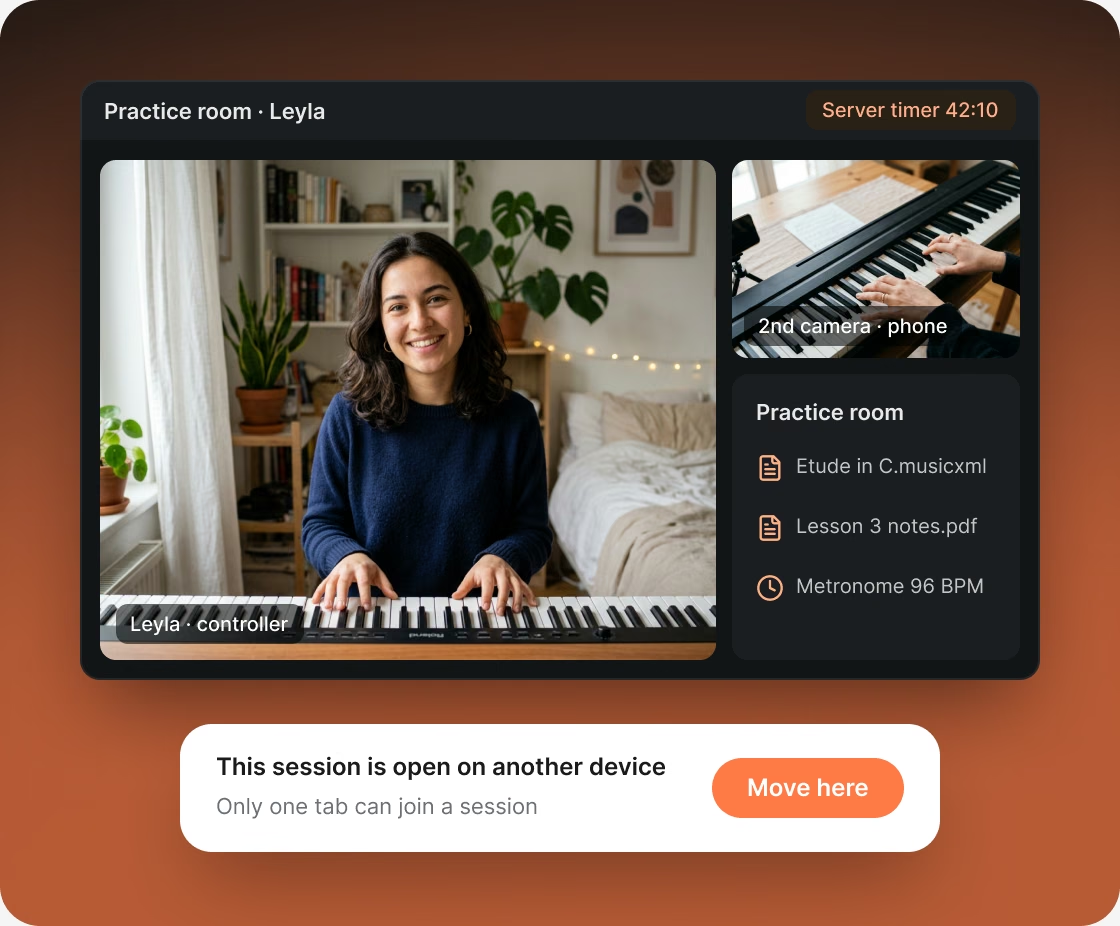
Two terms are used below. A session is any visit to the classroom: a lesson, an interview or a practice room, and the people in it are its participants. The controller is the participant who chooses what both sides see and starts recordings: the teacher by default, or the person practising in a practice room.

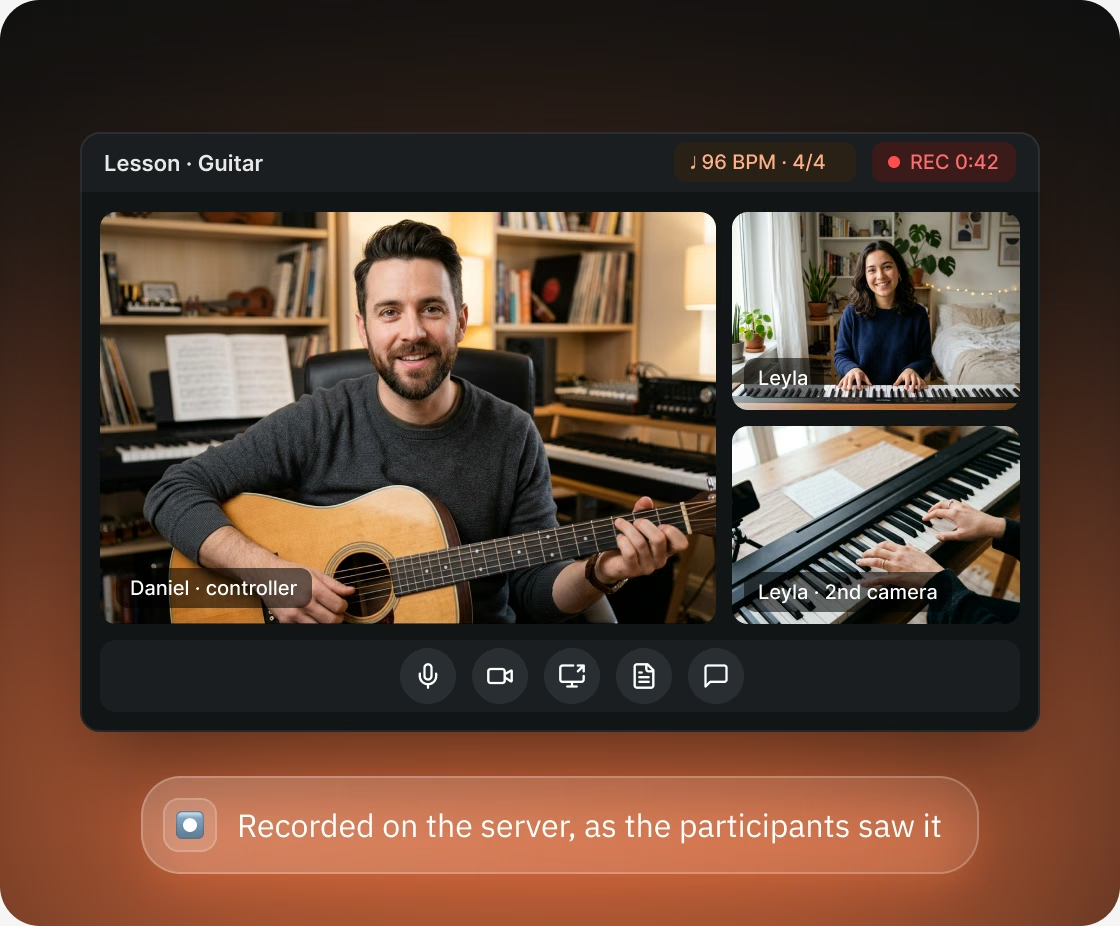
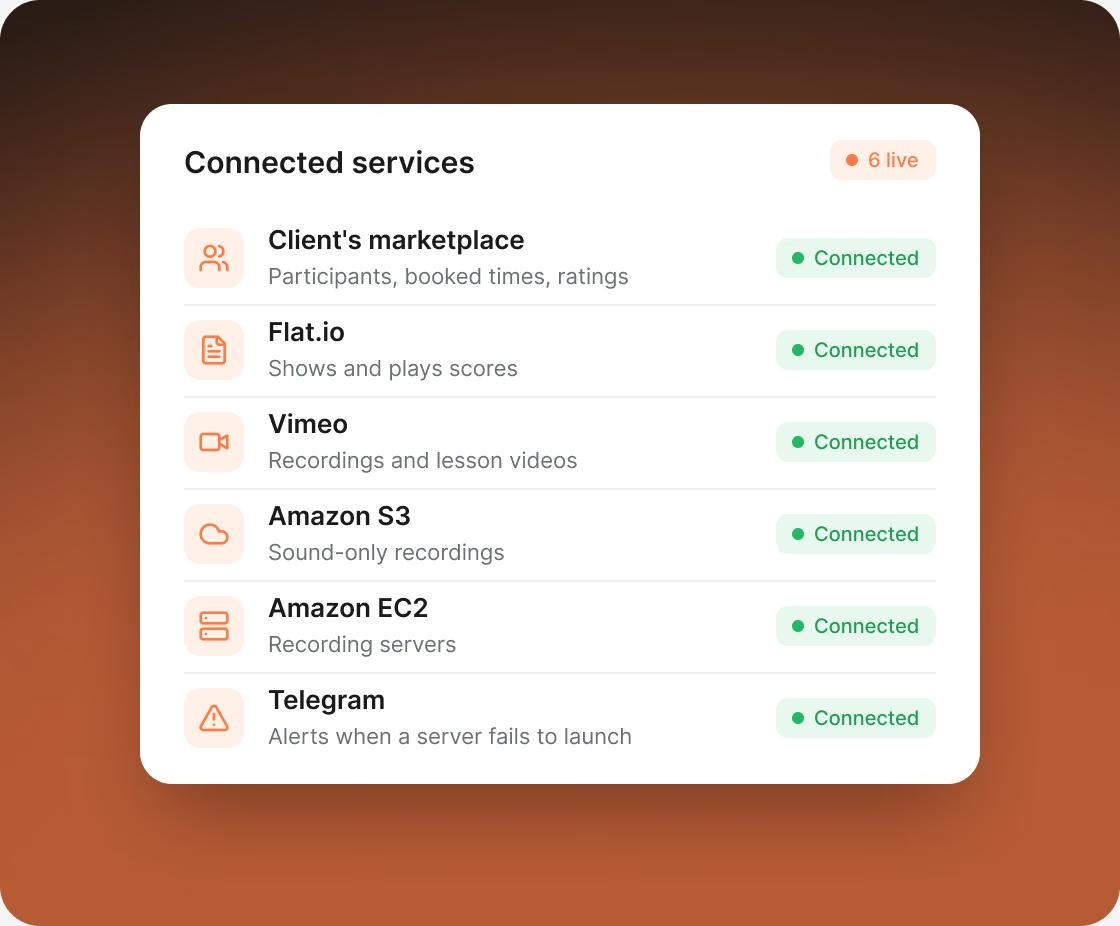
Musicians record short takes to review later. The classroom records them on a server, so the participants' computers and phones stay free for the call.
The controller chooses what to record for each participant: the camera on the person, the camera on the instrument, or just the sound. The metronome, the whole classroom screen and the sound of the whole session can be added as well. Both participants see a 4-second countdown before the take begins. One recording lasts up to 5 minutes, and the classroom sets no limit on the number of recordings in a session.
A recording goes through these steps:
If the controller cancels during the countdown, the recording is stopped and nothing is uploaded.

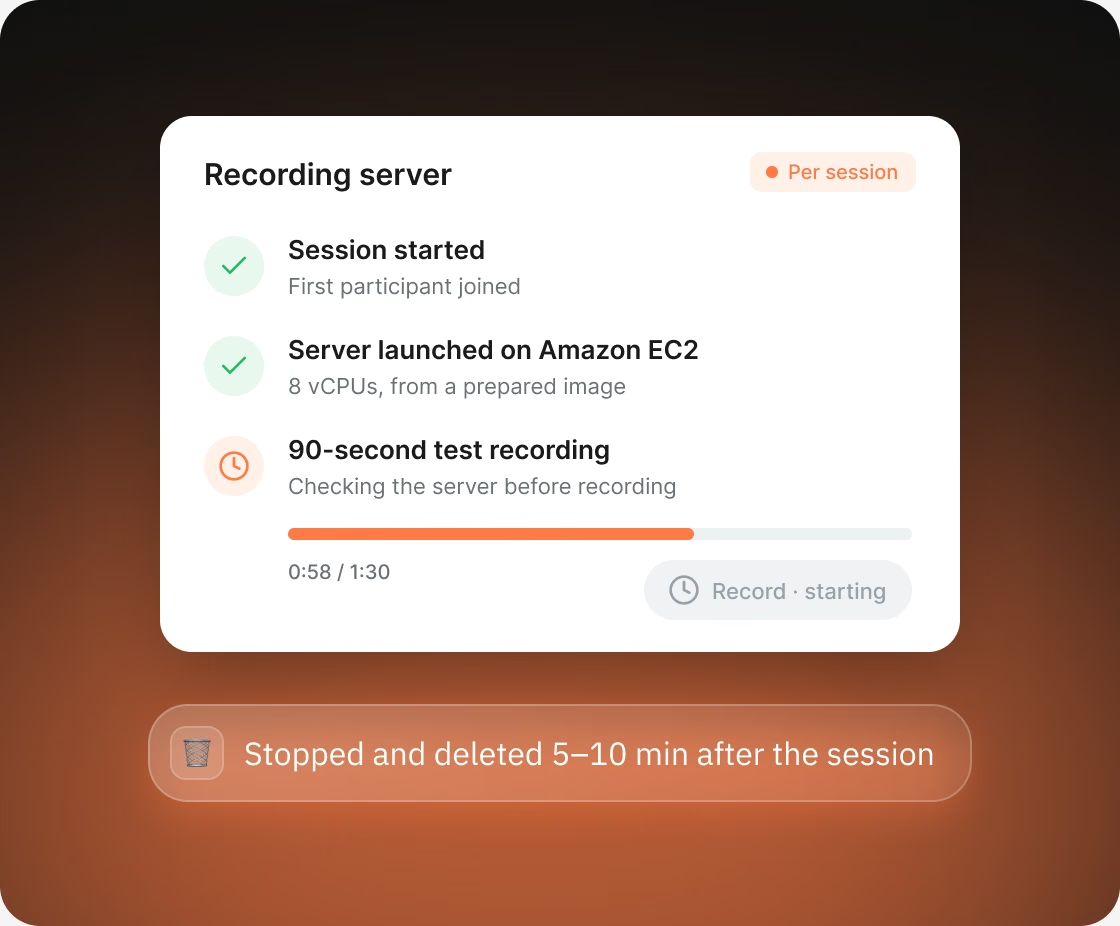
Recording a browser page takes a lot of computing power, so each session gets its own recording server, and none runs between sessions.
When the first participant enters a session, the system launches a dedicated server with 8 virtual CPUs on Amazon EC2 from a prepared image. The call and the shared materials start right away. Only the record button waits: the new server first makes a 90-second test recording, and until it reports that it is ready, the button is disabled and says that the server is starting. The classroom's servers and each recording server exchange commands through message queues.
When the session ends, the server is stopped and then deleted within 5 to 10 minutes. The server image is rebuilt automatically as part of each deployment. If a server fails to launch, the team gets a message in Telegram.
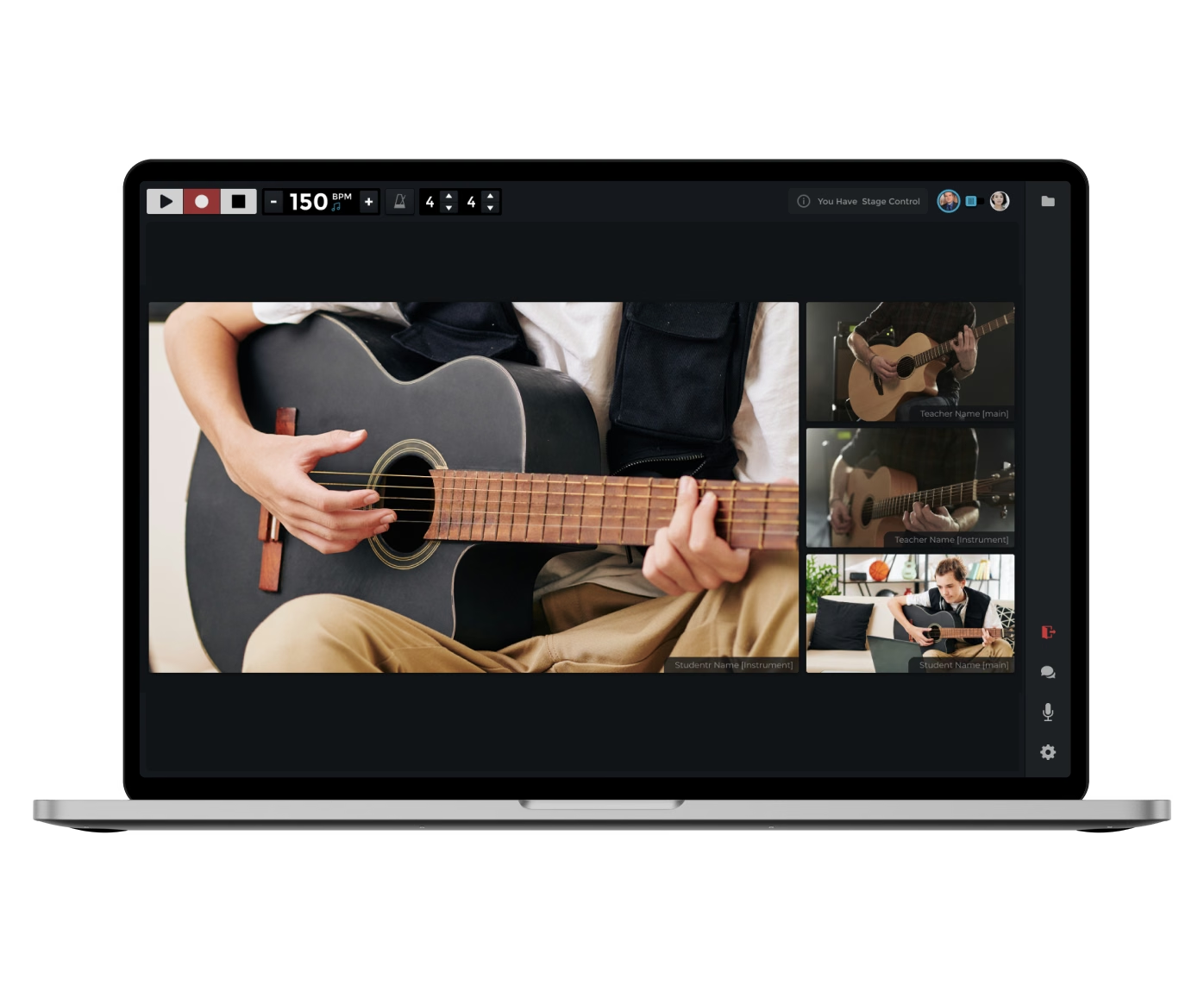
Teachers need to see the keys, strings or frets, and a single webcam shows only the face. Each participant can connect up to two cameras with one audio input.
The second camera can be another camera on the same computer or the participant's phone. To add a phone, the participant scans a QR code that opens the session link, signs in to the same account and chooses to connect the phone as a camera. The phone joins muted, as an extra camera of the same person.
Each camera is marked as showing the person or the instrument, and the marks can be swapped. The recording options use these marks to tell the two cameras apart. The phone has its own buttons to disconnect, mirror the picture and switch between the front and back cameras; mirroring and HD can also be set from the computer.

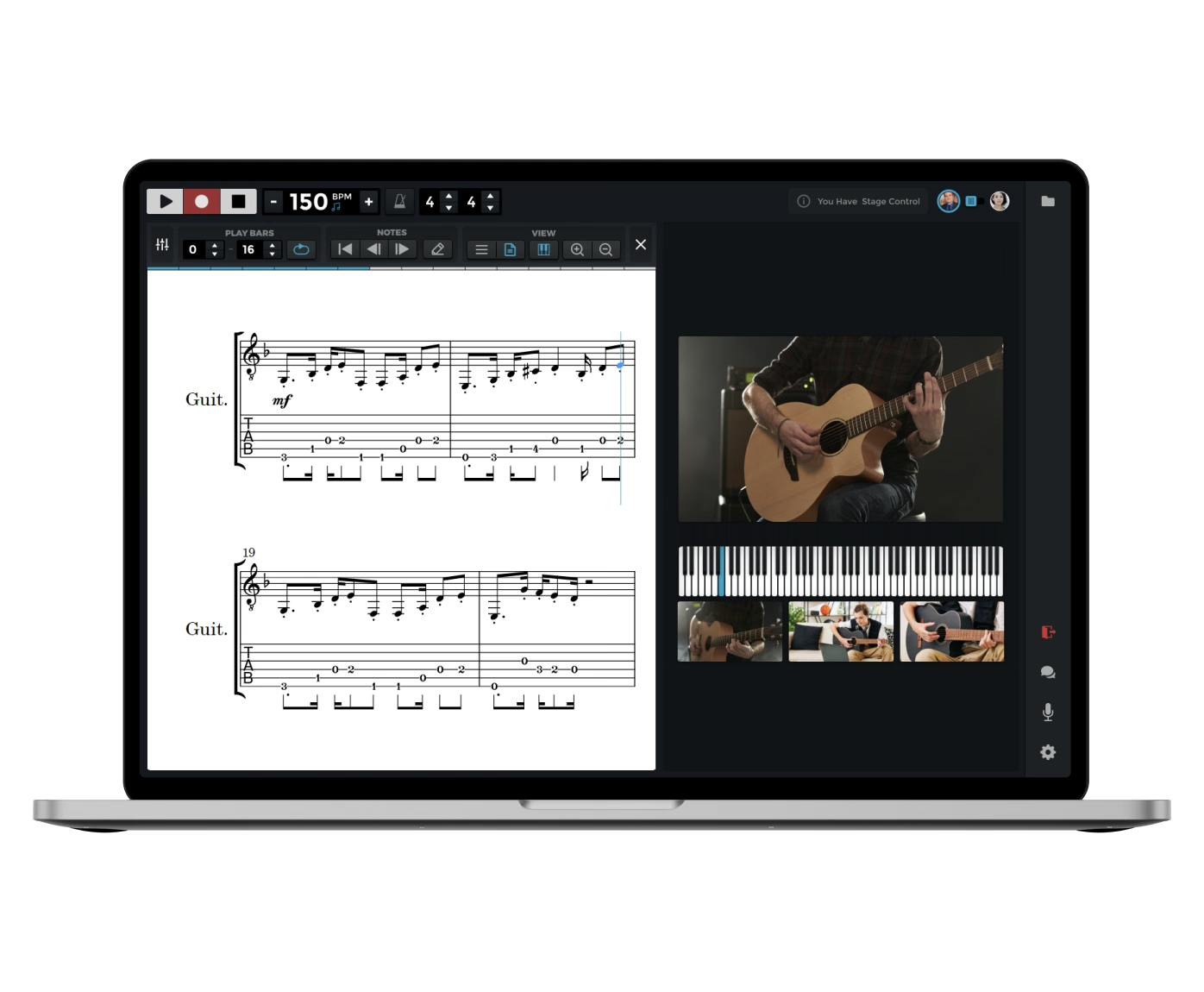
A teacher and a student read and play one score together. The score is shown and played by the Flat.io engine, which we integrated into the classroom.
The controller opens a score, and both participants see the same sheet. Play, pause and stop, the cursor position, zoom, the volume of each instrument part and the choice of visible parts are sent from the controller to the other side, and each browser plays the sound itself. The library accepts common notation formats, including MusicXML, MIDI, Guitar Pro, MuseScore, TuxGuitar and PowerTab files; our real-time server uploads them to Flat.io.
To make the score easier to follow for beginners, we added an instrument aid that shows which keys or frets to press as the score plays.
The classroom reads the score's MIDI data in the browser, including the starting tempo, the measures and time-signature changes, and lights up the notes on a virtual 88-key piano or a 6-string guitar fretboard in step with playback. For Guitar Pro files it reads the tablature and shows the string and fret written by the arranger. For other formats it lights every position on the fretboard where the note can be played. Each participant chooses the instrument view that suits them. The aid works on computers and tablets.

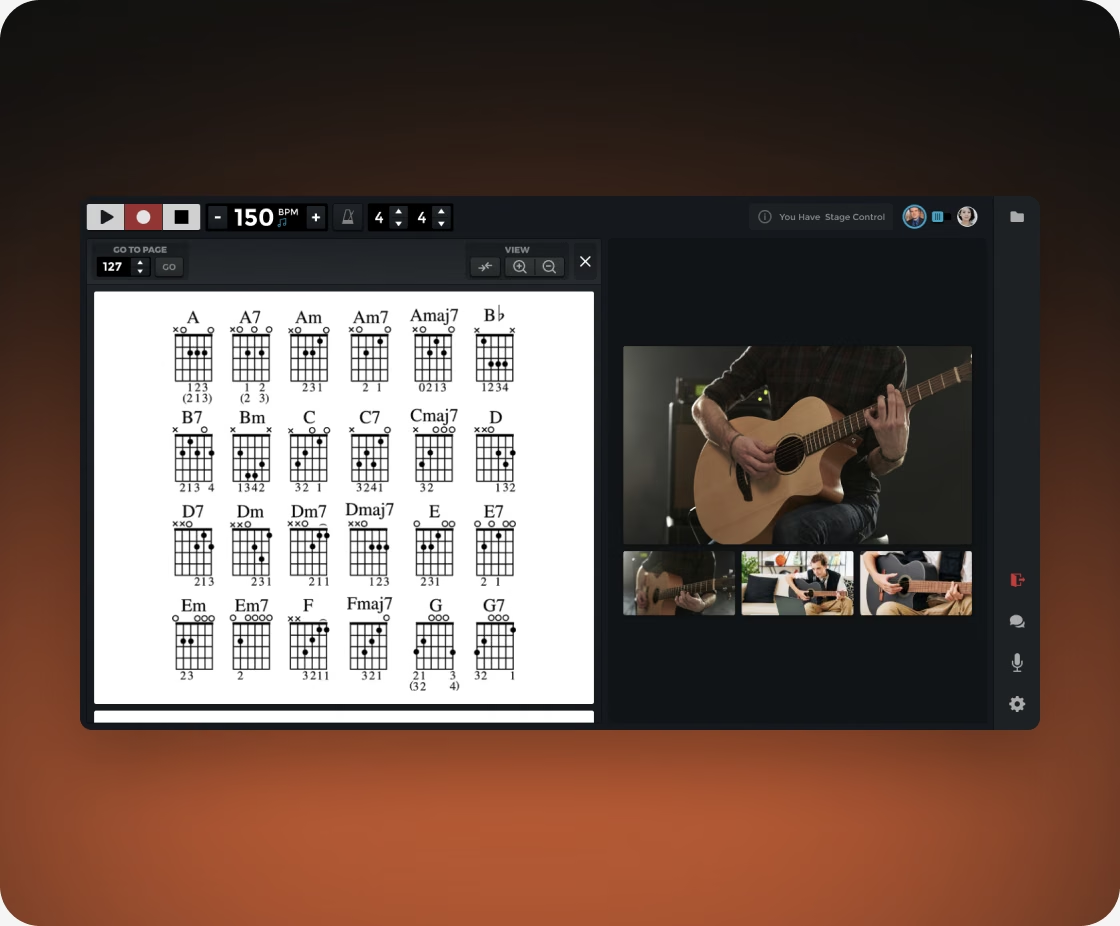
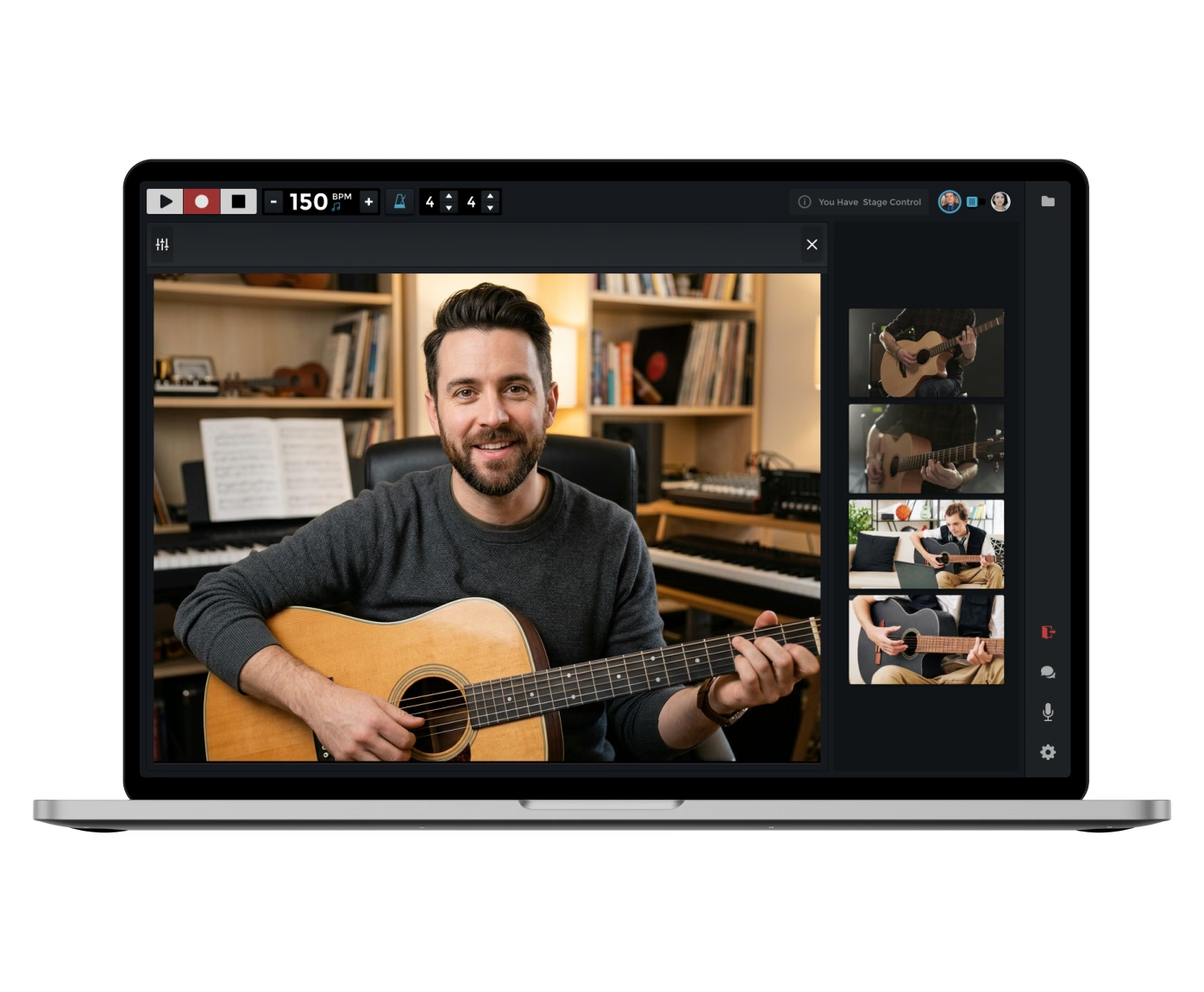
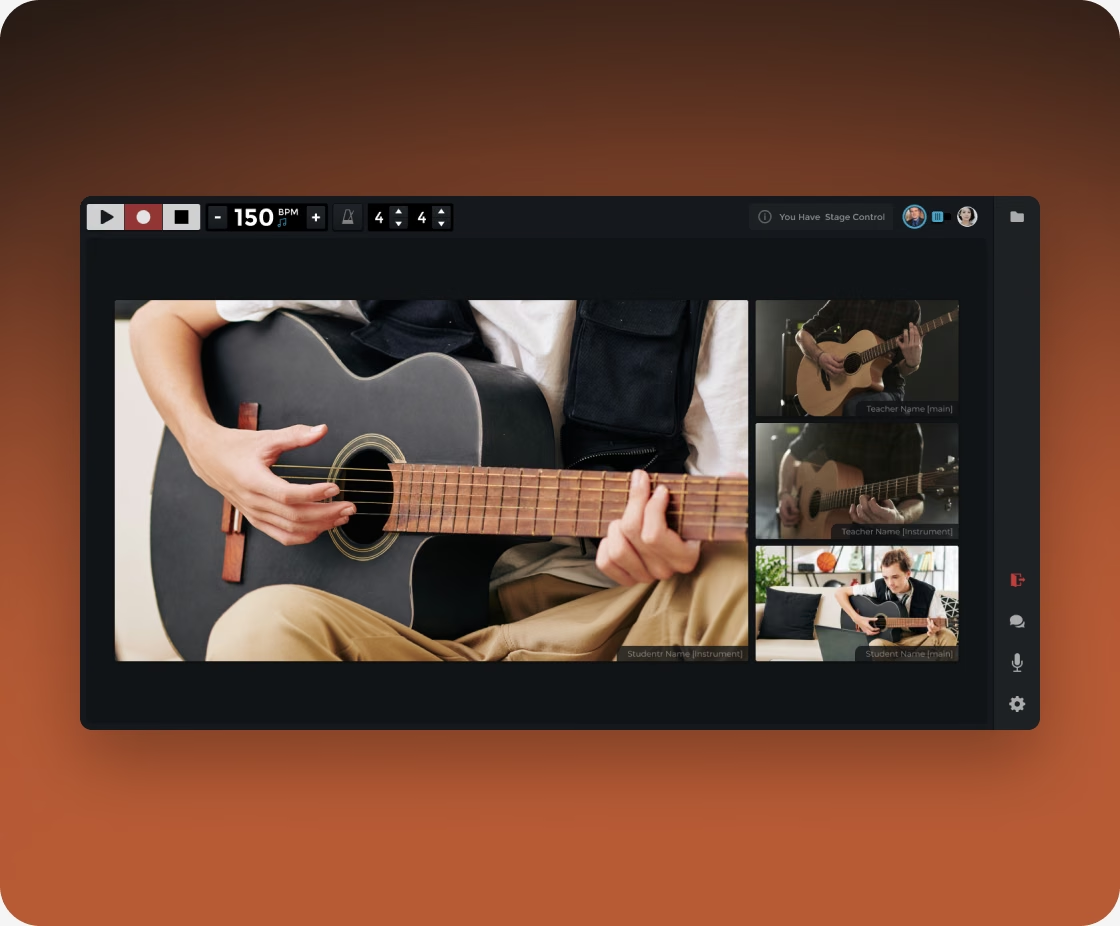
One participant leads and the other follows, so both look at the same material during the lesson.
The controller switches the shared view between the video gallery, the score, a document and a media player, and the other side follows. Control can be handed to the student, and both see who has it. The handover and the shared-view controls are shown only to the controller.
All Musicity sessions happen in one classroom. Lessons and interviews open and close on the booked schedule, so nobody has to start or end them by hand, and a practice room opens on demand.
If a participant opens the same session on another device, the classroom offers to move the session there. A second tab in the same browser is refused, so one person does not join the same session twice by accident. After a session, each participant can rate it with up to 5 stars and a written comment.

Calls have to start on whatever camera and network a family has at home, so the classroom adapts to the device before giving up on video.
When a network blocks direct connections, the call goes through a relay server that we host ourselves. To get a working picture on a given camera, the classroom steps down through 9 progressively simpler camera and microphone settings and, if none of them works, falls back to audio only. Video starts at 480p, with an HD switch for 720p. Participants can change the camera or microphone (and, in Chrome, the speaker) in the middle of a lesson without dropping the call, and a connection that fails is rebuilt automatically.
The settings window shows a live microphone level, plays a test sound through the speaker, lets participants mirror their video and remembers the chosen devices. A muted participant can hold the space bar to speak.
Teacher and student practise to the same metronome settings without either of them running a separate app.
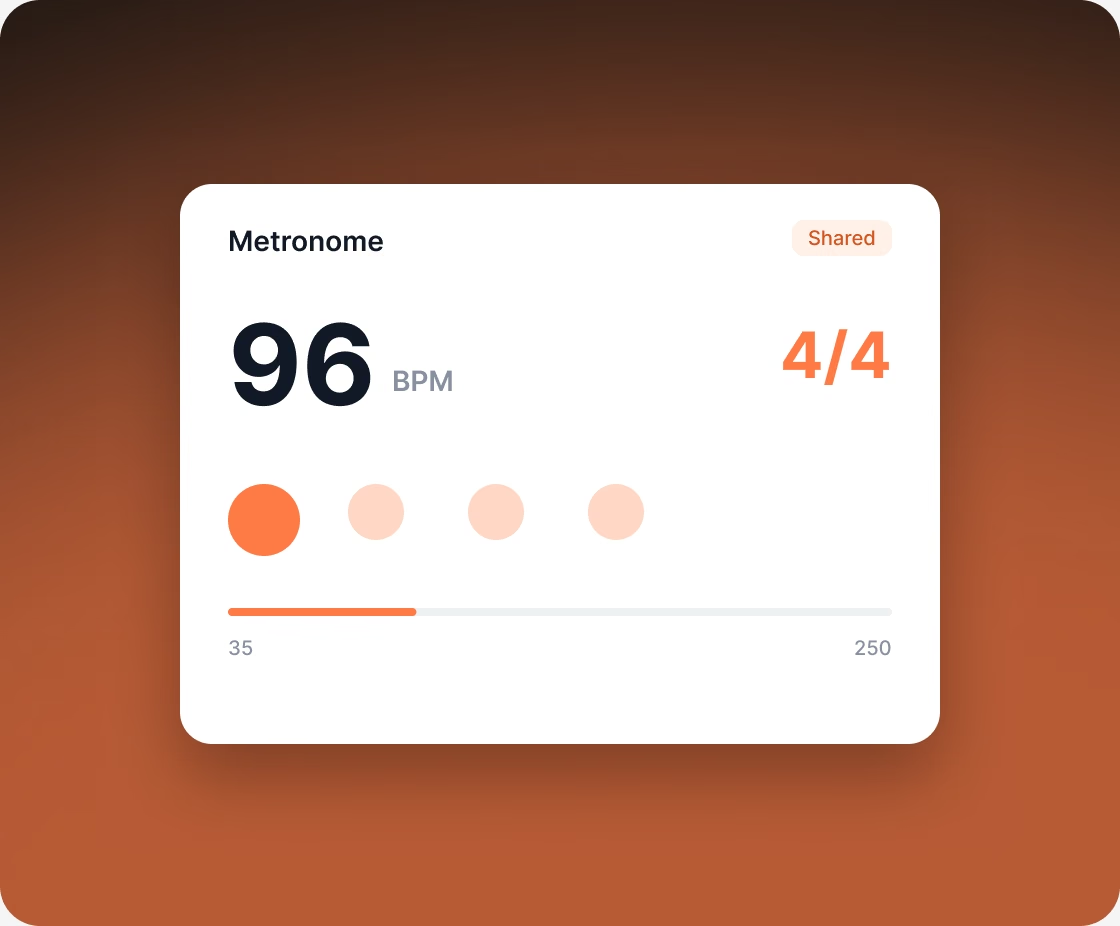
The controller sets the tempo from 35 to 250 beats per minute and 2 to 12 beats per bar, with the note value shown in the time signature, and the first beat of each bar has its own sound. Settings and start or stop commands go to both sides, and each browser plays the clicks locally. The timer runs in a background worker, so the beat stays steady even when the browser tab is not in focus.
Teachers and students keep their lesson materials in one place and open them during a session.
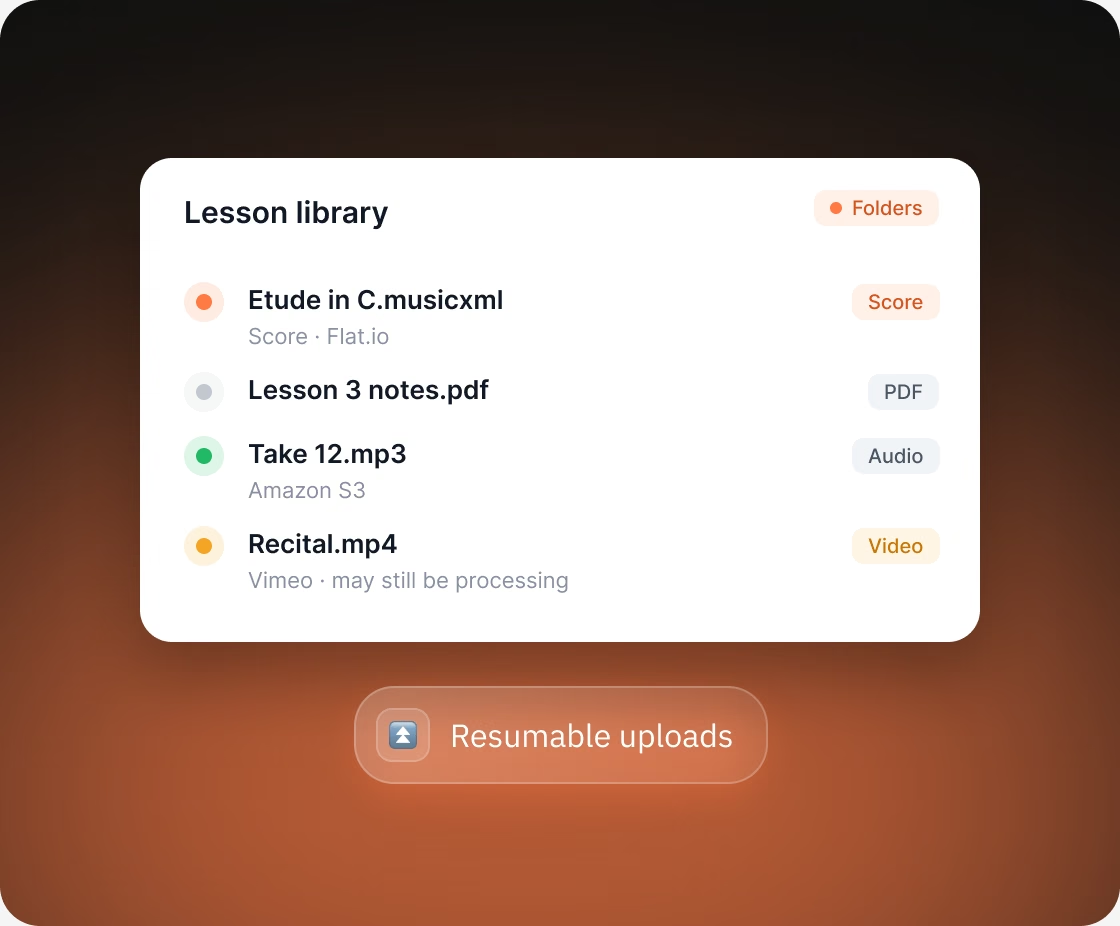
Materials (scores, PDFs, images, audio and video) are kept in folders. Files can be uploaded by drag and drop, filtered by type and moved between folders, and folders can be renamed. A file opened during a lesson is shared with the other participant. Videos are stored on Vimeo. The platform uploads them in resumable parts, so a dropped connection does not restart the upload, and if a video cannot be played yet, the classroom says that it may still be processing.

You get a realistic estimate, technical recommendations and next steps. Free, no obligations.