


Why this matters
If you have ever turned on a beach or bookshelf behind you in Zoom and noticed your ear flickering or a halo around your hair, this article explains exactly what is going wrong and why. If you build software — a product manager, founder, or engineer adding video to a product — virtual backgrounds are one of the most-requested camera features, and they are deceptively easy to get 80% right and surprisingly hard to get the last 20% right. The same segmentation step powers blur, virtual backgrounds, beauty filters, and live AR effects, so the engineering you learn here transfers across a whole family of features. Getting the composite right is the difference between a feature that looks professional and one that looks like a cut-out pasted on a poster.
Same stencil, different paint
In our companion lesson on how to blur your background, we walked through the first step in detail, so here is the short version. The software runs each frame through a segmentation model — a small neural network trained to recognise the shape of a person — and gets back a mask: a black-and-white image the same size as your video, where every pixel that belongs to you is white and every pixel that belongs to the room is black. Think of the mask as a stencil cut out in the exact shape of your body and hair.
Blur and virtual backgrounds share that stencil completely. The model does not know or care what you plan to do with the result. The only thing that changes is the paint. Blur keeps your sharp pixels where the stencil is white and paints a softened copy of the same room where the stencil is black. A virtual background keeps your sharp pixels where the stencil is white and paints a completely different image — a beach, an office, your company logo — where the stencil is black.
That shared first step is why the two features always ship together. Google added blur and replacement to Google Meet in the same 2020 release, both built on the same MediaPipe segmentation model running in the browser. If you have one, the other is nearly free to add. The model details — how it is trained, how small it is, how fast it runs — live in our MediaPipe Selfie Segmentation lesson; this article is about the paint.
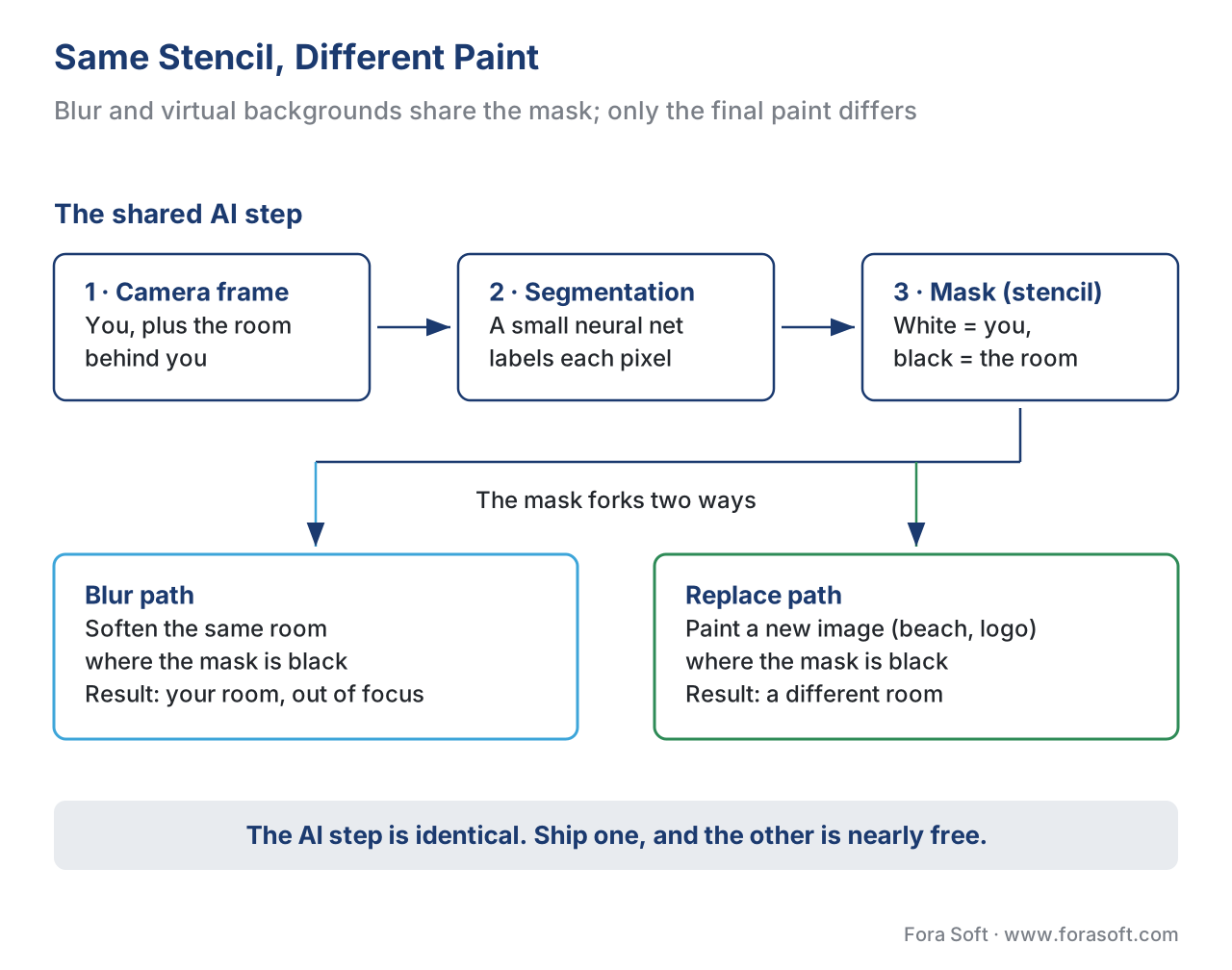 Figure 1. Blur and virtual backgrounds run the identical segmentation step and produce the identical mask. They differ only in the last stage: blur softens the room you have, replacement paints a new one.
The composite step: mixing two pictures along an edge
Compositing is the act of combining the foreground (you) with a background (the new image) into a single frame. The mask tells the compositor where to take each pixel from. Where the mask is fully white, the output pixel is 100% you. Where the mask is fully black, the output pixel is 100% new background. The interesting part is the edge, where the mask is neither pure white nor pure black but somewhere in between.
That in-between value is called the alpha — a number from 0 to 1 that says how much of the foreground to keep. Alpha 1 means "all person", alpha 0 means "all background", and alpha 0.6 means "60% person, 40% background". The formula that does the mixing is one of the oldest and most reliable in computer graphics, the over operator, published by Thomas Porter and Tom Duff in 1984:
output = foreground × alpha + background × (1 − alpha)
Show the math out loud once and it stops being abstract. Imagine a single pixel right at the edge of your shoulder, where the stencil is half-on. The model gives it an alpha of 0.6. Your shoulder's red value there is 200; the new beach background's red value at the same spot is 50. The compositor computes:
output red = 200 × 0.6 + 50 × (1 − 0.6)
           = 120 + 20
           = 140
The output pixel is a blend — mostly your shoulder, with a little beach mixed in — and that blend is what makes the edge look smooth instead of jagged. Run that calculation for every pixel and every colour channel, thirty times a second, and you have a virtual background. The whole feature is one neural network plus this one line of arithmetic.
There is a practical wrinkle worth knowing because it causes a very common bug. Many graphics systems store colours already multiplied by their alpha — a format called premultiplied alpha — because it makes the over operator faster and avoids dark fringes when images are scaled. If your foreground is premultiplied but your background is not, or the other way round, you get a telltale dark or bright halo around the person. Matching the two is a one-line fix once you know to look for it, and a baffling visual defect until you do.
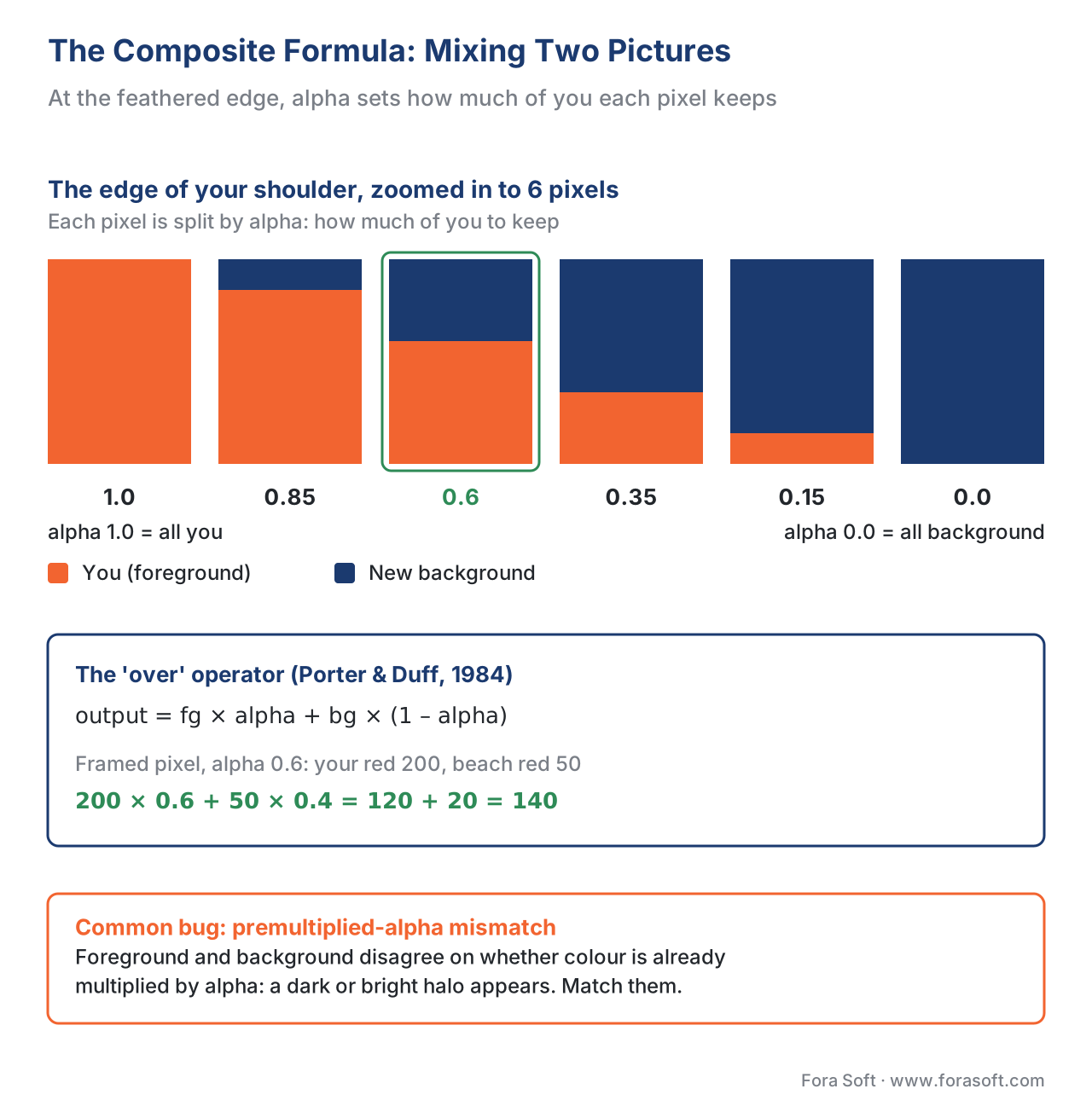 Figure 2. The compositing formula in one picture: at the feathered edge, each output pixel is a weighted mix of you and the new background, set by the alpha value. A premultiplied-alpha mismatch is the usual cause of edge halos.
Why a virtual background looks faker than a blur
Here is the insight that explains every awkward virtual background you have ever seen. With blur, the foreground and the background came from the same camera at the same moment, so they share the same lighting, the same colour temperature, the same grain, and the same focus distance. Your blurred room really does belong behind you, because it is behind you. The brain accepts it instantly.
With replacement, you are gluing together two pictures that have nothing in common. You were lit by a warm bedroom lamp; the beach was shot in cool midday sun. Your webcam adds digital noise; the stock photo is clean. The result is a person who does not belong in the scene, and the brain notices in three specific places.
The first giveaway is the edge. A binary mask — pure white or pure black with no in-between — produces a hard, cookie-cutter outline. Against a blurred version of your own room the hard edge is hidden, because both sides are similar. Against a sharp, contrasting beach the same hard edge reads as a sticker. The fix is to feather the edge — let the alpha ramp gradually from 1 to 0 over a few pixels, exactly as Figure 2 shows — and, better still, to use alpha matting instead of plain segmentation. A segmentation mask labels each pixel person-or-not; an alpha matte estimates a fractional transparency for each pixel, which is what lets it keep individual strands of hair that a hard mask chops off. Google's Pixel phones moved portrait selfies from segmentation to alpha matting for exactly this reason.
The second giveaway is colour and lighting mismatch. Nothing in the simple composite makes your warm-lit face agree with a cool-lit background. High-end pipelines measure the background's overall colour and nudge the foreground toward it, or add a faint rim of background colour around the person.
That rim is the third fix, and it has a name: light wrapping. Google Meet uses it for background replacement specifically. Light wrapping lets a little of the background's light spill over onto the edge of the foreground, the way light really does bend around a person standing in a scene. It softens the segmentation edge and, when the foreground and the new background differ sharply in brightness, it minimises the halo that would otherwise appear. It is the single most effective trick for making a pasted-in person look like they were photographed in place.
The third giveaway, spill, is the mirror image of light wrapping and matters most when a green screen is involved — which brings us to the cheat code.
The green-screen cheat code
Everything above is the hard way: ask a neural network to guess your outline from an ordinary, cluttered scene. There is an easy way that the film industry has used for decades. Stand in front of a solid, evenly lit colour — classically green — and the "which pixels are background" question stops being a guess. Any pixel that is green is background; everything else is you. This is chroma key, and it is so reliable that it needs no neural network at all, just a colour comparison.
This is why Zoom offers a virtual background mode "with green screen". When you tell Zoom you have a green screen, it switches from ML segmentation to chroma key, which is cleaner, sharper at the edges, and so cheap that it runs on hardware too weak for the ML path. Zoom's own guidance reflects this: without a green screen the feature needs a reasonably capable processor, while with one it works on far more modest machines. For a fixed studio — a recurring webinar host, a telehealth clinician, a sales team that records demos — a forty-dollar green cloth often beats any amount of software cleverness.
The cost of a green screen is the one defect ML segmentation does not have: spill. Green light bounces off the cloth and tints the edges of your hair and shoulders green, so the composite needs a spill-suppression step that detects and neutralises that contamination. It is a solved problem, but it is a step you only have to think about with a physical screen.
| Blur | Virtual background (ML) | Virtual background (green screen) | |
|---|---|---|---|
| Background shown | Your own room, softened | A chosen image or video | A chosen image or video |
| How it finds you | Person segmentation | Person segmentation | Chroma key (colour match) |
| Extra hardware | None | None | A solid, lit green cloth |
| Edge quality | Hidden by the blur | Needs feather + light wrap | Cleanest, but needs spill suppression |
| Biggest weakness | Cosmetic only, not private | Lighting/colour mismatch | Green spill; fixed setup |
| Runs on weak devices | Sometimes | Hardest path | Yes — chroma key is cheap |
Table 1. Three ways to change what is behind you. The blur and ML-replacement columns share a segmentation engine; the green-screen column swaps it for a colour comparison that is cheaper and sharper but needs a physical screen.
Build it into your own product
If you are adding virtual backgrounds to a web-based video product, you already have most of the pipeline if you have built blur, because the architecture is identical up to the final shader. You tap into the camera stream at the raw-frame point — where each frame is still uncompressed pixels — using the browser's MediaStreamTrackProcessor to read frames and MediaStreamTrackGenerator to push your modified frames back into the call. Between them sits your transform: segment the frame to get a mask, then composite your background image under the person using that mask.
// Pull each camera frame, segment, composite a chosen background, push it back.
const processor = new MediaStreamTrackProcessor({ track: cameraTrack });
const generator = new MediaStreamTrackGenerator({ kind: "video" });

const transformer = new TransformStream({
  async transform(frame, controller) {
    const mask = await segmenter.segment(frame);       // person vs. background
    const output = composite(frame, bgImage, mask);    // you over the new image
    controller.enqueue(output);
    frame.close();                                     // release memory every frame
  },
});

processor.readable.pipeThrough(transformer).pipeTo(generator.writable);
const virtualBgStream = new MediaStream([generator]);  // send this into the call
Do the composite step on the GPU, the graphics chip built to do exactly this kind of per-pixel mixing. A composite is cheap there — for each output pixel the shader reads one foreground pixel, one background pixel, and one alpha value, then applies the over formula. That is often less work than a high-quality blur, which has to average many surrounding pixels, so a virtual background can be slightly faster than blur on the same device. Both still have to finish inside the 33 millisecond budget that one frame allows at 30 frames per second; our real-time latency budget lesson breaks that clock down, and your video SDK decides whether you can reach the raw-frame point at all.
A few details separate a polished result from a rough one. Upload the background image to the GPU once, not every frame — it never changes, so re-sending it wastes the whole budget. Decide how the image fits the frame: a 16:9 photo on a 4:3 camera must be cropped to cover or it will stretch your beach into taffy, so most apps scale-to-cover and centre. Remember the mirror: your self-view is usually flipped, so any text in the background image will read backwards to you unless you handle it. And if you offer a video background — a looping ocean — keep it small and pre-decoded, because decoding a second video stream eats into the same 33 ms.
The three mistakes from blur all return here, plus one new one. Feather the mask edge so the outline is not a hard cookie-cutter line. Blend each mask with the previous frame so the edge does not shimmer from frame to frame. Close every VideoFrame or the tab leaks memory and crashes within minutes. The new one is premultiplied-alpha mismatch from Figure 2 — keep your foreground and background in the same alpha convention or you will chase a halo for an afternoon.
 Figure 3. The browser pipeline: camera in, segment (or chroma-key if a green screen is present), composite the new background on the GPU, stream out — with the four mistakes that break it flagged where they happen.
A note on trust and disclosure
A virtual background is cosmetic, but it is also the first step toward making a video feed show something that was not really there. Replacing a room is harmless; the same pipeline, pushed further, blends into the territory of altered or synthetic video. If your product moves beyond a static replacement into anything that could misrepresent a person or place, the disclosure rules we cover in our C2PA and EU AI Act disclosure lesson start to matter. And because the feature relies on detecting a person, the line where detection becomes recognition — identifying who the person is — is governed by the rules in our face detection under the EU AI Act lesson. Background replacement itself stays well clear of both lines, but it is the on-ramp.
There is also a privacy point that mirrors blur. A virtual background hides your real room from other people on the call, which is useful for telemedicine and remote work. But the replacement happens after the camera has already captured the real room, so the unblurred, unreplaced frame still exists in your device's memory for an instant. For privacy-critical products, hold the first frames back until the mask is ready, rather than trusting that the replacement is instant.
 Figure 4. The three seams that make a virtual background look fake, and the fix for each: feather plus alpha matting for the edge, colour matching plus light wrapping for the lighting, and spill suppression for the green screen.
Where Fora Soft fits in
We have built real-time video products since 2005 — video conferencing, WebRTC apps, e-learning, telemedicine, and live broadcast — and virtual backgrounds are among the camera features clients ask for most. The work is rarely the composite itself; it is making the seam hold up across a thousand cameras, lighting setups, and hairstyles without draining the battery or flickering on a five-year-old laptop. In telemedicine, where a virtual background protects a patient's home, and in branded webinars, where the background carries a logo that must not warp, the difference between a convincing composite and a cardboard cut-out is a set of engineering decisions made early — the matte quality, the light wrap, the fit logic, and whether a green screen is worth recommending. We help teams choose the model, the chip, and the pipeline so the feature that looks easy in a demo still works in the field. Our video conferencing app development team ships background blur and replacement inside live calls, and our real-time video effects and processing engineers tune the matte, light wrap and on-device model for each target chip.

The book
AI for Video: A Complete Guide to Intelligence in Video Products: From Models and Inference to Computer Vision, Speech, Search, and Generative Video
A virtual background is one segmentation model plus one line of compositing arithmetic. Volume 6 of the Fora Soft Video Engineering Handbook covers the model side in depth — person and instance segmentation, detection, pose and tracking, how these models are packaged and where they run — so you can judge the mask before you paint over it. Volume 7 carries the same camera effects into the live call: the 33 ms frame budget, where AI plugs into a WebRTC pipeline, and cost per stream-hour. Written by Nikolay Sapunov, CEO at Fora Soft.
Planning virtual backgrounds for your video product?
Tell us which devices you must support and what the background has to carry — a logo, a clinic room, a looping video. We will pick the segmentation model, decide whether a green screen is worth recommending, and show you where the edge, the light wrap and the 33 ms budget will bite. 250+ video products shipped since 2005.
See our case studies
Case study
ProVideoMeeting
WebRTC video conferencing SaaS with branded meeting rooms and in-call document signing — the kind of browser call where a branded background has to hold its edge on every laptop.
Case study
CirrusMed
Browser-based, HIPAA-compliant telemedicine with unlimited video visits, licensed in 48+ U.S. states — a setting where hiding the patient’s home is a privacy feature, not a gimmick.
Case study
SuperPowerFX
Video effects app that composites 20+ Hollywood-style superpowers over your own footage. 500K+ downloads and a 4.6 rating on iOS, on the market for 8+ years.
What to read next
Companion
How to blur your background, engineering deep-dive
The same mask with the other paint: blur in Zoom, Teams and on the iPhone.
Build it
MediaPipe Selfie Segmentation with WebGPU
The segmentation model behind the stencil, taken down to working browser code.
Camera effects
Beauty filters, gaze correction, and AR effects
The next step for the same pipeline: reshape the person instead of the room.
Trust
C2PA and EU AI Act disclosure engineering
When an altered video feed starts to need a label, and how to build one in.
References
- Google Research, "Background Features in Google Meet, Powered by Web ML" (30 October 2020) — first-party account of the segment-then-composite pipeline: MediaPipe segmentation to a low-resolution mask, joint bilateral filter refinement, WebGL2 rendering, and light wrapping for background replacement to soften edges and minimise halos; MobileNetV3-small encoder, 193K parameters, 400 KB after float16 quantization. https://research.google/blog/background-features-in-google-meet-powered-by-web-ml/
- Thomas Porter and Tom Duff, "Compositing Digital Images," ACM SIGGRAPH Computer Graphics, Vol. 18, No. 3 (July 1984) — the original definition of the over operator,
output = fg·α + bg·(1−α), and premultiplied (associated) alpha. The source of truth for the compositing algebra. https://dl.acm.org/doi/10.1145/964965.808606 - W3C, "MediaStreamTrack Insertable Media Processing using Streams" (Working Draft) — the raw-frame insertion point (
MediaStreamTrackProcessor/MediaStreamTrackGenerator) that exposes each camera frame as aVideoFramefor on-device segmentation and compositing. https://www.w3.org/TR/mediacapture-transform/ - W3C, "Media Capture and Streams" (Recommendation) —
getUserMediaand theMediaStreamTrackmodel the camera-effect pipeline is built on. https://www.w3.org/TR/mediacapture-streams/ - W3C, "WebGPU" (Working Draft, GPU for the Web WG) — modern browser GPU compute and graphics; the fast path for the per-pixel composite shader; reached default availability across Chrome, Edge, Firefox, and Safari in late 2025. https://www.w3.org/TR/webgpu/
- W3C, "WebRTC: Real-Time Communication in Browsers" (Recommendation, 13 March 2025) — the live-call platform the composited stream is sent over. https://www.w3.org/TR/webrtc/
- Google Research, "Accurate Alpha Matting for Portrait Mode Selfies on Pixel 6" (2022) — why an alpha matte (fractional per-pixel transparency) preserves strand-level hair detail that a binary segmentation mask loses; the move from segmentation to matting for portrait compositing. https://research.google/blog/accurate-alpha-matting-for-portrait-mode-selfies-on-pixel-6/
- Google for Developers, "MediaPipe Image Segmenter" web documentation — the production segmentation model that outputs the person/background category mask used as the composite alpha; MobileNetV3-based, ~256×256 input, sub-3 ms GPU-delegate inference. https://ai.google.dev/edge/mediapipe/solutions/vision/image_segmenter/web_js
- Zoom Support, "Virtual background system requirements" — the with-green-screen vs without-green-screen requirement split (chroma key runs on weaker hardware); image (16:9, ≥1280×720, 1920×1080 recommended) and video (MP4/MOV, 480×360 to 1920×1080) background specifications. https://support.zoom.com/hc/en/article?id=zm_kb&sysparm_article=KB0060007
- Microsoft Learn, "Manage and create custom meeting backgrounds for Teams meetings" — custom-background image specs (16:9, ≥1920×1080 recommended; admin upload 100 KB–2 MB, JPG/PNG, min 1280×720) and the Teams Premium boundary for admin-pushed backgrounds. https://learn.microsoft.com/en-us/microsoftteams/custom-meeting-backgrounds
- "Deep Learning Methods in Image Matting: A Survey," Applied Sciences 13(11):6512 (2023) — survey of alpha matting vs segmentation, chroma key as a classic matting technique, and green-spill / foreground contamination as a compositing problem. https://www.mdpi.com/2076-3417/13/11/6512
