
Language Lock In × Fora Soft

Live virtual classroom and member portal for an online Swedish language school

Published: Nov 24, 2026
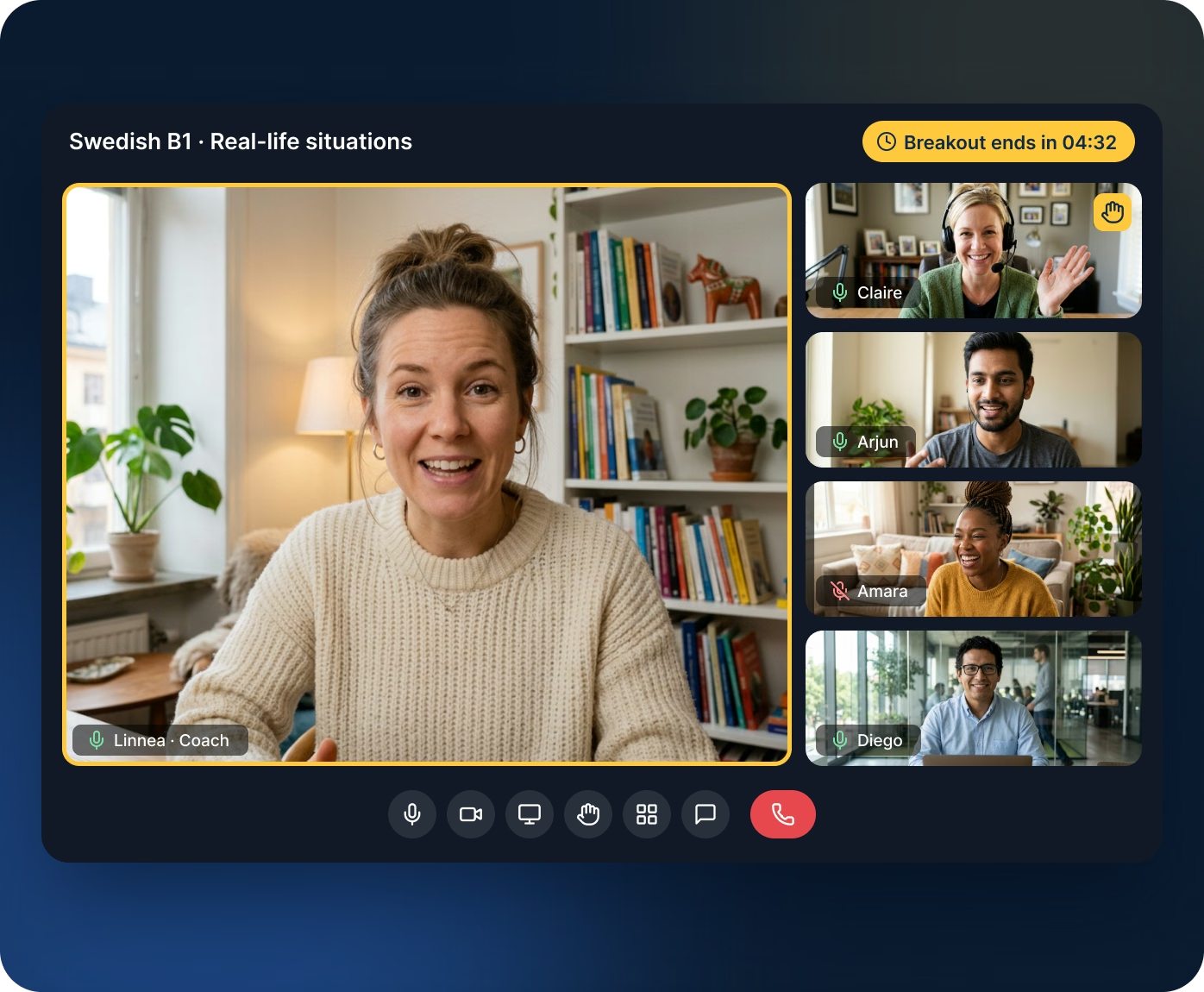
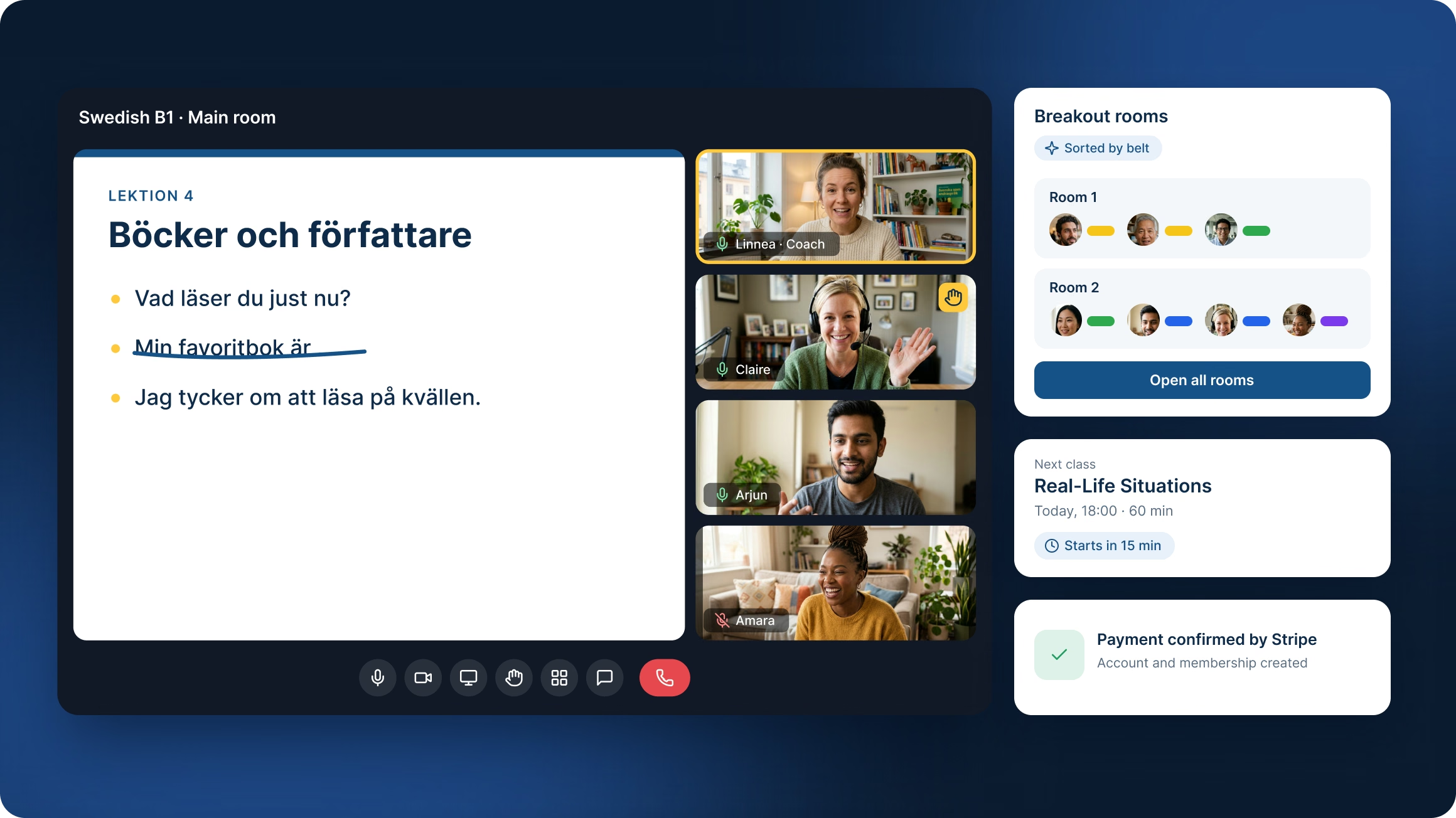
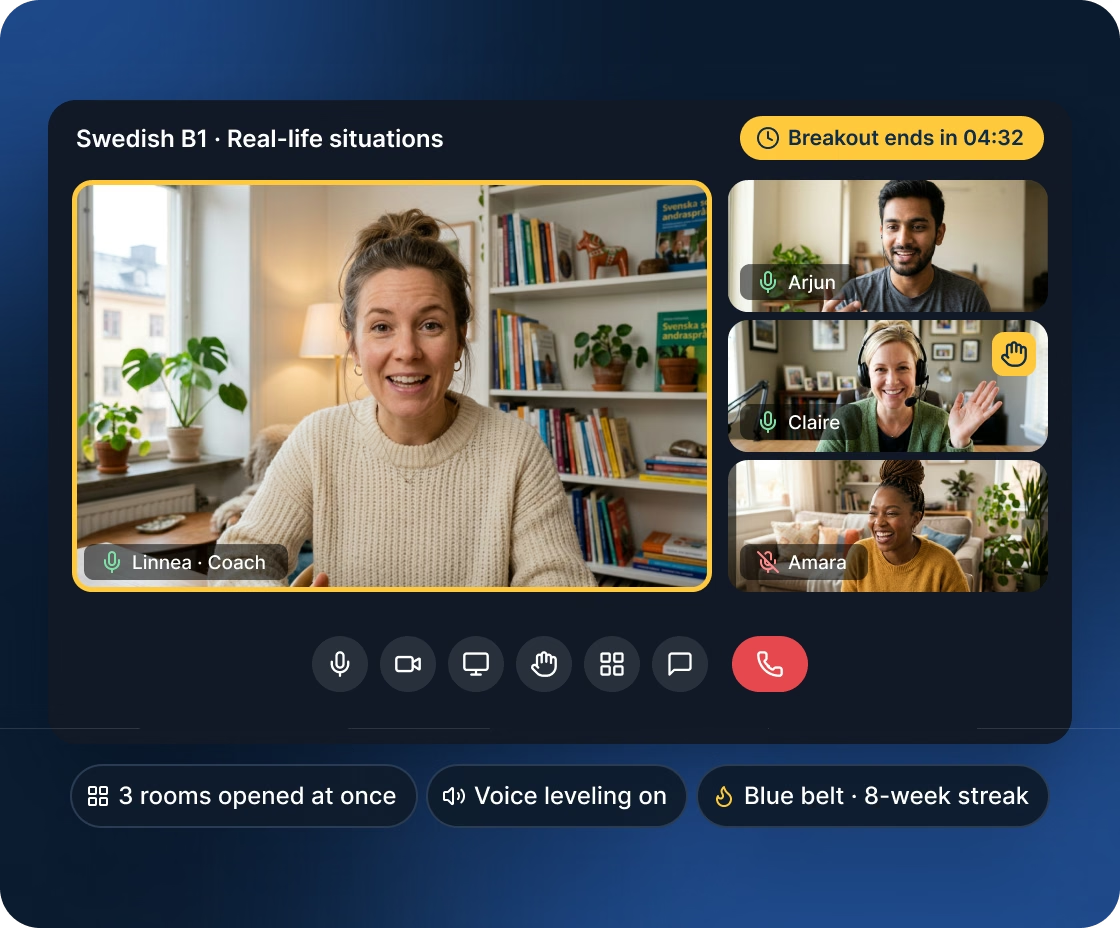
Live Language Lock In class: coach and students in video tiles with a breakout timer
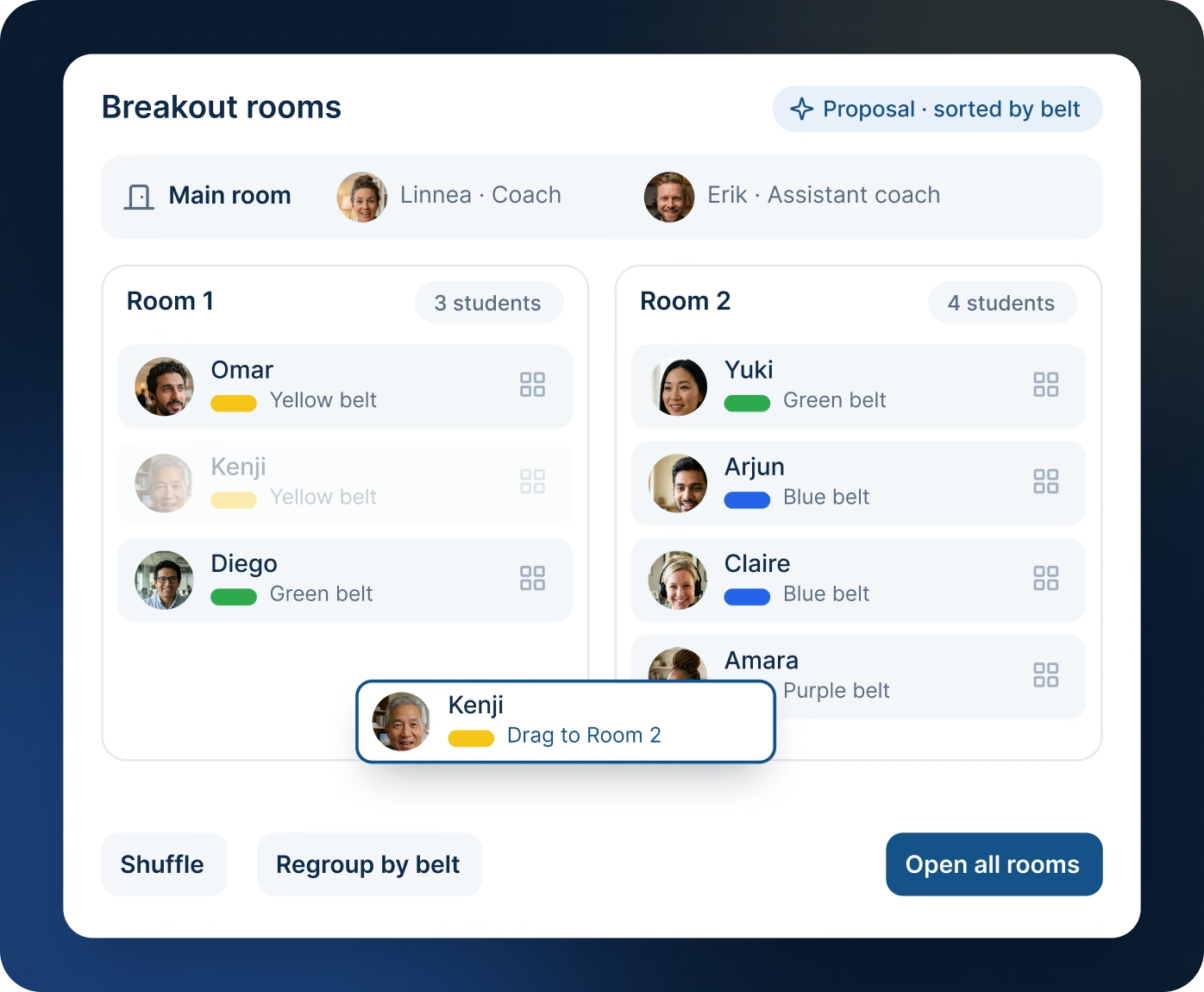
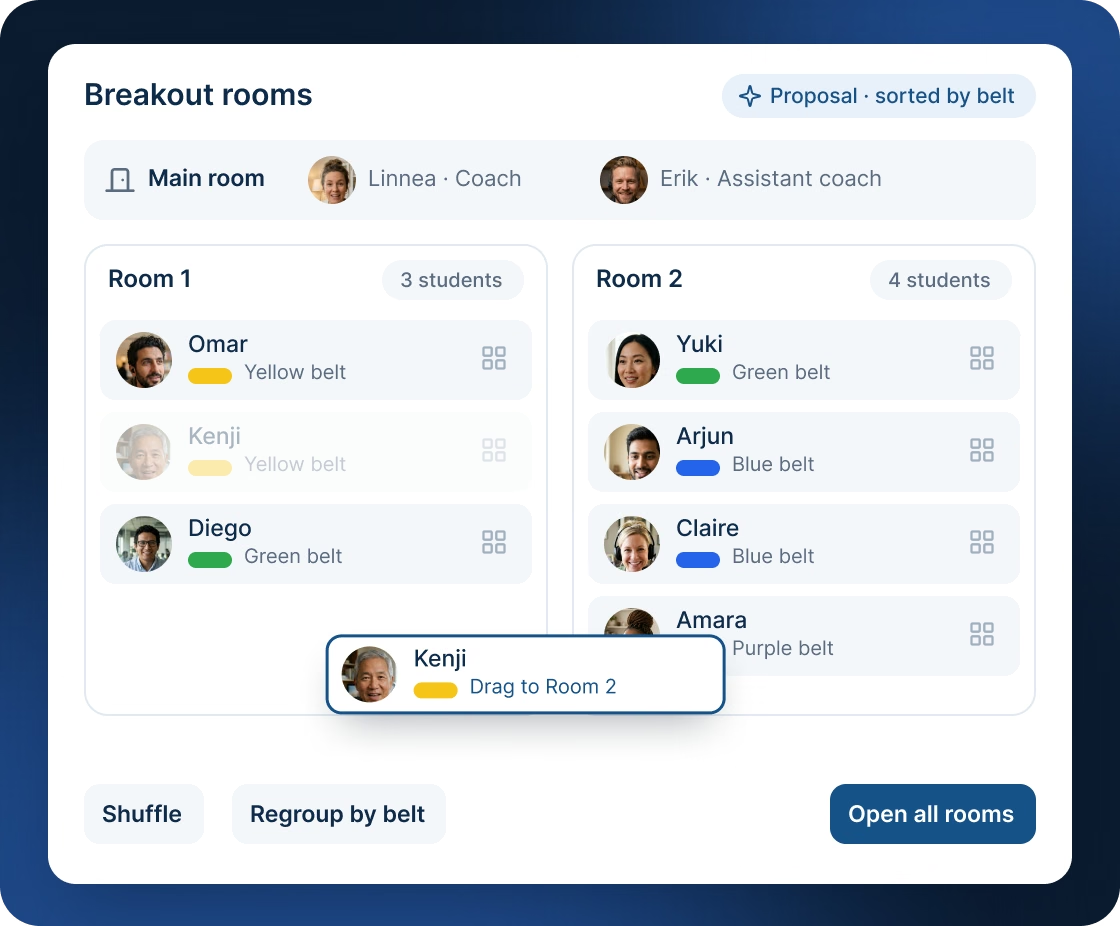
Breakout rooms grouped by belt level with drag-and-drop between rooms
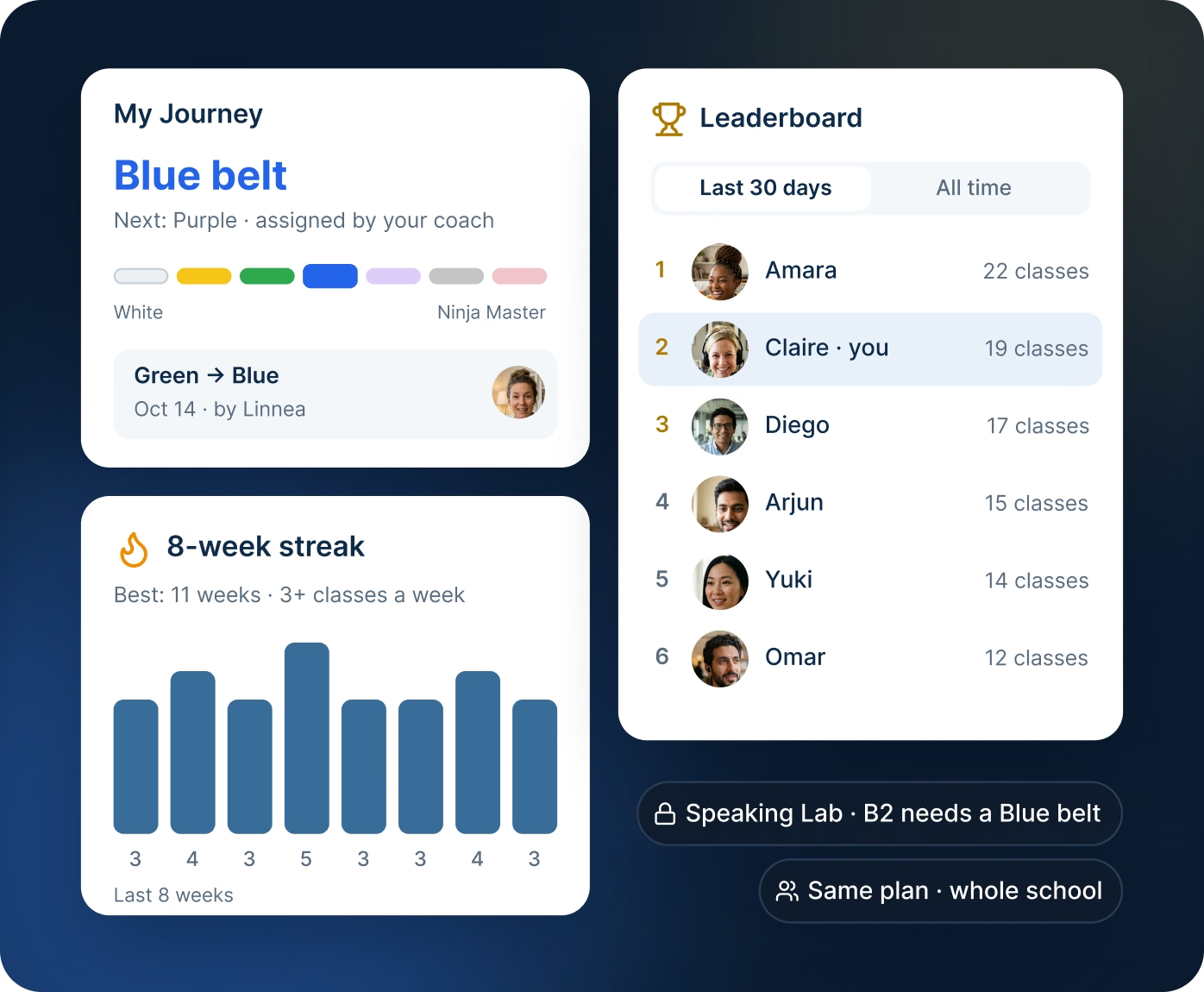
My Journey belt progress, weekly streak and leaderboard
Language Lock In is the portal and live virtual classroom of an online Swedish language school. Students buy a plan, book group classes and one-on-one sessions with coaches, and attend speaking-focused classes in a video classroom built into the portal. We developed the platform: the video classroom, payments, the class schedule, one-on-one sessions, the belt-based level system, reports and integrations with the school's CRM, calendars and ad tracking.
The school teaches Swedish to all levels, from complete beginners, and Norwegian from the A2 level. A typical class opens with a short lesson from the coach, after which students practice in small breakout rooms with peers at their level while coaches move between rooms to correct and guide. Language Lock In reports more than 1,500 students, over 200 class times every month, and students from companies such as Spotify, IKEA, Volvo and Ericsson.
Language Lock In: classroom with shared slides, breakout rooms and class schedule
The system works like this. The server keeps students, plans, classes, bookings and payments in one database and runs on Google Cloud Run. A web app gives each role its own interface on desktops, phones and tablets. Live video goes through LiveKit, a media server. Our server controls it: it creates the rooms, issues access tokens and receives join and leave events for attendance.
How Language Lock In works: the server, the web app and LiveKit
The hardest part of the platform is the class format itself: a coach has to split a live group into rooms by level within moments and hear every student at a comfortable volume, whether they use a headset or a laptop microphone. Money needs the same care: a payment notification that arrives twice must not create a second account or membership, and a repeated request must not charge the student twice.
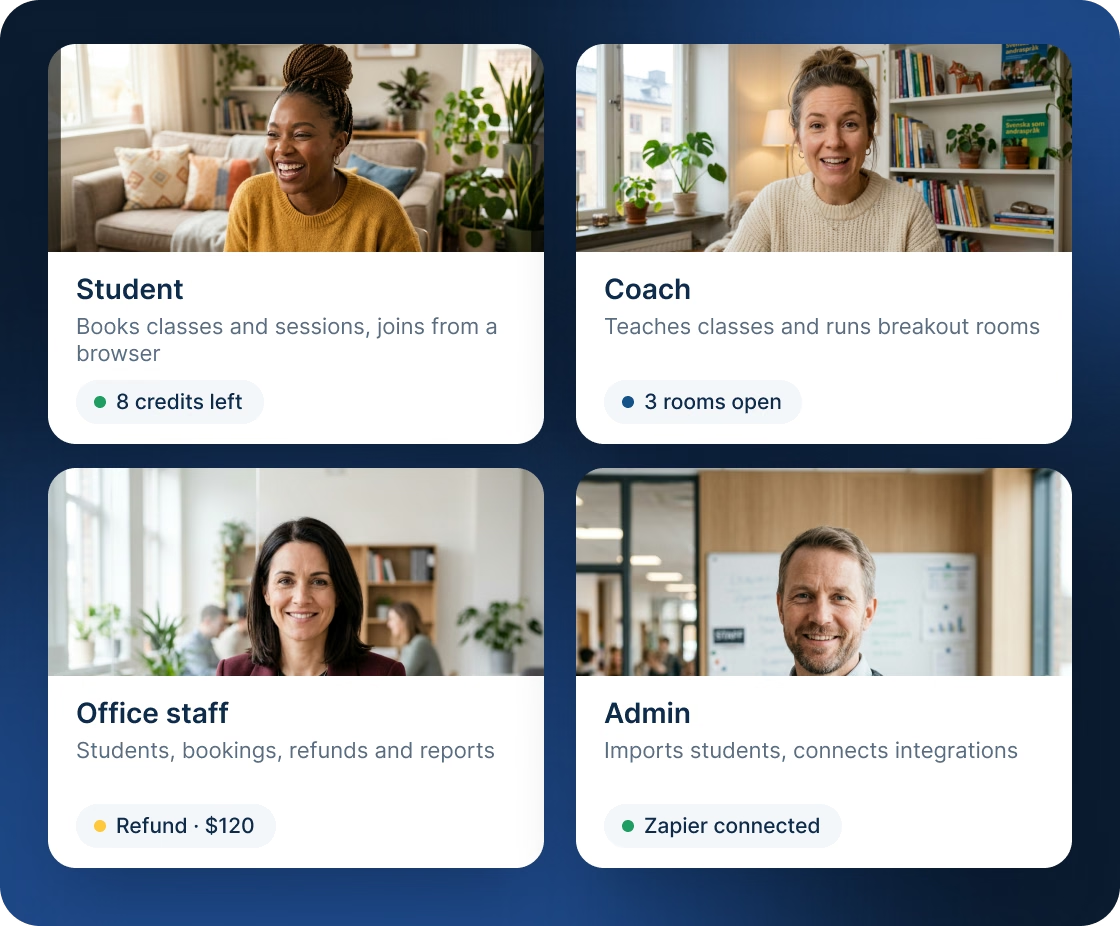
Who uses Language Lock In: student, coach, office staff and admin

Who uses the platform

  • Students buy a plan, book classes and one-on-one sessions, join the classroom from a browser and follow their progress.
  • Coaches teach classes, run breakout rooms, accept or decline requests for one-on-one sessions and mark attendance. A coach added to someone else's class to help is an assistant coach.
  • Office staff manage students, bookings, refunds and reports without teaching.
  • Admins do everything office staff can, and also import students, connect integrations and manage other accounts.

A plan a student has bought is a membership, and the classes and sessions it allows are counted in credits. A class is one scheduled group lesson, a session is a one-on-one meeting with a coach, and a belt is a student's level. "Staff" means coaches, office staff and admins together.
Highlights

  • Level-matched breakout rooms in one click, with all video rooms created at once and one countdown shown in every room.
  • PDF slides that open in the main room and in each breakout room, with pen and disappearing ink on slides and screen shares.
  • Voice leveling in the browser, so quiet and loud microphones reach the class at a similar volume.
  • Stripe checkout where the account appears only after the payment is confirmed, and repeated notifications are ignored.
  • Belts, weekly streaks and leaderboards that show students their progress, plus a minimum belt per class type that the server checks at booking.
Live class with coach and students: breakout timer, voice leveling and belt streak
Breakout rooms proposal grouped by belt with drag-and-drop between rooms

Breakout rooms grouped by level

Practice in small groups is the core of the school's method, so we made forming the groups a matter of seconds.

  • With one click the coach gets a proposal: students are sorted by belt and cut into consecutive groups, so students of neighboring levels practice together.
  • Rooms of three are preferred, and rooms of four absorb the remainder. Seven students make rooms of 3 and 4, ten students make rooms of 3, 3 and 4. The proposal needs at least six students with a belt; with fewer, the coach forms rooms manually. Students without a belt stay in the main room until the coach places them, and staff stay there too.
  • The coach adjusts the proposal by dragging students between rooms (long press on touch screens) or typing a name, then opens all rooms at once.
  • If rooms already exist, the coach chooses to regroup by belt, keep the current rooms or cancel.

Coaches can also create rooms manually, shuffle students, rename a room, close one room or bring everyone back to the main room. A coach can visit a room or ask another staff member to move to one; that person gets a prompt to accept or decline. A closed set of rooms is remembered, with coach positions, and can be reopened as a draft.

The first version created video rooms one after another, so opening several groups felt slow. Now the proposal is saved as a draft while the coach reviews it, and on Open the server creates all video rooms in parallel. Participant lists of the rooms are also fetched in parallel and briefly cached, so the coach's overview of rooms stays responsive when many people switch rooms.

Timer and raised hands across rooms

The coach controls the whole class from one panel while students are spread over many rooms.
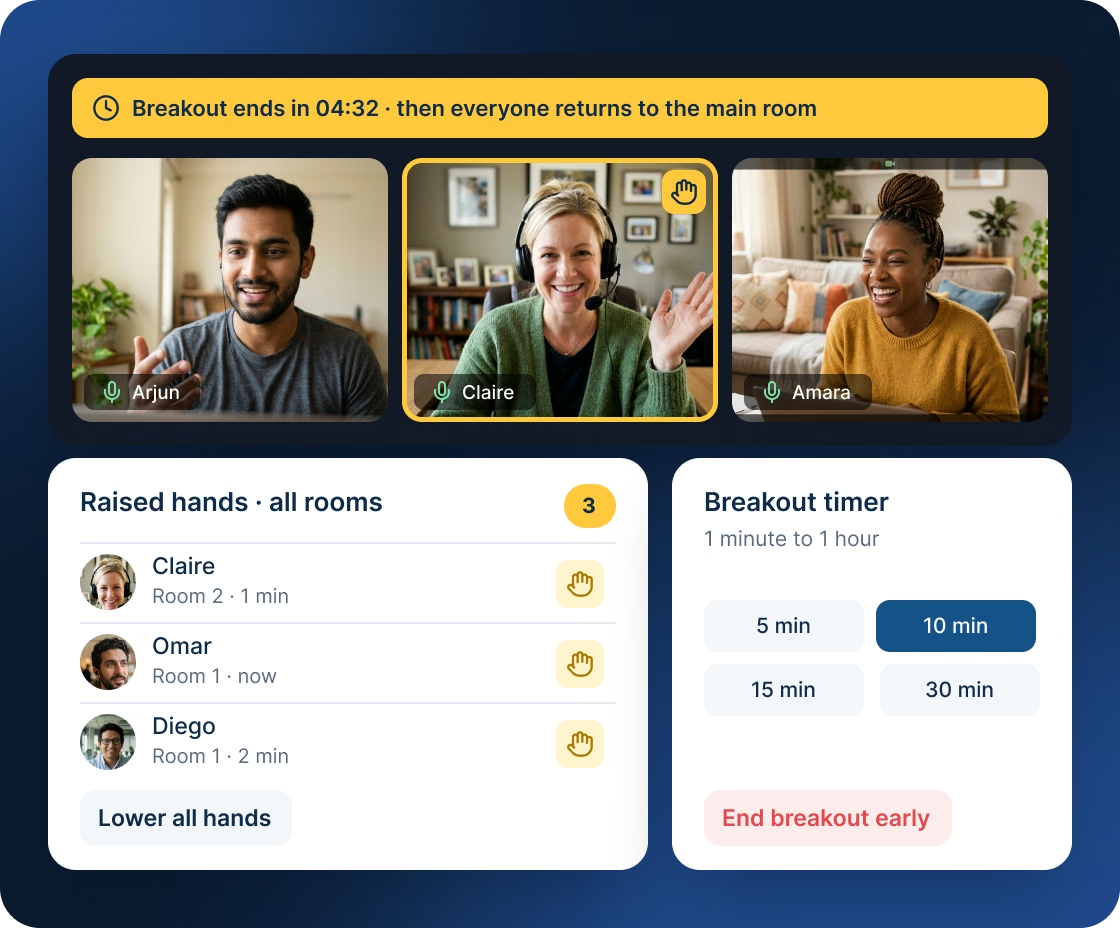
  • The coach sets a breakout timer from 1 minute to 1 hour. The server schedules the end of the breakout, and the coach's browser sends the same end command at zero as a backup.
  • Each room shows the same countdown banner, and a student who joins late sees the time remaining.
  • When the time is up, the server signals all rooms and each browser reconnects to the main room. Microphones are muted on return.
  • The coach can end the breakout early. With a timer running, the rooms close as soon as the coach confirms. Without a timer, students first see a 30-second countdown.
  • Hands raised in breakout rooms are collected on the server, so the coach sees them for all rooms in one list and can lower them.
Breakout timer and raised hands collected from all rooms
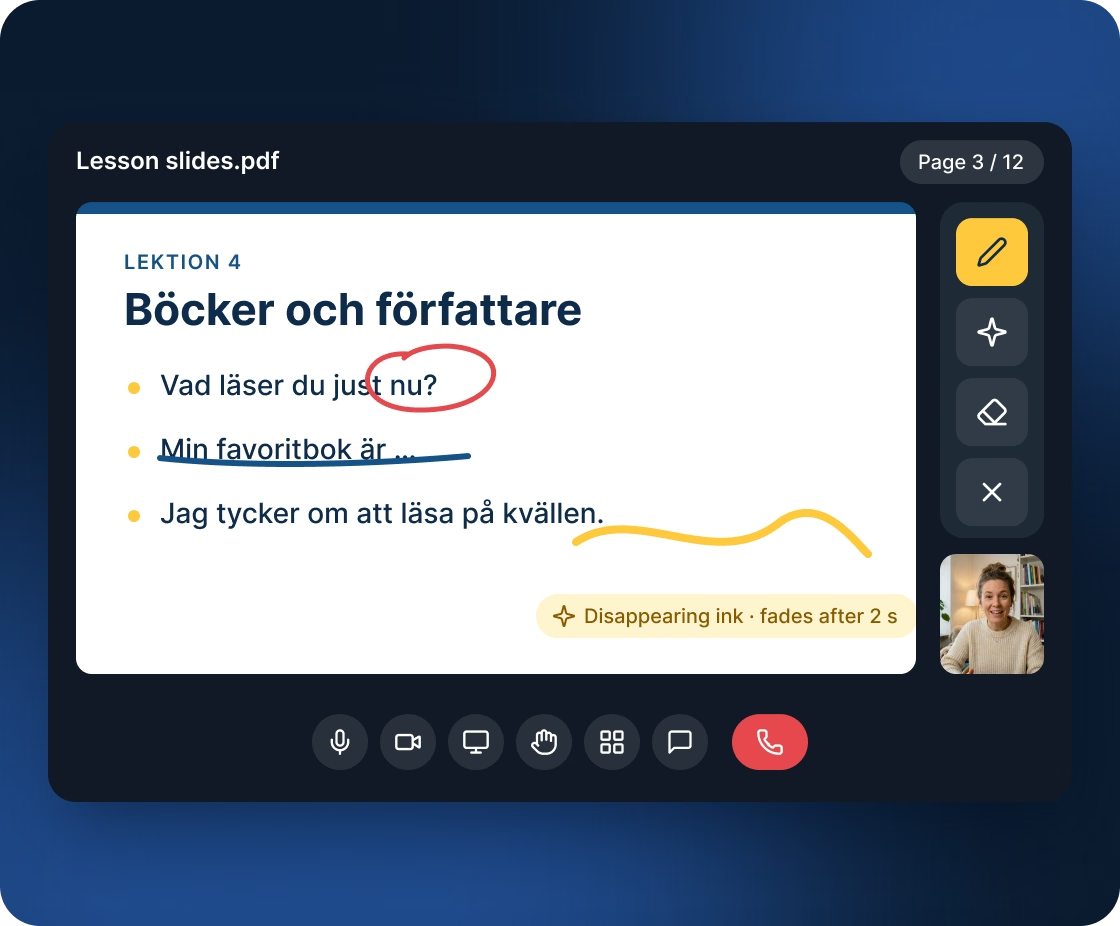
Shared PDF slide with pen and disappearing ink in the classroom

Shared PDF slides with drawing tools

The coach presents a class file, such as lesson slides, directly in the classroom, so nobody needs a second tool or a screen share for it.

In the main room students follow the coach's page and scrolling. When the class splits, the file opens in each breakout room on the page the main room was on, and each room then turns pages on its own. The server checks that the file belongs to the class and serves it through a temporary signed link that stops working after an hour.

The coach can draw on slides with a pen, use disappearing ink that fades after two seconds, erase or clear. The same tools work on a screen share for the person sharing. Drawings stay in the room where they were made, and people who join later receive the pen strokes already on screen.

A screen share can run alongside the PDF: it takes over the view while active, and when it ends the room returns to the same slide. In Chrome and Edge the presenter can scroll a shared browser tab from inside the classroom.

Voices at a similar volume

Students join from laptops, headsets and phones, so some sound too quiet and others too loud. We built an audio chain that runs in the browser on each microphone:

  • Krisp noise cancellation, in browsers that support it;
  • automatic gain that measures speech loudness the way the ear perceives it and moves it toward one target level;
  • a limiter and a soft clipper that catch sudden peaks.

Gain rises slowly, 3 dB per second, and falls fast, 40 dB per second, so a quiet voice is brought up gradually and a shout is cut quickly. A speech gate tracks background noise and freezes the gain during silence, so room noise is not amplified. If the noise filter stops working, the classroom turns it back on, and after a change of microphone it rebuilds the chain.
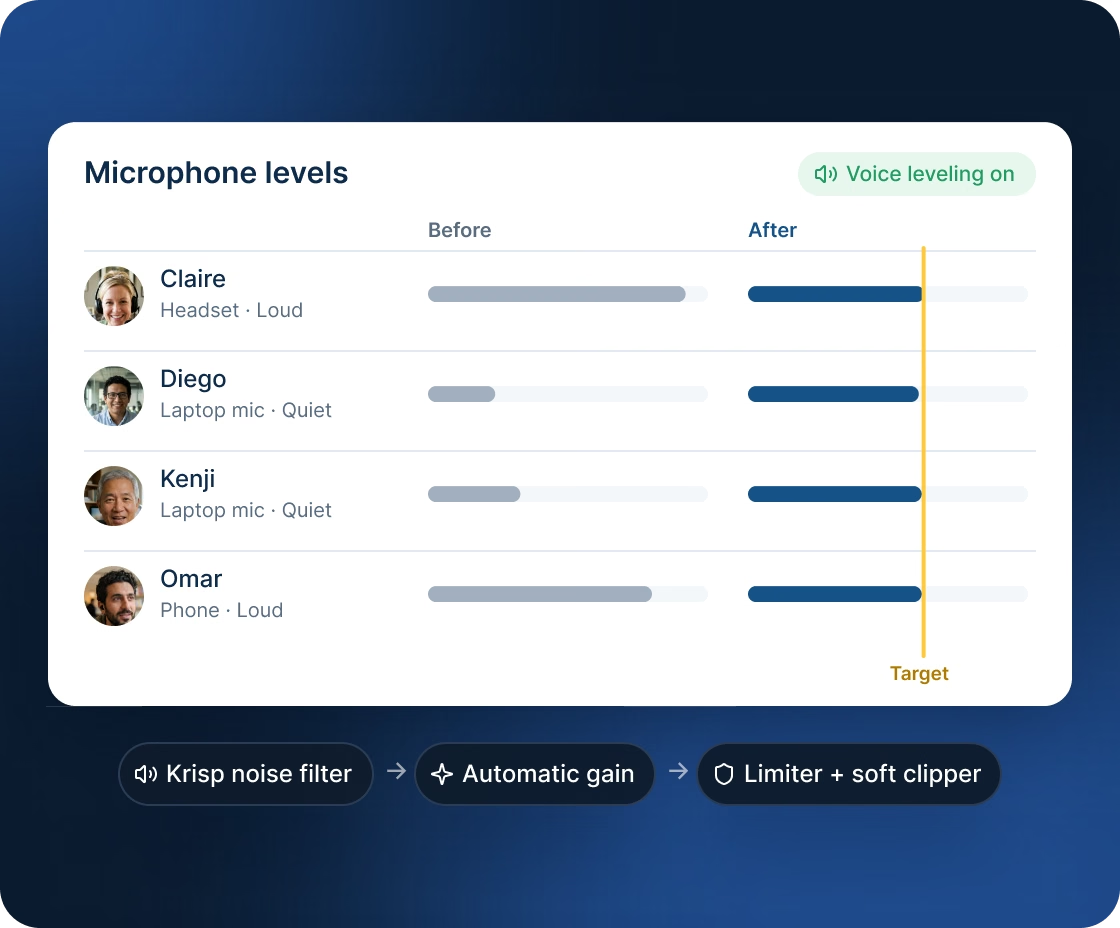
Voice leveling: quiet and loud microphones brought to one target level
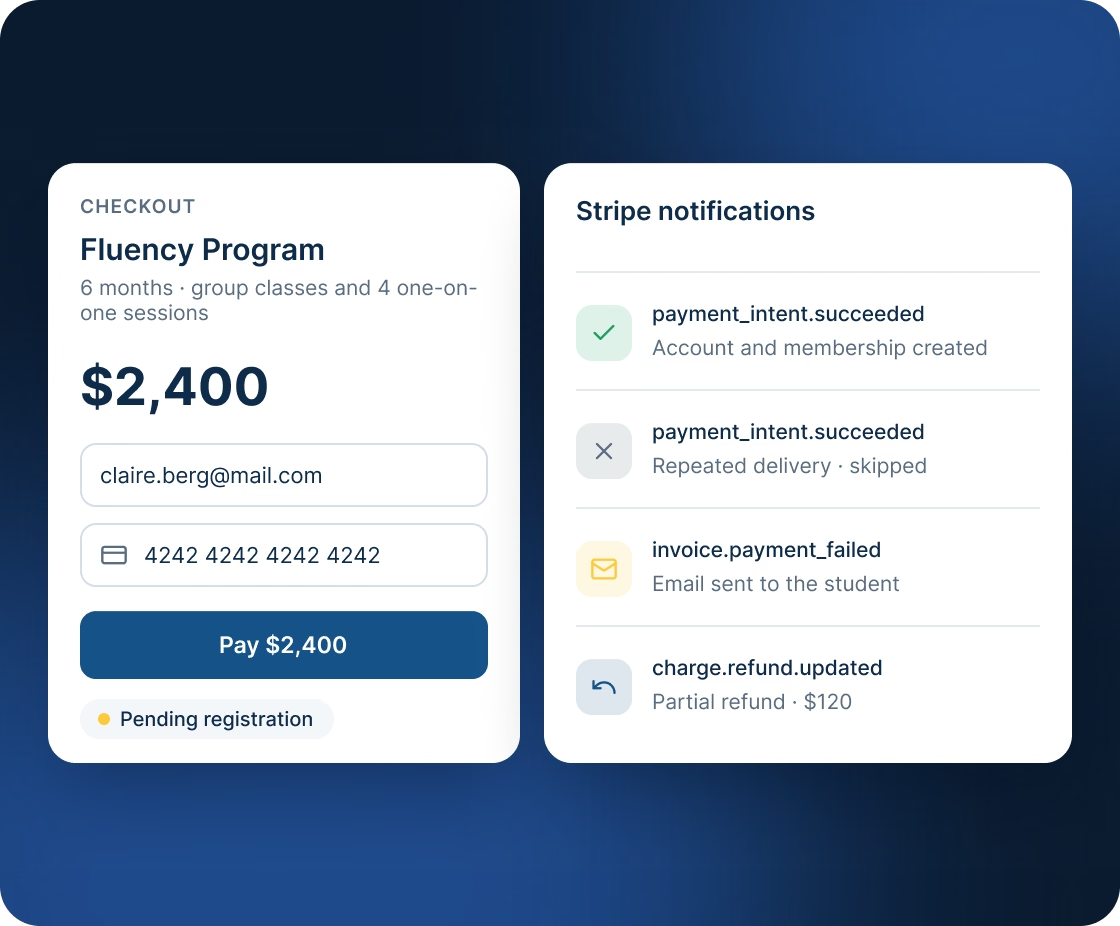
Stripe checkout with a pending registration and Stripe notifications

Payments and sign-up confirmed by Stripe

Paid sign-up is built so that a student does not end up with an account without a payment, or a payment without an account.

  • At checkout the sign-up is stored as a pending registration. The server creates the student account and membership only when Stripe reports the payment as successful. Free plans skip this step and create the account at once.
  • Each Stripe notification is recorded before it is processed, so a repeated delivery is skipped and a failed one is retried.
  • Charges, subscriptions and refunds are sent to Stripe with a key that stops the same request from being executed twice.
  • Membership records carry a version number, so two simultaneous changes do not silently overwrite each other: the outdated one is rejected, and when the change came from a Stripe notification, it is retried up to three times.
  • The platform handles eight Stripe event types: successful and failed payments, paid and failed invoices, subscription updates and cancellations, and created and updated refunds.

Admins and office staff can refund a payment in full or in part from the portal. Office staff have a daily refund limit. Refunds made directly in Stripe appear in the portal too. A failed payment triggers an email to the student. When Stripe marks a subscription as unpaid after its retries, the membership is suspended and both the student and the admins are notified.

Flexible plans and memberships

The school can package its teaching in different ways without asking developers.

  • There are three kinds of plans: subscriptions, one-time programs such as bootcamps and courses, and punch cards with a set number of classes.
  • A plan can be free, paid once, or billed every day, month or year. It can include a setup fee and limit attendance per billing period, week or month.
  • A plan can include packages of one-on-one sessions, granted at once or with each billing cycle.
  • Discounts are a percentage or a fixed amount, applied once, for a set number of months or for as long as the subscription runs.
  • Each plan gets a public landing page with its own checkout.

Admins and office staff can pause a membership in the portal, which moves its end date by the length of the pause, cancel a scheduled pause, and adjust a student's session credits and punch card balance. A pause extends the membership instead of stopping payments: billing in Stripe continues unchanged.
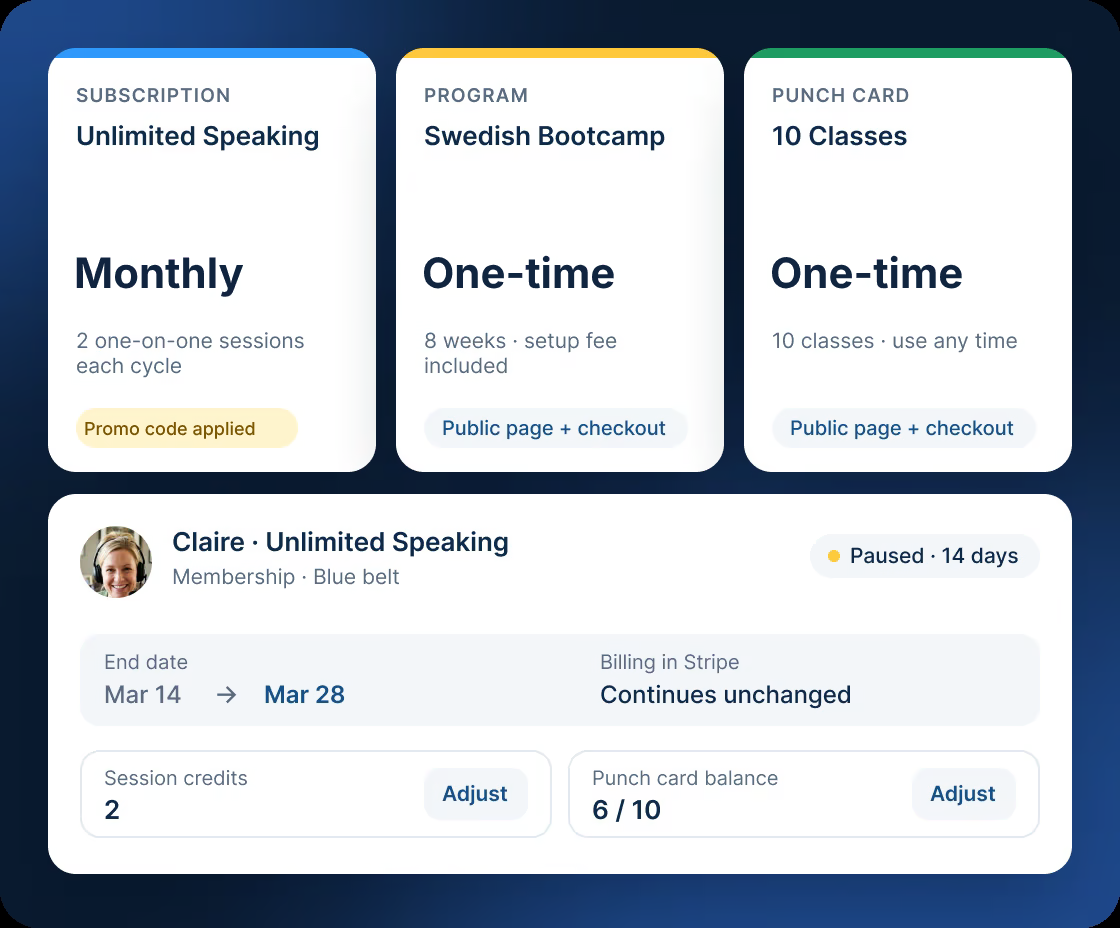
Plans and memberships: subscriptions, programs and punch cards
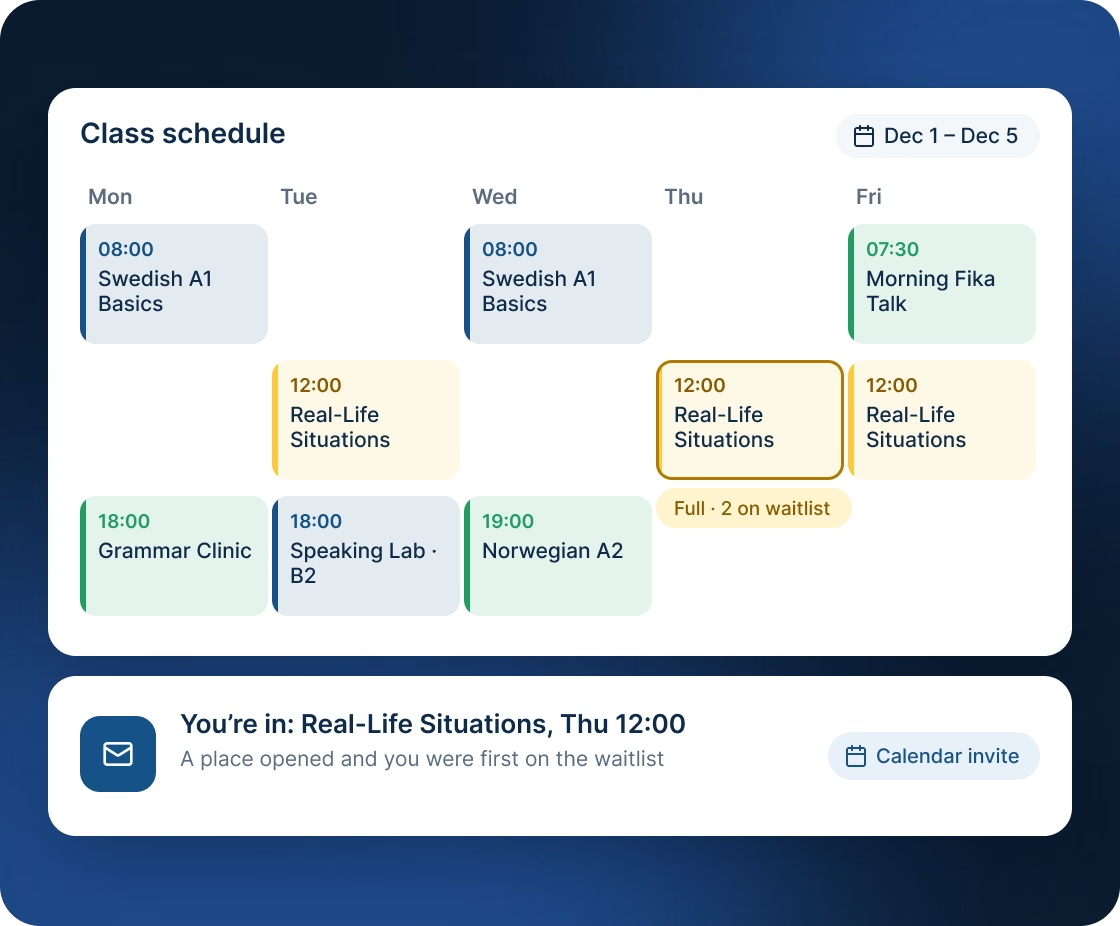
Class schedule with booking window and waitlist

Class schedule with waitlists

Coaches and admins set up a class once, and the platform keeps the schedule and the queue for places.

  • Classes repeat weekly or every two, three or four weeks, with or without an end date. A scheduled job keeps open-ended series generated a year ahead.
  • Booking can open 1 hour, 1 day, 1 week, 2 weeks or 4 weeks before class, or without a limit, and closes 10 minutes before the start.
  • When a class is full, students join a waitlist. When a place frees up, the server moves the first student in line into the class and sends an email with a calendar invite.
  • A credit spent on a waitlist place that never opened is returned after the class ends.
  • A coach can be changed for one class or for that class and the ones after it, admins can replace a coach for all classes at the same weekly time, and assistant coaches can be added to a class.

One-on-one sessions with coach approval

Students book private time with a coach without emails back and forth.
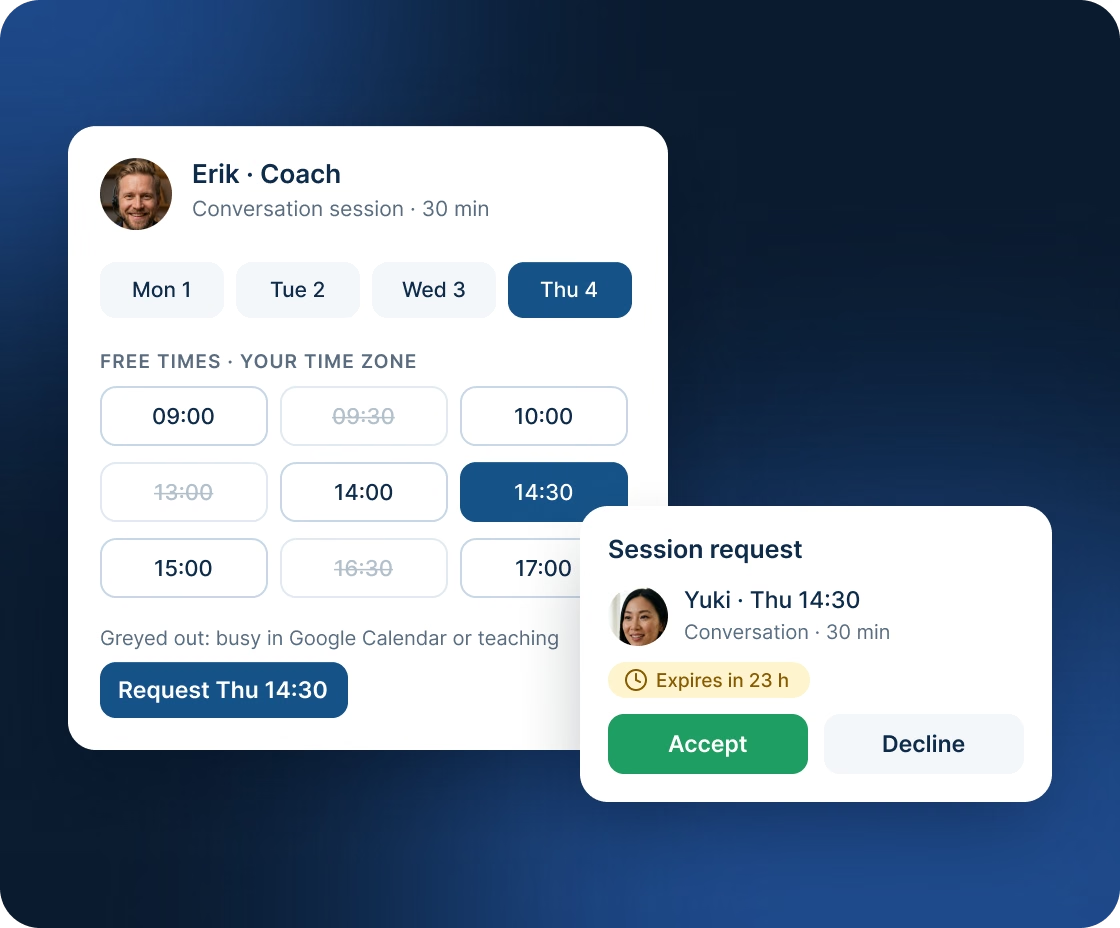
  • Free time slots are calculated from each coach's availability and time zone, existing sessions, classes and the coach's Google Calendar.
  • A request waits for the coach, who accepts or declines in the portal or through a one-time link in the email, without logging in.
  • If the coach does not answer within 24 hours, the request expires, the credit returns to the student, and the student, the coach and the admins are notified.
  • Each session type has its own booking notice and cancellation notice. A student who cancels later than the notice allows loses the credit, and the rule applied is saved with the cancellation, so disputes can be settled later.
One-on-one session request waiting for coach approval
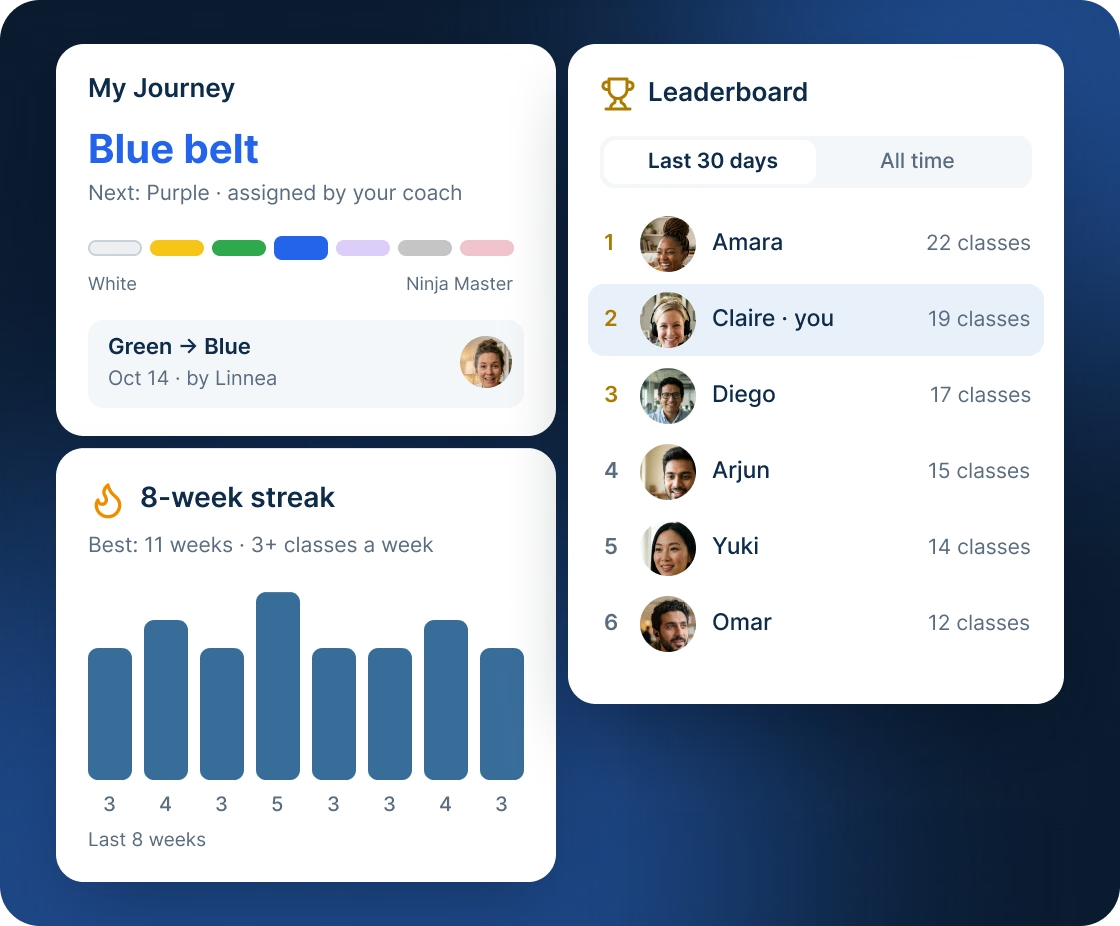
Belt progress, weekly streak and leaderboard in the student portal

Belt levels, streaks and leaderboards

Progress is visible to the student and usable in booking rules. The school measures progress in belts, from White through Yellow, Green, Blue, Purple and Black to a top Ninja Master level. Coaches assign belts, and each change is kept as history.

A class type can require a minimum belt, and the server rejects bookings from students below it. Students without a belt see all classes but cannot book those with a minimum belt.

A week counts toward a streak when the student attends at least three classes. The portal shows the current and best streak and the last eight weeks. Leaderboards rank the top ten students by classes attended, among students on the same plan and across the school, for the last 30 days and for all time. A "My Journey" page shows each student's belt progress.

Attendance, engagement stats and no-show warnings

Coaches get attendance from the classroom's join and leave records instead of ticking names. LiveKit reports who joined and for how long, and with one click the coach marks students who spent at least five minutes in class as present and the rest as no-shows. Coaches can also mark attendance by hand, one by one or in bulk.

For each student, staff see time in class, speaking time, camera and microphone time, screen sharing, raised hands and reactions. After every third consecutive no-show the student receives a warning email.

Staff can email everyone booked into a class and see for each recipient whether the email was sent or failed. Failed emails are resent automatically, up to ten attempts in total.
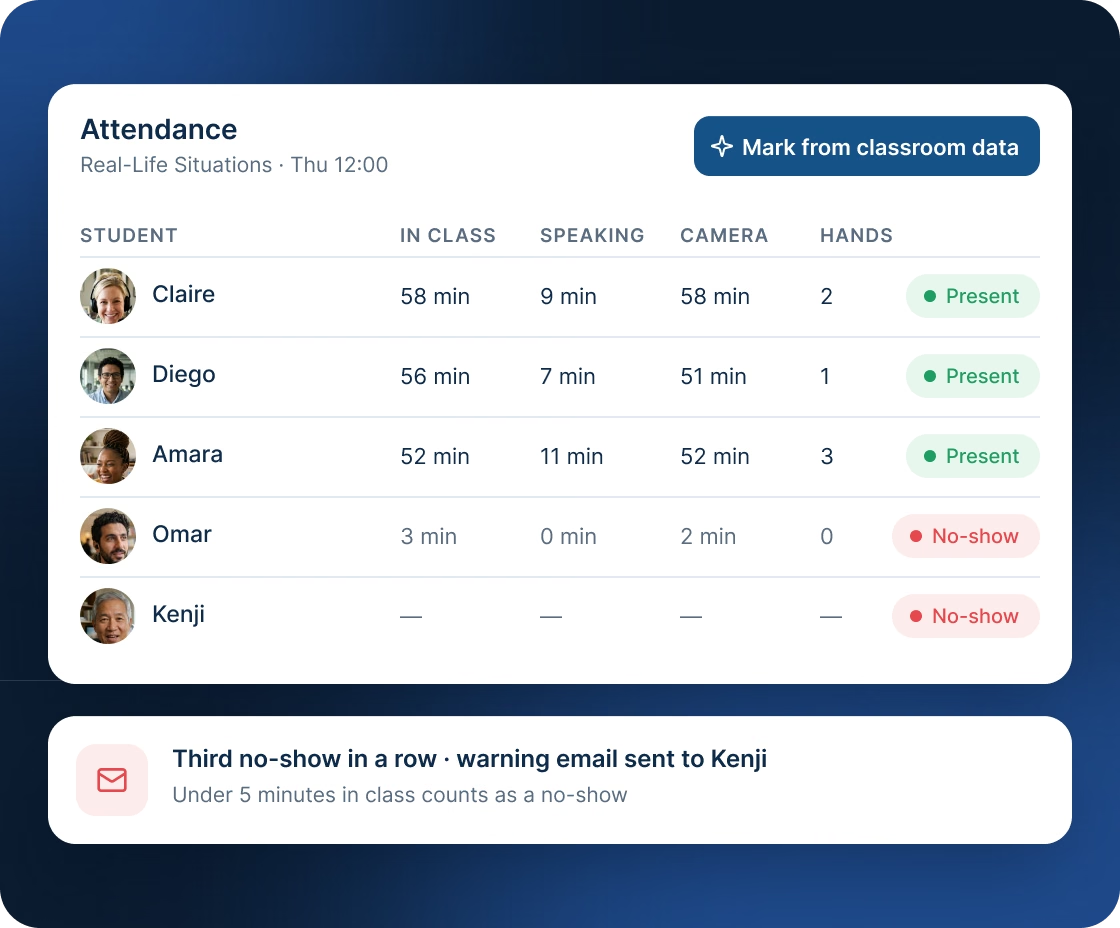
Attendance from classroom join records with engagement stats
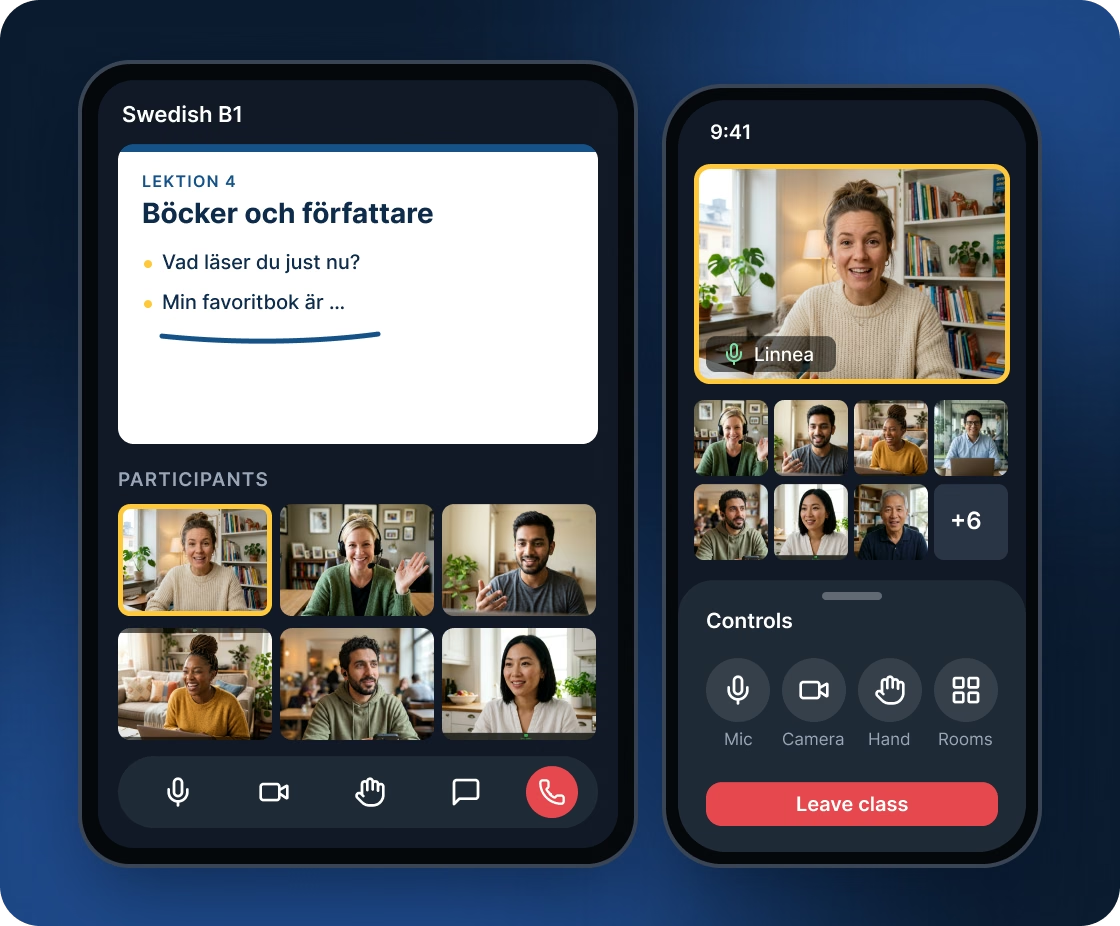
Classroom on a tablet and a phone with bottom-sheet controls

Classroom built for phones and tablets

Students can attend from whatever device is at hand. The classroom changes its layout with the screen width: on phones the controls and side panels move into bottom sheets, and on a tablet in portrait the participant sidebar becomes a strip under the stage.

There are six layout modes: coach speaking, presentation, screen share, one-on-one, and two breakout modes. With up to nine people everyone gets a tile. In larger classes the grid shows eight people plus a "+N" tile. People who are speaking or have a hand raised are shown first, and a speaker keeps the place for ten seconds after falling silent, so tiles do not jump around with each word.

Background blur and virtual backgrounds are processed in a separate thread where the browser allows it, so the classroom controls stay responsive. On weaker devices they switch to a lighter model.

Classroom moderation and protection

Coaches keep order in class without leaving the classroom.

Coaches can mute one student or everyone, see who is speaking, lower hands, remove a participant and open a student's profile from the classroom.

Muting, removing and moving people between rooms go through the server, which checks the caller's role. The server also writes each participant's role into the LiveKit access token, and browsers ignore coach-only commands, such as starting a presentation, from anyone without the coach role. A student's browser cannot give itself the coach role.
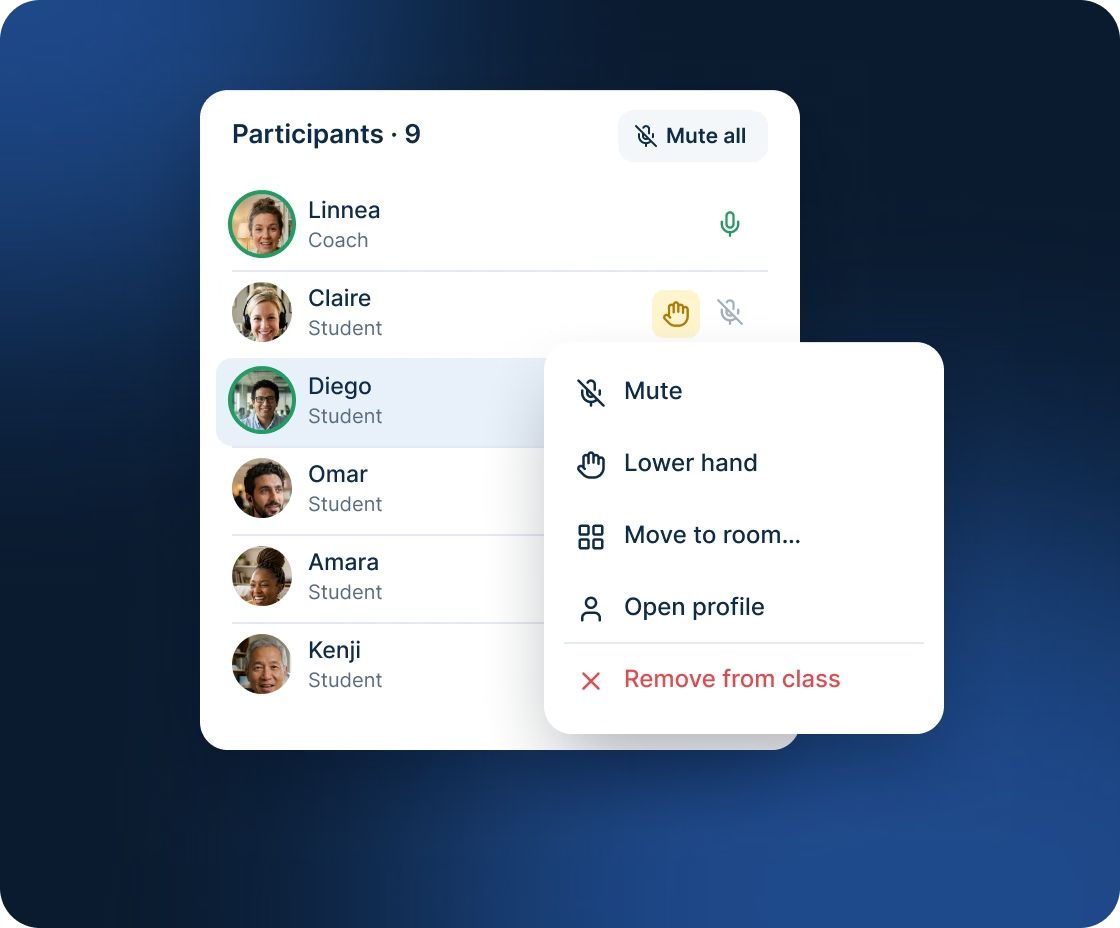
Coach moderation panel: mute, lower hands and remove a participant
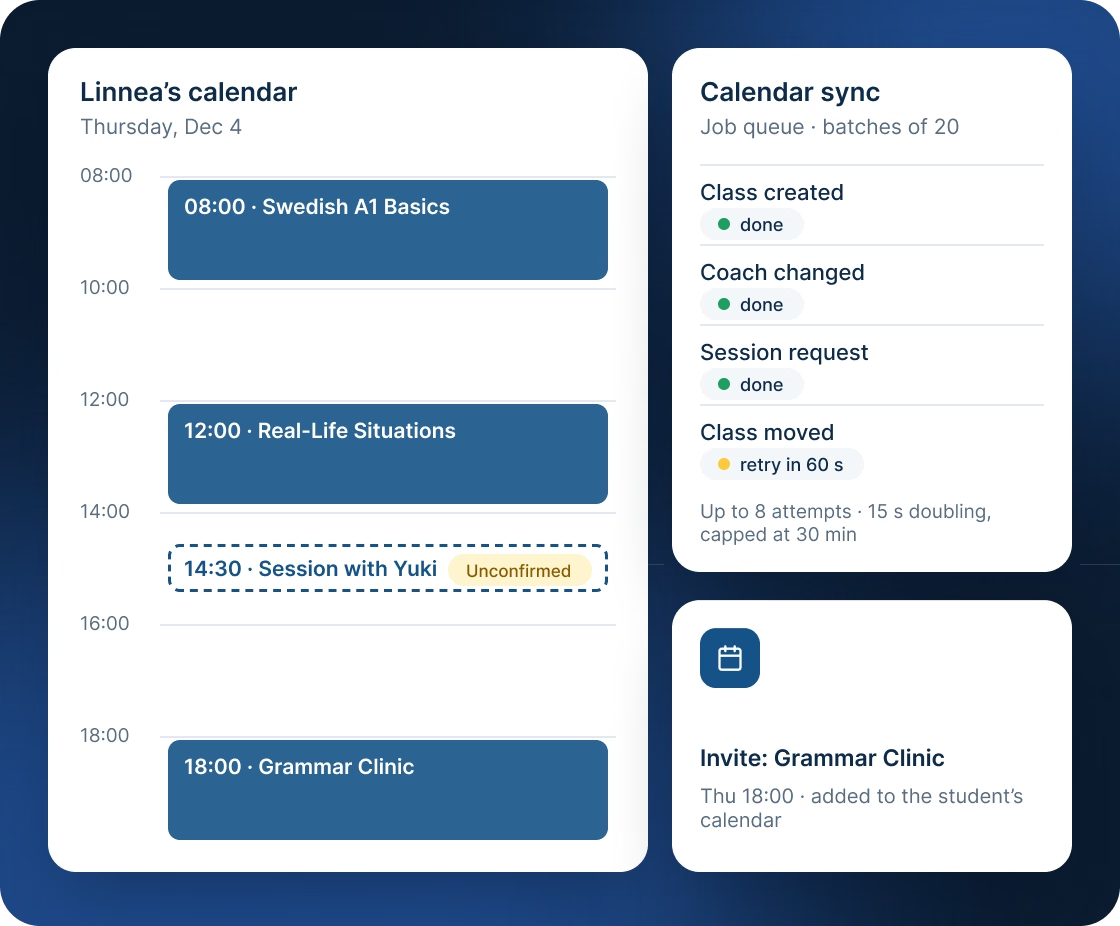
Classes and one-on-one sessions in a coach's Google Calendar

Google Calendar sync

Coaches see their teaching schedule in the calendar they already use. Classes and one-on-one sessions appear in each coach's own Google Calendar, and a pending request holds its slot there, marked as unconfirmed until the coach accepts. Changes go through a job queue that processes them in batches of 20, so booking does not wait for Google. A failed update gets up to eight attempts, with delays that double from 15 seconds and are capped at 30 minutes. Students receive calendar invites and cancellations by email.

Reports and admin tools

The school runs its daily operations in the portal.
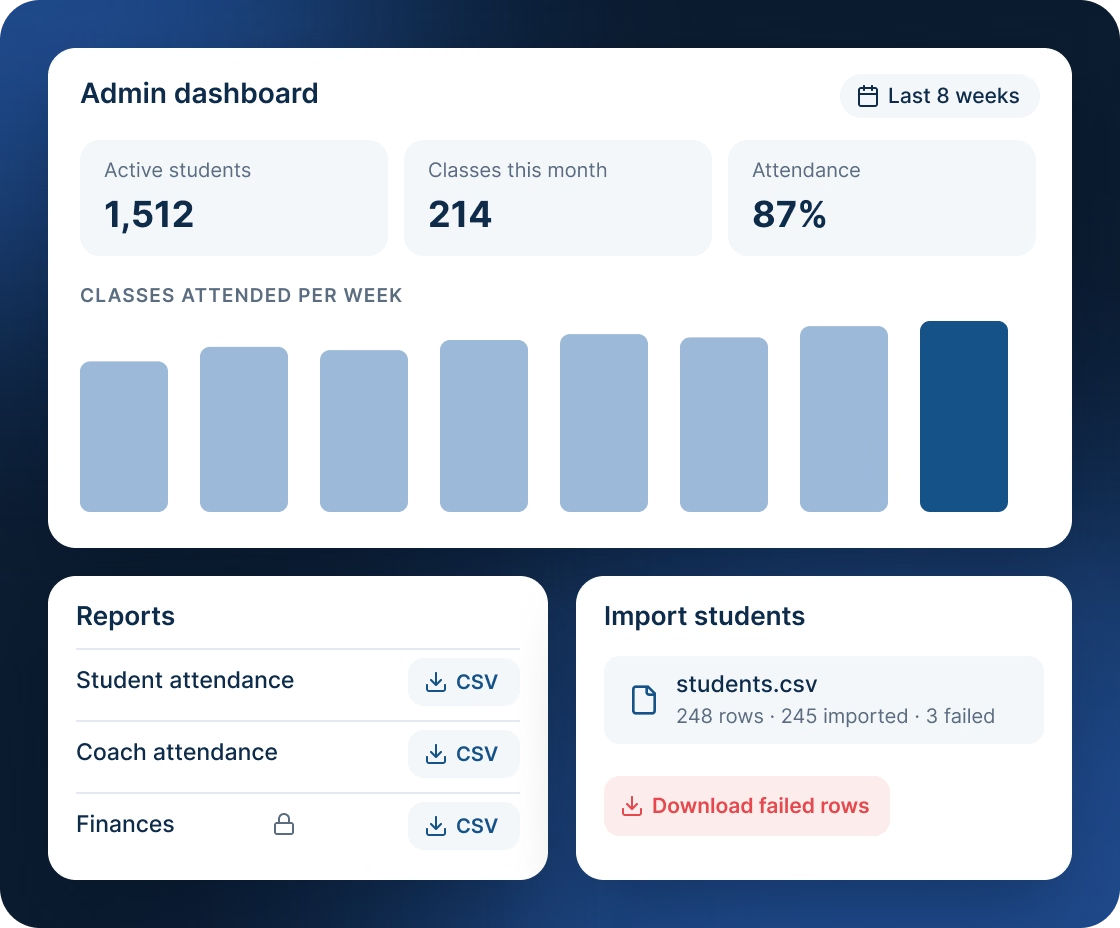
  • Dashboards for admins and coaches, and three reports with CSV export: student attendance, coach attendance and finances. Financial reports are open to admins and office staff only.
  • Import of students from CSV with validation and a download of failed rows, and export of students.
  • Notes on each student kept as a comment thread.
  • Staff invitations, plan categories and copying of existing plans.
  • Staff permissions split into managing admins, managing coaches and managing office staff.
Reports and admin tools with CSV export
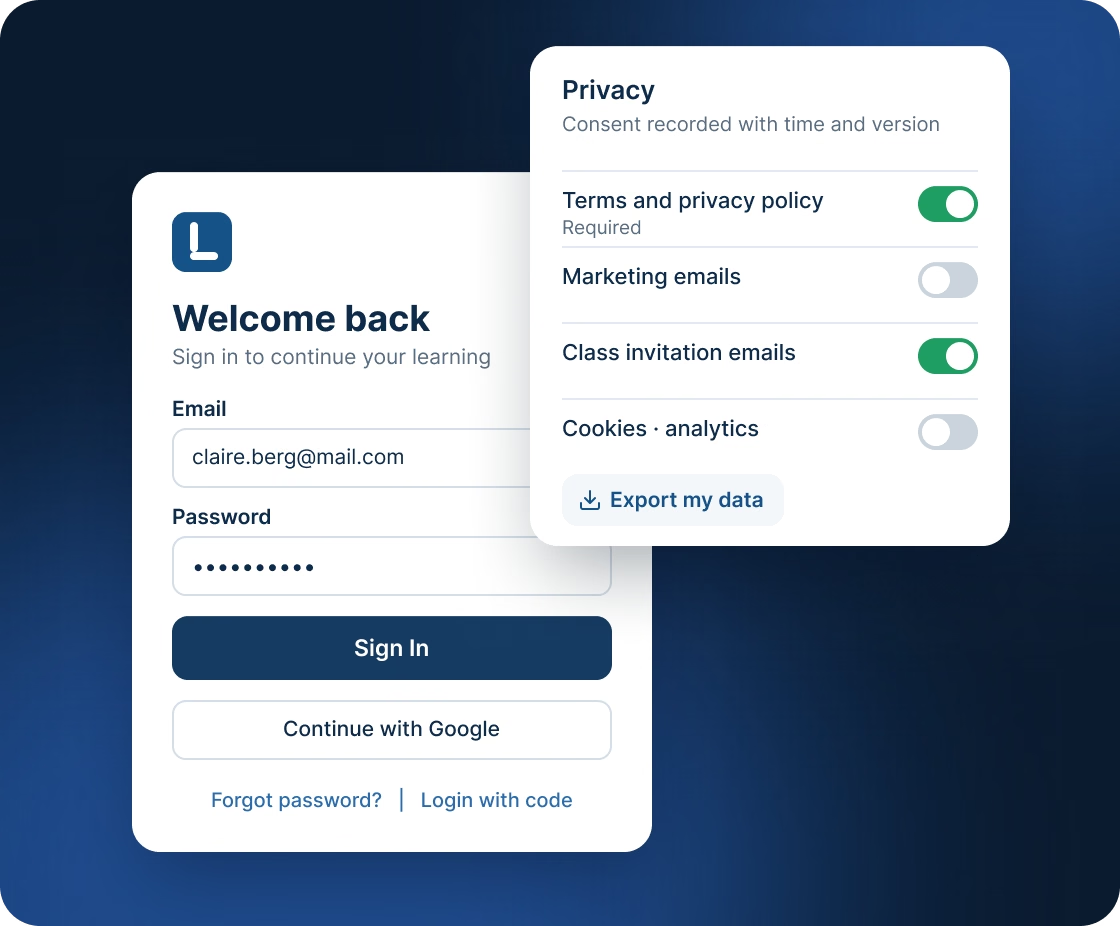
Sign-in with Google or password, and privacy consent settings

Sign-in, security and privacy

Users sign in with email and password, Google, or a one-time email code. Sessions are kept in secure cookies with protection against forged requests from other sites (CSRF), and public endpoints are rate-limited per IP address; login, for example, allows five attempts in 15 minutes. Admins can suspend users and revoke their sessions.

To support GDPR requirements, the portal records consent to terms, privacy policy and marketing emails, stores cookie consent, lets students export their own data and lets them turn off class invitation emails.

Automated tests and delivery pipeline

The server is covered by about 3,000 automated tests. More than 500 of them are end-to-end tests that run whole business flows through the server against a real PostgreSQL database, with Stripe, email and file storage replaced by test stand-ins. The web app has Playwright browser tests and unit tests.

Each pull request is checked automatically before it is merged: server tests and code formatting, plus lint, type checks and a build of the web app. After the checks pass, the main branch is deployed to a test environment on Google Cloud Run. Production runs on Google Cloud Run in Europe, and releasing to it is a deliberate manual step.
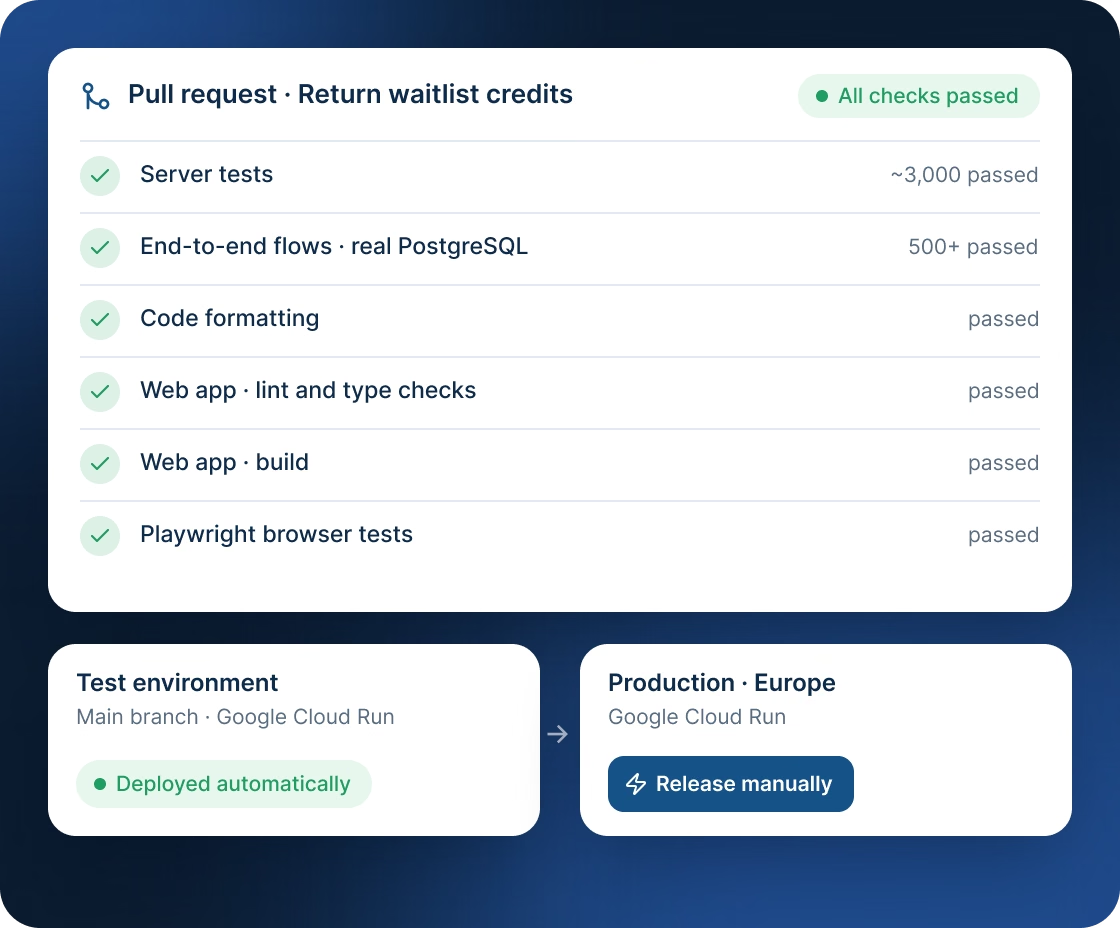
Pull request checks and deploy to Google Cloud Run
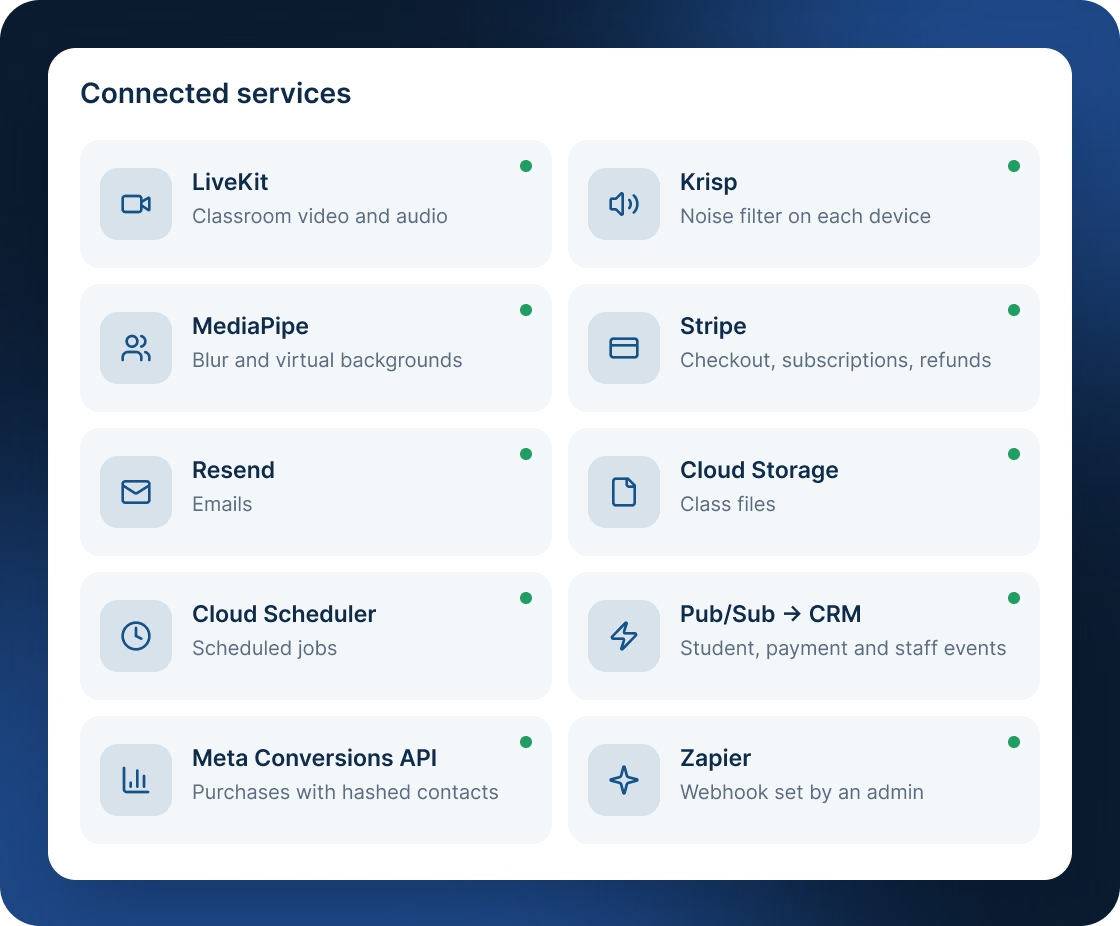
Connected services: LiveKit, Krisp, MediaPipe, Stripe, Resend, Google Cloud, Meta, Zapier

Integrations

LiveKit carries the video and audio of the classroom, and Krisp, MediaPipe and the browser's audio engine process sound and video on each participant's device. Stripe handles checkout, subscriptions and refunds. Resend sends the emails. Google Cloud Storage keeps class files, and Google Cloud Scheduler starts the scheduled jobs. Student, payment and staff events are published to the school's CRM through Google Cloud Pub/Sub. Checkout and purchase events go to the Meta Conversions API with click IDs and hashed contact data, so ad campaigns can still be measured when browser tracking is blocked. New leads, new students and status changes reach Zapier through a webhook that an admin sets in the portal.
Technical Implementation

🖥 Platforms
Web app for desktop browsers, phones and iPads
⚙️ Backend
Java 25, Spring Boot 4, PostgreSQL, Flyway, JdbcTemplate, Bucket4j, Caffeine
💻 Frontend
React 19, TypeScript, Vite, TanStack Query, Zustand, Radix UI, Tailwind CSS, React Hook Form, Zod, react-pdf, TipTap, Recharts
🎥 Video and audio
LiveKit (WebRTC SFU), LiveKit Krisp noise filter, MediaPipe, WebGL, Web Audio
💳 Payments and integrations
Stripe (Subscriptions, PaymentIntents, Refunds, Elements), Google Calendar API, Google OAuth, Resend, Meta Conversions API, Zapier
☁️ Infrastructure and tests
Google Cloud Run, Cloud SQL, Cloud Storage, Pub/Sub, Cloud Scheduler, Docker Compose, Traefik, GitHub Actions, GitLab CI, Playwright, Testcontainers, Vitest
Language Lock In: live classroom, breakout rooms by level, Stripe memberships