


Why this matters
If you are building anything that touches video — a streaming service, a learning platform, a telemedicine product, a video conferencing app, a surveillance dashboard, a podcast tool — FFmpeg is the layer that turns "we have a file" into "the user can watch it on their phone in five seconds without a stutter." Your engineers will write FFmpeg commands; your DevOps team will run FFmpeg in containers; your AWS bill will be measured in FFmpeg-CPU-hours. A product manager who knows what FFmpeg can do in one command, and what it cannot, saves the team weeks of arguing about whether to build a feature in-house or buy a SaaS for it. A founder who can read an FFmpeg log can debug a production incident with their CTO at 2 AM instead of waiting for sunrise.
This article gives you that working knowledge. We start with the mental model — what FFmpeg actually is and what it is not — then walk through the inspect / copy / transcode / package / watermark / accelerate workflows that ship in real products, with the math behind the numbers so you can change them with confidence. By the end you will be able to read any FFmpeg command you find on the internet, judge whether it is correct for your job, and write your own variants without copy-pasting from Stack Overflow.
What FFmpeg actually is
Before any commands, settle the mental model. FFmpeg is three things in one package: a command-line tool (ffmpeg), a probing tool (ffprobe), and a stack of C libraries (libavformat, libavcodec, libavfilter, libavutil, libswscale, libswresample) that the tool itself uses. The libraries are what makes FFmpeg the universal standard — VLC, OBS, MPV, HandBrake, Plex, Jellyfin, Bitmovin, Mux, AWS Elemental, and almost every browser-based recorder all link against libav* under the hood. When you install FFmpeg you are also installing the engine that runs half of the streaming internet.
The project began in 2000 as the personal work of Fabrice Bellard, then a graduate student in Paris, and has been maintained continuously since by a rotating cast of volunteers and full-time staff at companies that depend on it. 1 The latest stable release as of May 2026 is FFmpeg 8.1 "Hoare," released in March 2026, which added JPEG-XS encoding through libsvtjpegxs, Direct3D 12 H.264 and AV1 hardware encoding, Rockchip MPP hardware decode, IAMF Ambisonic spatial-audio muxing, and experimental xHE-AAC decoding. 2 The 7.1 branch, last refreshed as 7.1.4 in May 2026, is the long-term support release most production pipelines still pin to. 3
FFmpeg is not a player, an editor, or a server. It does not pop up a window. It does not have a timeline. It does not stream on its own — though it can speak to a streaming server. It is a pipe: you feed it an input file or stream, you tell it what to do with the bits, and it writes an output file or stream. Everything else is built on that one shape.
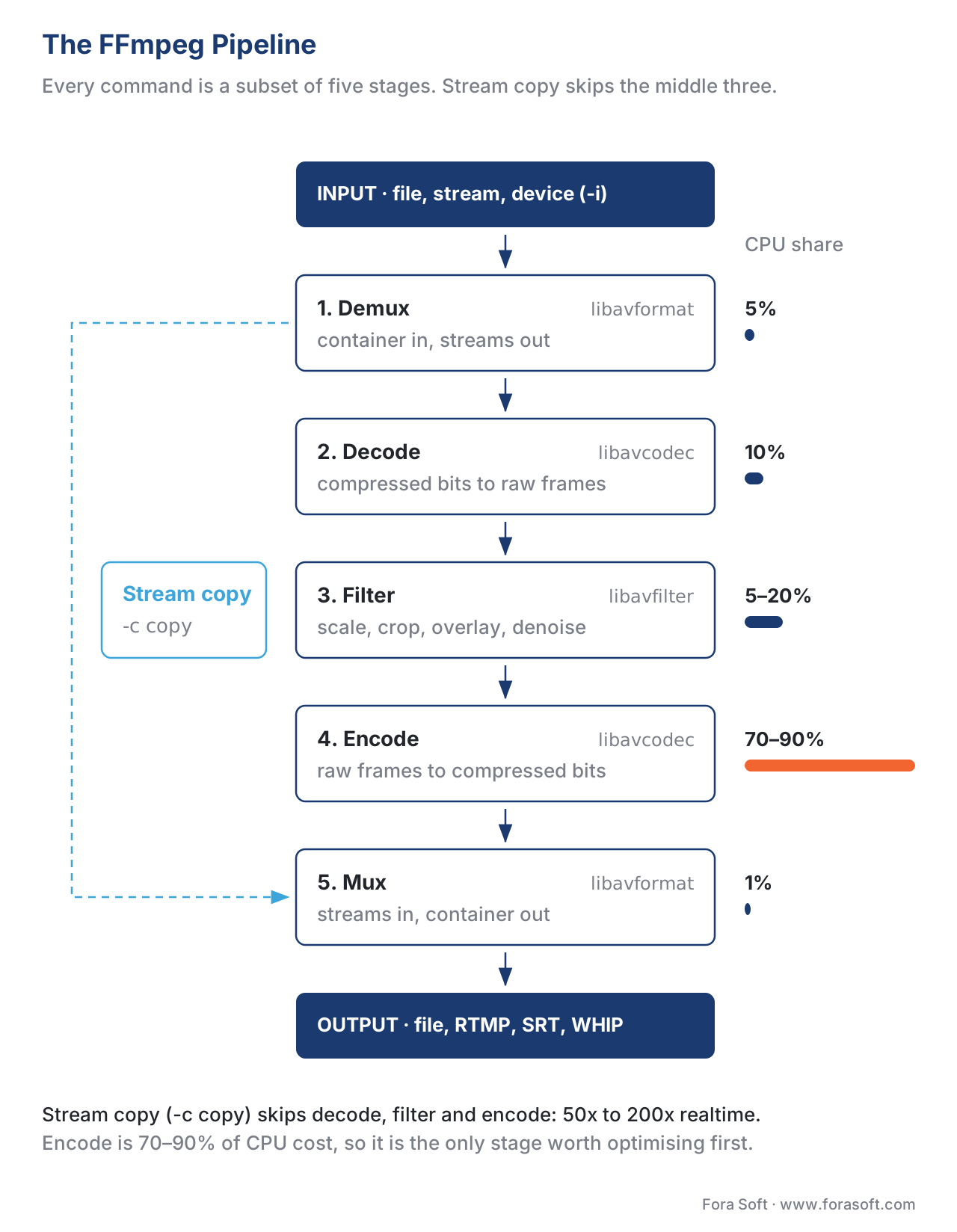 Figure 1. The FFmpeg pipeline. Every command is some variation of demux → decode → filter → encode → mux, with the option to skip the decode-encode pair entirely when you only want to repackage.
The mental model: demux, decode, filter, encode, mux
Every FFmpeg command does some subset of five operations, in order. Learn these and the syntax stops looking arbitrary.
The first step is demux — short for demultiplex — which means taking apart the container. A container, covered in detail in our containers article, is the file format that wraps the video, audio, and subtitle tracks plus metadata into one playable file. Demuxing splits those tracks back out into separate streams that FFmpeg can work with individually.
The second step is decode — turning the compressed bits in each stream back into raw frames. A compressed H.264 stream is a few megabits per second of opaque numbers; the decoded version is a sequence of raw pixel frames at roughly 1.5 gigabits per second for 1080p. The decoder is the algorithm that does the conversion.
The third step is filter — apply transformations to the raw frames. Resize, crop, watermark, denoise, change frame rate, adjust colour, drop frames, layer multiple inputs together. Filters operate on raw, decoded frames. If you want to filter the picture, you cannot skip decoding.
The fourth step is encode — turn the (possibly filtered) raw frames back into a compressed stream, with a chosen codec and chosen quality target. This is the slow, expensive step. A 1080p file at high quality settings encodes at 1× to 5× real time on a modern CPU.
The fifth step is mux — short for multiplex — which means wrapping the encoded streams back into a container file or live stream that a player can open.
The shortcut that every FFmpeg user reaches for first is stream copy, written -c copy, which skips the decode-filter-encode middle and copies the compressed bits straight from input mux to output mux. Stream copy runs at 50× to 200× real time because it never touches the pixels — and it is the right answer whenever you are changing only the container or trimming on keyframe boundaries. The first command in this article uses it.
Setup and version pinning
Install FFmpeg from your package manager (apt install ffmpeg on Debian/Ubuntu, brew install ffmpeg on macOS, winget install ffmpeg on Windows) or download a static build from a trusted distributor — BtbN's GitHub releases for Linux, Gyan.dev for Windows, the official ffmpeg.org links elsewhere. 4 In production, pin a specific version: drift between 6.0 and 7.1 can change filter defaults, encoder presets, and even bitrate numbers for the same input. The two safe pins as of mid-2026 are 7.1.x for stability and 8.1.x for the newest hardware paths.
Check what you have:
# Print FFmpeg version and the libraries it was built against.
ffmpeg -version
# List every codec the binary supports, with D = decoder, E = encoder, V = video.
ffmpeg -codecs | grep -i av1
# Same idea but for hardware accelerators (cuda, qsv, vaapi, videotoolbox, d3d11va).
ffmpeg -hwaccels
If ffmpeg -hwaccels does not list the accelerator you expect, the binary you installed was built without it. Static builds from BtbN include everything; distro packages often strip out NVENC and patent-encumbered codecs by default.
1. Inspect before you transcode
The single habit that prevents most production incidents is running ffprobe on a file before you do anything else with it. ffprobe is the inspector that ships with FFmpeg — same parser library, no encoding work — and it tells you what you are actually dealing with instead of what you assume.
# Pretty-print every stream's codec, resolution, frame rate, bitrate, and duration.
ffprobe -hide_banner -show_streams -show_format input.mp4
The output is dense. Read it from the top: format_name (the container), duration (seconds), bit_rate (overall), then one block per stream. Each stream block tells you codec_name (h264, hevc, aac, opus), width × height, r_frame_rate (24/1, 30000/1001, 60/1), pix_fmt (yuv420p, yuv420p10le for 10-bit, yuv422p10le for ProRes-grade), and timing.
For a one-line summary that fits in a CI log, use the JSON output and a small filter:
# JSON for machine parsing — pipe to jq for exact fields.
ffprobe -hide_banner -v error -print_format json -show_streams -show_format input.mp4
# Just the video codec, resolution, and bitrate of stream 0.
ffprobe -v error -select_streams v:0 \
        -show_entries stream=codec_name,width,height,bit_rate \
        -of csv=p=0 input.mp4
The output looks like h264,1920,1080,5024000 — a 1080p H.264 file at about 5 megabits per second. That single line tells you whether you need to transcode, whether the file will play on your target device, and roughly how big it is per minute.
Three things to look for in every inspection:
pix_fmt—yuv420pmeans 8-bit 4:2:0, the universal-compatibility default.yuv420p10lemeans 10-bit, which is required for HDR but rejected by some older browsers and devices.yuv422p,yuv422p10le,yuv444pare production-grade chroma sampling and will not play on consumer hardware without re-encoding.profile— for H.264,Baselineplays everywhere but compresses poorly,Mainis broadly supported,Highis the modern web default,High 10andHigh 4:2:2are professional. For H.265,Mainis universal,Main 10is HDR,Main 4:2:2 10is broadcast. Send aHigh 10H.264 to an old Android phone and you get audio with a black screen.r_frame_rate— written asnumerator/denominator.30000/1001is 29.97 fps (NTSC),24000/1001is 23.976 fps (cinema),25/1is PAL,60/1is broadcast 60p. Mixing 29.97 and 30 in the same pipeline causes drift that shows up half a minute into the playback.
If you do nothing else from this article, run ffprobe before every important transcode. The five seconds it takes saves you from rebuilding a thousand files because you guessed wrong about the pixel format.
2. The fastest possible operation: stream copy
When you only need to change the container or trim on keyframe boundaries, do not transcode. Use stream copy and finish in seconds, not minutes.
# Re-wrap an MKV as an MP4 without re-encoding video or audio.
# Runs at 100x+ realtime because it only touches the container headers.
ffmpeg -i input.mkv -c copy output.mp4
The -c copy shorthand says "copy every stream with no re-encoding." Add -c:v copy -c:a copy for the explicit form. Some MKV-only audio codecs do not fit inside MP4 — FLAC, Vorbis, certain TrueHD profiles — and FFmpeg will refuse the copy. The fix is to transcode just the audio: -c:v copy -c:a aac -b:a 192k. Video stays bit-identical, audio is rebuilt.
Trim with stream copy when you want to cut on existing keyframes:
# Cut from 10s to 70s without re-encoding. Cut points snap to nearest prior keyframe.
ffmpeg -ss 00:00:10 -to 00:01:10 -i input.mp4 -c copy output.mp4
The -ss flag before -i is the "fast seek" form — it jumps to the nearest keyframe before the requested timestamp without decoding anything. That makes it instant but imprecise; the actual cut may start up to one GOP-length (typically 2 seconds) earlier than you asked. If you need exact-frame trim, put -ss after -i and accept the cost of decoding everything up to the cut point.
For web delivery, add the +faststart flag to move the MP4 metadata to the front of the file so a player can start streaming before the whole file is downloaded:
# Re-mux to MP4 with moov atom at the front for HTTP streaming.
ffmpeg -i input.mp4 -c copy -movflags +faststart output.mp4
That one flag is the difference between a video that starts playing in a browser at 200 ms and one that needs to download fully before the first frame appears. It costs nothing at encode time — FFmpeg writes the file twice with the boxes reshuffled — and it pays back forever.
3. The boring, reliable web-delivery transcode
The most common job: take an arbitrary input file and produce an MP4 that plays in every browser, on every phone, on every smart TV, with no compatibility surprises. The recipe below is the one we ship in 70 percent of Fora Soft web projects, and it has not failed in seven years.
# Universal web-compatible MP4: H.264 High Profile, AAC, faststart, 1080p cap.
ffmpeg -i input.mov \
       -c:v libx264 -preset medium -crf 23 \
       -profile:v high -level 4.0 -pix_fmt yuv420p \
       -c:a aac -b:a 192k -ac 2 \
       -movflags +faststart \
       output.mp4
Read it left to right. -i input.mov is the source. -c:v libx264 picks the x264 software encoder — the highest-quality H.264 implementation in the world, also free and patent-licensed for distribution. -preset medium picks the speed/efficiency trade-off; presets run ultrafast, superfast, veryfast, faster, fast, medium (default), slow, slower, veryslow, placebo. Each step left doubles the encoding speed and adds roughly 5 to 10 percent to the resulting file size at the same visual quality.
-crf 23 is the Constant Rate Factor — the quality target — covered in depth in our rate-control article. The scale runs 0 (lossless, enormous files) to 51 (worst, smallest); 23 is the x264 default and looks visually transparent at 1080p. Drop to 18 for archival quality, raise to 28 for aggressive bandwidth savings on phones. Every 6 points roughly halves or doubles the file size.
-profile:v high -level 4.0 constrains the codec to the H.264 High Profile at Level 4.0 — the most-supported modern combination. Level 4.0 caps you at 1080p at 30 fps; for 1080p at 60 fps use Level 4.2; for 4K use Level 5.1.
-pix_fmt yuv420p forces 8-bit 4:2:0 chroma. Without this flag, FFmpeg may preserve the source's 10-bit or 4:2:2 chroma and produce a file that 30 percent of phones cannot decode in hardware.
-c:a aac -b:a 192k -ac 2 re-encodes the audio to stereo AAC at 192 kilobits per second. AAC is the universal audio codec; 192 kbps stereo is the quality sweet spot for music and dialogue alike.
-movflags +faststart puts the MP4 metadata at the front for instant playback, as covered above.
The arithmetic that drives the file-size estimate:
target video bitrate ≈ 1080p at CRF 23 ≈ 4 Mbps for normal content
audio = 192 kbps
total = 4,192,000 bits/s
1 hour = 3,600 seconds
file size ≈ 4,192,000 × 3,600 / 8 = 1.89 GB per hour
That is the right order of magnitude for a one-hour 1080p talking-head video. Sports and animation skew higher (more motion = more bits at the same CRF), static webinars skew lower.
4. Modern codec: AV1 with SVT-AV1
If your audience runs modern browsers — Chrome, Firefox, Edge, recent Safari, Android 12+, iOS 17+ — and you can spare encode time, AV1 delivers roughly 30 percent better compression than H.265 and 50 percent better than H.264 at the same perceived quality. The Scalable Video Technology AV1 encoder, SVT-AV1, originally developed by Intel and Netflix and donated to AOMedia in 2020, is the production-grade open-source encoder; it runs an order of magnitude faster than the reference libaom-av1 at comparable quality. 5
# Modern AV1 web delivery with SVT-AV1, 10-bit, preset 6.
ffmpeg -i input.mov \
       -c:v libsvtav1 -preset 6 -crf 30 \
       -pix_fmt yuv420p10le \
       -svtav1-params tune=0:film-grain=8 \
       -c:a libopus -b:a 128k \
       -movflags +faststart \
       output.mp4
The new flags: -preset 6 picks the speed/efficiency trade-off — SVT-AV1 presets run 0 (slowest, best) to 13 (fastest, worst); preset 6 is the recommended balance for VOD and roughly matches medium in x264 terms. 6 -crf 30 is the AV1 quality target on its own 0-to-63 scale; 30 is visually transparent at 1080p for normal content. -pix_fmt yuv420p10le selects 10-bit colour — Netflix's research showed 10-bit gives a free 5 to 10 percent quality improvement on AV1 even for 8-bit sources, with no compatibility penalty in modern decoders.
-svtav1-params tune=0:film-grain=8 is the SVT-AV1 fine-tuning string. tune=0 optimises for subjective sharpness rather than PSNR (the default tune=1 aims at peak signal-to-noise ratio, which the human eye does not actually care about); film-grain=8 activates the AV1 grain synthesis feature at moderate strength — the encoder denoises the input, encodes the cleaner picture (which compresses better), and re-injects synthetic grain at decode time that looks indistinguishable from the original. Grain synthesis is one of AV1's signature efficiency wins; on grainy content like film transfers it saves 20 to 30 percent of bitrate.
-c:a libopus -b:a 128k picks Opus for audio. Opus at 128 kbps is perceptually equivalent to AAC at 192 kbps and has been the open-web audio default for a decade.
The trade-off: SVT-AV1 at preset 6 encodes at roughly 0.5× to 2× real time on a modern eight-core CPU — about 10× slower than x264 at preset medium. For video-on-demand that lives on your CDN for months, that is a one-time cost worth paying. For ad-hoc transcodes, stick with x264.
5. HEVC / H.265 for Apple-first audiences
If your audience is heavily iOS and macOS, H.265 / HEVC hits a sweet spot: every iPhone since the 6s decodes it in hardware, every macOS since High Sierra plays it natively, file sizes are roughly half of H.264 at the same quality, and Apple's HLS pipeline accepts it as a first-class option.
# HEVC for Apple ecosystem: x265, capped CRF, hvc1 tag (Apple-compatible).
ffmpeg -i input.mov \
       -c:v libx265 -preset medium -crf 26 \
       -x265-params vbv-maxrate=5000:vbv-bufsize=10000 \
       -tag:v hvc1 \
       -pix_fmt yuv420p \
       -c:a aac -b:a 192k \
       -movflags +faststart \
       output.mp4
Two new flags. -tag:v hvc1 forces the MP4 to advertise its HEVC track with the hvc1 four-character code instead of the alternative hev1. Apple's QuickTime, Safari, and AVPlayer require hvc1; without this tag the file plays on Android and Chrome but shows up as unplayable on iPhone. 7
-x265-params vbv-maxrate=5000:vbv-bufsize=10000 applies capped CRF — quality-driven encoding, but with a bitrate ceiling of 5 Mbps so a sudden complex scene cannot blow your CDN budget. The buffer-to-rate ratio of 2× is the standard VOD setting (see our rate-control article for the full discussion).
6. Hardware acceleration: when to use it, when not
Software encoders like x264, x265, and SVT-AV1 give you the best quality per bit, but they are slow. Hardware encoders — NVIDIA's NVENC, Intel's QuickSync (QSV), AMD's AMF, Apple's VideoToolbox, Linux's VAAPI — run on dedicated silicon at 10× to 100× the speed of software, with a quality penalty that ranges from "negligible" (latest NVENC) to "noticeable" (older AMF). The right answer depends on whether your bottleneck is encode time or encode quality.
The rule of thumb: hardware encoders win for live streaming, real-time conferencing, multi-stream surveillance recording, and anywhere a viewer is waiting for the encode to finish. Software encoders win for VOD that lives on your CDN for months, mastering, archival, and anywhere the file will be watched many times so the encode cost amortises. NETINT's State of Video Encoding 2025 report showed that hardware encoders now ship 60 percent of new live-streaming hours but only 15 percent of VOD hours — the split tracks the use case, not the technology. 8
NVIDIA NVENC on a CUDA-capable GPU:
# NVENC H.264 live ingest: 100x faster than libx264 ultrafast, ~5% larger files.
ffmpeg -hwaccel cuda -hwaccel_output_format cuda \
       -i input.mp4 \
       -c:v h264_nvenc -preset p5 -tune hq -cq 23 \
       -c:a aac -b:a 192k \
       output.mp4
NVENC presets run p1 (fastest) to p7 (slowest, best quality). p5 is the rough analogue of x264 medium. -cq 23 is NVENC's CRF-equivalent quality target; the scale matches x264's 0-to-51.
Intel QuickSync (covered in our hardware-acceleration article):
# Intel QuickSync H.265 encode — Intel iGPU or discrete Arc GPU.
ffmpeg -hwaccel qsv -hwaccel_output_format qsv \
       -i input.mp4 \
       -c:v hevc_qsv -preset medium -global_quality 23 \
       -c:a aac -b:a 192k \
       output.mp4
Apple VideoToolbox on macOS or iOS:
# Apple Silicon hardware HEVC — uses the dedicated media engine on M-series chips.
ffmpeg -i input.mov \
       -c:v hevc_videotoolbox -q:v 60 -tag:v hvc1 \
       -c:a aac -b:a 192k \
       output.mp4
VideoToolbox uses its own -q:v scale running 1 (worst) to 100 (best); 60 is the visually transparent target for 1080p. On an M2 chip a 10-minute 1080p source encodes to HEVC in roughly 30 seconds — about 20× real time.
The cost of hardware acceleration is quality. At iso-bitrate, NVENC HEVC scores roughly 1 to 2 VMAF points below x265 medium; AMF lags a further 2 to 4 points behind. For live streaming that is invisible; for archival masters it is a deal-breaker. Use hardware where speed matters, software where quality matters.
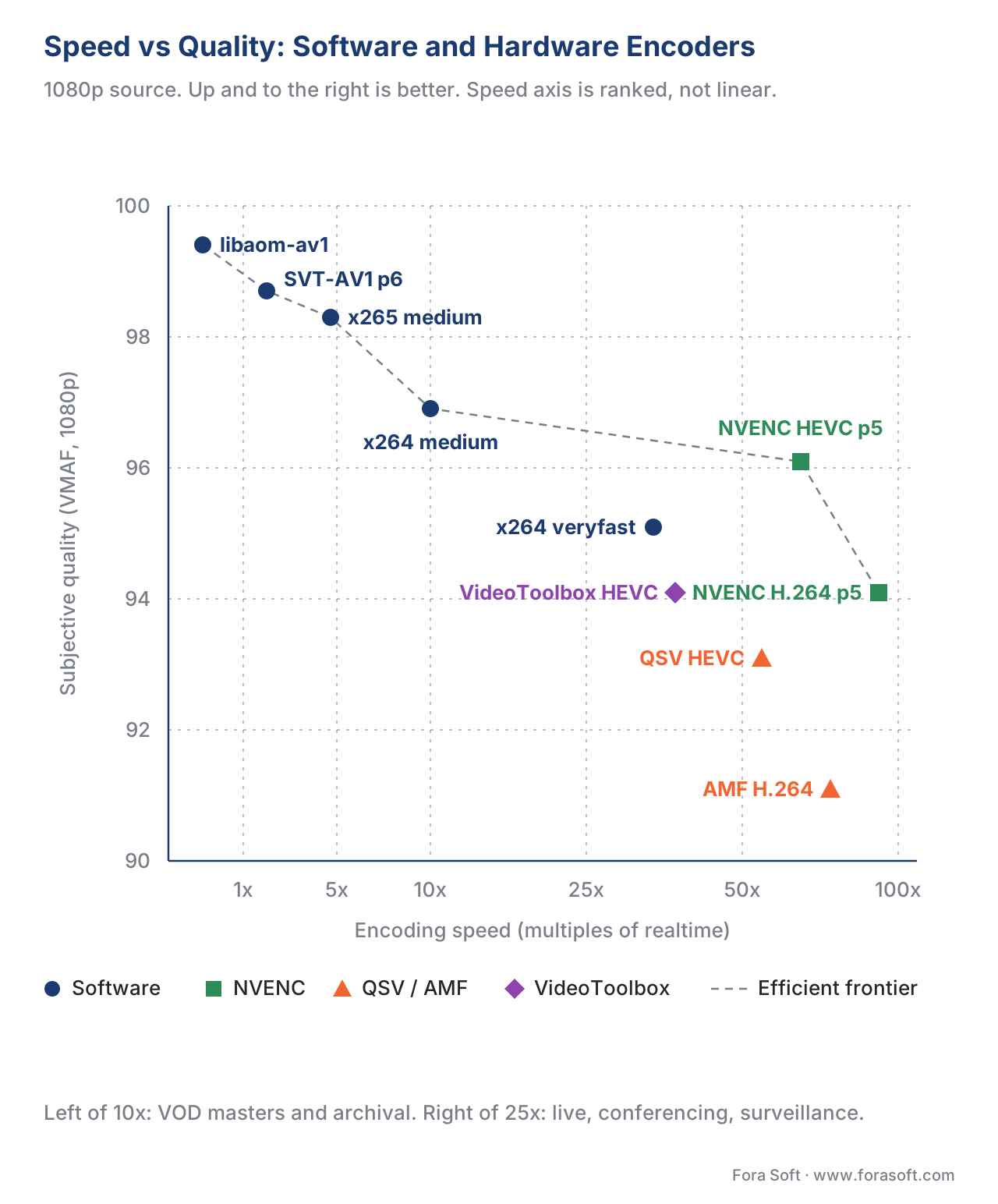 Figure 2. Speed-quality trade-off across software and hardware encoders at 1080p. NVENC and SVT-AV1 sit closest to the efficient frontier; AMF and the fastest x264 presets lose visibly more quality for the speed they gain.
7. Adaptive Bitrate ladders for streaming
A single bitrate cannot serve every viewer — phones on cellular, laptops on home Wi-Fi, TVs on gigabit fibre all need different streams. Adaptive Bitrate streaming solves this by encoding the same source at five or six bitrate-resolution rungs and letting the player pick the right one fragment by fragment. FFmpeg can produce the full ladder in one pass.
# 1080p source → four ABR rungs (1080p, 720p, 480p, 360p) in one command.
ffmpeg -i input.mov \
  -filter_complex "[0:v]split=4[v1][v2][v3][v4]; \
                   [v1]scale=1920:1080[v1080]; \
                   [v2]scale=1280:720[v720]; \
                   [v3]scale=854:480[v480]; \
                   [v4]scale=640:360[v360]" \
  -map "[v1080]" -c:v:0 libx264 -b:v:0 5000k -maxrate:v:0 5500k -bufsize:v:0 10000k \
  -map "[v720]"  -c:v:1 libx264 -b:v:1 2800k -maxrate:v:1 3100k -bufsize:v:1 5600k \
  -map "[v480]"  -c:v:2 libx264 -b:v:2 1400k -maxrate:v:2 1500k -bufsize:v:2 2800k \
  -map "[v360]"  -c:v:3 libx264 -b:v:3 800k  -maxrate:v:3 900k  -bufsize:v:3 1600k \
  -map a:0 -c:a aac -b:a 128k \
  -f hls -hls_time 4 -hls_playlist_type vod \
  -hls_segment_type fmp4 \
  -master_pl_name master.m3u8 \
  -var_stream_map "v:0,a:0 v:1,a:0 v:2,a:0 v:3,a:0" \
  "stream_%v/playlist.m3u8"
The command is long but each piece is doing one job. The -filter_complex block splits the decoded video into four parallel streams, scales each to a target resolution, and labels the outputs [v1080] through [v360]. The -map lines pick each labelled output and assign it an encoder with a specific bitrate, maxrate (the VBV ceiling, set 10 percent above target), and bufsize (twice the maxrate for VOD).
The HLS-specific flags: -f hls picks the HLS muxer. -hls_time 4 sets the segment length to 4 seconds — the modern default for HLS and DASH alike. -hls_segment_type fmp4 produces fragmented MP4 segments (CMAF-compatible) instead of legacy MPEG-TS — see our containers article for why this matters. -master_pl_name writes the top-level playlist that lists all four rungs. -var_stream_map tells the muxer to pair each video rung with the same audio track. 9
The bitrates in the example come from Apple's HLS authoring specification and Mux's per-title-encoding research — a balanced ladder where each rung is roughly half the bitrate of the next one up, so the player can step down smoothly when bandwidth drops. 10
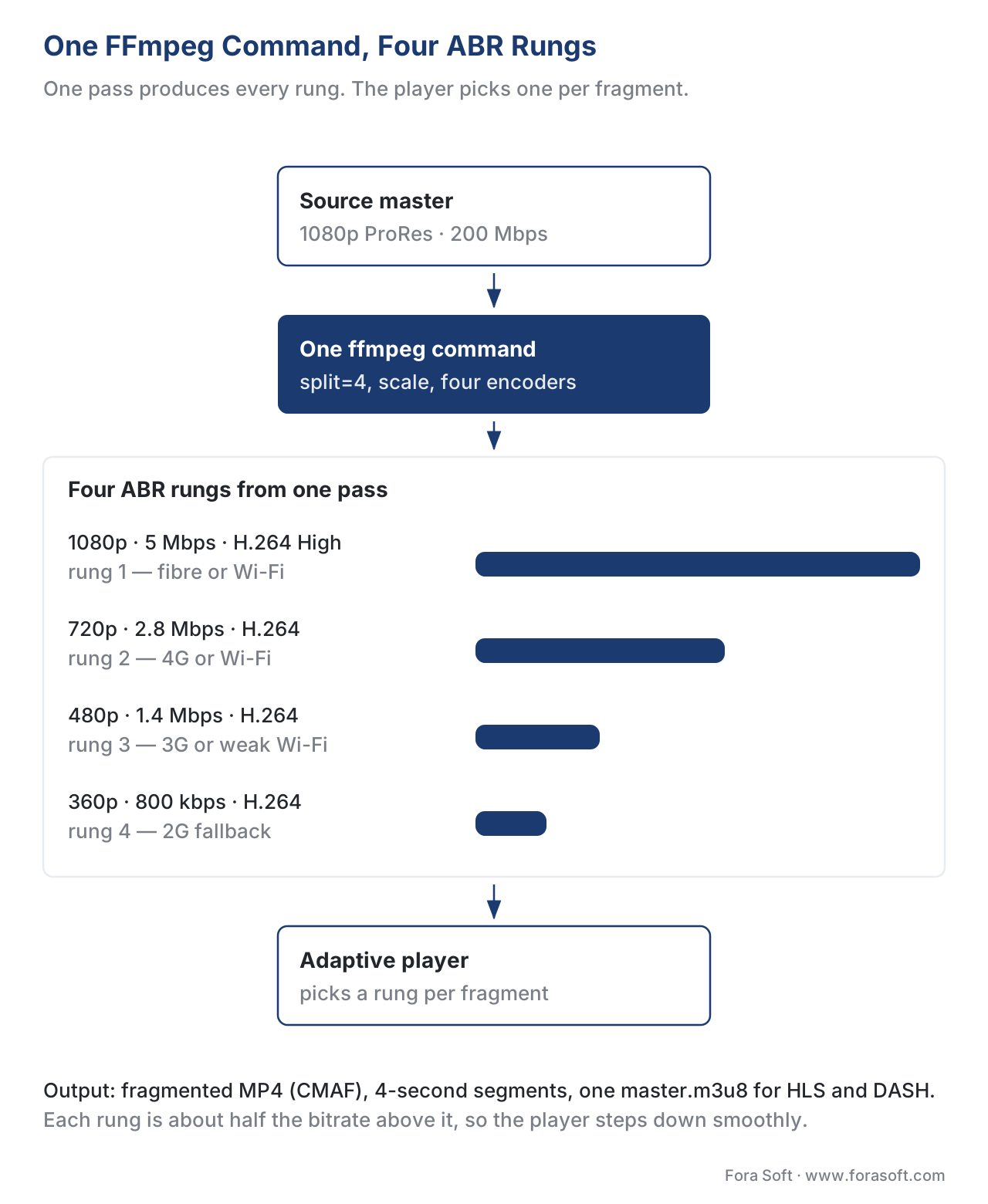 Figure 3. A four-rung ABR ladder produced by one FFmpeg command. The player switches between rungs fragment by fragment as the viewer's bandwidth changes.
8. Filters: scale, crop, watermark, deinterlace, denoise
Filters live inside -vf (video filter chain) or -filter_complex (multi-input graph). The most common ones cover ninety percent of real product work.
# Scale to 720p maintaining aspect ratio (-2 keeps height even, required by H.264).
ffmpeg -i input.mp4 -vf "scale=1280:-2" -c:v libx264 -crf 23 output.mp4
# Crop a vertical 9:16 from a horizontal 16:9 (centre crop).
ffmpeg -i input.mp4 -vf "crop=ih*9/16:ih" -c:v libx264 -crf 23 output.mp4
# Overlay a PNG watermark in the bottom-right corner with 20-pixel margin.
ffmpeg -i input.mp4 -i logo.png \
       -filter_complex "[0:v][1:v]overlay=W-w-20:H-h-20" \
       -c:a copy output.mp4
# Burn-in a timestamp top-left, semi-transparent black box behind it.
ffmpeg -i input.mp4 -vf \
       "drawtext=text='%{pts\:hms}':x=20:y=20:fontsize=28:fontcolor=white:box=1:boxcolor=black@0.5:boxborderw=6" \
       -c:a copy output.mp4
# Deinterlace an interlaced source (set-top box, broadcast) with yadif.
ffmpeg -i interlaced.mp4 -vf "yadif=mode=1" -c:v libx264 -crf 23 output.mp4
# Denoise a noisy low-light source with hqdn3d (lightweight, fast).
ffmpeg -i noisy.mp4 -vf "hqdn3d=4:3:6:4.5" -c:v libx264 -crf 23 output.mp4
# Convert frame rate to exactly 30 fps with motion-blending interpolation.
ffmpeg -i input.mp4 -vf "minterpolate=fps=30:mi_mode=blend" -c:v libx264 -crf 23 output.mp4
Chain filters with commas inside one -vf, or with semicolons across multiple labelled streams inside -filter_complex. The drawtext filter requires that FFmpeg was built with --enable-libfreetype; static BtbN builds always include it. For the full filter catalogue — there are more than 300 — refer to the official filter documentation. 13
9. Audio: extract, replace, mix, normalise
Audio is its own world. Five commands cover most real jobs.
# Extract the audio track as a high-quality MP3 (320 kbps).
ffmpeg -i input.mp4 -vn -c:a libmp3lame -b:a 320k output.mp3
# Replace the audio track in a video with a new file, keep video untouched.
ffmpeg -i video.mp4 -i music.aac -c:v copy -c:a aac -b:a 192k -map 0:v -map 1:a -shortest output.mp4
# Mix two audio inputs (dialogue and music) into one stereo track at chosen levels.
ffmpeg -i dialogue.wav -i music.wav \
       -filter_complex "[0:a]volume=1.0[a0];[1:a]volume=0.3[a1];[a0][a1]amix=inputs=2:duration=longest[out]" \
       -map "[out]" output.aac
# Loudness-normalise to -16 LUFS (the YouTube / podcast standard).
ffmpeg -i input.mp4 -af "loudnorm=I=-16:LRA=11:TP=-1.5" -c:v copy output.mp4
# Two-pass loudness normalisation for broadcast accuracy.
ffmpeg -i input.mp4 -af loudnorm=I=-16:LRA=11:TP=-1.5:print_format=json -f null -
# (copy the measured values into the second command)
ffmpeg -i input.mp4 -af "loudnorm=I=-16:LRA=11:TP=-1.5:measured_I=-21.4:measured_LRA=8.2:measured_TP=-1.1:measured_thresh=-31.4:offset=0.5:linear=true" output.mp4
loudnorm is the EBU R128 loudness-normalisation filter — the same algorithm broadcasters use to keep ad breaks from being louder than the show. LUFS (Loudness Units relative to Full Scale) is the EBU's perceptual loudness unit; -16 LUFS is the de-facto standard for YouTube, Spotify, and podcasts, while -23 LUFS is the EBU broadcast target. The two-pass form measures first and corrects second, which is more accurate than the one-pass form but takes twice as long.
10. Thumbnails, sprites, and GIFs
Players, e-commerce video catalogues, and CMS uploads all want thumbnails. FFmpeg generates them in one line.
# Take a single thumbnail at 5 seconds in.
ffmpeg -ss 5 -i input.mp4 -vframes 1 -q:v 2 thumb.jpg
# Take a frame every 60 seconds (sprite generation).
ffmpeg -i input.mp4 -vf "fps=1/60,scale=320:-2" -q:v 4 thumb_%03d.jpg
# Build a single sprite sheet (8 columns x 5 rows) from 40 evenly-spaced frames.
ffmpeg -i input.mp4 -vf "fps=1/60,scale=160:90,tile=8x5" -q:v 4 sprite.jpg
# 5-second high-quality GIF preview at 12 fps, 480 px wide, optimised palette.
ffmpeg -ss 30 -t 5 -i input.mp4 \
       -vf "fps=12,scale=480:-1:flags=lanczos,split[a][b];[a]palettegen[p];[b][p]paletteuse" \
       preview.gif
The palettegen / paletteuse two-stage trick produces a GIF with a custom 256-colour palette tuned to the actual content — file sizes are 30 percent smaller and the picture is noticeably cleaner than the naive -c:v gif output.
11. Live streaming: RTMP, SRT, WHIP
For live ingest into a streaming server, FFmpeg speaks RTMP (the legacy default, 2002 vintage but still everywhere), SRT (the modern reliable-UDP replacement), and as of FFmpeg 7.1 also WHIP (WebRTC-HTTP ingestion protocol, the WebRTC standard for one-way broadcast). 11
# RTMP ingest into Twitch, YouTube, or any RTMP server.
ffmpeg -re -i input.mp4 \
       -c:v libx264 -preset veryfast -tune zerolatency -b:v 4500k -maxrate 4500k -bufsize 4500k \
       -g 60 -keyint_min 60 -sc_threshold 0 \
       -c:a aac -b:a 160k -ar 44100 \
       -f flv "rtmp://live.twitch.tv/app/STREAM_KEY"
The new flags: -re reads the input at its native frame rate (so you do not flood the network with bursts). -tune zerolatency switches x264 into low-latency mode — no B-frames, no look-ahead. -g 60 -keyint_min 60 forces a keyframe every 60 frames (2 seconds at 30 fps), the standard ingest cadence. -sc_threshold 0 disables scene-change keyframes that would break the fixed cadence.
# SRT push to a CDN ingest endpoint (replacing RTMP for low-latency broadcast).
ffmpeg -re -i input.mp4 \
       -c:v libx264 -preset veryfast -tune zerolatency -b:v 4500k -maxrate 4500k -bufsize 4500k \
       -g 60 -keyint_min 60 \
       -c:a aac -b:a 160k \
       -f mpegts "srt://ingest.example.com:9000?streamid=publish/event42"
# WHIP ingest into a WebRTC origin (FFmpeg 7.1+).
ffmpeg -re -i input.mp4 \
       -c:v libx264 -preset veryfast -tune zerolatency -b:v 2500k -maxrate 2500k -bufsize 2500k \
       -profile:v baseline -level 3.1 \
       -c:a libopus -b:a 96k -ar 48000 -ac 2 \
       -f whip "https://whip.example.com/publish/event42"
The WHIP form is new — it lets FFmpeg push directly into any WebRTC server that accepts the IETF WHIP standard (RFC drafts since 2022), with the same syntax pattern as RTMP and SRT. Note the codec constraints: WebRTC mandates H.264 baseline (or VP8/VP9/AV1) and Opus audio, so the encoder flags differ from broadcast ingest. 12
12. Common mistakes (and how to fix them)
The pitfalls below cost more production hours than every other FFmpeg issue combined.
The first is piping -ss after -i for fast trimming. Putting -ss after -i works but decodes every frame from the start of the file to the cut point — slow on a two-hour movie. Put -ss before -i for fast (keyframe-snapped) seek; put it after -i only when frame-accurate trim matters more than speed.
The second is forgetting -pix_fmt yuv420p when transcoding from a professional source. A ProRes or DNxHR master is 10-bit 4:2:2; without the explicit -pix_fmt, FFmpeg preserves that chroma in the H.264 output, and the file fails to play on roughly a third of phones. Always set -pix_fmt yuv420p for web delivery.
The third is -crf and -b:v in the same command. They are mutually exclusive. -crf is quality-constant; -b:v is bitrate-constant. FFmpeg silently ignores one of them and uses the other, but which one wins depends on the encoder. Pick one mode and stick to it (or use capped CRF with -crf + -maxrate + -bufsize for the modern compromise).
The fourth is -c copy with a filter applied. Filters require decoded frames. If you ask FFmpeg to filter and stream-copy in the same step it will print a confusing error or silently drop the filter. Filter requires -c:v <encoder>, not -c:v copy.
The fifth is broken HEVC on iPhones because of hev1 instead of hvc1. Apple devices require the hvc1 four-character code; the FFmpeg default for libx265 is hev1. Always add -tag:v hvc1 when you target Apple. We covered this in the HEVC section but it bites people often enough to repeat.
The sixth is mixing 29.97 and 30 in the same pipeline. They look identical until 18 minutes in, when the 0.1 percent drift causes audio-video sync to walk off by one frame. Pick a frame rate at the source-inspection step and force it through every stage: -r 30000/1001 or -r 30 everywhere, never both.
13. Performance: what scales, what doesn't
FFmpeg's CPU usage is dominated by the encoder. Decoding is roughly 5 to 10 percent of total CPU; filtering is another 5 to 20 percent depending on complexity; encoding is the remaining 70 to 90 percent. That means:
- Threading scales the encoder. x264 and x265 use up to 16 threads natively; SVT-AV1 scales linearly to 64 threads. On a server with many cores, run one FFmpeg per file rather than one FFmpeg with many threads — the per-process overhead is lower and you saturate the cores better.
- GPU acceleration helps the encoder, not the filter. Switching from
libx264toh264_nvenccuts encode time by 90 percent. Switching-vf scale=1280:720from CPU to a GPU scaler shaves seconds, not minutes. Profile before you optimise. - Two-pass encoding doubles encode time but improves quality 1 to 2 VMAF points at the same average bitrate. Worth it for VOD masters; pointless for live or one-off renders.
- NVMe disks matter for 4K and uncompressed sources. A raw 4K master file is 12 gigabits per second; SATA SSDs cap at about 4 Gbps and become the bottleneck. NVMe and U.2 enterprise SSDs handle the throughput; spinning disks do not.
A useful benchmark: on a 16-core AMD EPYC server running FFmpeg 7.1, encoding a one-hour 1080p source with libx264 -preset medium -crf 23 takes about 12 minutes. The same source with libx265 -preset medium -crf 26 takes 22 minutes. With libsvtav1 -preset 6 -crf 30 it takes 45 minutes. Going to h264_nvenc -preset p5 -cq 23 on a single RTX A4000 GPU drops the H.264 case to under 90 seconds — at the cost of about 1.5 VMAF points.
14. Where Fora Soft fits in
We have shipped FFmpeg-powered pipelines into more than 239 video products since 2005 across video streaming, video conferencing, OTT and Internet TV, video surveillance, e-learning, telemedicine, and AR/VR. In streaming and OTT we run multi-rung ABR ladders through SVT-AV1 and x265 on AWS Elemental or self-hosted NETINT VPU farms, push the output as CMAF for unified HLS and DASH, and watermark every rung individually. In telemedicine we use FFmpeg to record fMP4 from a WebRTC track, normalise the audio with loudnorm, and produce both an evidentiary MP4 and a low-bandwidth proxy. In surveillance we use NVENC for real-time multi-stream HEVC capture from dozens of IP cameras into long-retention archives. In e-learning we transcode instructor uploads through x264 with content-aware capped CRF and burn in chapter timestamps with drawtext. The pattern repeats: pick the right encoder for the speed-quality budget, pin a stable FFmpeg version, and treat every flag as a contract that survives the next release.
The book
Video Encoding: A Complete Guide to Video Compression — From Pixels and Color to H.264, HEVC, AV1, Quality Metrics, and AI
Every flag on this page maps to a decision inside the encoder: -crf sets the quantiser, -preset buys or sells mode-decision time, -maxrate and -bufsize shape the VBV. The book takes that machinery apart across 1,522 pages — rate control, GOP structure, transforms, the hardware encoder blocks behind NVENC and QuickSync, and the VMAF work you need to prove a preset change paid for itself. Read it when you want to know why a command works, not just that it does. Written by Nikolay Sapunov, CEO at Fora Soft.
Need an FFmpeg pipeline that holds up in production?
Tell us your source format, your delivery target and your latency budget, and we will tell you which encoder, preset and ladder fit — 250+ video products shipped since 2005.
See our case studies
Case study
Mindbox
An RTSP-to-HLS pipeline built on FFmpeg, running across 50+ IVMS deployments and reading plates from over 500,000 vehicles a day at about 95% accuracy.
Case study
Worldcast Live
Concert streaming at 1.5 Gb/s with 0.4 to 0.5 s latency for 10,000 simultaneous viewers — the case where encode speed, not bits per frame, decides the architecture.
Case study
Speed.Space
Remote production recording at 1080p and 8 Mbps, with per-stream control over resolution, fps, codec and bitrate, used on Netflix, Electronic Arts and HBO shoots.
What to read next
Containers
Containers: MP4, fMP4, MKV, WebM, MOV, MPEG-TS
What -c copy is actually rewriting when you only change the wrapper.
Rate control
Rate Control: CBR, VBR, CRF, ABR, Capped CRF
Where -crf, -b:v, -maxrate and -bufsize come from, and when each one is the right lever.
Pipeline
Transcoding Pipeline in Depth: Decode, Filter, Encode, Mux
The same five stages from the architecture side, once one command is no longer enough.
Codecs
AV1: The New Internet Standard and Where It Stands in 2026
Whether SVT-AV1 is ready for your ladder, and what an AV1 rung costs per hour.
-
FFmpeg Project. About FFmpeg — history and contributors. https://ffmpeg.org/about.html ↩
-
FFmpeg Project. FFmpeg 8.1 "Hoare" release notes. https://ffmpeg.org/index.html#pr8.1 ↩
-
FFmpeg Project. FFmpeg 7.1.x release history. https://ffmpeg.org/download.html ↩
-
FFmpeg Project. Download FFmpeg — official builds and distributors. https://www.ffmpeg.org/download.html ↩
-
AOMedia / Intel / Netflix. SVT-AV1 — Scalable Video Technology for AV1. https://gitlab.com/AOMediaCodec/SVT-AV1 ↩
-
ORI Encoding Guidelines (Academy Software Foundation). AV1 Encoding — preset trade-offs. https://academysoftwarefoundation.github.io/EncodingGuidelines/EncodeAv1.html ↩
-
Apple Developer. HEVC content for HTTP Live Streaming — hvc1 vs hev1 tag. https://developer.apple.com/documentation/http_live_streaming/about_the_ext-x-version_tag ↩
-
NETINT Technologies. State of Video Encoding 2025 — hardware vs software adoption. https://netint.com/state-of-video-encoding-2025/ ↩
-
FFmpeg Project. HLS muxer documentation — hls_segment_type, var_stream_map. https://ffmpeg.org/ffmpeg-formats.html#hls-2 ↩
-
Apple Inc. HLS Authoring Specification for Apple Devices — recommended bitrate tiers. https://developer.apple.com/documentation/http_live_streaming/hls_authoring_specification_for_apple_devices ↩
-
FFmpeg Project. Patchwork — WebRTC-HTTP Ingestion Protocol (WHIP) muxer. https://patchwork.ffmpeg.org/project/ffmpeg/patch/148ac047-3554-41f4-8220-f5962093c232@nativewaves.com/ ↩
-
IETF. draft-ietf-wish-whip — WebRTC-HTTP ingestion protocol. https://datatracker.ietf.org/doc/draft-ietf-wish-whip/ ↩
-
FFmpeg Project. FFmpeg Filters Documentation — full filter catalogue. https://ffmpeg.org/ffmpeg-filters.html ↩
