


Why This Matters
If you are an L&D director, an EdTech founder, or a product manager, navigation is the difference between a course library people use and one they abandon. A learner who cannot find the one thing they came back for — the formula, the safety step, the API call — does not rewatch the 40-minute lecture; they leave. Chaptering, transcripts, and in-video search are the cheapest, highest-leverage way to make a video library answer questions instead of just playing content. They also quietly settle two other obligations at once: accessibility, because the transcript is a legal requirement for much educational video, and discoverability, because chapters and transcripts are what search engines read. This article gives you the vocabulary to scope all three correctly, the standards that keep them portable, and the build-vs-buy calls that decide whether you ship a feature learners trust or a search box that returns nothing useful.
First, What These Three Things Actually Are
Picture the difference between a paperback novel and a good textbook. The novel is one unbroken stream; to find a passage you flip and guess. The textbook has a table of contents, an index at the back, and clear chapter headings — so you go straight to what you need. Chaptering, transcripts, and in-video search are how you turn a video from the novel into the textbook.
Chaptering is the table of contents. It splits the video's timeline into named sections — "Introduction," "Setting up the environment," "Worked example" — each with a start time, shown as markers on the scrubber and as a clickable list. Its job is to let a learner jump to a known section.
An interactive transcript is the full text of everything spoken, displayed beside the video, that highlights each phrase as it is said and lets the learner click any line to jump the video to that moment. That definition is not ours; it is the wording the W3C Web Accessibility Initiative uses (W3C WAI, "Transcripts," updated 2024). A plain transcript is a static text version; an interactive transcript is the same text wired to the player's clock.
In-video search is the index at the back of the book. It lets a learner type a word or phrase and get back the exact timestamps where it was spoken, so one click lands them on the right second. It is only possible because the transcript exists: you cannot search speech directly, but you can search the text of the speech.
The thread connecting all three is one artifact: a time-coded text track — text with timestamps attached. Get that right and chapters, transcript, and search all fall out of it. Get it wrong or skip it, and you are building three features on sand.
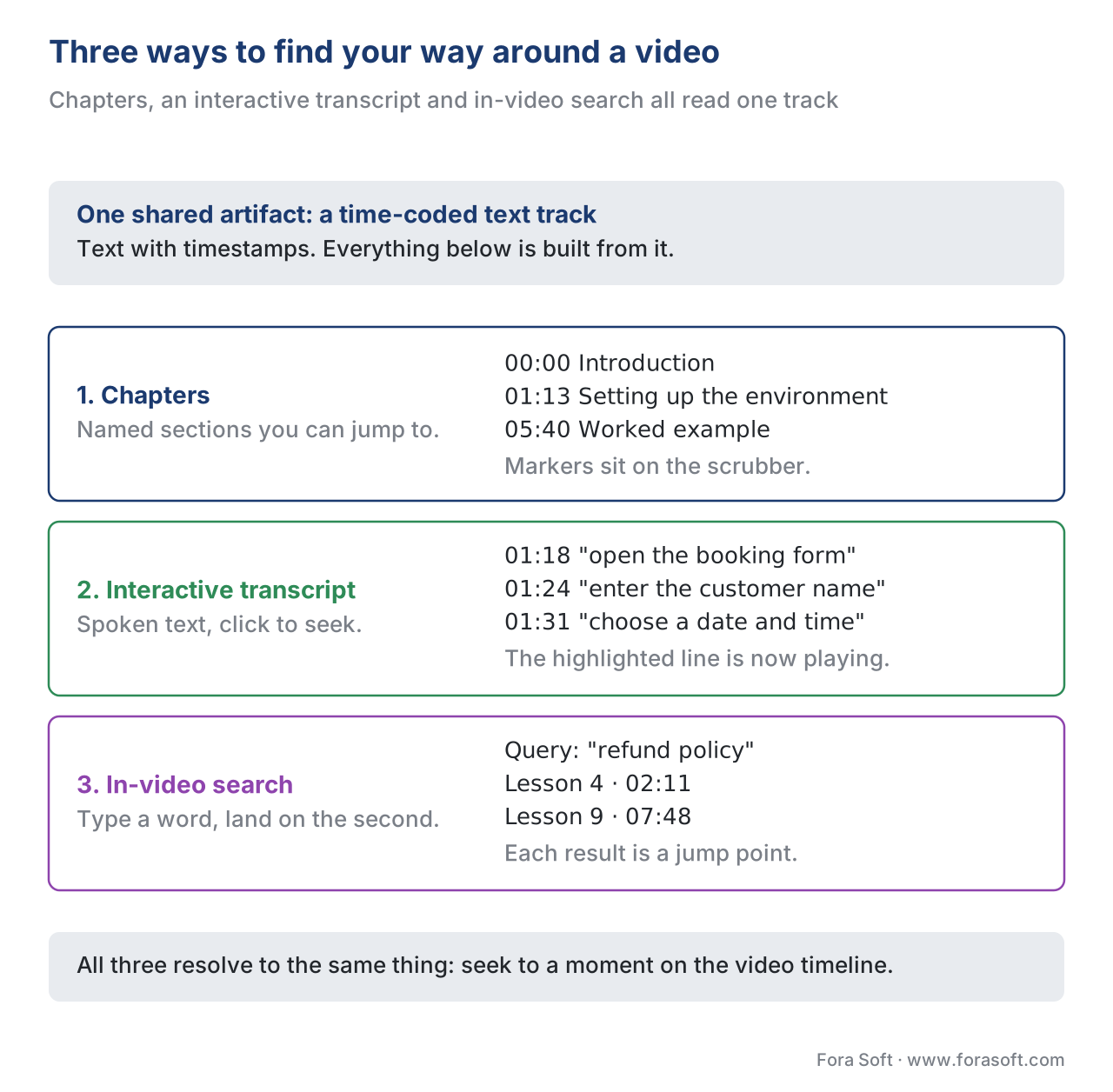 Figure 1. The three navigation features and the one artifact they share. A time-coded text track feeds the chapter list, the interactive transcript, and the in-video search index — all pointing back at moments in the timeline.
How a Chapter Marker Actually Works
You do not need to write code to make good calls here, but one level of depth helps you spot a weak implementation and talk to engineers.
There is a web standard built exactly for this: WebVTT (the Web Video Text Tracks Format), published by the W3C, the standards body for the web (W3C WebVTT, Candidate Recommendation). WebVTT is a plain-text file format for any text that is time-aligned with a video — captions, subtitles, descriptions, and, the part we care about here, chapters. The HTML video element loads it through a <track> element, and the attribute kind says which sort of track it is. For chapters you set kind="chapters", and each entry — called a cue — is one chapter: a start time, an end time, and the chapter's title (W3C WebVTT; HTML track element).
Here is what a chapters file looks like. It is readable by a human, which is the point:
WEBVTT

00:00:00.000 --> 00:01:13.000
Introduction

00:01:13.000 --> 00:05:40.000
Setting up the environment

00:05:40.000 --> 00:12:02.000
Worked example: the booking flow
That is the entire mechanism. The player reads the file, draws a marker at each start time on the scrubber, and shows the titles as a clickable list. When the learner clicks "Worked example," the player jumps the video to 5 minutes 40 seconds.
How does "jump to 5:40" travel around? Through another small W3C standard: the Media Fragments URI specification, which lets you address a moment in a video by adding a fragment to its address — lecture-7.mp4#t=340 means "the point 340 seconds in" (W3C Media Fragments URI 1.0). That tiny convention is the shared currency of this whole article: a chapter start, a transcript click, and a search result all reduce to "seek to this #t= value." (It is the same standard we use to pin learner notes to a moment in Notes, bookmarks, and learner annotation.)
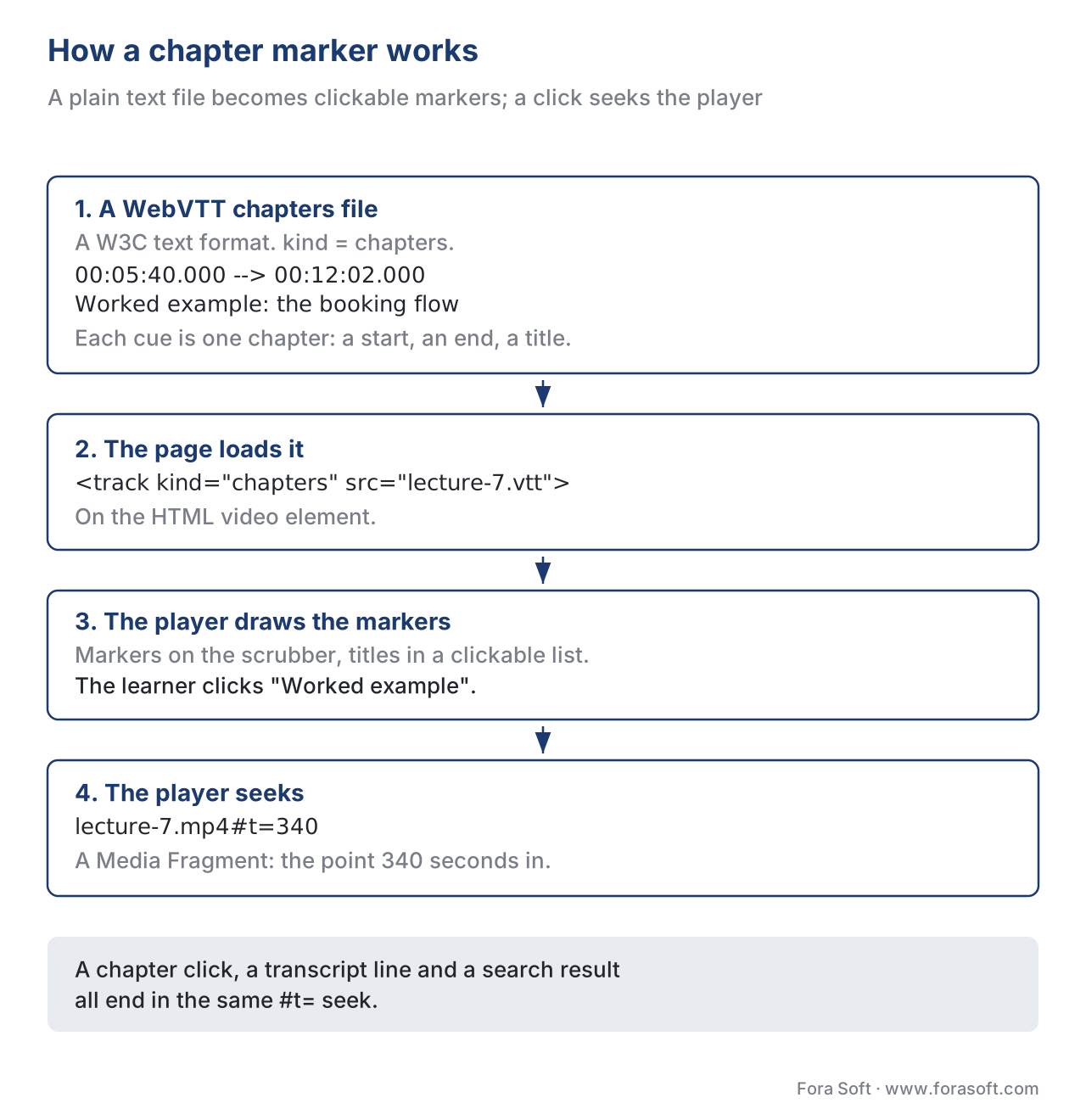 Figure 2. The chapter pipeline. A WebVTT file with
 kind="chapters" loads through the HTML <track> element; the player renders markers and a chapter list; a click issues a Media Fragments #t= seek to that chapter's start time.
The Interactive Transcript: One Text, Three Jobs
The transcript is the workhorse of this article because it does three jobs from a single artifact.
Job one is accessibility, and it is not optional. A transcript is a text alternative for the audio, and the accessibility standard most of the world's education buyers reference — the Web Content Accessibility Guidelines (WCAG) 2.1, and its successor 2.2 — requires it. Success Criterion 1.2.1 (Audio-only and Video-only, Prerecorded) is a Level A requirement, the most basic conformance level: for prerecorded audio-only content, you must provide a transcript that presents equivalent information (W3C WCAG 2.2, SC 1.2.1). For video with sound, captions are the Level AA requirement and a full transcript is Level AAA under SC 1.2.8 (Media Alternative) — but in education a descriptive transcript is so widely expected that treating it as a baseline is the safe call (W3C WAI, "Transcripts"). For the full accessibility treatment, see Captions, transcripts, and audio description for learning and WCAG 2.1 AA for educational video.
Job two is navigation. Make the transcript interactive — highlight the current phrase, let the learner click any line to seek — and it becomes a second, denser table of contents. Where chapters give you a dozen jump points, the transcript gives you hundreds. The wiring is the same #t= seek as a chapter click, just one per caption cue.
Job three is search, which gets its own section below, because the transcript is the only reason in-video search can exist.
One precision point that saves arguments later. A caption file and a transcript are not the same thing, even though one is often built from the other. Captions are short lines timed to appear on screen with the video; a transcript is the readable, paragraphed text separate from the video, and a descriptive transcript also includes the important visual information a caption omits (W3C WAI, "Transcripts"). You can generate a first-draft transcript from captions, but do not ship the raw caption file and call it a transcript.
In-Video Search: Making the Library Answer Questions
In-video search is the feature that makes a large library genuinely useful, and it is built entirely on the transcript.
The mechanism is simple to describe. Take the time-coded transcript of every video, store each phrase with its timestamp in a search index — the same kind of full-text index a website search uses — and when a learner types "refund policy," return every moment across every video where those words were spoken, each as a clickable timestamp. One click seeks the player to that second. The video became searchable not because a computer can search video, but because you turned its speech into searchable text first.
There are two flavours of in-video search, and the difference is a real product decision. Keyword search matches the words the learner typed — fast, cheap, predictable, and blind to synonyms: a search for "car" will not find "automobile." Semantic search matches meaning using AI embeddings, so "how do I get my money back" can find the segment about "refunds" even though the words differ. Semantic search is more powerful and more expensive, and it leans on AI models covered in the AI section — see the orientation in Where AI fits in a learning product. A pragmatic build ships keyword search first and adds semantic ranking when the library is large enough to justify it.
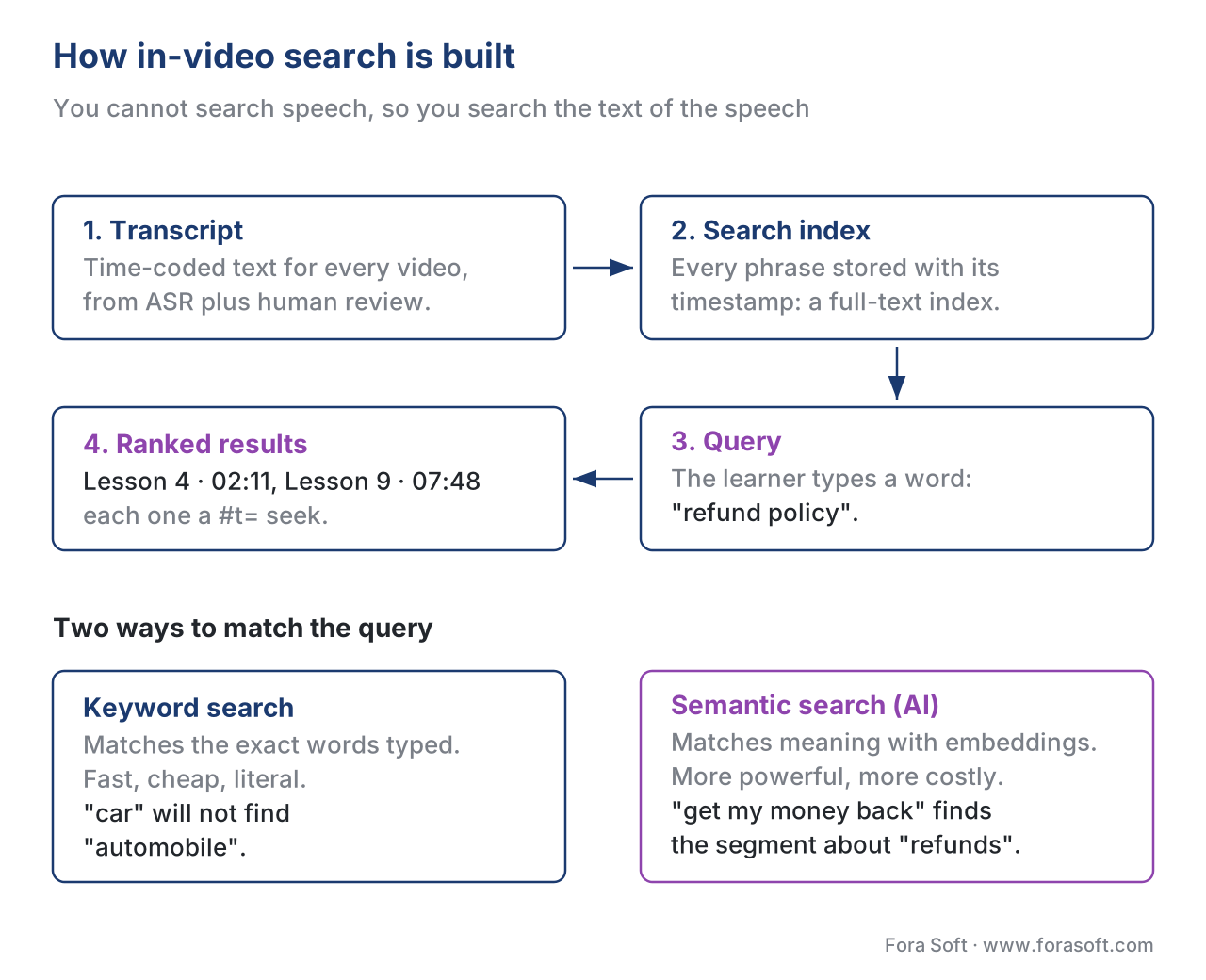 Figure 3. How in-video search is built. The transcript is indexed with timestamps; a query returns ranked results as
 #t= jump points. Keyword matching is fast and literal; semantic matching uses AI embeddings to match meaning.
Where the Text Comes From: Auto-Transcription and Auto-Chaptering
For a handful of flagship courses you can write chapters and clean a transcript by hand. For a library of hundreds of hours, you automate.
Automatic transcription uses automatic speech recognition (ASR) — software that turns speech into time-coded text. Modern ASR is good enough to seed every transcript, caption file, and search index across a whole catalog at low cost; the engineering and accuracy trade-offs live in the AI section, in Automatic captions and subtitles for learning video and the underlying streaming ASR comparison. The rule that matters for this article: ASR output is a draft. For a passing-grade accessibility transcript, and to avoid a search index full of misheard words, a human reviews the result. Captions that are wrong are not WCAG-conformant, and a search that returns garbage is worse than no search.
Automatic chaptering uses AI to read the transcript, find topic shifts and natural pauses, and propose chapter boundaries with titles. It is a genuine time-saver, but the same gate applies: a person should approve the chapter list before it ships, because an auto-chapter titled "uh, so, next" helps no one. Treat auto-chaptering as a first draft a human edits, not a finished product.
Tracking Navigation: What Jumps Tell You
Because this whole section is about learning data, the question follows: should you record when a learner jumps to a chapter or runs a search? You can, and there is a clean standards path.
The mechanism is the Experience API (xAPI) with its Video Profile — a standard, stewarded by the training-standards body ADL, for the player to write short sentences about what a learner did into a database called a Learning Record Store (LRS). When a learner skips to a chapter, the player sends a seeked statement, and the Video Profile carries where they jumped from and to in two extensions, time-from and time-to (xAPI Video Profile, ADL). So "Maria jumped from 0:12 to 5:40" becomes a queryable event. For the full treatment, see Tracking video with the xAPI Video Profile.
Why bother? Because navigation data is a map of confusion and demand. If hundreds of learners search the same term you never chaptered, that term should be a chapter — or a new lesson. If everyone skips the first three minutes, your intro is too long. Navigation signals tell you what your learners actually want, which feeds the engagement metrics in Interaction frequency and active-learning signals.
A Quiet Bonus: Chapters Are Also SEO
Here is a payoff teams miss. The chapters you create for learners can be read by Google and shown as "key moments" — clickable timestamps under your video in search results — using two structured-data types: Clip, where you mark the moments manually, and SeekToAction, where you tell Google your URL's time format and let it identify moments automatically (Google Search Central, Video structured data, 2026). For a public-facing course catalog or a marketing video, the chapters doing navigation work inside the player do discovery work in search results, from the same source data. You did the labour once; it pays twice.
The Numbers: What Findability Costs and Saves
Walk the arithmetic once, because the trade-off is concrete.
Say you have a 200-hour course library and you want transcripts, chapters, and search across all of it. Automatic transcription typically runs on the order of $0.20–$0.40 per audio hour at 2026 commodity ASR rates (verify against your provider). Take the midpoint:
- 200 hours × $0.30/hour = $60 to transcribe the whole library once.
That is the cheap part. The real cost is human review. Suppose a reviewer corrects a transcript and approves chapters at 3× real-time — 3 minutes of work per minute of video:
- 200 hours × 3 = 600 hours of review × (say) $25/hour = $15,000 in labour.
So the lesson is not "transcription is expensive" — it is "the machine is nearly free and the quality gate is the budget line." Now the saving. If in-video search saves each of 5,000 learners just 4 minutes of hunting per course:
- 5,000 × 4 min = 20,000 minutes ≈ 333 learner-hours saved, every cohort, forever.
For a corporate training team paying for employee time, that recovered time pays back the build quickly — and the accessibility compliance and SEO arrive at no extra cost.
Build, Buy, or Use the Player You Have
Most teams do not build a video player from scratch; they choose how much of chaptering, transcript, and search comes from a player or platform and how much they build. Here is the honest comparison, with the standards each option supports.
| Option | Chapters | Interactive transcript | In-video search | Standards support | Best fit |
|---|---|---|---|---|---|
| Open-source player (Video.js, Shaka) | WebVTT kind="chapters" built in |
Build the sync UI yourself | Build the index + UI yourself | WebVTT, Media Fragments, HTML <track>; add xAPI Video Profile |
Custom platform, full control |
| Hosted video platform | Usually included | Often included | Often included (single video) | WebVTT in/out; xAPI varies — confirm | Fast launch, less control |
| Interactive-video tool (e.g., H5P) | Yes | Partial | Limited | xAPI strong; check WebVTT export | Course-level interactivity |
| Build search across the library | n/a | n/a | Your index over all transcripts | Your schema; emit xAPI for tracking | Large catalog, cross-video search |
The pattern most learning products land on: take chapters and the interactive transcript from a capable player so you do not reinvent them, and build the cross-library search yourself, because no off-the-shelf player searches across your whole catalog — that index is your product's spine and your differentiator. The deeper architecture is in Building an interactive video player.
A Common Mistake: "Watched 100%" Is Not "Found It"
The pitfall that sinks navigation features is optimising for the wrong number. A team ships chapters and a transcript, sees average watch-time hold steady, and concludes the features "didn't move the needle." But navigation is not supposed to raise watch-time — done well, it often lowers it, because learners stop scrubbing blindly and go straight to what they need. The right metric is task success: can a learner find the answer they came for? Measure search-with-results rate, click-through on chapters, and the drop in "rewatch the whole thing" behaviour — not minutes played. Judging findability by watch-time is like judging a library's index by how long people wander the stacks.
A second, smaller trap: shipping raw ASR output as the "transcript." It fails the accessibility standard the moment a reviewer checks it, and it poisons search with misheard words. The machine drafts; a human approves.
When Chaptering, Transcripts, and Search Are the Right Tool
Not every video needs all three. A 90-second microlearning clip needs a transcript for accessibility and nothing else — there is nothing to chapter or search. The investment pays off in proportion to length and library size: long videos earn chapters, large libraries earn cross-video search, and every video earns a transcript because accessibility is not optional. The decision tree below is the short version.
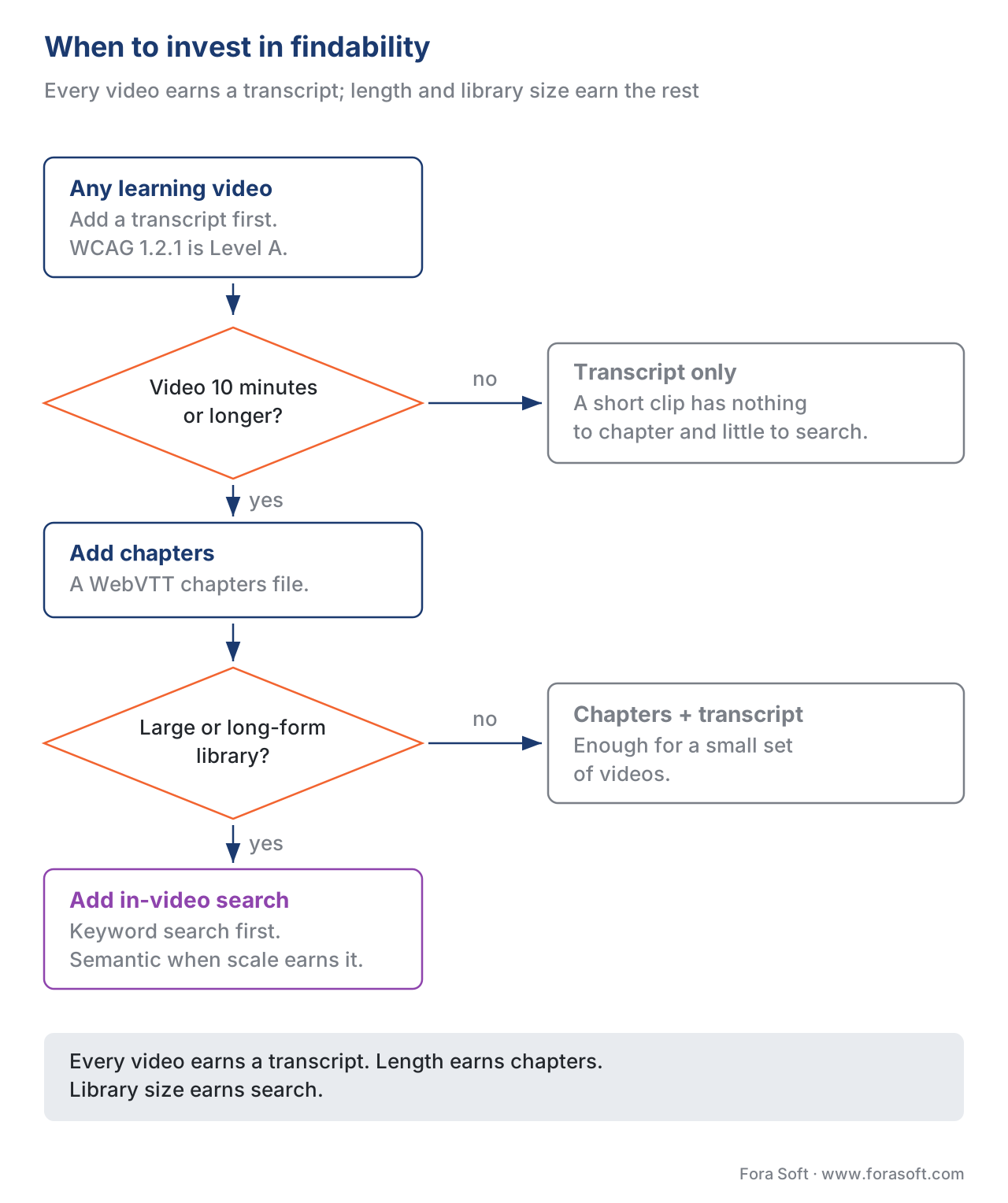 Figure 4. When to invest. Every video needs a transcript (accessibility). Long videos earn chapters. Large or long-form libraries earn in-video search, keyword first, semantic when scale justifies it.
Where Fora Soft Fits In
We build custom learning-video products, and findability is where a generic player stops and a real product begins. The build-vs-buy line we help teams draw is usually this: take chapters and the interactive transcript from a solid player, and invest your build budget in the cross-library search index and the tracking that turns navigation into insight — because those are the parts no vendor ships for your catalog. Across video conferencing, streaming, OTT, and e-learning work since 2005, the recurring lesson is that the time-coded text track is the asset; chapters, transcripts, search, captions, and SEO all flow from getting that one thing right. We scope it so the cheap, automatable parts stay cheap and the quality gate gets the attention it needs.
The handbook
Fora Soft Video Engineering Handbook
We wrote a seven-volume series that takes the whole video stack apart across 9,000+ pages — encoding, delivery, audio and AI — and someone who works through it can design and build the searchable library this article describes. Volume 6 sits closest to the work here: speech recognition and diarization, the part that turns an hour of lecture into time-coded text, and search and retrieval over a video archive, including the embeddings behind semantic matching. Volume 3 covers the players, subtitle delivery and trick play where chapters and an interactive transcript actually get rendered, and volume 4 the audio side of a clean transcript, from loudness and codecs to the accessibility rules a transcript answers to. Written by Nikolay Sapunov, CEO at Fora Soft.
Can a learner find the one minute they came back for?
Send us the size of your library, the average length of a video and whether you already have transcripts — and we will come back with what to take from your player, what to own as your own cross-library index, and what the human review on the transcripts will actually cost per hour. 250+ video products shipped since 2005.
See our case studies
Case study
VALT
A video recording and observation platform used by 770+ US organizations and 50,000+ users across medical education, simulation labs and law-enforcement interviews. Word search finds spoken words inside recorded video, powered by Amazon Transcribe, and playback jumps to the timestamp — in-video search doing real work on a library nobody could ever watch end to end.
Case study
VocalViews
A market-research marketplace with 1M+ participants and 5K+ completed studies, running video interviews for Samsung, McDonald’s and Netflix. Speech-to-text in 30+ languages, automatic transcription and live translation produce the time-coded text every later feature reads — and a researcher, not the machine, decides what a quote says.
Case study
BrainCert
The WebRTC and HTML5 virtual-classroom LMS behind 100K+ customers and 500M+ classroom minutes, with SCORM and xAPI support built in. xAPI is where a chapter jump stops being a click and becomes a queryable event — the navigation data that tells you which search term should have been a chapter, or a lesson of its own.
What to read next
AI
Automatic Captions and Subtitles for Learning Video
Where the time-coded text comes from, and what the machine still gets wrong.
Accessibility
Captions, Transcripts, and Audio Description for Learning
The obligation a transcript settles, and the one captions do not.
Standards
Tracking Video with the xAPI Video Profile
How a chapter jump becomes a queryable event in a learning record store.
Interactivity
Notes, Bookmarks, and Learner Annotation
The same #t= seek, pinned to a learner’s own note instead of a chapter.
References
- WebVTT: The Web Video Text Tracks Format — World Wide Web Consortium (W3C), Candidate Recommendation. The
kind="chapters"track type, cue syntax (start/end time + title), and the one-kind-per-file rule. Tier 1. https://www.w3.org/TR/webvtt1/ - Media Fragments URI 1.0 (basic) — W3C Recommendation. The
#t=temporal fragment syntax (#t=340) used to address a point or span in a video — the seek currency for chapters, transcript clicks, and search results. Tier 1. https://www.w3.org/TR/media-frags/ - Web Content Accessibility Guidelines (WCAG) 2.2, Success Criterion 1.2.1 — Audio-only and Video-only (Prerecorded) — W3C Recommendation, 5 October 2023. Level A requirement for a text alternative (transcript) for prerecorded audio-only content. Tier 1. https://www.w3.org/TR/WCAG22/#audio-only-and-video-only-prerecorded
- Understanding SC 1.2.8 — Media Alternative (Prerecorded) — W3C WAI. Level AAA full-text alternative (transcript) for synchronized media. Tier 1. https://www.w3.org/WAI/WCAG22/Understanding/media-alternative-prerecorded.html
- Transcripts — Making Audio and Video Media Accessible — W3C Web Accessibility Initiative (WAI), updated 17 September 2024. The definition of interactive transcripts (highlight + click-to-seek), the caption-vs-transcript distinction, and descriptive transcripts. Tier 1. https://www.w3.org/WAI/media/av/transcripts/
- xAPI Video Profile — ADL Initiative (authored profiles). The
seekedverb with thetime-fromandtime-toresult extensions used to record chapter and timeline jumps. Tier 1. https://github.com/adlnet/xapi-authored-profiles/tree/master/video - Experience API (xAPI) Specification, Version 1.0.3, Part 2: Statements (Data) — ADL Initiative. The actor–verb–object statement model and the Learning Record Store that records navigation events. Tier 1. https://github.com/adlnet/xAPI-Spec/blob/master/xAPI-Data.md
- The track element / kind attribute — HTML Living Standard, WHATWG. How a WebVTT file loads into a video as captions, subtitles, chapters, descriptions, or metadata. Tier 1. https://html.spec.whatwg.org/multipage/media.html#the-track-element
- Video (VideoObject, Clip, BroadcastEvent) structured data — Google Search Central, 2026. Clip and SeekToAction markup that surface chapters as "key moments" in search results. Tier 4. https://developers.google.com/search/docs/appearance/structured-data/video
- Web Video Text Tracks Format (WebVTT) — MDN Web Docs. Practical orientation on WebVTT cue syntax and the chapters kind. Tier 6. https://developer.mozilla.org/en-US/docs/Web/API/WebVTT_API/Web_Video_Text_Tracks_Format
- Video.js — text tracks and chapters — Video.js open-source player docs. How an open-source player renders WebVTT chapters and exposes a click-to-seek API. Tier 4. https://videojs.com/guides/text-tracks/
- H5P Interactive Video — H5P.org. Interactive-video tooling with bookmarks/chapters and strong xAPI emission. Tier 4. https://h5p.org/interactive-video
Where popular sources disagreed with the standards, the standards won: many vendor pages treat "captions" and "transcript" as interchangeable, but W3C WAI and WCAG 2.2 define them as distinct deliverables with different conformance levels (captions at AA, a full transcript as a Level AAA media alternative, and a transcript required at Level A for audio-only). The conformance facts come from the W3C primary documents, not the vendor summaries.
