


This is engineering guidance, not legal advice. Confirm specifics with qualified counsel.
Why this matters
If you build or run a learning-video product, captions, transcripts, and audio description are where accessibility stops being a principle and becomes a line item with a price, a workflow, and a file format. Get the workflow right and one transcription pass feeds your captions, your transcript, your search-within-video, and your translated subtitles; get it wrong and you pay four times for the same words, or ship "captions" that fail an audit and a deaf learner at the same time. This article is for the L&D director, EdTech founder, instructional designer, or product manager who has read that captions are required and now needs to know what to actually produce, how good it has to be, what it costs, and what to tell an engineer. It is the production-workflow companion to WCAG 2.1 AA for Educational Video, which covers the law and the audit; here we build the deliverables that pass it.
Three deliverables, one source of text
Before the rules and the formats, get the three things straight, because people mix them up constantly and the differences decide who you serve and what you spend.
Captions are a text version of everything in the audio — the words spoken, who speaks them, and the meaningful non-speech sound ("[applause]", "[error tone]") — shown inside the player and synchronized to the soundtrack, so a person who cannot hear gets what the audio carries [1]. A transcript is that same text delivered as a standalone document you can read, search, skim, or send to a braille display, with no video required [2]. Audio description is the opposite channel: spoken narration, added in the gaps, of important things that are only visible — an on-screen formula, a chart the instructor points at silently, text that flashes up without being read aloud — so a person who cannot see still gets them [3].
The unlock that makes all of this affordable is that the words overlap. The W3C, the standards body that defines accessibility on the web, puts it plainly: "captions and transcripts include the same text, so one can be used to develop the other" [1]. Produce one accurate caption file and the transcript is a near-free export; add a short written account of the visuals and that transcript becomes a descriptive transcript that also serves deaf-blind learners [2]. One transcription effort, three accessible outputs — that is the whole economic story of this article, and the reason accessibility designed in is cheap while accessibility bolted on after a complaint is not.
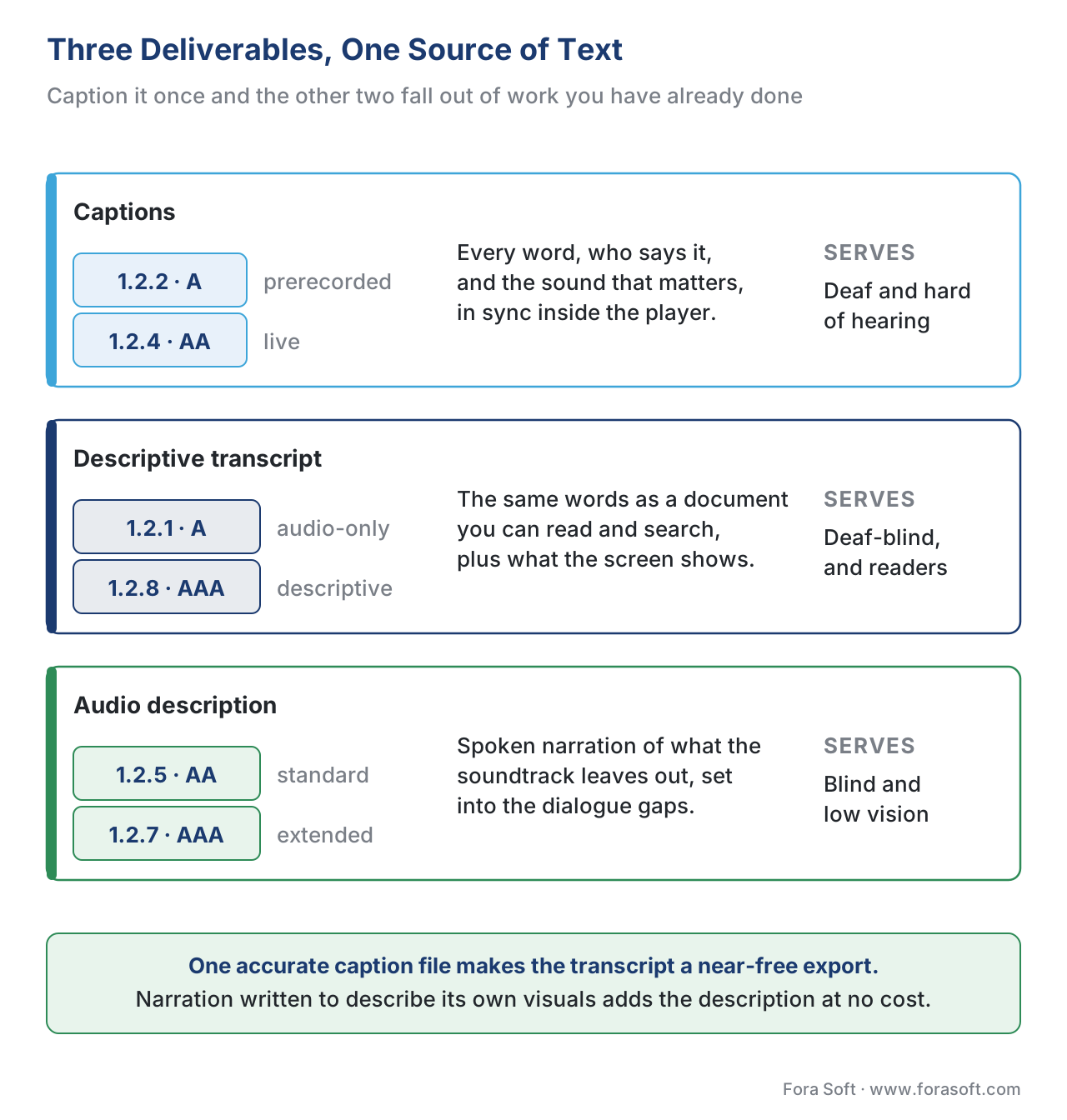 Figure 1. The three deliverables, the accessibility rule each satisfies, and who each serves. One accurate caption file feeds the transcript; integrated narration feeds the description.
A note on the rule numbers you will see throughout. The rulebook everyone means by "accessible" is the Web Content Accessibility Guidelines (WCAG), maintained by the W3C, and its individual rules are called success criteria, each tagged Level A (the floor), AA (the level the law adopts), or AAA (aspirational) [4]. The five that govern learning video sit under Guideline 1.2, "Time-based Media"; the full legal map is in the WCAG article. This piece is about producing the deliverables those criteria ask for.
Captions are not subtitles — and the difference is legal
One distinction first, because it trips up teams that serve more than one language. Captions assume you cannot hear the audio, so they include speaker labels and non-speech sound. Subtitles assume you can hear but do not understand the language, so they translate the dialogue and usually leave out the door-slam and the "[sighs]" [1]. The W3C calls same-language captions intralingual and translated subtitles interlingual [1]. Captions are an accessibility accommodation; foreign-language subtitles, on their own, are not. A course serving deaf learners in English needs English captions; a course serving Spanish speakers who can hear needs Spanish subtitles; a course doing both needs both. The translation side is the subject of Automatic Translation and Multilingual Courses and Multilingual Delivery at Scale; here we stay on the accessibility track.
Closed vs open captions: the first real decision
Every caption is either closed or open, and choosing wrong is expensive to undo. Closed captions live in a separate file that travels alongside the video; the player overlays them on demand, which is why every learner sees a "CC" button they can switch on or off [1]. Open captions are burned into the video image itself — rendered into the pixels at export time — so they are always on, identical for everyone, and impossible to turn off [1]. The words can be the same; what differs is whether the text is data or paint.
For a learning platform, closed captions win almost every time, for reasons that compound:
- The learner controls them. On or off, bigger or smaller, repositioned, restyled — closed captions bend to the viewer; open captions are fixed forever.
- One video, many languages. A closed-caption video can carry an English track, a Spanish track, and a descriptive-audio track at once; the learner picks. Open captions lock one language into the picture, so a second language means a second export.
- Search and study tools read them. Because closed captions are real text, your platform can index them for search-within-video, power an interactive transcript, and feed AI summaries — and search engines can crawl them. Open captions are pixels; nothing can read them.
- Edits are cheap. Fix a typo or a wrong term in a closed caption and you replace a small text file. Fix it in an open caption and you re-render and re-upload the entire video.
Open captions still have a place, and it is a narrow one: when the playback surface will not reliably show a separate caption track, or when you must guarantee the text appears no matter where the file lands. Social-media clips, a download that might be opened in an unknown player, or an old corporate LMS that ignores caption tracks are the classic cases [5]. The rule of thumb: default to closed captions for anything inside your platform; reach for open captions only when you cannot trust the player to render a track. A few platforms hedge by storing closed captions and offering a one-click "burn in" export for the rare destination that needs it.
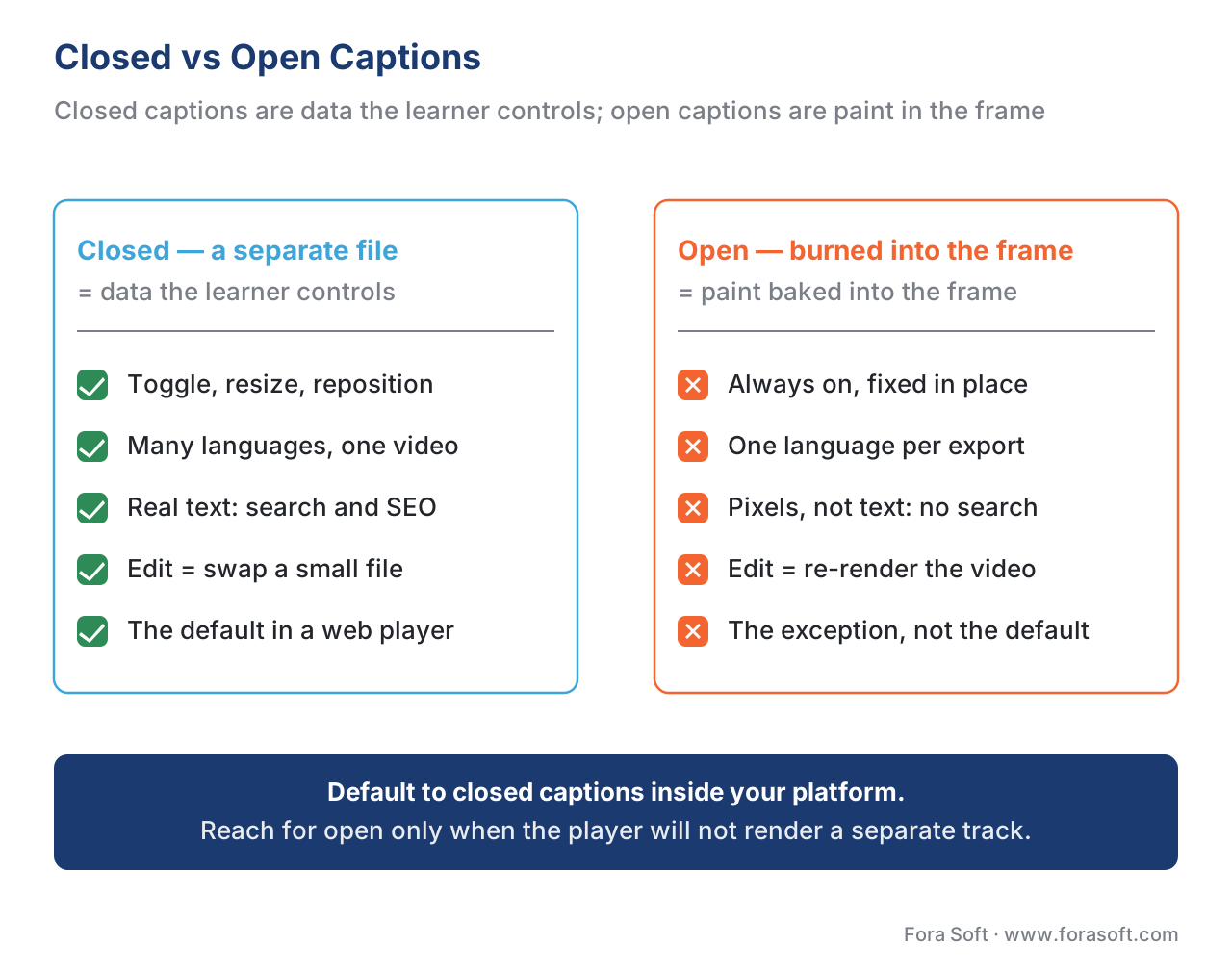 Figure 2. Closed vs open captions. Closed captions are data the learner controls; open captions are paint baked into the frame. Default to closed inside your platform.
Caption file formats: WebVTT, SRT, TTML/IMSC
If you choose closed captions, that separate file has a format, and an engineer will ask which one. There are only a few that matter, and the choice is mostly settled by where the video plays.
The most common format on the web is WebVTT (Web Video Text Tracks), a plain-text format that browsers read natively through the HTML5 <track> element and that supports speaker voices, positioning, and styling [1][6]. The old universal baseline is SRT (SubRip), supported by virtually every tool and player but offering little beyond timing and text — no positioning, minimal styling [7]. The broadcast- and streaming-grade option is TTML and its profile IMSC (Timed Text Markup Language / Internet Media Subtitles and Captions), an XML format the OTT industry standardized on; it is the profile carried inside packaged streaming segments and the one premium platforms such as Netflix require [6][7]. Legacy broadcast captions ride in CEA-608/708, which you meet mostly when ingesting television content.
| Format | What it is | Styling / positioning | Where it fits in learning video |
|---|---|---|---|
| WebVTT (.vtt) | Web-native text track, HTML5 <track> |
Yes — voices, position, basic CSS | Default for browser/LMS players; also carries audio-description text |
| SRT (.srt) | Universal baseline text | Minimal — timing + text only | Interchange, quick import/export, near-universal support |
| TTML / IMSC (.ttml/.xml) | XML timed text, OTT/broadcast grade | Rich — color, position, image subtitles | Adaptive streaming (HLS/DASH) at scale; premium delivery |
| CEA-608 / 708 | Embedded broadcast captions | Limited (line 21 / digital) | Ingesting or repurposing TV/broadcast content |
The practical answer for most courses is short: author and store in WebVTT, keep SRT around for interchange, and let your streaming layer convert to IMSC if you deliver via adaptive streaming. The same caption file, the W3C notes, can also carry your audio-description text on a separate descriptions track [3]. How these tracks get packaged and delivered alongside the video is a streaming concern, covered in Fora Soft's Captions and Multi-Audio with WebVTT and IMSC.
How good do captions have to be? The 99% bar
"We have captions" and "we have compliant captions" are different claims, and a buyer's testing will find the gap. The widely used industry benchmark is 99% accuracy, which in practice means no more than about 15 errors per 1,500 words, counting spelling, punctuation, grammar, and speaker identification [8]. Work it out the way a vendor does: a 7,000-word lecture minus 70 errors leaves 6,930 correct words; 6,930 ÷ 7,000 = 0.99, or 99% [8]. That is the floor a careful reviewer expects, not a stretch goal.
Accuracy is only one of four quality dimensions. The US Federal Communications Commission, in its caption-quality rules, names them as accuracy, synchronicity, completeness, and placement — captions must be correct, in time with the audio, run start to finish, and sit where they do not block important visuals [9]. The US Department of Education's Described and Captioned Media Program (DCMP), whose Captioning Key is the reference many education buyers cite, frames quality as accurate, consistent, clear, readable, and giving equal access [10]. Translated into a course: every word right, speakers labelled, the door-knock and the error-beep noted, lines that do not cover the slide, and timing tight enough to follow.
The trap this bar exists to catch is raw automatic captions. Speech recognition produces a draft, not a finished track, and the W3C is blunt that auto-captions "do not meet user needs or accessibility requirements unless they are confirmed to be fully accurate" [1]. Its own example is a cooking video where the spoken "broil for 4 to 5 minutes — you should not preheat the oven" auto-captions as "broil for 45 minutes — you should know to preheat the oven": two small recognition errors that invert the instructions and could start a fire [1]. On technical vocabulary, names, and accented speech — exactly the content of corporate and academic courses — that failure rate is worse. Automatic captions are the start of the workflow, not the end; the editing pass is what makes them compliant. The AI side of generating that draft is covered in Automatic Captions and Subtitles for Learning Video.
The transcript you almost already have
Here is where the workflow pays you back. Once you have an accurate caption file, the transcript is mostly done. A basic transcript is the speech and non-speech audio as a flat text document — and because it holds the same words as the captions, most caption tools export one with a click [2]. It satisfies the Level A rule for audio-only lessons (1.2.1) and serves anyone who would rather read than listen, including learners on a slow connection who skip the video entirely [2].
A descriptive transcript goes one step further: it adds the important visual information — the on-screen text, the diagram, the silent demonstration — so a reader who can neither see nor hear the video still gets everything [2]. The W3C presents it as a two-column document, audio in one column and visuals in the other, and notes it is "easy and inexpensive to make using captions and audio description that you already have" [2]. That sentence is the strategy: caption the video, write the description, and the descriptive transcript falls out of materials you produced for other reasons. It is the single deliverable that serves the widest range of learners, and under the Level A media-alternative path it can stand in for separate audio description on prerecorded video [3].
Transcripts also earn their keep beyond accessibility. Indexed, they power search-within-video and let a learner jump to the moment a term is defined. Rendered beside the player as an interactive transcript — a player feature that highlights each phrase as it is spoken and lets the learner click any line to jump there — they turn a passive video into something you can navigate and study [1][2]. That navigation layer is the subject of Chaptering, Transcripts, and In-Video Search. The transcript you made for one deaf-blind learner quietly improves the product for everyone.
Audio description: when you need it, and the cheapest way to get it
Audio description is the deliverable teams fear, because they picture hiring a narrator for every video. Usually you do not have to. The question is narrow: does the picture carry information the soundtrack does not? If the video is a person talking and nothing important is shown silently, you need no description at all [3]. You need it only when something meaningful is visual-only — an unspoken formula, a chart the instructor gestures at, a step performed without narration, text that appears without being read aloud.
WCAG sets the bar in three steps. At Level A, criterion 1.2.3 lets you satisfy the need with either audio description or a descriptive transcript — the transcript escape hatch [3]. At Level AA, criterion 1.2.5 expects actual audio description: spoken narration of the key visuals, inserted into the natural pauses in the dialogue [3]. At Level AAA, criterion 1.2.7 adds extended audio description for highly visual content — where the pauses are too short, the player briefly freezes the video to fit a longer description, then resumes [3]. Most courses target AA, so 1.2.5 is the one that matters.
The W3C lays out four ways to produce description, and they differ wildly in cost [3]:
- Integrated description — the narration is written from the start to describe what is on screen ("in the top-left cell, the formula returns 42"). The W3C says this "is usually best for most training videos," and it costs nothing extra because there is no separate track to make [3].
- Text-based description — timed description text in a file (WebVTT again), read aloud by the player or assistive tech in the audio gaps [3].
- Separate audio track — a recorded description, mixed into the gaps, using the "ducking" technique of lowering the main audio while the description plays [3].
- Separate described video — a second cut of the video with description baked in, for content too visual to fit any other way; the most expensive option [3].
The lesson for a course builder is the same one that runs through this whole article: decide accessibility before you record. Script your instructors to say what they show, and the expensive deliverable evaporates into good teaching. As the W3C puts it, "when accessibility is considered before videos are produced, it significantly cuts down on cost and effort" [3].
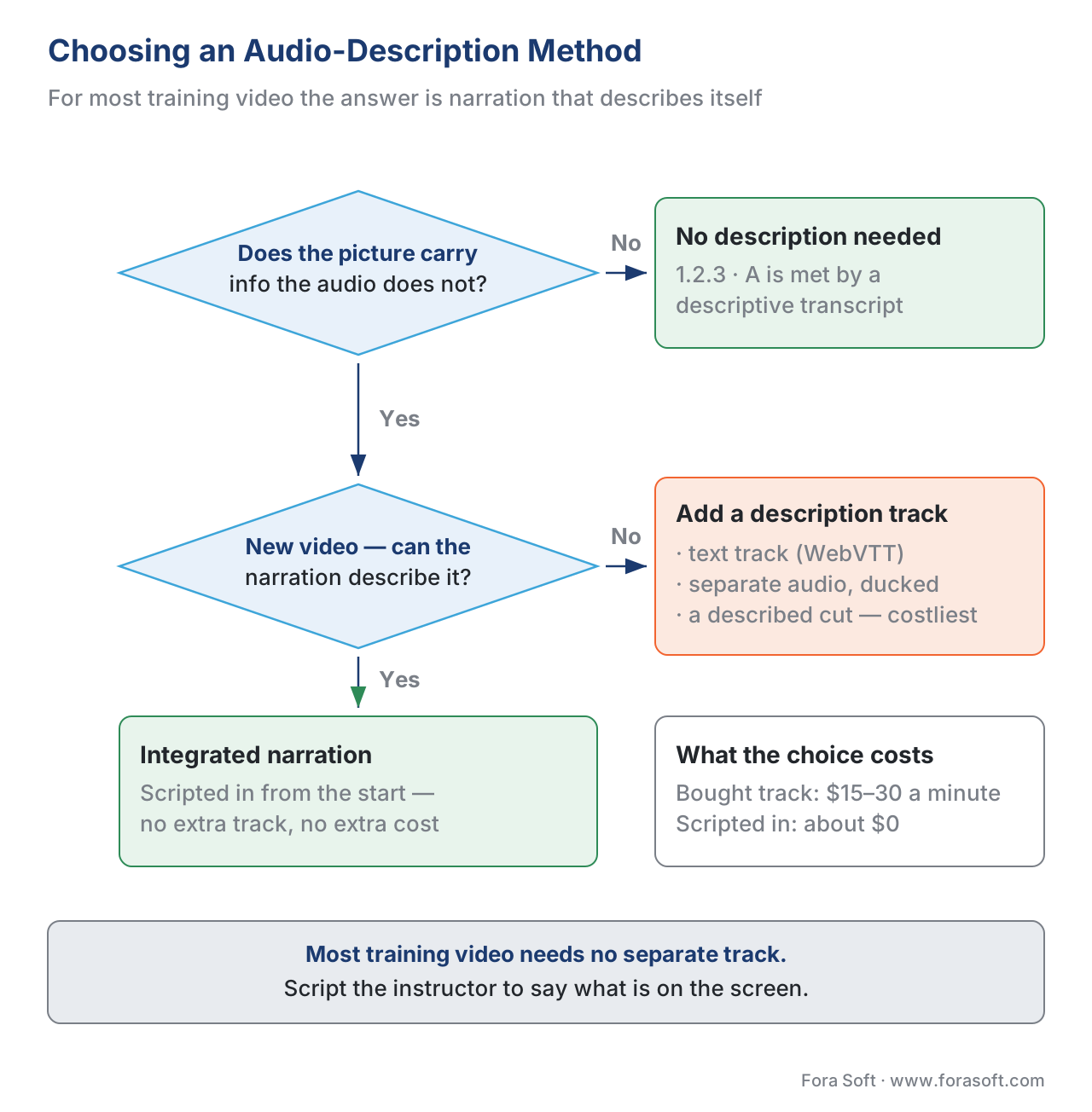 Figure 3. How to choose an audio-description method. For most training video the answer is integrated narration — described in the script, at no extra cost.
The production workflow, and what it costs
Put the three deliverables on one timeline and the workflow is a single spine with branches. Transcribe the audio — automatic speech recognition gives a fast first draft. Edit that draft to the 99% bar: fix terms, add speaker labels, mark non-speech sound, set readable line breaks and timing — this human pass is the work that turns a draft into a compliant caption file [1]. Quality-check against accuracy, synchronicity, completeness, and placement [9]. Then publish and reuse: the finished caption file becomes the WebVTT track in the player, exports to the transcript, seeds the translated subtitles, and feeds the search index [1][2]. Audio description runs as a parallel lane that, for most courses, was handled in the script.
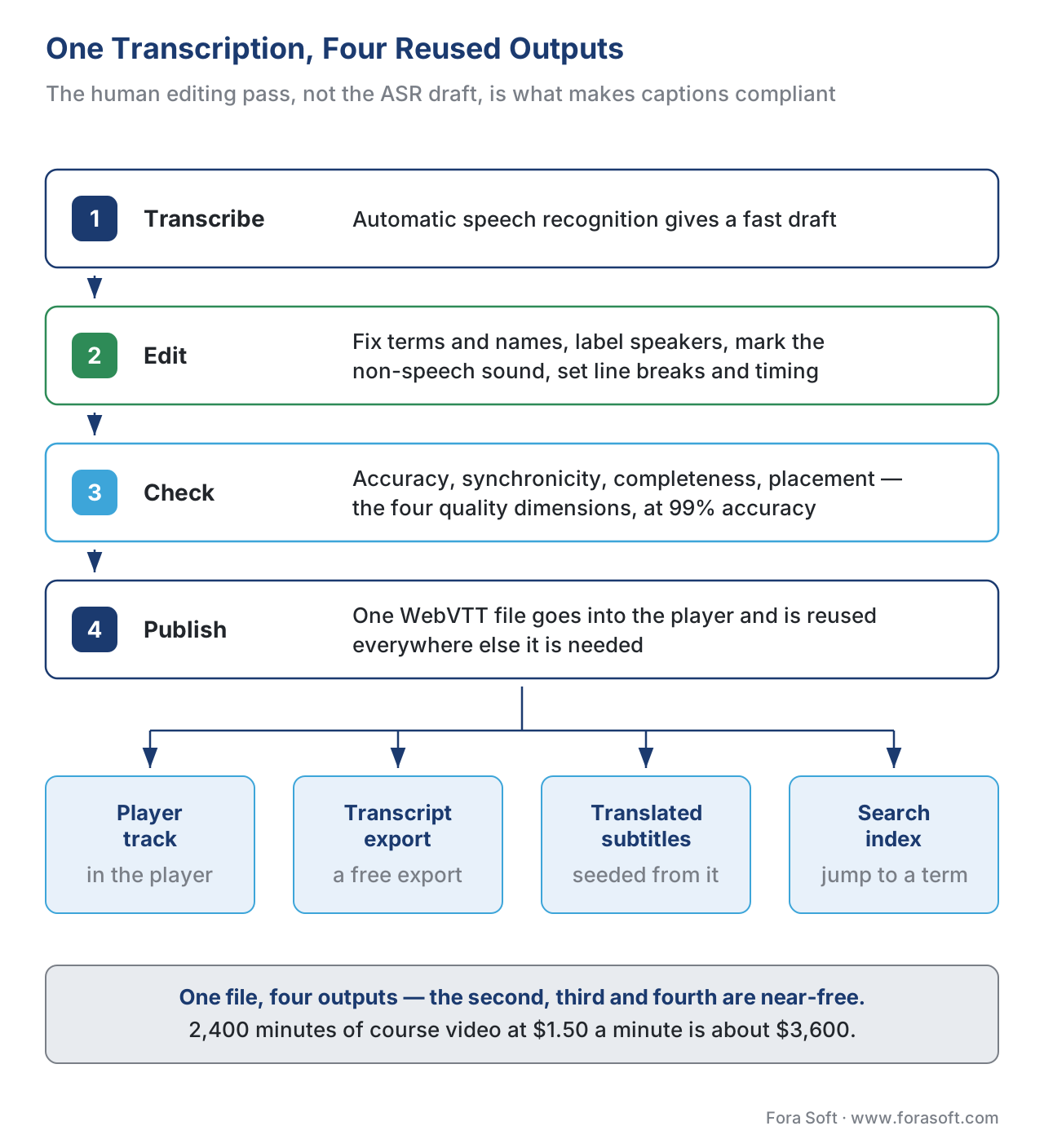 Figure 4. One transcription effort, four reused outputs. The human editing pass — not the ASR draft — is what makes captions compliant.
Now the arithmetic, for a realistic 40-hour course. Professional, human-verified captions run roughly $1 to $3 per minute in 2026. Work it out loud:
- 40 hours × 60 = 2,400 minutes of video.
- 2,400 minutes × $1.50 (a mid-range blended rate) = $3,600 for compliant captions across the course.
The transcript is then a near-free export from those caption files, so the second deliverable adds roughly $0 [2]. Audio description is the swing factor. Buy it as a separate narrated track and standard description runs about $15 to $30 per minute of the video that needs it — if 10% of 2,400 minutes has undescribed visuals, that is 240 × $20 = $4,800. Design the narration to describe its own visuals instead, and that line approaches $0 [3]. So the same course lands near $8,400 if you outsource description, or near $3,600 — captions plus a free transcript — if your instructors were scripted to say what they show. The cheapest accessibility is the kind designed in; the most expensive is the kind a court orders after a complaint, which arrives at rush rates for the whole library plus legal fees. The platform-wide version of this sum lives in The Learning-Platform Cost Model.
There is an upside the compliance framing hides. Roughly half of learners use captions at least some of the time, and a majority of students report using them as a study aid that improves comprehension [11]. The caption file you make for one deaf learner also drives search, multilingual subtitles, AI summaries, and watch-anywhere sound-off viewing. This spend is rarely only accessibility spend.
Common mistakes
These are the failures that turn up in audits and lost deals.
Shipping raw auto-captions as if they were compliant. The "broil 45 minutes / know to preheat" failure is real; speech recognition inverts meaning on exactly the technical content courses are made of [1]. Auto-captions are a draft you edit, not a track you ship.
Choosing open captions, then needing to change them. Burned-in captions cannot be toggled, translated, restyled, searched, or fixed without re-rendering the whole video. Teams pick open captions for one easy win and inherit every one of those costs later [5].
Confusing captions with subtitles. Foreign-language subtitles are not an accessibility accommodation; a Spanish subtitle track does not make an English course accessible to a deaf English speaker, who needs English captions with speaker labels and sound cues [1].
Leaving the free transcript on the table. Many teams caption diligently and never export the transcript, missing a Level-A deliverable, a search index, and an interactive transcript that all cost almost nothing once the captions exist [2].
Treating audio description as an always-on expense. Most training video needs little or no separate description if the narration is scripted to describe the visuals; budgeting a narrator for every video when integrated description would do is money spent for nothing [3].
Captioning the library but forgetting the live class. Prerecorded captions satisfy 1.2.2 (Level A); a live webinar or virtual classroom needs live captions under 1.2.4 (Level AA), a separate workflow with real-time captioners — see The Virtual Classroom [1].
Free download: Captioning & Audio-Description Production ChecklistA one-page production workflow: produce the caption file, hit the 99% quality bar, choose closed vs open and the file format, and reuse it for the transcript and audio description.Where Fora Soft fits in
Fora Soft has built video streaming, real-time WebRTC, and interactive-player software since 2005, and for learning products the hard part of captions, transcripts, and audio description is rarely the words — it is the pipeline and the player that carry them. The build-vs-buy trade-off is concrete: an off-the-shelf player gives you a WebVTT caption track and a CC button for free but little control over the study experience, while a custom player lets you wire an interactive transcript, search-within-video, multilingual track switching, and description tracks into the product — and hands you the job of doing it accessibly. We help teams decide where on that line their product belongs, then build the caption-and-transcript workflow and the player so the result passes an audit and doubles as a study tool, rather than being retrofitted after a complaint. The same media-pipeline work runs through the conferencing, OTT, and telemedicine products we build.
The handbook
Fora Soft Video Engineering Handbook
We wrote a seven-volume series that takes the whole video stack apart across 9,000+ pages — encoding, delivery, audio and AI — and someone who works through it can design and build the caption-and-transcript pipeline described here. Volume 4 is the closest to this article: it covers accessibility and subtitles from the audio side, along with the loudness and real-time voice work that decides whether a ducked description track sits under the dialogue or fights it. Volume 6 covers speech — ASR, diarization and TTS — which is the machine half of the draft you then edit to 99%, and volume 3 covers players, subtitle tracks and delivery, which is how the finished WebVTT actually reaches a learner. Written by Nikolay Sapunov, CEO at Fora Soft.
Will one caption pass carry your transcript, your subtitles and your search?
Send us the hours of video in your library, the languages you owe learners, and the player you run today — and we will come back with the caption workflow, the file format to author in, and what it costs to reach the 99% bar once instead of four times. 250+ video products shipped since 2005.
See our case studies
Case study
TransLinguist
An interpretation platform running 75+ languages with closed captioning in 22 of them, automatic subtitles and session transcription in every supported language — captions and subtitles built as the two separate deliverables they are, not as synonyms.
Case study
VALT
A recording and observation platform used by 770+ US organizations and 50,000+ users, where transcription feeds word search inside recorded video and exports to PDF reports — the transcript earning its keep as a study and review tool, not only as a compliance artifact.
Case study
VocalViews
A research platform with 1M+ participants and 800K+ verified panelists, running speech recognition in 30+ languages with live translation and automatic transcription — the ASR draft stage at production scale, ahead of the human pass.
What to read next
AI drafting
Automatic Captions and Subtitles for Learning Video
How the ASR draft is made, and how close it gets before the human pass.
Navigation
Chaptering, Transcripts, and In-Video Search
Turning the transcript you now have into a study tool learners navigate.
Translation
Automatic Translation and Multilingual Courses
The subtitle side: what it takes to go from one caption file to many languages.
Cost
The Learning-Platform Cost Model
Where the $3,600 captioning line sits in the whole platform budget.
References
- W3C Web Accessibility Initiative. Captions/Subtitles (captions vs subtitles; closed vs open captions; WebVTT/SRT/TTML formats; automatic captions are not sufficient — the "broil 45 minutes" example; interactive transcripts; SC 1.2.2 Level A, 1.2.4 Level AA). https://www.w3.org/WAI/media/av/captions/ — Tier 1 (primary standards-body guidance, W3C). Updated 17 Sep 2024.
- W3C Web Accessibility Initiative. Transcripts (basic vs descriptive transcript; descriptive transcript serves deaf-blind; easy/inexpensive to make from captions + description; two-column audio/visual format; SC 1.2.1 Level A, 1.2.8 Level AAA; interactive transcripts). https://www.w3.org/WAI/media/av/transcripts/ — Tier 1 (W3C). Updated 17 Sep 2024.
- W3C Web Accessibility Initiative. Description of Visual Information (when description is needed; integrated/text/audio/separate-video methods; integrated is best for training video; ducking; SC 1.2.3 Level A, 1.2.5 Level AA, 1.2.7 Level AAA; design before production cuts cost). https://www.w3.org/WAI/media/av/description/ — Tier 1 (W3C). Updated 17 Sep 2024.
- W3C. WCAG 2 Overview (success criteria; conformance Levels A/AA/AAA; Guideline 1.2 Time-based Media; WCAG 2.1 published 5 Jun 2018). https://www.w3.org/WAI/standards-guidelines/wcag/ — Tier 1 (primary standard).
- 3Play Media. Open Captions vs. Closed Captions (open captions burned in, always on; use when the player cannot render a separate track; closed captions toggle, restyle, and are crawlable). https://www.3playmedia.com/blog/open-captioning-use/ — Tier 7 (vendor explainer). Use-case framing; the closed/open mechanics are primary-sourced to [1].
- W3C. WebVTT: The Web Video Text Tracks Format and TTML2 / IMSC (WebVTT is the common web caption format via HTML5
<track>; TTML/IMSC is the XML timed-text profile for streaming/broadcast). https://www.w3.org/TR/webvtt/ and https://www.w3.org/TR/ttml2/ — Tier 1 (W3C specifications). - Unified Streaming. Caption and subtitle formats in video streaming (SRT as universal baseline; WebVTT for web; IMSC required by premium OTT such as Netflix; the only TTML profile CMAF allows). https://www.unified-streaming.com/blog/welcome-jungle-caption-and-subtitle-formats-video-streaming — Tier 4 (first-party streaming-vendor engineering). Format-landscape orientation.
- 3Play Media. What Is 99% Accuracy, Really? (industry standard 99%; ~15 errors per 1,500 words; worked example 7,000 words − 70 errors = 99%; accuracy counts spelling, punctuation, grammar). https://www.3playmedia.com/blog/caption-quality/ — Tier 6 (industry-reference figure). Flag for SEO re-verification of the headline number.
- U.S. Federal Communications Commission. Closed Captioning Quality Standards (47 CFR §79.1; FCC Declaratory Ruling FCC 14-12, Feb 2014): captions must meet accuracy, synchronicity, completeness, and placement. https://www.law.cornell.edu/cfr/text/47/79.1 — Tier 1 (primary US regulation). Applies directly to TV programming; the four dimensions are the reference quality frame for caption work.
- Described and Captioned Media Program (DCMP), U.S. Department of Education. Captioning Key (elements of quality captioning: accurate, consistent, clear, readable, equal access). https://dcmp.org/learn/captioningkey — Tier 2 (federally funded education-media guidance, the education sector's caption reference).
- 3Play Media / Oregon State University Ecampus. Student Uses and Perceptions of Closed Captions (≈half of learners use captions at least sometimes; majority of students use them as a study aid). https://www.3playmedia.com/blog/studies-find-captions-improve-engagement/ — Tier 5/6 (research summary). Engagement-lever framing; flag for re-verification.
Where sources disagreed, the official standard was followed. Many vendor posts treat "subtitles" and "captions" as synonyms; this article follows the W3C distinction — captions add speaker identity and non-speech sound, subtitles translate dialogue, and only captions are an accessibility accommodation [1]. Many posts also present audio description as always requiring a separate narrated track; the W3C method guidance is followed instead, under which integrated narration satisfies the requirement at no extra cost for most training video [3].
