


Why This Matters
If you are building or buying a virtual classroom, the whiteboard is the feature learners touch most and the one teams most often underestimate, because it looks like a drawing app and is actually a distributed-systems problem. Treat it as "just let them draw" and you ship a board that loses work on a refresh, shows cursors a second behind reality, breaks when two learners edit the same shape, and cannot be exported into the recorded lesson. Those are not cosmetic bugs — they are consequences of the data model chosen on day one, and they are expensive to fix later. This article gives you the architecture and the vocabulary up front so you can brief engineers against a shared picture, judge a vendor's whiteboard honestly, and decide where an off-the-shelf canvas is enough and where a custom build pays off.
What a Shared Canvas Actually Is
Start with the plain meaning. A shared canvas, or interactive whiteboard, is a visual surface — usually an infinite zoomable space — that several people in a live class can draw, type, and place objects on at the same time, and everyone sees the same thing update in real time. Think of a physical whiteboard that magically appears identical in every learner's room: when the instructor writes, the writing shows up on every board within a fraction of a second.
Here is the idea that changes everything about how you build it. The instructor's screen share sends a video of their screen — a stream of pixels — that the rest of the class watches but cannot touch. A shared canvas does the opposite: it sends a tiny description of what to draw — "a red line from here to here", "the word 'photosynthesis' at this spot" — and each learner's browser draws it. We cover the pixel-streaming approach in screen sharing for teaching; the canvas is its mirror image.
So the right mental model is this: a shared canvas is a synchronized document of shapes, not a video. The board you see is just one browser's drawing of a small data structure — a list of objects, each with a type, a position, a colour, and a few other properties. Synchronize that list reliably across everyone, and the picture takes care of itself. This single shift — sync the model, not the picture — is why a whiteboard can be crisp at any zoom, weigh kilobytes instead of megabits, and be saved, searched, and exported, while a screen-share recording is just a flat movie.
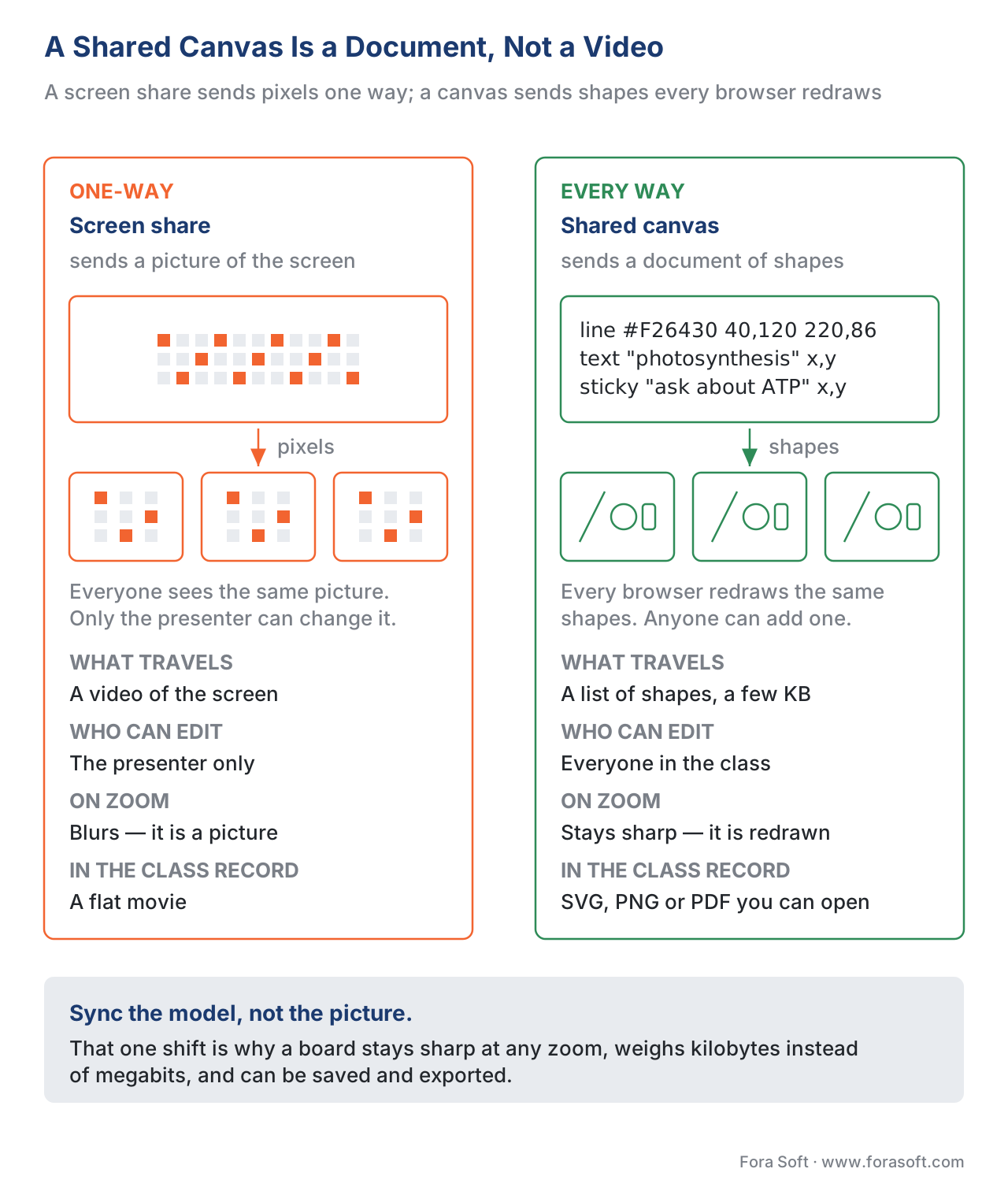 Figure 1. The core distinction. A screen share streams pixels one-way; a shared canvas synchronizes a small document of shapes that every browser redraws locally, so the board stays sharp, light, and savable.
Why the Whiteboard Earns Its Budget
Before the engineering, the pedagogy, because it justifies the work. Education research on distance learning consistently finds that a shared drawing surface raises engagement: learners co-construct ideas instead of passively watching, the act of writing together builds social presence that makes a remote class feel less isolating, and a board invites the quiet learner to contribute a sticky note when they would never unmute (ScienceDirect, Using a digital whiteboard for student engagement in distance education, 2021). A board turns a one-way lecture into a workspace.
The same research is honest about the failure mode: a blank board with no prompt stays blank, and a laggy or unreliable board actively harms the lesson because learners stop trusting it. The practical lesson for a product team is that the whiteboard is not a checkbox feature — its responsiveness and reliability are the feature. A board that drops strokes teaches learners not to use it, which is worse than not shipping it. That sets a high bar for the sync engine underneath.
The Heart of the Problem: Keeping Every Copy Identical
Because the board is a shared document, the central challenge is consistency: when twenty-five people edit at once, every copy of the document must end up identical, and quickly. Two learners drag the same shape, a third deletes it, the instructor draws over all of them — and no one's board may disagree about the result. There are three sound ways to guarantee this, and the choice shapes everything downstream.
Approach one — a central authority decides the order. The simplest and, for a classroom, usually the best model: every edit goes to one server, the server picks an order, applies the edits, and broadcasts the result. Conflicts are resolved by a plain rule — typically last write wins on a given property of a given object. Figma's design canvas works this way: its servers keep the latest value any client sent for each property of each object; two people editing different properties never conflict, and when they edit the same property of the same object, the document simply keeps the last value the server received (Figma, How Figma's multiplayer technology works, 2019). Figma's engineers note this resembles a last-writer-wins register from CRDT literature, but because the server is the single authority that orders events, they do not need the full machinery. For a live class — where there is always a server and learners are online — this is the leanest reliable design.
Approach two — Operational Transformation (OT). OT, the technique behind Google Docs, keeps every edit but transforms incoming edits against ones that already happened so they still make sense. If you insert a shape at position 3 while I delete position 1, OT rewrites your "position 3" into "position 2" so we converge. OT is efficient and battle-tested for centralized text editing, but it is famously hard to implement correctly for rich graphics, because every pair of operation types needs a correct transform.
Approach three — Conflict-free Replicated Data Types (CRDTs). A CRDT is a data structure built so that edits can arrive in any order, even with no central server, and every copy still converges to the same result automatically — no transform step, no central referee. The trade-off is bookkeeping: each shape carries hidden metadata (identifiers, version stamps) so merges are unambiguous, which costs memory and bandwidth. Modern CRDT libraries have largely erased the old performance penalty: Yjs, the dominant whiteboard CRDT in 2026, handles tens of thousands of operations per second, and Automerge 2.0 processes hundreds of thousands of keystrokes in under a second (Yjs and Automerge project benchmarks, 2026).
The plain-language summary of the CRDT-versus-OT trade-off — the question the plan for this article asks us to answer — is this: OT is leaner but needs a central server and careful per-operation logic; CRDTs cost a little more memory but converge automatically and work offline and peer-to-peer. For a single live class with a server always present, central last-writer-wins is the simplest thing that works. Reach for a CRDT when you need offline editing, peer-to-peer paths, or a board that keeps merging cleanly even when the network is messy — which is exactly why Excalidraw and tldraw, the two open whiteboards most teams start from, are built on CRDT-style stores.
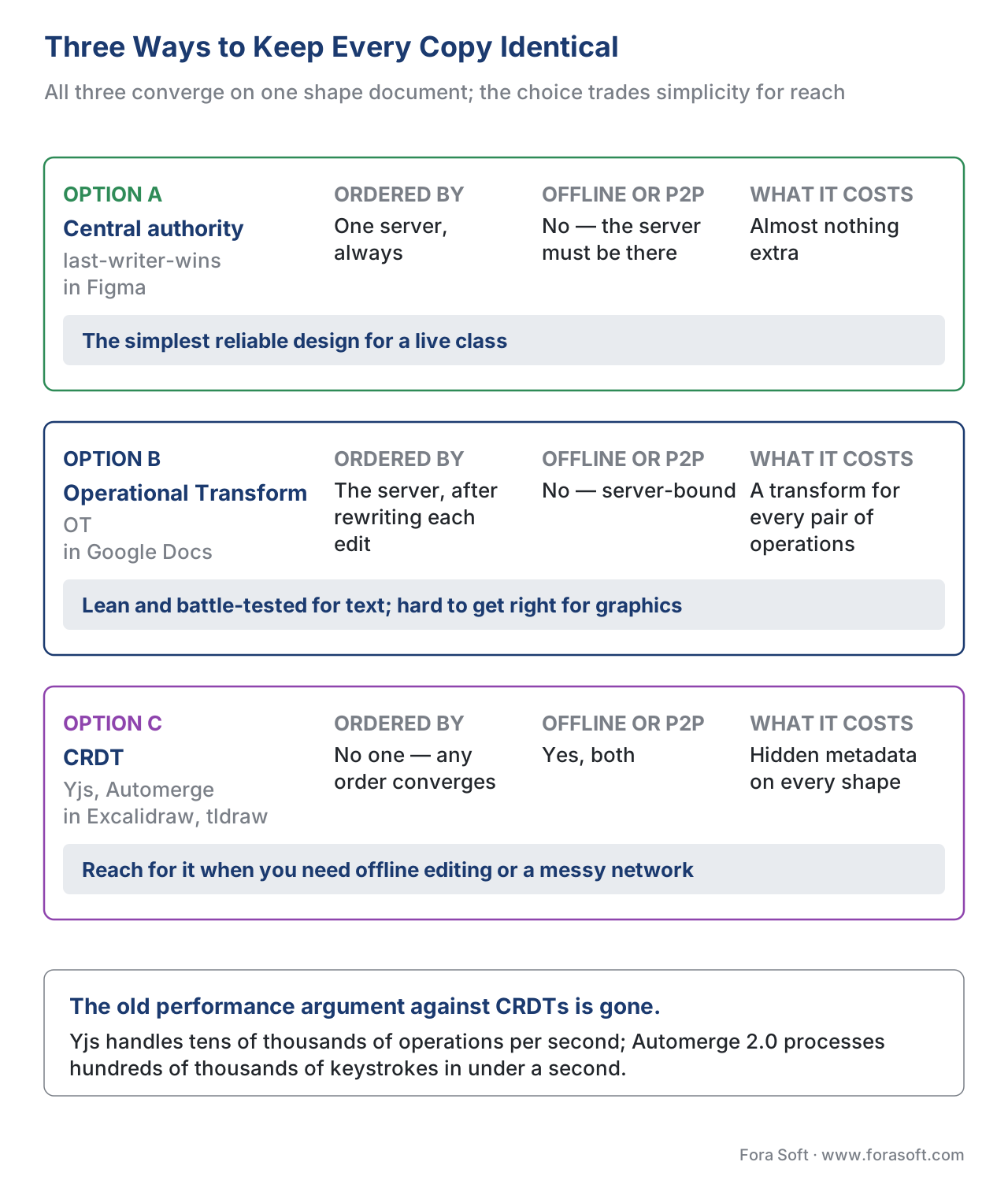 Figure 2. Three sync strategies. A central authority with last-writer-wins is simplest for a live class; OT is lean but server-bound and complex; CRDTs cost metadata but converge automatically and work offline and peer-to-peer.
How the Edits Travel: WebSocket, WebRTC, or Both
A synchronized document needs a fast, reliable pipe to carry edits. Two technologies do the job, and they are not rivals so much as teammates.
A WebSocket is a long-lived two-way connection between each learner's browser and your server — the standard choice for whiteboard sync because it is reliable, ordered, universally supported, and naturally fits the "everything goes through one server" model above. tldraw's sync engine, for instance, runs each board on a small server instance that holds the document in memory, applies each incoming change, and broadcasts it to every connected client over WebSocket, supporting on the order of dozens of simultaneous editors per board (tldraw, Announcing tldraw sync, 2024).
A WebRTC data channel is a direct browser-to-browser pipe that can carry arbitrary data with very low latency, defined in the real-time-communication standards (RFC 8831, WebRTC Data Channels, IETF). It shines for peer-to-peer drawing where every millisecond counts, but it needs a server for the initial handshake and does not scale to a large class on its own. The common production pattern is a hybrid: a WebSocket (or the same signaling channel your class already uses) for setup and the authoritative document, with WebRTC data channels as an optional low-latency path between peers. Because your virtual classroom already runs WebRTC for audio and video — see WebRTC for live learning — the data channel is often already there to reuse.
The honest default for a learning product is a WebSocket to a central server that owns the document. Add a WebRTC data-channel path only when you have measured latency that genuinely hurts the lesson, because the hybrid adds moving parts you must then maintain.
Two Channels: The Drawing and the Cursors
Here is a distinction that separates a smooth board from a janky one: a shared canvas carries two very different kinds of data, and they must travel on two different channels.
The first is the document — the shapes themselves. This must be reliable and durable: a stroke the instructor draws must reach everyone and survive a refresh. It is relatively low-frequency (you draw a few shapes a second at most) and it is persisted — saved to storage so the board can be reloaded.
The second is awareness, also called presence — the live cursors, the "who is selecting what", the coloured name tags floating over the board. This is high-frequency (a moving cursor fires many updates a second), it is ephemeral (nobody needs yesterday's cursor position), and it must never be written into the saved document. Yjs formalizes this split with a dedicated awareness protocol: a map from each client's id to a small blob of JSON — cursor position, selection, user name — that is shared live but deliberately not stored, exactly because it does not need to persist across sessions (Yjs documentation, Awareness & Presence). Excalidraw uses precisely this pattern: shapes live in the synchronized document, while cursor drags ride the ephemeral awareness channel.
Mixing the two is the classic mistake, and it is worth a number. Imagine a class of 25 with live cursors, each moving cursor emitting 20 updates a second, every update fanned out to the other 24 learners. That is 25 × 20 × 24 = 12,000 messages a second. If you route those through the durable document channel — and worse, persist them — you flood the database and lag the drawing. Routed through the ephemeral awareness channel and dropped after delivery, the same 12,000 messages a second cost almost nothing, because they are tiny, never stored, and safe to lose. Same data, two channels, completely different outcome.
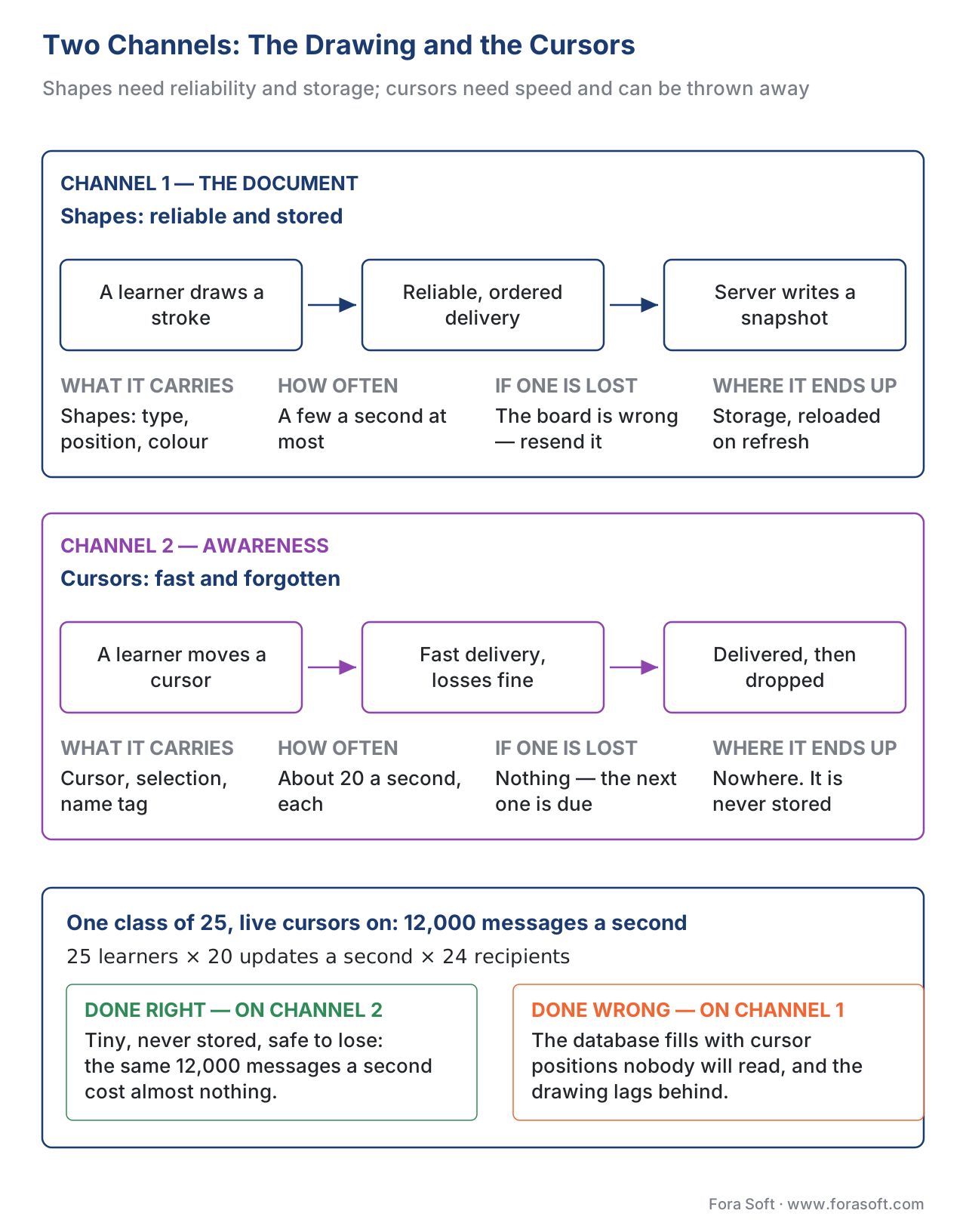 Figure 3. Two channels, two jobs. Shapes travel on a reliable, persisted document channel; cursors and presence travel on a high-frequency ephemeral awareness channel that is never written to storage.
Persistence and Putting the Board in the Class Record
A whiteboard that disappears when the class ends has failed the learner who wanted to review it. Persistence is therefore part of the feature, not an afterthought, and the shape-document model makes it cheap. Because the board is a small data structure, you can save a snapshot — the full list of shapes at a moment — to storage and reload it later exactly as it was; tldraw, for example, exposes a snapshot of its store for precisely this server-side save while Yjs carries the live document for real-time sync (tldraw, Persistence documentation). Save snapshots periodically during class and on every meaningful change, and a learner who refreshes, or rejoins after a dropped connection, lands on the current board rather than a blank one.
Getting the board into the recorded lesson — the class record covered in recording live classes — has two honest options. The simplest is to record the board the same way you record everything else: as part of the composited class video, so the whiteboard appears in the replay as pixels. The richer option exploits the data model: export the final board as a vector file (SVG), a flat image (PNG), or a PDF, and attach it to the lesson as a downloadable artefact, so learners get a crisp, zoomable copy rather than a screenshot of a video. Vector export is a natural fit because the board is already a list of shapes — turning shapes into SVG is almost a direct translation. The most sophisticated systems keep the ordered list of edits and offer a replay, scrubbing the board's construction like a tiny movie, which is powerful for showing how a diagram was built but more engineering than most products need at launch.
If you also want to track whiteboard activity for learning analytics — who contributed, when, how much — model those as learning events rather than bolting analytics onto the draw loop; the standard way to record "Maria added 4 shapes to the board" is an xAPI statement, covered in tracking video with the xAPI Video Profile.
Build vs Buy: What to Start From
You rarely build a whiteboard from an empty canvas anymore. The build-versus-buy question is which layer you adopt, and the table below frames it the way a standards column frames a tooling choice elsewhere in this section — here the equivalent "does it fit a learning platform" column is tracking and export.
| Option | Sync model | Transport | Persistence & export | Tracking fit (xAPI) | Best fit |
|---|---|---|---|---|---|
| tldraw + tldraw sync | CRDT-style store, server-ordered | WebSocket | Snapshot save; SVG/PNG/PDF export | Emit your own xAPI from store events | Fast start, polished UX, dozens of editors |
| Excalidraw + Yjs | CRDT (Yjs) | WebSocket / WebRTC | Yjs doc + snapshot; SVG/PNG export | Wire xAPI from Yjs changes | Open-source, hand-drawn style, self-host |
| Liveblocks / sync SaaS | CRDT (managed) | Managed WebSocket | Managed storage; export via your render | Add via your app layer | Buy the sync, own the canvas |
| Custom Yjs canvas | CRDT (Yjs) | Your choice | You design it | First-class, your schema | Deep classroom integration, full control |
| Commercial classroom SDK | Vendor-defined | Vendor-defined | Vendor-defined | Depends on vendor | Whole virtual class as one bundle |
The honest default: start from an open canvas (tldraw or Excalidraw) plus a sync layer, and build custom only when your classroom needs — per-room boards tied to breakout state, tight xAPI tracking, a specific export into your LMS — outgrow what the open tools give you. A custom build buys control over the data model and the integration; it costs the months it takes to make multiplayer drawing feel instant, which the mature open tools have already spent.
A Common Mistake That Looks Fine in the Demo
The most tempting shortcut is to treat the whiteboard as an image instead of a document — sync a rendered picture of the board, or worse, screen-share the instructor's drawing app. It demos beautifully with one presenter. Then a learner tries to draw and discovers they can only watch; the board cannot be exported as anything but a flat image; a refresh loses everything because there was never a document to reload; and zooming turns the writing into mush. The fix is the principle from the top of this article: synchronize the shapes, not the picture. If the board is a document, it is collaborative, savable, exportable, and sharp by construction.
A second, quieter mistake is flooding the durable channel with cursor traffic, which we costed above: route presence through an ephemeral awareness channel and never persist it. A third is forgetting persistence entirely until a learner refreshes mid-class and loses ten minutes of group work — design the snapshot save on day one, not after the first support ticket.
Accessibility: Choose the Rendering Technology Deliberately
A whiteboard is visual, which makes accessibility a real design decision, not a coat of paint. The single most consequential choice is how you render. The HTML <canvas> element draws pixels with no structure a screen reader can read — its content is not in the page's document tree and carries no meaning for assistive technology unless you add a text alternative by hand. An SVG surface, by contrast, renders shapes as real elements in the document tree with built-in semantics, so it is the better choice for interactive content that must be accessible (W3C, HTML and SVG accessibility guidance). Whichever you choose, the Web Content Accessibility Guidelines 2.1 Level AA apply: every meaningful visual needs a text alternative (Success Criterion 1.1.1, Non-text Content), every drawing tool must be operable from the keyboard, not the mouse alone (SC 2.1.1, Keyboard), and text and lines on the board must meet contrast minimums (SC 1.4.3, Contrast) — all from WCAG 2.1 (W3C Recommendation, 5 June 2018). For public-sector and many enterprise buyers these are procurement requirements, not nice-to-haves, so decide the rendering technology with accessibility in mind before the board is built around it.
Where Fora Soft Fits In
A shared canvas is a distributed-systems problem wearing a drawing-app costume, and that seam — real-time state that must stay identical across many clients — is exactly the work we do. Fora Soft has built real-time video, conferencing, and virtual-classroom software since 2005, so the same team understands the media layer, the signaling channel, and the synchronized document a whiteboard needs, and how to make them share one connection. We help when a learning product needs a board that is instant, recoverable, exportable into the class record, and wired for tracking — and we are candid about when an open canvas plus a sync layer already covers your needs and a custom build is not warranted. The verticals we work in — e-learning, video conferencing, telemedicine, and streaming — all rely on the same real-time-state spine.
The handbook
Fora Soft Video Engineering Handbook
We wrote a seven-volume handbook that takes the whole video stack apart across 9,000+ pages — encoding, delivery, audio, and AI — so an engineer who works through it can design and build the kind of system this article describes. Volume 3 covers WebRTC and real time, players, and QoE monitoring: the same connection your board's edits ride on, and the same instrumentation that tells you when they arrive late. Volume 2 covers transport — TCP against UDP, congestion control, QUIC, and NAT — which decides whether a stroke lands in 80 ms or 800, and volume 1 covers encoding, which is why the screen-share alternative costs megabits where a shape document costs kilobytes. Written by Nikolay Sapunov, CEO at Fora Soft.
Building a shared canvas into your live classroom?
Tell us what your class does on the board and we will tell you which sync model, transport, and persistence plan it needs — and where an open canvas plus a sync layer already covers you. 250+ video products shipped since 2005.
See our case studies
Case study
BrainCert
A WebRTC and HTML5 virtual classroom LMS where the interactive whiteboard sits beside breakout rooms, proctored exams, and DRM: 500M+ real-time classroom minutes for 100K+ customers, which is what it takes to treat a board as a product surface rather than a demo.
Case study
Scholarly
Live classes for up to 2,000 students at once, with the whiteboard, quizzes, and LMS in one system on LiveKit and a Kubernetes microservice stack — the scale at which cursor traffic has to leave the durable channel.
Case study
Tabsera
A K-12 platform where the same interactive whiteboard has to behave identically in English, French, Arabic, and Turkish, on web and iOS: one shape document, many clients redrawing it.
What to read next
Live learning
The Virtual Classroom: What It Is and How It Differs From a Meeting
The room the board lives in, and why a class is not a meeting.
Transport
WebRTC for Live Learning, and Its Classroom Gotchas
The connection your edits can ride on, and where it bites in a classroom.
Recording
Recording Live Classes and Post-Processing for the Catalog
How the finished board gets into the class record learners review.
Accessibility
WCAG 2.1 AA for Educational Video
The criteria your rendering choice has to satisfy, criterion by criterion.
References
- WebRTC 1.0: Real-Time Communication Between Browsers — W3C Recommendation. The browser real-time model whose data channel can carry whiteboard edits between peers. Tier 1. https://www.w3.org/TR/webrtc/
- RFC 8831 — WebRTC Data Channels — IETF. The reliable/unreliable data channel used to carry collaborative drawing data alongside media. Tier 1. https://www.rfc-editor.org/rfc/rfc8831
- WCAG 2.1 — W3C Recommendation, 5 June 2018. Success Criteria 1.1.1 (Non-text Content), 2.1.1 (Keyboard), 1.4.3 (Contrast) that a whiteboard must satisfy. Tier 1. https://www.w3.org/TR/WCAG21/
- Scalable Vector Graphics (SVG) 1.1 / SVG 2 — W3C. The vector format that makes a shape-document board exportable and accessible. Tier 1. https://www.w3.org/TR/SVG2/
- How Figma's multiplayer technology works — Figma, 2019. First-party account of property-level last-writer-wins with a central server ordering events. Tier 3. https://www.figma.com/blog/how-figmas-multiplayer-technology-works/
- Yjs Documentation — Awareness & Presence — Yjs. First-party account of the ephemeral awareness protocol for cursors and presence, separate from the persisted document. Tier 4. https://docs.yjs.dev/getting-started/adding-awareness
- Announcing tldraw sync; Persistence — tldraw, 2024. First-party account of server-ordered WebSocket sync, in-memory document, snapshot persistence, and export. Tier 4. https://tldraw.substack.com/p/announcing-tldraw-sync
- Real-Time Collaboration: OT vs CRDT — TinyMCE / Tiny Technologies engineering blog. Practitioner comparison of Operational Transformation and CRDTs for collaborative editing. Tier 4. https://www.tiny.cloud/blog/real-time-collaboration-ot-vs-crdt/
- Real Differences between OT and CRDT under a General Transformation Framework — Proceedings of the ACM on Human-Computer Interaction, 2020. Peer-reviewed analysis of OT and CRDT convergence. Tier 5. https://dl.acm.org/doi/10.1145/3375186
- Using a digital whiteboard for student engagement in distance education — Computers & Electrical Engineering (ScienceDirect / PMC), 2021. Evidence that a shared board raises engagement and social presence in remote classes. Tier 5. https://pmc.ncbi.nlm.nih.gov/articles/PMC8494483/
