


Why This Matters
If you are building or buying a virtual classroom, screen sharing is the feature instructors use in almost every session, and the one most teams ship as a checkbox without realising it carries a higher bar than a business meeting. In a sales call a slightly soft screen is forgivable; in a class, unreadable code or a slide a learner cannot parse is a failed lesson. The difference between a teaching-grade share and a generic one is not a bigger budget — it is a handful of deliberate choices about tracks, encoder hints, and layout that most off-the-shelf integrations leave on their defaults. This article gives you the vocabulary and the architecture so you can brief engineers precisely, judge a vendor's screen share honestly against a teaching standard, and decide where an off-the-shelf platform is enough and where a custom build pays off.
What Screen Sharing Actually Is in the Browser
Start with the plain mechanism. Modern virtual classrooms run in the browser on the real-time communication standard called WebRTC, covered in WebRTC for live learning. To share a screen, the instructor's browser calls a single standard function — getDisplayMedia() — defined in the W3C Screen Capture specification (W3C Working Draft, Screen Capture). The browser then shows the operating system's own picker, the instructor chooses what to share, and the function hands back a media stream: the same kind of object a webcam produces, except the pixels come from a screen instead of a camera.
That last sentence hides the idea that organises everything else. A screen share is, technically, just another video track — a stream of frames the system encodes and sends like any camera feed. It is the mirror image of the shared whiteboard covered in the interactive whiteboard and shared canvas: a whiteboard syncs a tiny description of shapes that each browser redraws, while a screen share sends the pixels themselves, one-way, for the class to watch. Pixels are heavier and they blur when squeezed, which is exactly why the rest of this article is about protecting their sharpness.
The picker offers three kinds of source, named in the specification as the display surface: an entire monitor, a single application window, or a single browser tab (W3C, Screen Capture, the DisplaySurfaceType enum). Which one the instructor picks is both a teaching choice and a privacy choice, and we return to it below.
The First Rule: Content Is a Second Track, Not a Replacement
Here is the mistake that quietly defines a cheap screen share. When an instructor presses "share", the lazy implementation takes the screen stream and replaces the camera track with it — so the class now sees the slides and the teacher disappears. It demos fine. Then a learner realises they have lost the human in the room: the gestures, the eye contact, the "watch my face when this matters" that carries a live class.
The teaching-grade pattern is to treat the content as a separate, additional track. The instructor's camera keeps flowing on its own track; the shared screen flows on a second one; and both arrive at every learner at the same time. The media server that fans these out to the class — the Selective Forwarding Unit, or SFU, explained in scaling the live class — simply forwards two tracks instead of one. Nothing about the architecture forbids this; it is purely a matter of building it on purpose. Sending content as its own track is also what makes everything later possible: you can tune the two tracks differently, lay them out independently, record them separately, and spotlight one without losing the other.
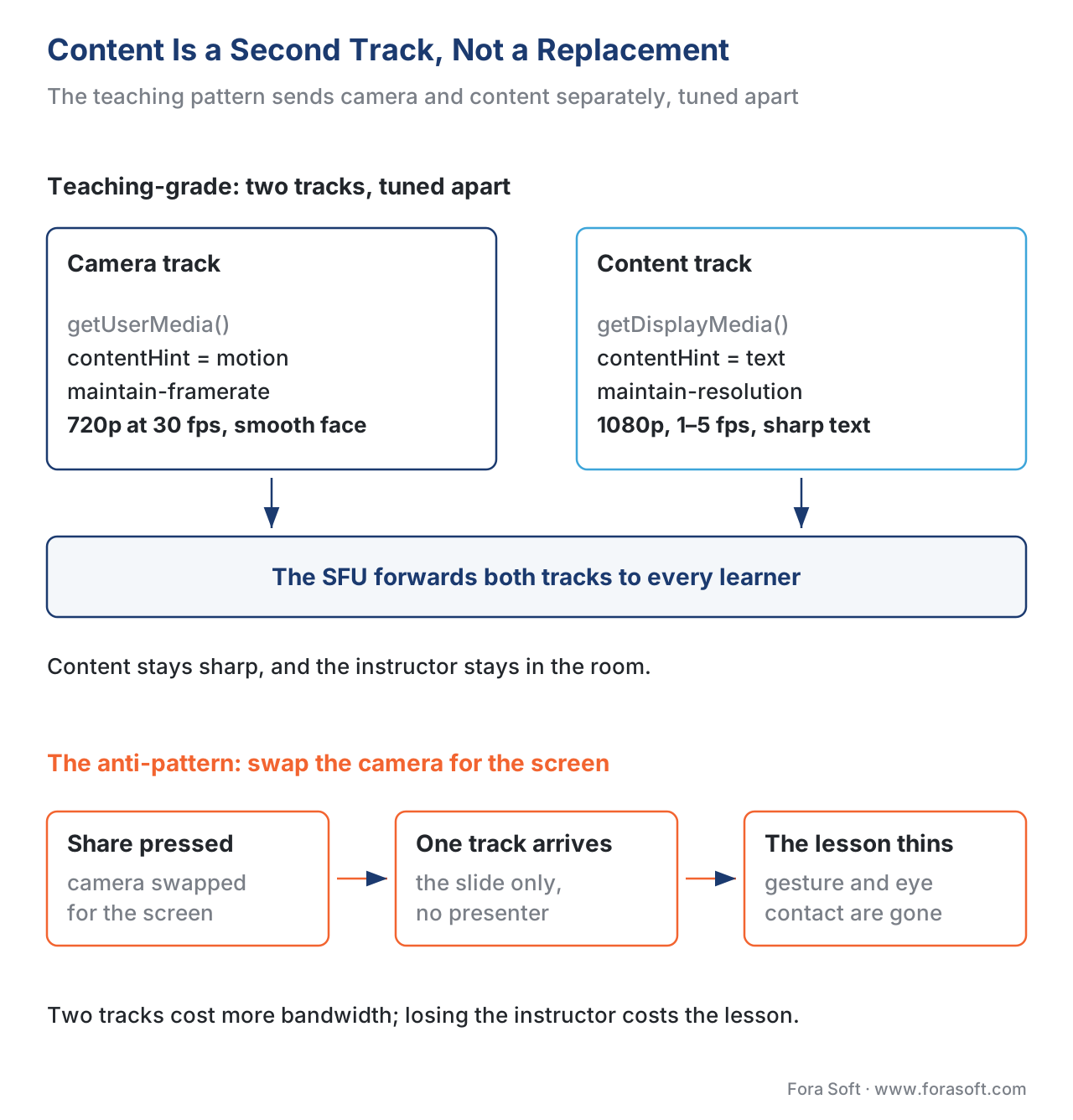 Figure 1. Two tracks, two jobs. The camera track stays smooth for the talking head; the content track stays sharp for slides and code. The anti-pattern — swapping the camera for the screen — makes the instructor vanish.
The Core Trade-off: Sharpness Versus Smoothness
Now the decision that separates a teaching-grade share from a generic one. Every video encoder, under limited bandwidth, faces the same fork: it can keep the resolution high and drop the frame rate (fewer, sharper pictures per second), or keep the frame rate high and drop the resolution (more, blurrier pictures per second). You cannot have both when the network is tight.
For a talking head, smoothness wins: a face at 30 frames a second feels alive, and nobody is reading the pixels. For a slide full of text or a screen of code, sharpness wins overwhelmingly: a static slide updated twice a second is perfectly fine, but if the text turns to mush the lesson stops. As one engineering team that rebuilt screen share put it, on a screen-share app users prefer legibility over animation, while on a video call they prefer a smooth frame rate over a higher resolution (Multi, Making Illegible, Slow WebRTC Screenshare Legible and Fast, engineering blog). The two tracks want opposite settings — which is the deeper reason they must be two tracks.
The browser gives you two standard controls to express this, and using them is the whole game.
The first is the content hint. Every media track exposes a contentHint property defined by W3C, and for a video track it takes the values motion, detail, or text (W3C, MediaStreamTrack Content Hints). Setting it tells the encoder what kind of content it is carrying so it can choose the right strategy: motion for the camera (webcam, video), and detail or text for the shared screen, where, in the spec's own words, "video details are extra important" and "significant sharp edges and areas of consistent color" occur frequently — an exact description of slides and code. One line of code, set on the content track:
// contentTrack came from getDisplayMedia(); cameraTrack from getUserMedia()
contentTrack.contentHint = "text";   // sharp edges, areas of flat color: slides & code
cameraTrack.contentHint  = "motion"; // smooth motion: the talking head
The second control is the degradation preference. The WebRTC sender that transmits a track exposes a degradationPreference setting with three values — maintain-framerate, maintain-resolution, and balanced (WebRTC 1.0, W3C Recommendation; the RTCRtpSender parameters). It tells the encoder which way to fall when bandwidth runs short. For the content track you set maintain-resolution: when the network tightens, keep the slide sharp and just refresh it less often. For the camera you set maintain-framerate: keep the face moving and shed resolution. This is not a minor tweak — browsers have historically downgraded screen-share resolution aggressively by default, turning shared text to soup, which is precisely the behaviour maintain-resolution exists to override (Mozilla Bugzilla, WebRTC downgrades screen sharing resolution).
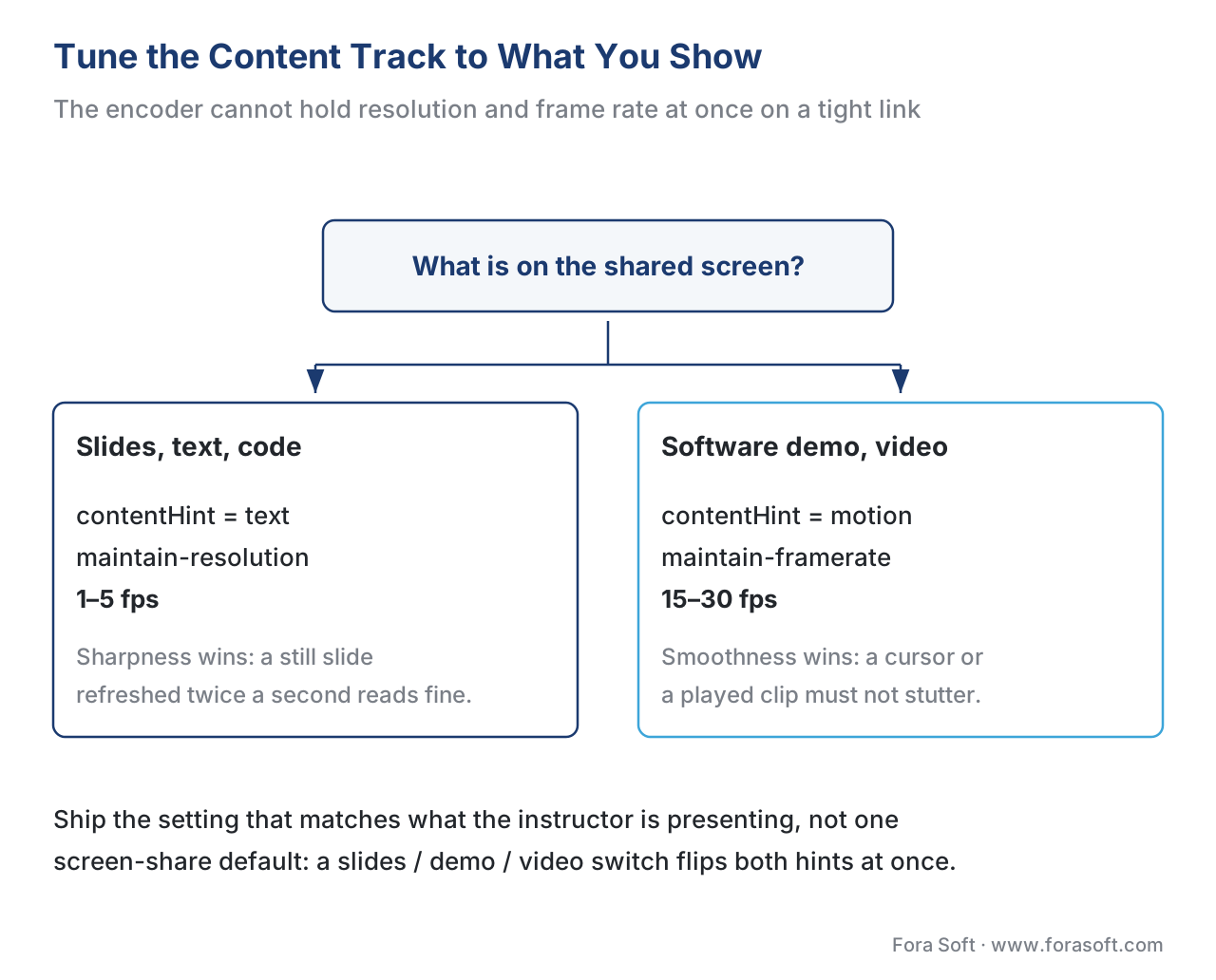 Figure 2. Tune the content track to what you are showing. Static slides and code want sharpness; a software demo or a played video wants smoothness. The choice sets the content hint, the degradation preference, and the frame-rate target.
Frame Rate and Resolution: Pick Numbers on Purpose
The two hints decide which way the encoder leans; you still choose the actual targets. Frame rate is requested as a constraint when you capture the screen:
const content = await navigator.mediaDevices.getDisplayMedia({
  video: { frameRate: { ideal: 5, max: 30 } }   // see note below
});
Use this rule of thumb. Static slides and documents change a few times a minute, so a low frame rate — say 1 to 5 frames a second — is plenty and frees bandwidth for resolution. A live software demo — clicking through an app, scrolling code, moving a cursor — needs a higher rate, around 15 frames a second, to feel responsive. Playing a video inside the share, or a high-motion animation, wants the full 30 frames a second, and at that point you have effectively turned the content track into a motion track and should hint it as motion. The practical lesson: do not ship one frame-rate setting for "screen share". Ship a setting tied to what the instructor is presenting, or expose a simple "slides / demo / video" toggle and switch the hints behind it.
Resolution should match the source, not a downscaled guess. Capture a 1080p screen at 1080p; do not let the pipeline quietly shrink it to 720p and then ask the learner to read 10-point code. The whole point of maintain-resolution is to protect this.
The Bandwidth Math of Running Two Tracks
Two tracks cost more than one, and a product team should know the number before a 200-seat lecture surprises them. Walk the arithmetic out loud, per learner receiving the streams.
A talking-head camera at 720p and 30 frames a second, tuned for motion, runs at roughly 1.2 Mbps. A content track of 1080p slides at a low frame rate, tuned for detail, is bursty — near zero while a slide sits still, spiking when it changes — but budget it at roughly 1.0 Mbps as a steady average. Add them:
camera (720p30, motion)   ≈ 1.2 Mbps
content (1080p, detail)   ≈ 1.0 Mbps
-------------------------------------
per learner downstream    ≈ 2.2 Mbps
Now scale it. The instructor uploads each track once; the SFU fans them out, so for a class of 50 the server's downstream load is about 50 × 2.2 = 110 Mbps, while each learner only pulls 2.2 Mbps. That is comfortably within a normal home connection, which is the good news. The bad news arrives on weak networks: a learner on a 3 Mbps mobile link has almost no headroom, and this is exactly where maintain-resolution earns its place — the slide stays readable and the frame rate quietly drops, instead of the text dissolving. For the deeper topology and scaling story, see scaling the live class; for codec choices that shrink these numbers, the Video Streaming section is the owner.
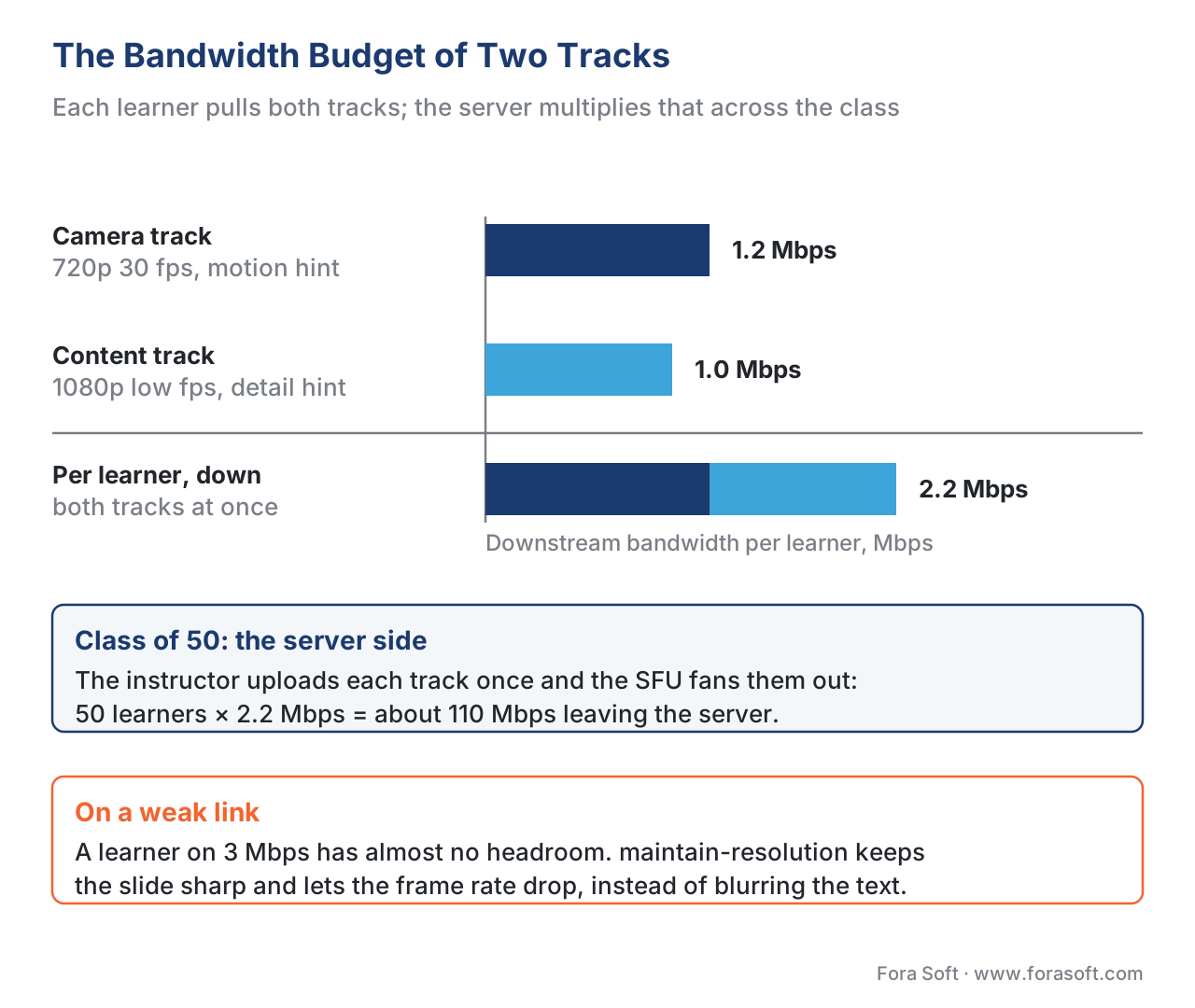 Figure 3. The two-track bandwidth budget. Each learner pulls the camera and content tracks; the server multiplies that across the class. On a weak link, maintain-resolution keeps slides sharp and drops the frame rate instead.
Spotlighting and Layout: Putting Content on the Main Stage
Sending two tracks is only useful if the class sees them arranged for learning. Spotlighting — sometimes called pinning — is the act of promoting the shared content to the main stage while the instructor's camera shrinks to a corner thumbnail, a picture-in-picture. This is a layout decision made in the client, not a media decision: the SFU forwards both tracks regardless, and the application chooses how big to draw each one. Because content arrives on its own track, the layout engine can make the slide large and sharp and keep the instructor present and small at the same time — the arrangement education research supports.
That research is worth a sentence, because it justifies the picture-in-picture. The cognitive theory of multimedia learning finds that learners understand more when related words and visuals sit near each other and when the instructor signals what matters, and less when their attention is split across disconnected sources (Mayer, Cognitive Theory of Multimedia Learning; the spatial-contiguity and signaling principles). A large, legible slide with the instructor's face visible beside it — gesturing, pointing, emphasising — keeps narration and visual together. A full-screen slide with the teacher gone, or a giant camera with the slide as a postage stamp, both split attention. The product lesson, covered more fully in the pedagogy of video, is that the default classroom layout should keep content dominant and the instructor present, not force an either-or.
Audio: Sharing the Sound of What You Present
A demo is often not silent. An instructor playing a training video inside the share needs the video's sound to reach the class, not just their microphone. The screen-capture standard allows capturing audio along with the display — tab or window audio in particular — by requesting it in the same call (W3C, Screen Capture; audio capture of the display surface). Two practical wrinkles matter.
First, capturing the shared tab's audio is separate from the instructor's microphone, so the class hears both the narration and the played media — exactly what you want, as long as your mixing keeps them balanced. Second, there is a feedback trap: if the instructor's own speakers play the shared audio while their microphone is open, you get echo. The browser exposes a suppressLocalAudioPlayback setting to stop the captured audio from also coming out of the local speakers, which removes one common echo path (MDN, suppressLocalAudioPlayback). The deeper audio-engineering work — echo cancellation, noise suppression, keeping everything in sync — belongs to the audio pipeline, owned by the Audio for Video section; here the point is simply to plan for shared audio rather than discover at launch that learners cannot hear the demo.
Privacy: Share a Tab or a Window, Not the Whole Monitor
The display-surface choice from earlier is also a safety decision. Sharing an entire monitor exposes everything that pops up on it — a notification with a private message, a stray email preview, a wrong browser tab. The teaching-grade default is to encourage instructors to share a single window or browser tab, so only the intended content leaves the room, and to make that the path of least resistance in the interface. The screen-capture specification is explicit that this feature "has significant security implications" because an application could reach confidential information from other origins (W3C, Screen Capture, Introduction). Treat the surface picker as a privacy control, default to the narrowest useful surface, and remind instructors what is visible before they go live.
Build vs Buy: Where the Control Lives
You will not write getDisplayMedia() and an SFU from scratch for most products. The real build-versus-buy question is how much of the teaching-grade tuning the platform exposes — and many do not expose it at all. The table frames the options the way a standards column frames a tooling choice elsewhere in this section; here the equivalent "does it fit a learning platform" columns are content-track control and tracking fit.
| Option | Two-track content | Content tuning (hint, degradation) | Spotlight layout | Tracking fit (xAPI) | Best fit |
|---|---|---|---|---|---|
| Raw WebRTC + your SFU | You build it | Full control | You build it | First-class, your schema | Deep classroom control, full ownership |
| Open SFU (mediasoup, LiveKit, Janus) | Supported | You set hints per track | You build it | Wire your own xAPI | Custom build on a solid media core |
| CPaaS (Daily, Agora, Vonage) | Built in | Often defaulted; some expose hints | Built-in presets | Via your app layer | Fast launch, less low-level control |
| Embed a meeting SDK (Zoom, Meet) | Built in | Vendor-controlled | Vendor presets | Limited / vendor events | Bolt a meeting onto a course quickly |
| Generic conferencing, reused as-is | Camera swap common | None exposed | Meeting layout | None | Cheapest, not teaching-grade |
The honest default: a learning product that takes screen share seriously starts from an open SFU or a CPaaS that lets you set the content hint and degradation preference per track and lay out a content-dominant stage. Reach for a fully custom media build when you need tight control over the two-track encoding, classroom-specific layouts, per-room behaviour tied to breakout state, or first-class tracking — and accept the generic conferencing reuse only when "good enough" genuinely is.
Tracking the Presentation for Analytics
If you want to know who watched the demo and for how long — useful for completion and engagement analytics — model presentation activity as learning events rather than scraping the media layer. The standard way to record "the instructor started sharing slides" or "Maria viewed the demo for 6 minutes" is an xAPI statement, the approach explained in tracking video with the xAPI Video Profile. Capturing share-start, share-stop, and per-learner view duration as statements keeps the analytics in the same vocabulary as the rest of your learning data, instead of a one-off log nobody can join to a learner record.
A Common Mistake That Looks Fine in the Demo
The tempting shortcut is to leave everything on defaults: one screen-share button, the camera swapped out, no content hint, no degradation preference, the whole monitor shared. It works beautifully in a quiet office on a fast connection with one slide. Then the real class arrives. A learner on a hotel network reads dissolving code because the browser downgraded resolution to protect a frame rate nobody needed. A different instructor's notification flashes across the shared monitor. A third teacher plays a training video and the class hears silence because tab audio was never requested. And in every session, the moment anyone presents, they vanish from the room. None of these are bugs in the usual sense — they are defaults left unexamined. The fix is the spine of this article: content on its own track, hinted for detail, set to maintain resolution, shared from a window not a monitor, with audio planned and the instructor kept on screen.
Free download: Teaching Screen-Share — Setup ChecklistA one-page setup aid covering the capture surface and privacy, the two-track setup, content tuning with the content hint and degradation preference, audio, and layout and accessibility — to pressure-test a teaching-grade screen share before you ship.Where Fora Soft Fits In
Teaching-grade screen share is a media-engineering problem hiding behind a one-click button, and the seam — multiple tracks tuned differently, fanned out by an SFU, laid out for learning — is exactly the work we do. Fora Soft has built real-time video, conferencing, and virtual-classroom software since 2005, so the same team understands the capture API, the encoder hints, the SFU that forwards the tracks, and the layout that puts content on the main stage without losing the instructor. We help when a learning product needs a share that stays legible on weak networks, presents content and presenter together, carries the demo's audio, and is wired for tracking — and we are candid about when a CPaaS with the right knobs already covers your needs and a custom build is not warranted. The verticals we work in — e-learning, video conferencing, telemedicine, and streaming — all lean on the same real-time media spine.
The handbook
Fora Soft Video Engineering Handbook
We wrote a seven-volume handbook that works through the whole video stack — encoding, delivery, audio and AI — across 9,000+ pages, and a teaching screen share stands on three of those layers at once. Volume 3 is the one to open next: WebRTC, players and the real-time fan-out that puts two tracks in front of a class. Volume 1 explains the encoder trade-off behind the content hint and maintain-resolution, and Volume 4 covers the sound of what you present — capture, mixing and keeping echo out of the room. Written by Nikolay Sapunov, CEO at Fora Soft.
Is your classroom’s screen share teaching-grade?
Tell us what your instructors present and where your learners connect from, and we will tell you whether your current platform can carry content as its own track, tuned for detail and laid out beside the presenter — or whether that needs a media layer of your own. 250+ video products shipped since 2005.
See our case studies
Case study
BrainCert
The first WebRTC and HTML5 virtual-classroom LMS, built from the media architecture up: screen sharing, whiteboard and breakout rooms in one room, 500M+ real-time classroom minutes across 10 datacenters at 99.995% uptime — the two-track classroom this article describes, in production.
Case study
Scholarly
Sydney’s leading selective-test prep platform: live classes that hold up to 2,000 students at once for 15,000+ active users, on LiveKit and WebRTC with screen share and whiteboard in the same system — the SFU fan-out whose bandwidth this article budgets.
Case study
ProVideoMeeting
A WebRTC conferencing product on our own media stack — Kurento and FreeSWITCH — with screen share, branded rooms and SIP dial-in alongside browser participants: what owning the media layer buys you when vendor presets do not expose the knobs.
What to read next
Foundations
The Virtual Classroom
What a classroom needs that a meeting does not — the frame this article sits in.
Transport
WebRTC for Live Learning
The standard under getDisplayMedia, and the gotchas a classroom hits that a call does not.
Scaling
Scaling the Live Class
SFU, simulcast, and what two tracks per learner cost at 200 seats.
Live tools
The Interactive Whiteboard
The mirror image of a screen share: sync the shapes, not the pixels.
References
- Screen Capture — W3C Working Draft. Defines
getDisplayMedia(), themonitor/window/browserdisplay surfaces, display-audio capture, and the feature's security implications. Tier 1. https://www.w3.org/TR/screen-capture/ - MediaStreamTrack Content Hints — W3C. Defines the
contentHintproperty and themotion/detail/textvalues that steer the encoder for camera vs slides and code. Tier 1. https://www.w3.org/TR/mst-content-hint/ - WebRTC 1.0: Real-Time Communication Between Browsers — W3C Recommendation. The sender's
degradationPreference(maintain-framerate/maintain-resolution/balanced) that governs how a track sheds quality. Tier 1. https://www.w3.org/TR/webrtc/ - Media Capture and Streams — W3C. The
MediaStream/MediaStreamTrackmodel andgetUserMedia()that a screen share is built on. Tier 1. https://www.w3.org/TR/mediacapture-streams/ - WCAG 2.1 — W3C Recommendation, 5 June 2018. SC 1.4.3 (Contrast), 1.4.5 (Images of Text), and caption criteria that presented content and shared video must meet. Tier 1. https://www.w3.org/TR/WCAG21/
- MediaTrackSettings: suppressLocalAudioPlayback property — MDN Web Docs. The setting that stops captured tab audio from echoing through local speakers. Tier 6. https://developer.mozilla.org/en-US/docs/Web/API/MediaTrackSettings/suppressLocalAudioPlayback
- Using the Screen Capture API — MDN Web Docs. Practical reference for
getDisplayMedia()constraints, frame rate, and audio. Tier 6. https://developer.mozilla.org/en-US/docs/Web/API/Screen_Capture_API/Using_Screen_Capture - Making Illegible, Slow WebRTC Screenshare Legible and Fast — Multi engineering blog. First-party account of tuning screen share for legibility over frame rate. Tier 4. https://multi.app/blog/making-illegible-slow-webrtc-screenshare-legible-and-fast
- WebRTC downgrades screen sharing resolution (Bug 1730748) — Mozilla Bugzilla. Evidence that browsers downgrade screen-share resolution by default, motivating
maintain-resolution. Tier 4. https://bugzilla.mozilla.org/show_bug.cgi?id=1730748 - Cognitive Theory of Multimedia Learning / Reducing Extraneous Processing — R. E. Mayer and colleagues. The spatial-contiguity, signaling, and split-attention principles behind content-and-presenter layout. Tier 5. https://link.springer.com/article/10.1007/s10648-018-9435-9
